

Integrate Express Checkout - React Native
This guide will show you how to use Klarna Mobile SDK to implement Express Checkout in your React Native mobile application, providing a fast and simple shopping experience for your users.
16 min read
Please review this brief guide first to ensure you are prepared to offer this integration to your customers.
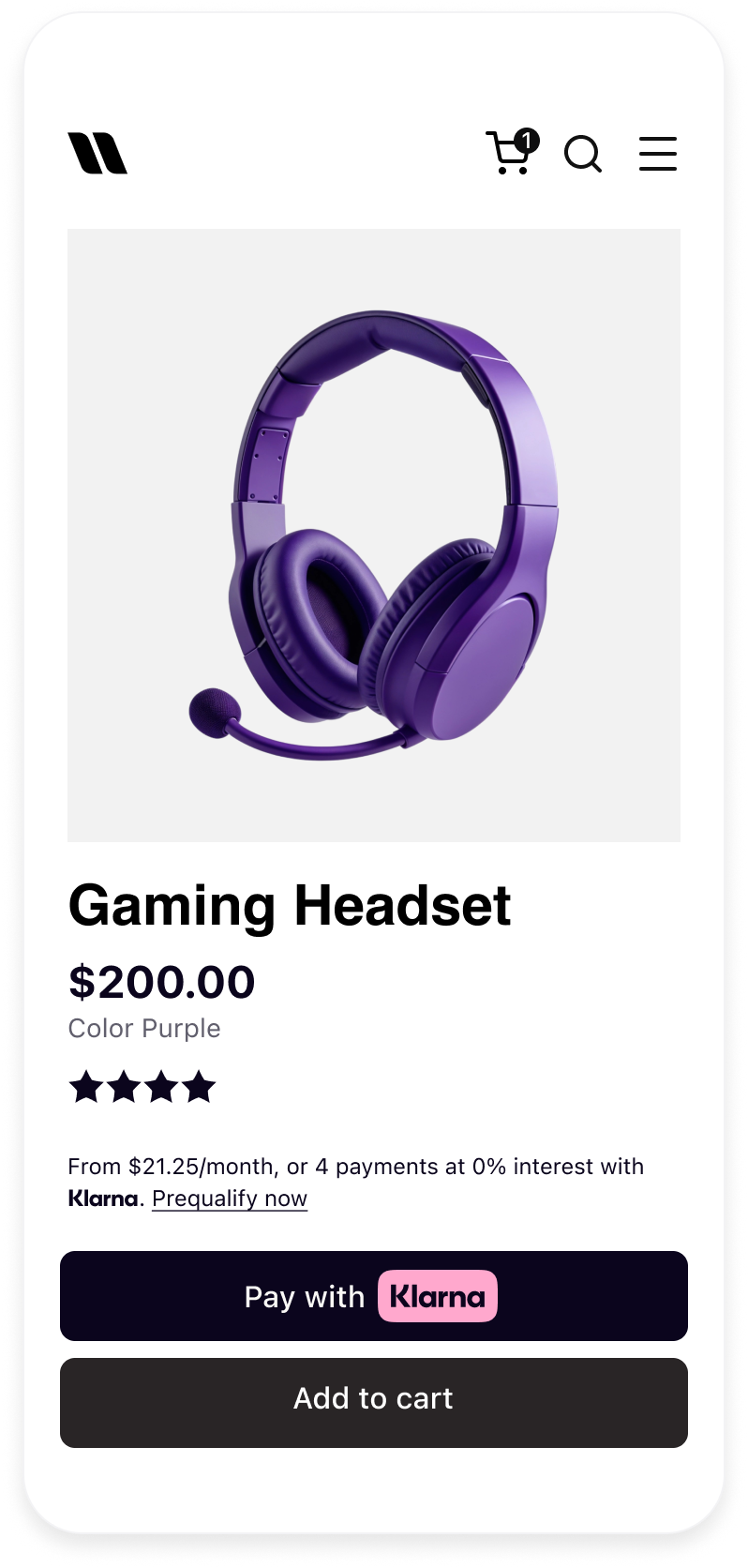
Klarna Express Checkout Button
Prerequisites
Before you integrate Express Checkout, confirm the following:
- 1.You have a payment solution with Klarna (Klarna Payments or Klarna Checkout).
- 2.You have access to the Klarna Merchant Portal.
- 3.Inside the Klarna Portal:
- 3.1.You have allowlisted the domain of the page/app on which Express Checkout will be integrated. Without this, customers will see a "We couldn't load the next screen" error.
- 3.2.You have generated a client identifier (for client-side sessions) or can generate client tokens from your backend (for server-side sessions).
- 4.Your project meets the minimum platform requirements:
- 4.1.React Native ≥ 0.57
- 4.2.iOS 10 or later
- 4.3.Android 4.4 (API 19) or later
- 4.4.Node.js ≥ 16
Domain Allowlisting
- 1.Log into the Klarna Merchant Portal (playground for testing, production for live).
- 2.Navigate to Payment settings → Client Identifiers.
- 3.In Allowed Origins for your integrations, click Manage origins and register your domain URL.
Generate a Client Identifier
- 1.In the Merchant Portal, go to Payment settings → Client Identifiers.
- 2.Click Generate client identifier. If you already have one, you can reuse it.
Integration Steps
- 1.Present the button: (Mobile App) Create an instance of KlarnaExpressCheckoutButton with session parameters and present in your native app.
- 2.Handle authorization: (Mobile App) Once the customer clicks the button and authorizes the payment, handle response from the SDK.
- 3.Create an order: (Server-side) Once a session is authorized, create an order with authorization token via your backend.
How it works
For a Mobile SDK integration your Payment Server and Mobile App must work together to offer one-click checkout experience:
sequenceDiagram
participant Consumer
participant Merchant App
participant Mobile SDK
participant Merchant Server
participant Klarna API
Consumer->>Merchant App: Navigate to checkout, shopping cart, product or wishlist page
Merchant App->>Mobile SDK: Create Express Checkout Button with session information
Merchant App->>Merchant App: Display the Express Checkout Button
Consumer->>Mobile SDK: Click the Express Checkout Button
Note over Mobile SDK: Consumer completes to purchase flow.
Mobile SDK-->>Merchant App: Provide authorization token (valid for 60 minutes)
Merchant App->>Merchant Server: Sends the authorization token for creating order
Merchant Server->>Klarna API: Create Order POST (setup/payments/v1/authorizations/{authorizationToken}/order)
Klarna API-->>Merchant Server: Provide order_id and redirect_url
Merchant Server-->>Merchant App: Provide order details
Merchant App->>Consumer: Redirected to order confirmation screen
Prepare
Choose applicable placements
The right placement of the Express button can significantly enhance your user experience, leading to higher conversion rates and increased sales.
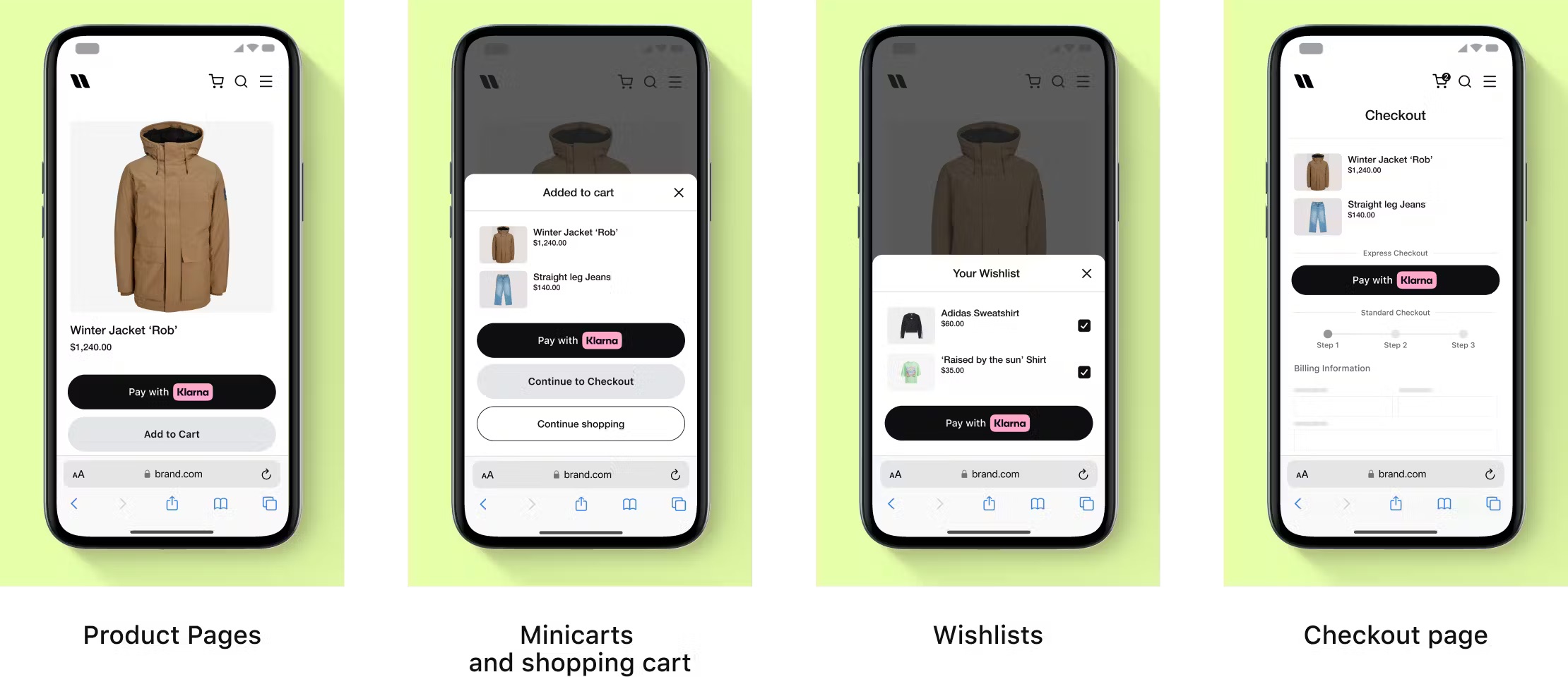
You can place the Express checkout button at multiple stages of the shopping journey.
Button placement
To learn more about placements, check out this section.
Install the SDK
NPM
BASH
1
2
npm install react-native-klarna-inapp-sdk --save
Yarn
BASH
1
2
yarn add react-native-klarna-inapp-sdk
Latest package version
Check the npm package page for the latest release.
Platform Setup
Android
Add the Klarna Maven repository to your app's
android/:GROOVY
1
2
3
4
5
6
7
8
9
10
allprojects {
    repositories {
        // ... existing repositories ...

        maven {
            url 'https://x.klarnacdn.net/mobile-sdk/'
        }
    }
}
Integration requirement
React Native 0.59+: Third-party Gradle repositories may not be automatically recognized. The Maven entry above is required — without it, the Android build will fail to resolve Klarna SDK dependencies.
iOS
Install the CocoaPods dependencies:
cd ios && pod installReturn URL (iOS)
Klarna purchase flows may require authorization in external apps (e.g. bank apps) or hand over to the Klarna app. Set up a custom URL scheme so the customer can return to your app seamlessly.
- 1.In Xcode, go to your target's Info tab and add a URL Type with your custom scheme (e.g.
myApp). - 2.Pass the scheme as
returnUrlincluding:/(e.g./ "myApp:/or/" "myApp:/)./klarna-redirect"
Klarna App Queries (iOS)
To enable seamless handover to the Klarna app, add the Klarna app schemes to
LSApplicationQueriesSchemes in your Info.:XML
1
2
3
4
5
6
<key>LSApplicationQueriesSchemes</key>
<array>
    <string>klarna</string>
    <string>klarnaconsent</string>
</array>
Present the button
Create an instance of the
KlarnaExpressCheckoutButton when your cart page or product detail page is loaded. This ensures that the button is readily available for user interaction. Depending on your integration setup, you can create and initiate the Express Checkout button using either a Client-Side Session or a Server-Side Session:- Client-Side session: Use this method if you prefer to set a partner client ID from the Merchant Portal. This approach is typically used when the session management is handled entirely on the client side. You would need to provide the order details in this approach.
- Server-Side session: Choose this method if you have a client token generated by the backend for the server-side session. This is suitable when you want to manage sensitive session data on the server. You do not need to provide the order details with this approach.
Once the button is created, add it to your screen. This involves adding the button to the appropriate view hierarchy in your application's user interface:
TYPESCRIPT
1
2
3
4
5
6
7
8
9
10
import {
KlarnaExpressCheckoutView,
KlarnaEnvironment,
KlarnaRegion,
KlarnaButtonTheme,
KlarnaButtonShape,
KlarnaButtonStyle,
} from 'react-native-klarna-inapp-sdk';
<KlarnaExpressCheckoutViewSession type discrimination
The component detects the session type from the shape of the
sessionOptions object. If it contains a clientId property, a client-side session is used. If it contains a clientToken property, a server-side session is used.Parameters
KlarnaExpressCheckoutView
| Parameter | Type | Required | Description |
|---|---|---|---|
sessionOptions | object | Yes | Either { clientId: string } for client-side sessions or { clientToken: string } for server-side sessions. See Session options. |
locale | string | Yes | Locale for the button text and purchase flow (e.g. "en-US"). See supported locales. |
environment | KlarnaEnvironment | Yes | KlarnaEnvironment. or KlarnaEnvironment.. |
region | KlarnaRegion | Yes | Geographical region for API requests: KlarnaRegion., KlarnaRegion., or KlarnaRegion.. |
returnUrl | string | Yes | Deep link URL for returning to your app from external apps/browsers (e.g. "myApp:/). Must include :/ after the scheme name. |
theme | KlarnaButtonTheme | No | Button colour theme. Defaults to KlarnaButtonTheme.. |
shape | KlarnaButtonShape | No | Button shape. Defaults to KlarnaButtonShape.. |
buttonStyle | KlarnaButtonStyle | No | Button fill style. Defaults to KlarnaButtonStyle.. |
autoFinalize | boolean | No | Whether the authorization should automatically be finalized. Defaults to true. Set to false if you need a separate finalize step. |
collectShippingAddress | boolean | No | Whether Klarna should collect the customer's shipping address. Defaults to false. |
sessionData | string | No | JSON string with order details to update the session. Required for client-side sessions; optional for server-side sessions. |
onAuthorized | (response) => void | No | Called when the customer authorizes the payment. See Handle authorization. |
onError | (error) => void | No | Called when an error occurs. See Error handling. |
style | ViewStyle | No | Standard React Native view style. Width defaults to 100%; height auto-sizes (default 48dp). |
Session options
ClientSideSession
| Parameter | Type | Description |
|---|---|---|
clientId | string | Partner client ID from the Merchant Portal. |
ServerSideSession
| Parameter | Type | Description |
|---|---|---|
clientToken | string | Client token generated by your backend. |
Handle authorization
When the customer clicks the Express Checkout button and completes the Klarna purchase flow, the
onAuthorized callback fires with an authorization response. Extract the authorizationToken and send it to your backend to create the order.TYPESCRIPT
1
2
3
4
5
6
7
8
9
10
<KlarnaExpressCheckoutView
// ... session and style props ...
onAuthorized={(response) => {
if (response.approved && response.authorizationToken) {
// Authorization successful — send token to your backend
createOrder(response.authorizationToken, response.collectedShippingAddress);
}
if (response.finalizedRequired) {
// Finalization needed (only when autoFinalize is false)Authorization response
| Parameter | Type | Description |
|---|---|---|
approved | boolean | Whether the payment was approved. |
showForm | boolean | Whether the payment is still available for authorization. |
finalizedRequired | boolean | Whether the session requires finalization (only when autoFinalize is false). |
authorizationToken | string | The authorization token to use when creating the order. Valid for 60 minutes. |
clientToken | string | Client token for the session, used for finalization if needed. |
sessionId | string | The Klarna Payments session ID. |
collectedShippingAddress | string | JSON string with the shipping address collected during the session (if collectShippingAddress was true). |
merchantReference1 | string | Merchant reference provided in session creation. |
merchantReference2 | string | Additional merchant reference provided in session creation. |
Integration requirement
60-minute expiry: The
authorizationToken is valid for 60 minutes. Create the order on your backend immediately after receiving the authorization. If the token expires, request a new authorization.Finalize the session
If the session needs to be finalized, you’ll need to perform this last step to get an authorization token from your checkout confirmation screen. This can be done via KlarnaPaymentView, using the
clientToken from KlarnaExpressCheckoutButtonAuthorizationResponse to initialize the view and calling finalize method of that view.Integration requirement
This is only required of
autoFinalize is set to false in session options.Create the Order (server-side)
Once you have the authorization token from the mobile app, create the order on your server using the Klarna Payments API. If you collected the shipping address, ensure it matches in the order creation request.
HTTP
1
2
3
4
5
6
7
8
9
10
POST {apiUrl}/payments/v1/authorizations/{authorizationToken}/order
Content-Type: application/json
Authorization: Basic YOUR_CREDENTIALS

{
  "purchase_country": "US",
  "purchase_currency": "USD",
  "order_amount": 50000,
  "order_tax_amount": 0,
"order_lines": [Success response
When the order is created successfully, you receive:
JSON
1
2
3
4
5
6
7
{
  "order_id": "3eaeb557-5e30-47f8-b840-b8d987f5945d",
  "redirect_url": "https://payments.klarna.com/redirect/...",
  "fraud_status": "ACCEPTED",
  "authorized_payment_method": "invoice"
}
| Parameter | Description |
|---|---|
order_ | Use to capture or refund the order via the Order Management API . . |
redirect_ | URL to redirect the customer for Klarna cookie placement (faster future checkouts). |
fraud_ | ACCEPTED, PENDING, or REJECTED. |
authorized_ | The payment method chosen by the customer. |
Server example
JAVASCRIPT
1
2
3
4
5
6
7
8
9
10
// server.js (Node.js / Express)
app.post('/api/create-order', async (req, res) => {
const { authorizationToken, shippingAddress, cart } = req.body;
const klarnaRes = await fetch(
`https://api.klarna.com/payments/v1/authorizations/${authorizationToken}/order`,
{
method: 'POST',
headers: {
'Content-Type': 'application/json',
Authorization: `Basic ${KLARNA_CREDENTIALS}`, Common order creation errors:
•
NOT_ — Authorization token expired (>60 minutes). Request a new authorization.•
BAD_ — Data modified after authorization (e.g. changed cart, mismatched address).•
REJECTED — Cart updated in a way that triggers re-authorization.Button styling
Customise the Express Checkout button appearance using the
theme, shape, and buttonStyle props.Theme (KlarnaButtonTheme)
| Value | Enum | Description |
|---|---|---|
'dark' | KlarnaButtonTheme. | Dark button on light backgrounds. Default. |
'light' | KlarnaButtonTheme. | Light/white button on dark backgrounds. |
'auto' | KlarnaButtonTheme. | Automatically selects based on the device's light/dark mode. |
Shape (KlarnaButtonShape)
| Value | Enum | Description |
|---|---|---|
'roundedRect' | KlarnaButtonShape. | Rounded rectangle. Default. |
'pill' | KlarnaButtonShape. | Fully rounded pill shape. |
'rectangle' | KlarnaButtonShape. | Square corners. |
Style (KlarnaButtonStyle)
| Value | Enum | Description |
|---|---|---|
'filled' | KlarnaButtonStyle. | Solid background fill. Default. |
'outlined' | KlarnaButtonStyle. | Transparent background with a border. Useful on all background colours. |
Recommended for integration
Sizing: The recommended button height is 48dp (minimum 40dp). The component defaults to 48dp if the native button hasn't reported its intrinsic size yet. Make the button the same width and height as other payment buttons in your checkout layout.
Style Examples

Dark theme (default)

Light theme
<span>KlarnaButtonShape.rounded_rect</span>

<span>KlarnaButtonShape.pill</span>

KlarnaButtonShape.rectangle

Outlined style
Error handling
Provide an
onError callback to handle errors from the Express Checkout button. The callback receives a KlarnaMobileSDKError object:TYPESCRIPT
1
2
3
4
5
6
interface KlarnaMobileSDKError {
  readonly isFatal: boolean;   // If fatal, the button should not be shown further
  readonly message: string;    // Human-readable error description
  readonly name: string;       // Error type identifier
}
Error types
| Error Name | Description | Fatal |
|---|---|---|
InvalidClientID | The client ID is not valid (null or blank). | Yes |
InvalidClientToken | The client token is not valid (null or blank). | Yes |
MissingDelegateReference | Internal delegate reference was lost. | Yes |
AlreadyInProgress | An Express Checkout flow is already in progress. | No |
AuthorizationFailed | The authorization process failed. | No |
ButtonRenderFailed | The button could not be rendered. | Yes |
InvalidAuthorizationResponseParams | Authorization response could not be parsed. | No |
ButtonCreationError | Failed to create the native button instance. | Yes |
Example
TYPESCRIPT
1
2
3
4
5
6
7
8
9
10
<KlarnaExpressCheckoutView
  // ... props ...
  onError={(error) => {
      if (error.isFatal) {
          // Fatal — hide the button, show alternative checkout
          setShowExpressCheckout(false);
          console.error(`[KEC Fatal] ${error.name}: ${error.message}`);
      } else {
          // Non-fatal — log and optionally inform the user
console.warn(`[KEC Warning] ${error.name}: ${error.message}`); Full example
A complete screen showing the Express Checkout button on a product detail page:
JSX
1
2
3
4
5
6
7
8
9
10
import React, { useState } from 'react';
import { View, Text, ScrollView, Alert, StyleSheet } from 'react-native';
import {
  KlarnaExpressCheckoutView,
  KlarnaEnvironment,
  KlarnaRegion,
  KlarnaButtonTheme,
  KlarnaButtonShape,
  KlarnaButtonStyle,
} from 'react-native-klarna-inapp-sdk';Testing & Troubleshooting
Testing checklist
- Your
clientIdis valid and the domain is allowlisted in the Klarna Portal. - The
environmentis set toPlaygroundfor testing. - The
returnUrlis correctly configured and opens your app. - On Android: the Klarna Maven repository is added to
build..gradle - On iOS:
pod installhas been run; URL scheme andLSApplicationQueriesSchemesare configured. - The
onAuthorizedcallback receives a validauthorizationToken. - The
onErrorcallback is wired up and errors are logged. - The button renders correctly on both iOS and Android.
- The button auto-sizes and looks correct at various widths.
- Complete a full purchase flow: button → authorize → create order → confirmation.
- If
collectShippingAddressistrue, verify the address is returned incollectedShippingAddress. - If
autoFinalizeisfalse, verifyfinalizedRequiredistrueand finalization works viaKlarnaPaymentView.
Common issues
| Symptom | Likely cause | Fix |
|---|---|---|
| Button doesn't render | Invalid clientId or clientToken. | Verify credentials. Check onError for InvalidClientID / InvalidClientToken. |
| "We couldn't load the next screen" error | Domain not allowlisted in Klarna Portal. | Add your domain under Payment settings → Client Identifiers → Allowed Origins. |
| Android build fails | Missing Klarna Maven repository. | Add maven { url 'https:/ to build.. |
| Can't return to app after bank auth | returnUrl scheme not registered or missing :/. | Verify URL scheme in Xcode/Android and ensure returnUrl includes :/. |
Order creation fails with NOT_ | Authorization token expired (>60 minutes). | Create the order immediately after authorization. Request a new auth if expired. |
Order creation fails with BAD_ | Cart or address modified after authorization. | Keep cart data consistent between authorization and order creation. |
AlreadyInProgress error | User tapped the button while a flow is already running. | Non-fatal. The SDK prevents concurrent flows. No action needed. |
What's next
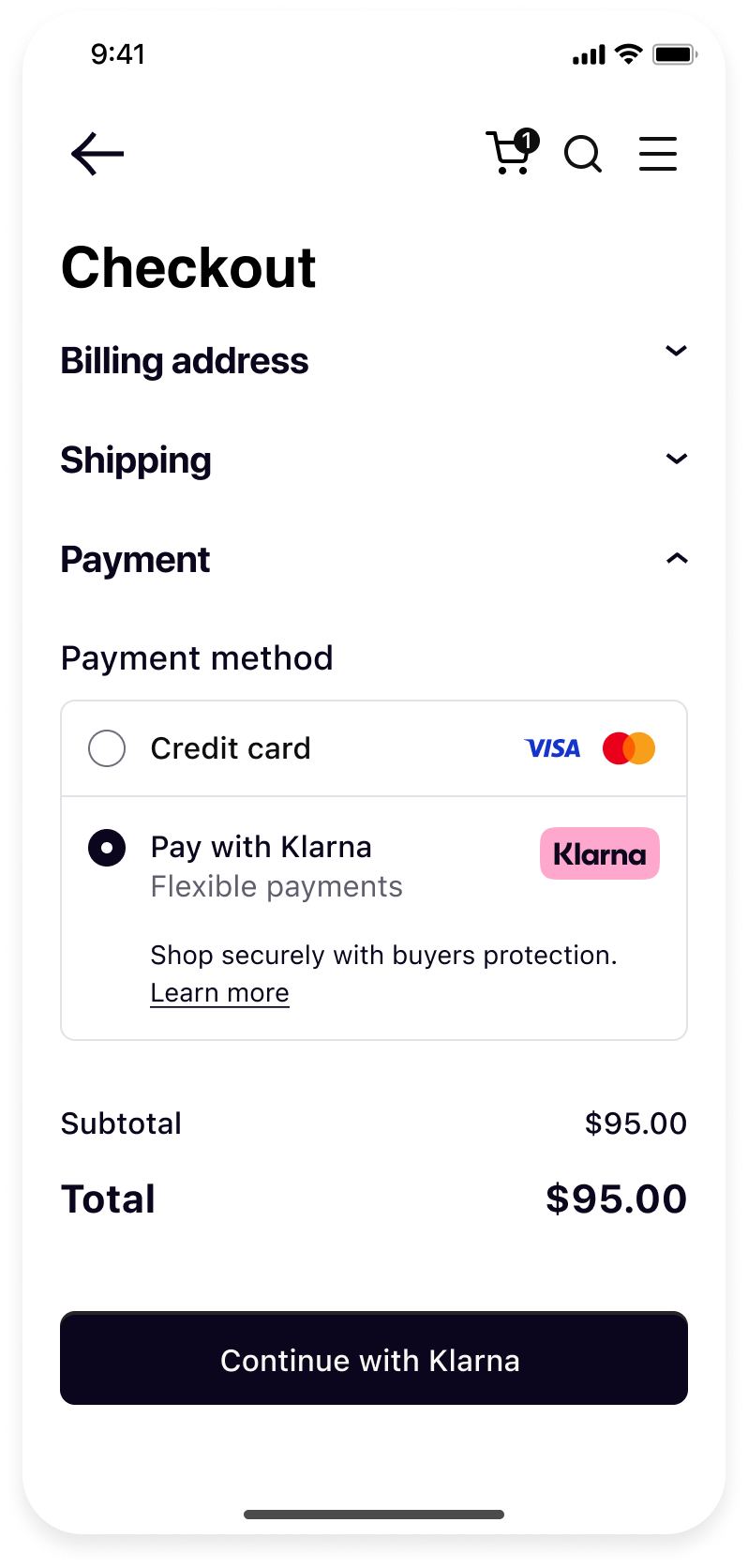
Klarna Mobile SDK provides a full suite of mobile-first integrations, including Klarna products like:
 | ||
| Sign in with Klarna | On-site Messaging | Payments |
- On-site Messaging: Show contextual messaging let your customers know about the available payment options in pre-checkout: click here to learn more.
- Sign in with Klarna: Seamlessly identify and let users login via their Klarna account: click here to learn more.
- Payments: Enhance your mobile app conversion with a seamless payment UX, click here to learn more.
Complete your integration with
Jump to section...