

Add UI elements for each distribution status
Follow our best practices to get the most out of your In-store integration.
2 min read
Here are some examples of the UI elements you can implement for each distribution status.
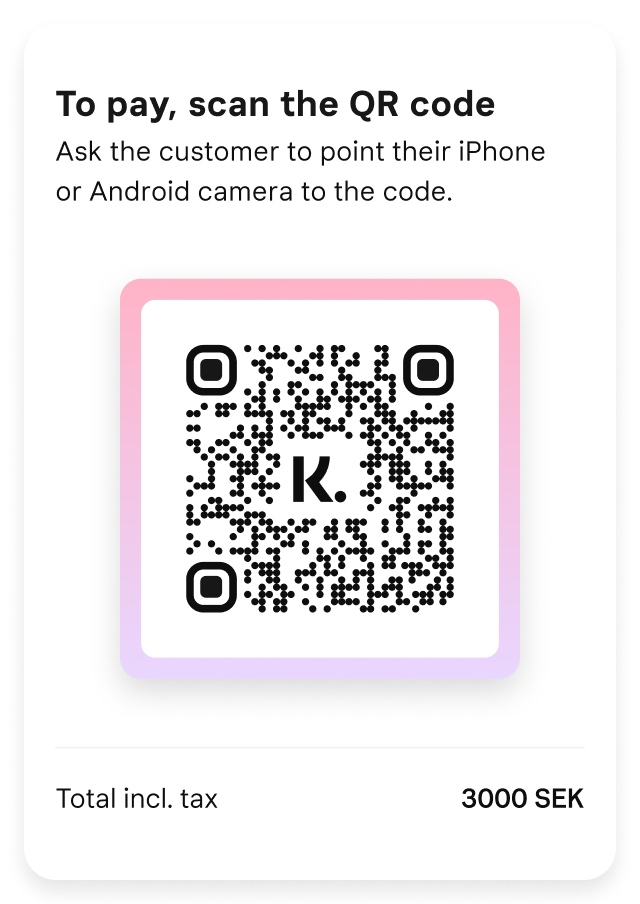
Status: DISTRIBUTED
Display the QR code so the customer can scan it. Make sure to set the display's brightness to maximum.
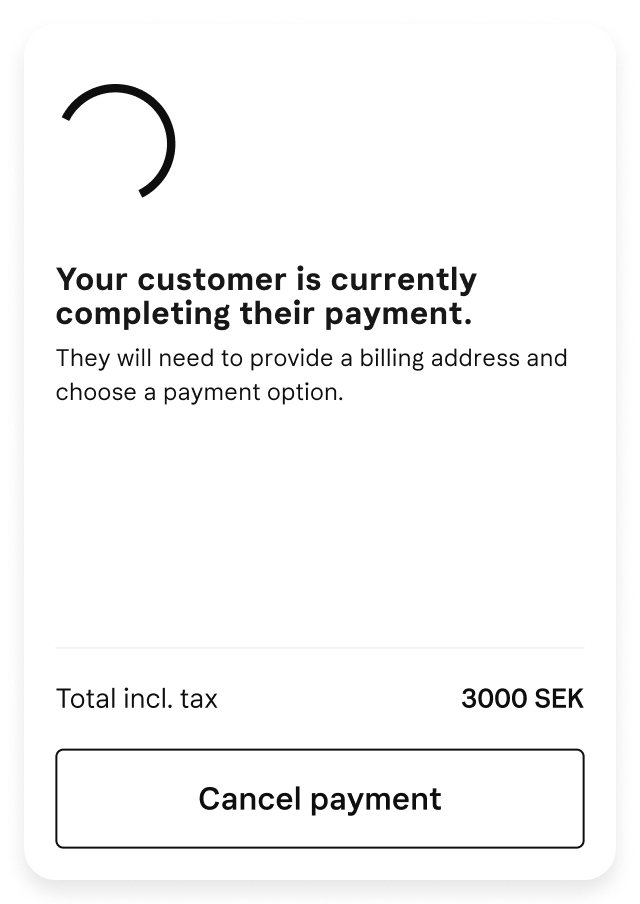
Status: ACCESSED
To notify the store personnel that the customer accessed a payment session, display a "Payment in progress" message.
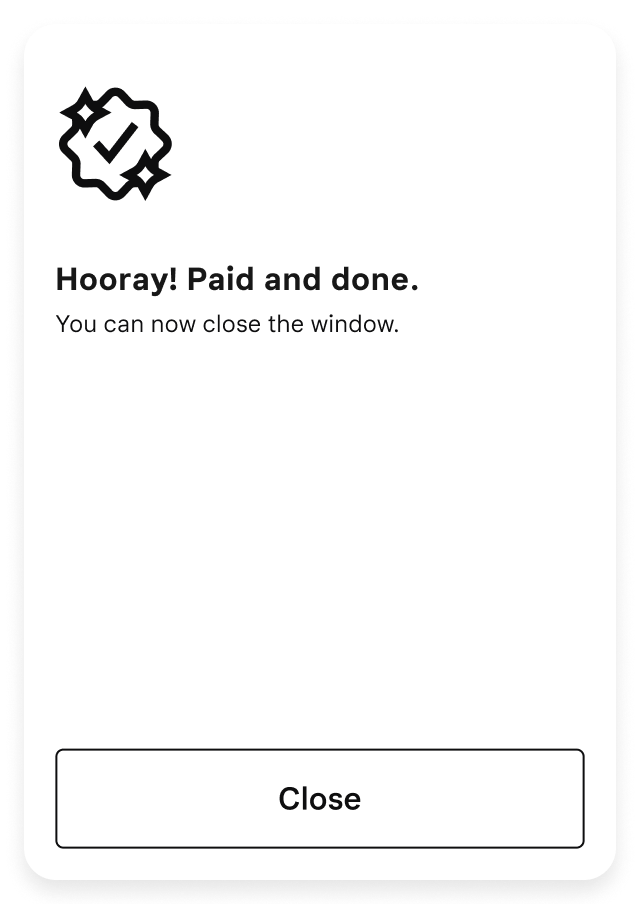
Status: COMPLETED
Once the customer completes a payment, display a "Payment is done" message.
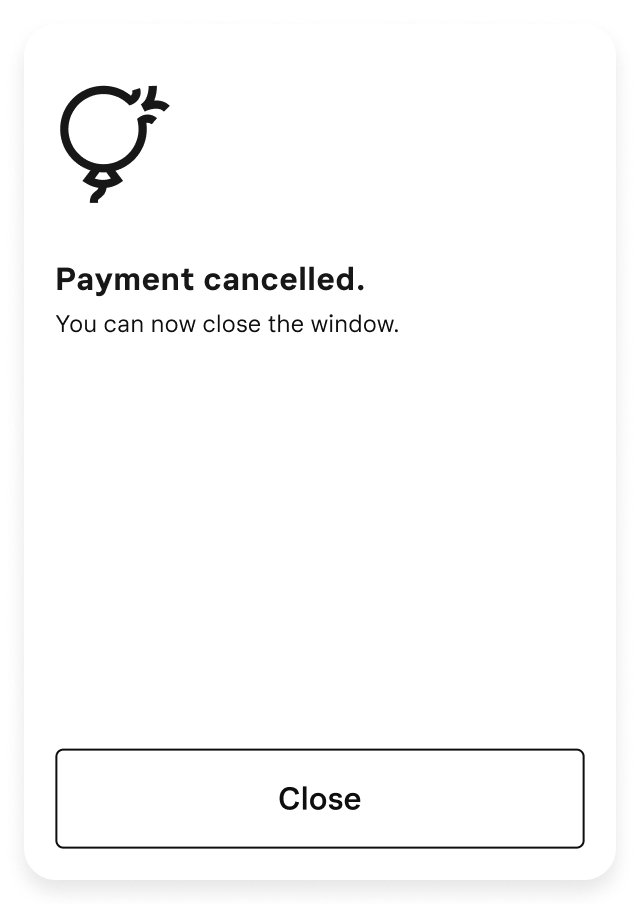
Status: CANCELLED
If the customer cancels a payment, display a "Payment is canceled" message.
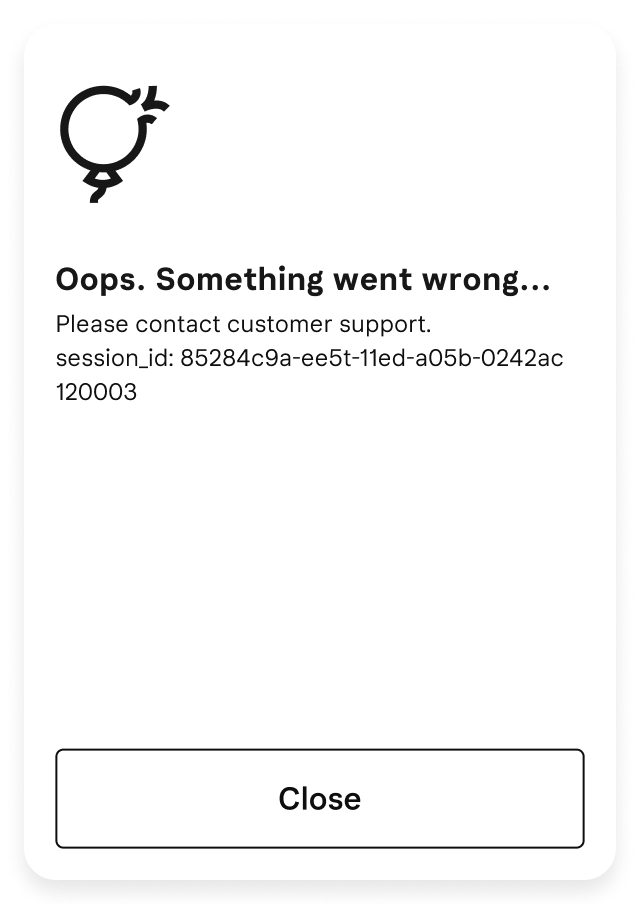
Status: FAILED
If a payment fails, display a “Something went wrong” message.
We recommend that you also show the related session_id as this will help Klarna's support to easily identify what went wrong.
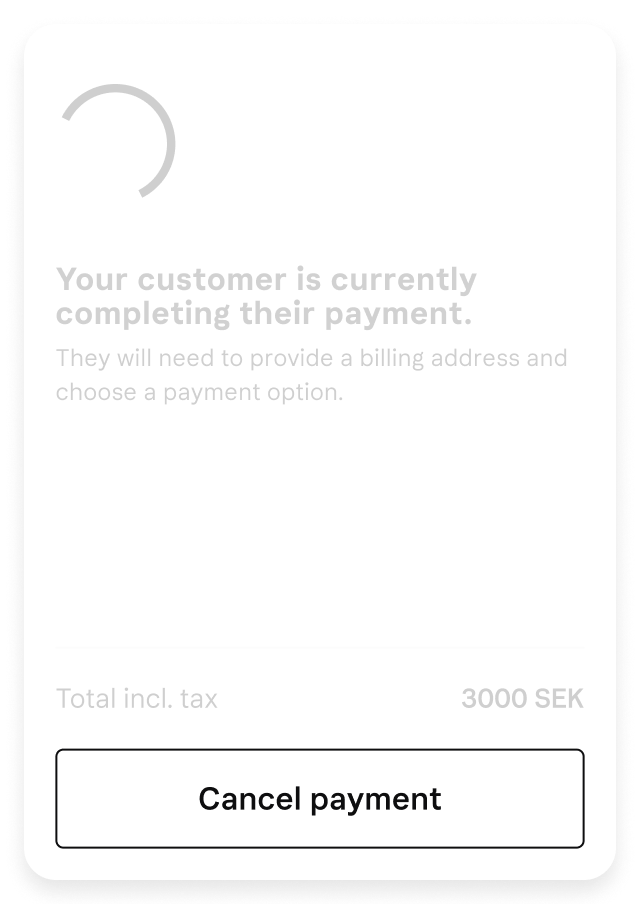
All statuses
- To allow the customer to cancel the payment at any time, add a cancelation button to the UI.
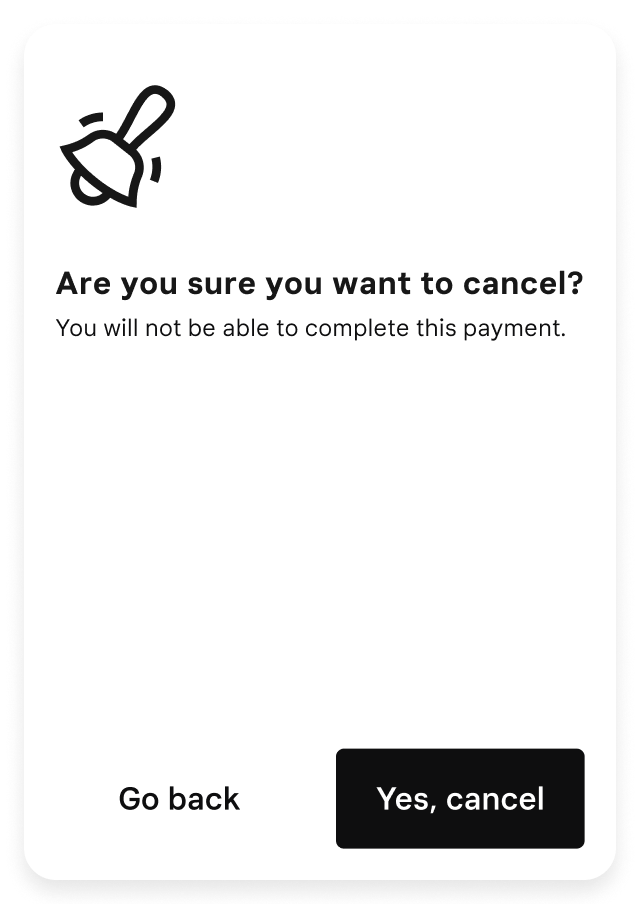
- Display an additional dialog to make sure that the customer doesn't cancel the payment by accident.
Set a payment session timeout
Completing a transaction may take longer for new customers. For that reason, we recommend that you set a timeout on a payment session that allows the customers to log into Klarna using two-factor authentication after they scan the QR code.
If you set a timeout, actively cancel a session after timeout so that the payment session doesn’t stay open for the full 46 hours.
Jump to section...