

Hybrid - Android
You can hook up your web view to the SDK in only a few steps and immediately provide a much more pleasant experience when using Klarna products on mobile.
7 min read
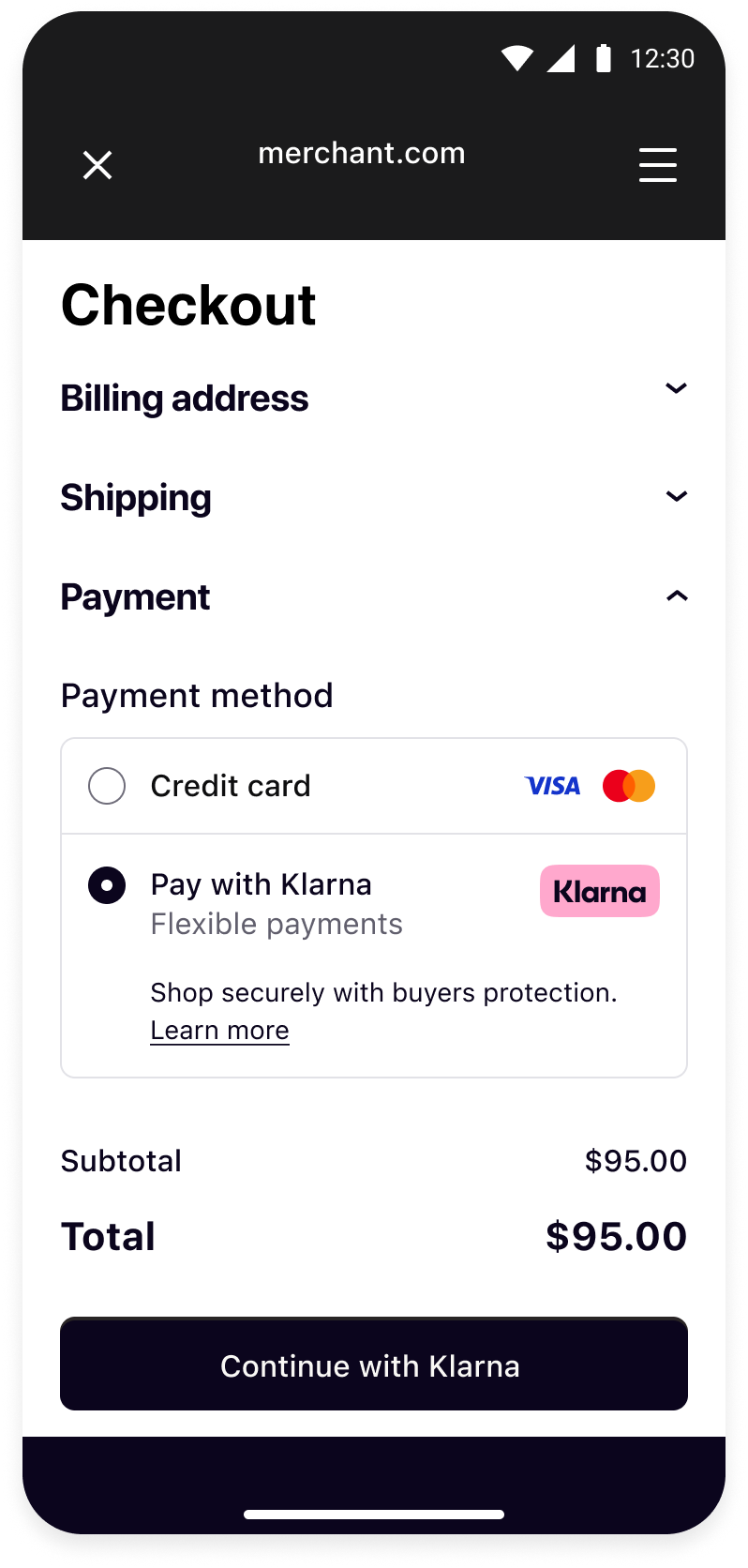 | 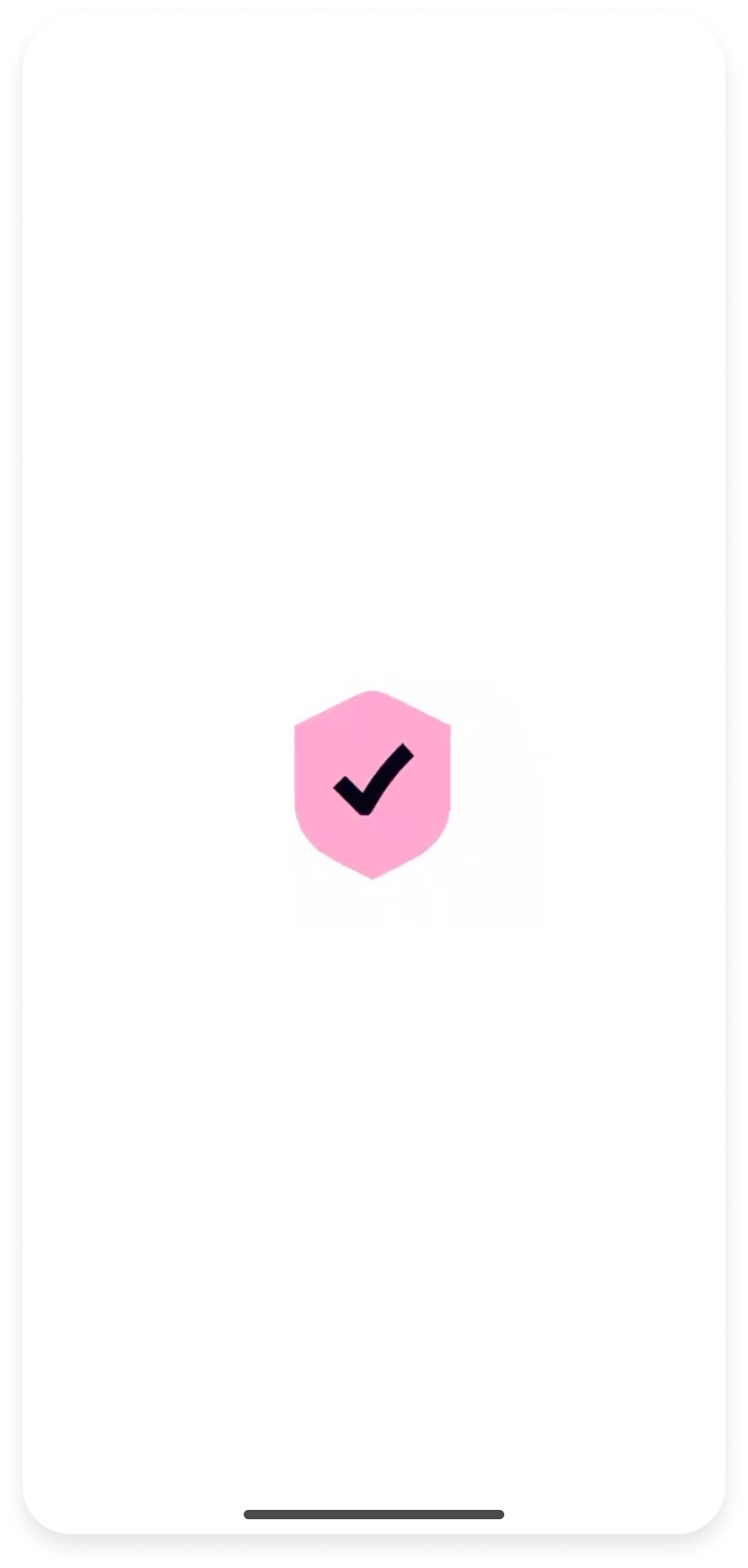 | 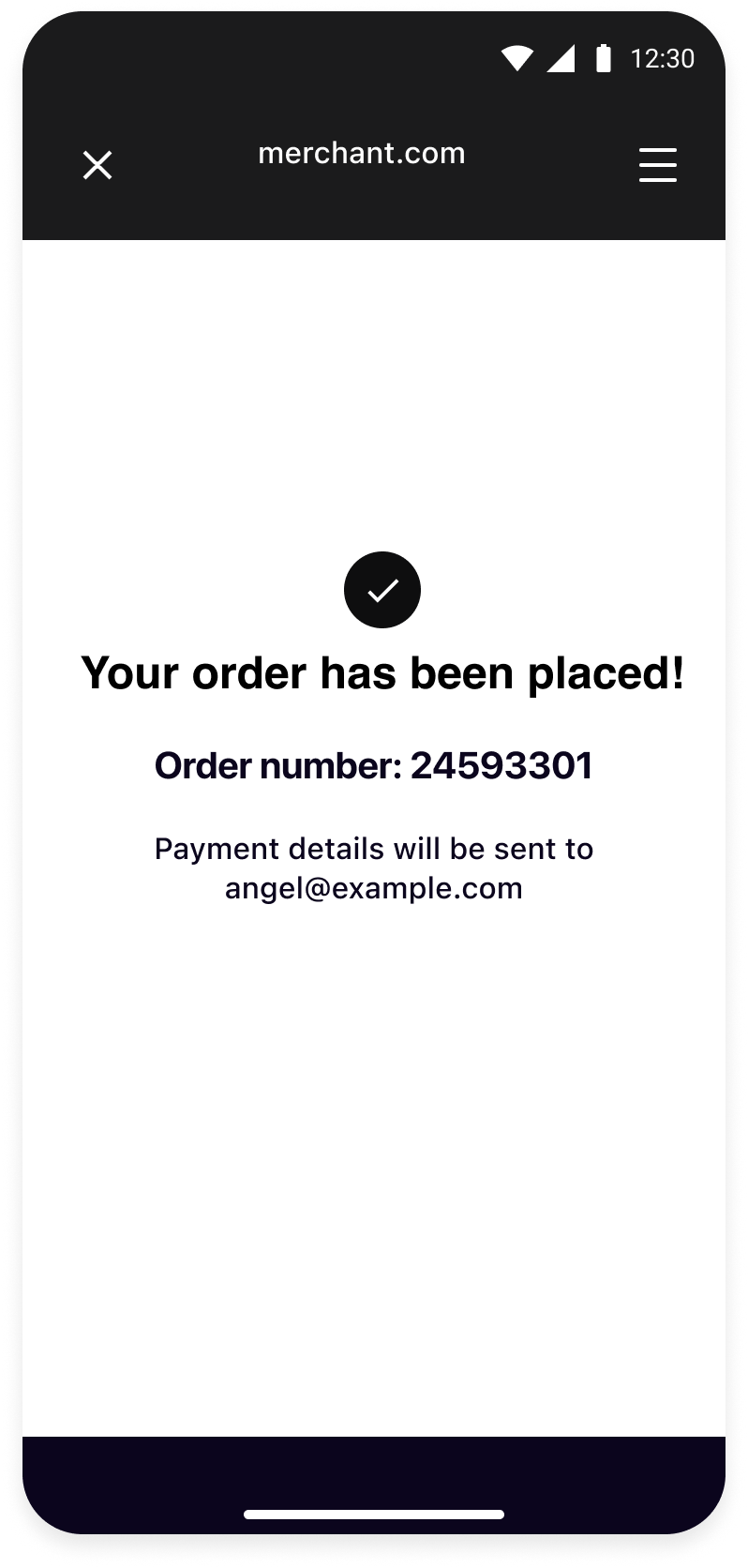 |
| Your checkout screen when Klarna is selected as payment method. | Klarna purchase flow starts when customer confirms to Continue with Klarna. | Your order confirmation screen after a successful payment. |
Integration Steps
- Prepare: Make sure you have a web checkout integrated with Klarna Payments.
- Set up your app (Mobile App): Set up return URL to your application.
- Present your web checkout (Mobile App): Present you web checkout using System WebView.
Prepare
This guide will lead you through all the steps required to accept Klarna Payments in your mobile app using your web integration. At the end, you will be able to accept payments with Klarna with very few native changes.
This guide assumes that you already have a web checkout integrated with Klarna Payments and you intend to use it in your mobile application.
If you haven't done such web integration, we suggest you to check the web payments documentation.
Set up your app
Import the SDK
Add the Repository
Add the Klarna Mobile SDK maven repository:
KOTLIN
1
2
3
4
repositories {
    maven("https://x.klarnacdn.net/mobile-sdk/")
}
Add the Dependency
Add the SDK as a dependency to your app:
KOTLIN
1
2
3
4
dependencies {
    implementation("com.klarna.mobile:sdk:2.x.x")
}
SDK versioning policy
To read more about Mobile SDK versioning policy, check out this section.
Set up your app
Return URL
Klarna purchase flows might require authorizations in other applications (e.g. bank apps) or do a handover to the Klarna app. In such cases, a return URL to your application ensures seamless return to the flow in your app, hence setting up a return URL is required. It is expected that redirects to this URL should only open your application without any changes in the UI state, ensuring the customer can continue the flow prior to external navigation.
You can read more about how deep links and intent filters work on the Android Developers site.
You can set up a Return URL app scheme for your application by registering an
intent-filter for the Activity you integrated Klarna, in your app’s AndroidManifest.:XML
1
2
3
4
5
6
7
8
9
10
<application...>
    <activity...>
        <intent-filter>
            <action android:name="android.intent.action.VIEW" />
            <category android:name="android.intent.category.DEFAULT" />
            <category android:name="android.intent.category.BROWSABLE" />
            <data android:scheme="<your-custom-scheme>" />
            <data android:host="<your-custom-host>" />
        </intent-filter>
</activity>Integration requirement
Important: Construct the return URL string passed to Klarna by combining the attributes defined in your
<intent-filter>'s <data> tags, following the standard URL format: <your-custom-scheme>:/KOTLIN
1
2
3
4
5
6
7
8
9
10
override fun onNewIntent(intent: Intent?) {
    super.onNewIntent(intent)
    intent?.data?.let { uri ->
        if (uri.host == Contants.klarnaReturnUrl.host && uri.host == Contants.klarnaReturnUrl.host) {
            // This is a return URL for Klarna – skip deep linking
            return
        }
        // This was not a return URL for Klarna
    }
}Recommended for integration
The hosting
Activity should be using launchMode of type singleTask or singleTop to prevent a new instance from being created when returning from an external application.Present your web checkout
Create a WebView
In order to use your web integration in the app, first step would be to create a WebView for loading your checkout URLs. You can simply do this by initiating the WebView first.
Retrieve WebView inflated from XML
SWIFT
1
2
3
4
val webView = findViewById(R.id.webView)
webView.webViewClient = this
webView.loadUrl("https://www.merchant.com/checkout") // Load your checkout page where Klarna Payments is integrated
Create a new WebView from code
KOTLIN
1
2
3
4
webView = WebView(context)
webView.webViewClient = this
webView.loadUrl("https://www.merchant.com/checkout") // Load your checkout page where Klarna Payments is integrated
Recommended for integration
Having an implementation for
WebViewClient is important as you will need it in the following steps.Create an Hybrid SDK instance
Initialize the Hybrid SDK by creating a new instance of
KlarnaHybridSDK. You should hold a strong reference to the SDK. It will deallocate all its resources if you null it. You only need a single instance of the SDK, regardless of how many web views you have, but if you need to, you can create several SDKs.KOTLIN
1
2
3
val hybridSDK = KlarnaHybridSDK(returnUrl, null, null)
hybridSDK.eventHandler = this
Creating an Instance
| Param | Type | Description |
|---|---|---|
| returnUrl | String | A URL that the SDK can use to return customers to your app. |
| eventCallback | KlarnaEventCallback? | Event Callback interface that will notify you about messages and errors. This is not required as you will be using the KlarnaEventHandler. |
| fullscreenEventCallback | KlarnaFullscreenEventCallback? | Fullscreen event Callback interface that will notify you about fullscreen transition events. This is not required. |
KlarnaEventHandler
The SDK will notify you of events and errors via event callback object that you’ll need to implement. The SDK also notifies you about different events during fullscreen transition via fullscreen event callback.
You will need to implement the
KlarnaEventHandler interface in order to receive events and errors from the SDK. This will let your app be notified about relevant events and errors that happen inside the web view that the SDK is observing.KOTLIN
1
2
3
4
5
6
7
8
9
10
    class MyActivity: AppCompatActivity(), KlarnaEventHandler {
        override fun onEvent(klarnaComponent: KlarnaComponent, event: KlarnaProductEvent) {
            // Implementation for dispatched event
        }

        override fun onError(klarnaComponent: KlarnaComponent, error: KlarnaMobileSDKError) {
            // Implementation for encountered error
        }
    }
Add your WebView
You need to add the web views that the SDK should track. The SDK will hold weak references to these web views, so if they’re deallocated, the SDK will lose track of them.
KOTLIN
1
2
hybridSDK.addWebView(webView)
Notify the SDK
There are two instances at which you’ll need to notify the SDK of events in your web view (as we don’t override your
WebViewClient).Before a Navigation
You should notify the SDK about upcoming navigations by calling the SDK’s
shouldFollowNavigation from your WebViewClient.KOTLIN
1
2
3
4
5
6
class MyWebViewClient(): WebViewClient() {
    override fun shouldOverrideUrlLoading(view: WebView, url: String): Boolean {
        return !hybridSDK.shouldFollowNavigation(url)
    }
}
After a Navigation
You need to notify the SDK after a page has loaded by calling the SDK’s
newPageLoad from your WebViewClient.KOTLIN
1
2
3
4
5
6
class MyWebViewClient(): WebViewClient() {
    override fun onPageFinished(view: WebView, url: String) {
        hybridSDK.newPageLoad(view)
    }
}
As you are re-using your web integration, this integration approach assumes that you have implemented order creation via the integration that exists in web. Hence, this documentation does not cover this step, if you would like to learn more about authorizing a session and creating an order in web, check out these documentations:
Optional
Enable logging
The SDK will log events and errors while it’s running, which you can read in logcat console. You can set the logging level for the SDK through the
loggingLevel property of integration instance.SWIFT
1
2
hybridSdk.loggingLevel = KlarnaLoggingLevel.Verbose
KlarnaLoggingLevel
| Value | Description |
|---|---|
| KlarnaLoggingLevel.Off | No logging |
| KlarnaLoggingLevel.Error | Log error messages only |
| KlarnaLoggingLevel.Verbose | Log all messages (debug and error) |
What's next
Klarna Mobile SDK provides a full suite of mobile-first integrations, including Klarna products like:
.png) | .png) | .png) |
| Sign in with Klarna | On-site Messaging | Express Checkout |
- On-site Messaging: Show contextual messaging let your customers know about the available payment options in pre-checkout: click here to learn more.
- Sign in with Klarna: Seamlessly identify and let users login via their Klarna account: click here to learn more.
- Express Checkout: Accelerate your checkout process and boost conversion by offering a one-click checkout, click here to learn more (Mobile SDK support available soon).
Complete your integration with
Jump to section...