
Payment Presentation for Mobile SDK integration
Present Klarna in your own Mobile SDK by embedding the Klarna Mobile SDK as a dependency. This guide shows how to import and initialize the Klarna Mobile SDK on iOS, Android, and React Native, fetch Klarna Payment Presentation, follow its instructions, and render the Klarna payment button.
15 min read
Overview
Use this guide when you are an Acquiring Partner building and distributing your own Mobile SDK (for example, a unified payment sheet, drop-in UI, or custom component library) for your Partners and you want to embed the Klarna Mobile SDK as an internal dependency to present Klarna.
Your Mobile SDK embeds the Klarna Mobile SDK modules (Payment and optionally Payment Button) on iOS (Swift), Android (Kotlin), or React Native, fetches Klarna Payment Presentation, and renders Klarna dynamically in your payment sheet.
Where this fits in the integration flow:
- Payment Presentation: Your Mobile SDK presents Klarna and collects the customer's selection (this step)
- Authorize the payment: Your backend calls the Payment Authorize API and your Mobile SDK launches the Klarna Purchase Journey when step-up is required (next step)
This guide covers iOS (Swift), Android (Kotlin), and React Native integrations.
Prerequisites
Before you integrate, check that you meet the following prerequisites:
- 1.A valid Klarna Acquiring Partner account, obtained through your agreement with Klarna.
- 2.Access to the Klarna Partner Portal, with a client identifier generated for client-side SDK initialization.
- 3.On iOS and React Native, the custom URL scheme the Partner's app registers, so your Mobile SDK can pass it to the Klarna Mobile SDK as the app return URL.
- 4.Terms and Conditions for client-side SDK usage are accepted as required by your Klarna agreement.
Integration overview
Here's an overview of the steps to present Klarna when your Mobile SDK embeds the Klarna Mobile SDK as a dependency:
- 1.Your Mobile SDK imports the Klarna Mobile SDK products it needs.
- 2.Your Mobile SDK initializes the Klarna Mobile SDK with your client identifier and, on iOS and React Native, the Partner app's return URL.
- 3.Your Mobile SDK fetches Klarna Payment Presentation and displays Klarna dynamically within your payment sheet, following the presentation instruction.
- 4.The customer selects Klarna and taps the payment button. Your Mobile SDK sends the payment to your backend, which authorizes the payment.
sequenceDiagram
autonumber
participant C as Customer
participant MA as Partner app
participant APSDK as Acquiring Partner SDK (with Klarna SDK)
participant APBE as Acquiring Partner backend
participant K as Klarna
MA->>APSDK: Open checkout / initialize payment sheet
APSDK->>K: Initialize Klarna Mobile SDK (clientId, appReturnUrl)
APSDK->>K: Request payment presentation (fetch)
K->>APSDK: Return assets and presentation instructions
APSDK->>APSDK: Render Klarna dynamically in payment selector
C->>APSDK: Select Klarna and tap pay
APSDK->>APBE: Process payment
Note over APBE,K: Payment Authorization (next step)
Integration details
Integrate the Klarna Mobile SDK into your Mobile SDK to display Klarna as a payment method within your payment sheet or custom form. This approach allows your SDK to control the checkout container while using Klarna's ready-made UI components and localized legal assets.
The following sections explain how to embed the Klarna Mobile SDK, initialize it, fetch dynamic presentation instructions, and render Klarna payment elements:
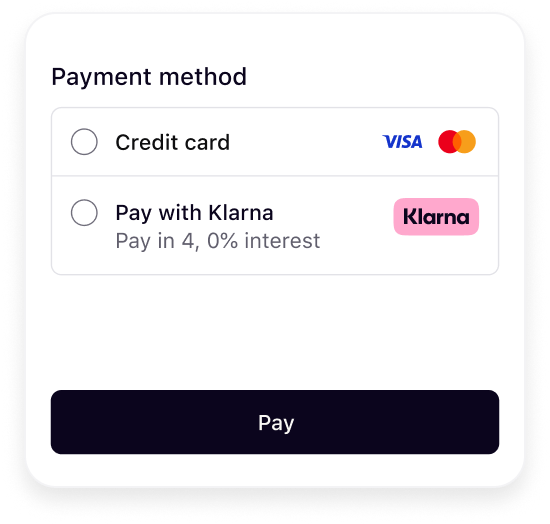 | 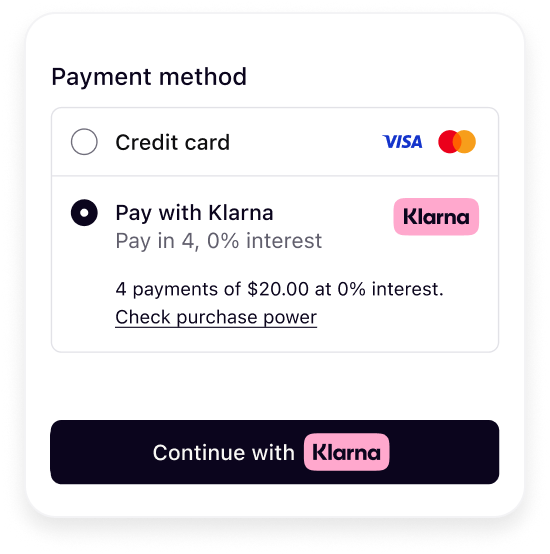 |
| Initial presentation | When Klarna is selected |
It's crucial that Klarna Payment Presentation is dynamic and not hardcoded on your server to deliver the best conversion outcome.
Present Klarna dynamically for best conversion
Klarna's best practice
To ensure the best user experience and optimal conversion rates when presenting Klarna as a payment method, apply the following recommendations:
- Present Klarna dynamically alongside other payment methods in your payment form.
- Embed Klarna's UI elements directly in your frontend for a consistent and responsive design.
Import the Mobile SDK as a dependency
Choosing Mobile SDK products
The Klarna Mobile SDK is modular. Each capability is delivered as its own product so you add only the frameworks your SDK requires and keep your SDK's binary size and dependency footprint to a minimum.
For Klarna integrations inside your Mobile SDK, add only the
KlarnaNetwork* products your use case requires:| Product | Purpose |
|---|---|
KlarnaNetworkPayment and klarna-network-payment | Payment Presentation, link handling, and Payment Request initiation. Required for this guide. |
KlarnaNetworkPaymentButton and klarna-network-payment-button | The Klarna payment button UI component for UIKit (iOS) or Views (Android). Optional if your SDK renders its own custom action button conforming to Klarna branding rules. |
KlarnaNetworkPaymentButtonSwiftUI | SwiftUI wrapper for the payment button (iOS). |
klarna-network-payment-button-compose | Jetpack Compose wrapper for the payment button (Android). |
KlarnaNetworkMessaging and klarna-network-messaging | On-Site Messaging and pre-qualification placements. |
KlarnaNetworkIdentity and klarna-network-identity | Sign in with Klarna and identity flows. |
iOS
Swift Package Manager
In your SDK's
Package., add the Klarna Mobile SDK package dependency and link KlarnaNetworkPayment (and optionally button products) to your library target:SWIFT
1
2
3
4
5
6
7
8
9
10
// swift-tools-version: 5.9
import PackageDescription

let package = Package(
    name: "AcquirerSDK",
    platforms: [.iOS(.v13)],
    products: [
        .library(name: "AcquirerSDK", targets: ["AcquirerSDK"]),
    ],
dependencies: [Integration requirement
Add only one of the two button products:
KlarnaNetworkPaymentButtonfor UIKitKlarnaNetworkPaymentButtonSwiftUIfor SwiftUI
Neither button module transitively includes
KlarnaNetworkPayment, so you must always declare it explicitly alongside your chosen button module.CocoaPods
In your Acquiring Partner SDK's
.podspec, declare the dependency on Klarna Mobile SDK's subspecs:RUBY
1
2
3
4
5
6
7
8
9
10
Pod::Spec.new do |s|
  s.name             = 'AcquirerSDK'
  s.version          = '1.0.0'
  s.summary          = 'Acquiring Partner Mobile Payment SDK'
  s.platform         = :ios, '13.0'

  # Core Klarna payment capability
  s.dependency 'KlarnaMobileSDK/KlarnaNetworkPayment', '<LATEST_VERSION>'

# Optional button component (or KlarnaNetworkPaymentButtonSwiftUI for SwiftUI)When integrating the pod, run:
SH
1
pod installAndroid
In your library module's
build. or build., first add the Klarna Maven repository:KOTLIN
1
2
3
repositories {
    maven("https://x.klarnacdn.net/mobile-sdk/")
}
Next, add
klarna-network-payment (and optionally button modules) as dependencies:KOTLIN
1
2
3
4
5
6
7
8
9
dependencies {
    // Integrate Klarna Payment in your SDK
    implementation("com.klarna.mobile.sdk:klarna-network-payment:<LATEST_VERSION>")

    // Optional: Klarna button module for View system
    implementation("com.klarna.mobile.sdk:klarna-network-payment-button:<LATEST_VERSION>")
    // Or for Jetpack Compose:
    // implementation("com.klarna.mobile.sdk:klarna-network-payment-button-compose:<LATEST_VERSION>")
}
Integration requirement
Add only one of the two button products:
klarna-network-payment-buttonfor View systemklarna-network-payment-button-composefor Jetpack Compose
Neither button module transitively includes
klarna-network-payment, so you must always declare it explicitly alongside your chosen button module.React Native
React Native version requirements
The React Native packages require React Native 0.76.0 or later with the New Architecture (TurboModules) enabled, iOS 13+, and Android API 21+.
In your Acquiring Partner React Native wrapper package, declare the dependencies:
SH
1
yarn add @klarna/react-native-klarna-network-core @klarna/react-native-klarna-network-paymentImport the payment package once at initialization to register the
payment property on Klarna:TS
1
import '@klarna/react-native-klarna-network-payment';Initialize the Mobile SDK
Initialize the Klarna SDK within your Mobile SDK setup lifecycle. On iOS and React Native, your SDK receives the Partner app's return URL during initialization and passes it as
KlarnaConfiguration.. Android initialization takes the client identifier; the SDK supplies the return URL when the Klarna Purchase Journey starts.SWIFT
1
2
3
4
5
6
7
8
9
10
// Your SDK initialization method called by the Partner app
public func configureKlarna(
    clientId: String,
    appReturnUrl: String,
    locale: String? = nil,
    existingSessionToken: String? = nil
) -> Result<Klarna, KlarnaSDKError> {
    let configuration = KlarnaConfiguration(
        clientId: clientId,
locale: locale,The following table lists the properties of
KlarnaConfiguration:| Name | Type | Presence | Description |
|---|---|---|---|
clientId | String | required | The client identifier generated in the Klarna Partner Portal for your Acquiring Partner account. |
appReturnUrl | String | required on iOS and React Native | The custom URL scheme registered by the Partner's app (for example, partnerapp:/). https:/ URLs, including universal links, aren't accepted. Set this to the same value the backend sends as app_. Android KlarnaConfiguration omits this property. |
locale | String | optional | The default locale (ISO 3166-1 alpha-2) used by the SDK. If not set, the locale of the device is used. |
klarnaNetworkSessionToken | String | optional | Allows the SDK to be initialized with an existing session token. |
App return URL
The authorize request sets
app_ in step_. Klarna uses it to return the customer to the Partner app after an app handover, for example to the Klarna app or a bank authentication app. It must be a custom URL scheme that opens the app in its last state. https:/ URLs, including universal links, aren't accepted.On iOS and React Native, set
KlarnaConfiguration. to the same URL.Android
KlarnaConfiguration omits appReturnUrl. When your SDK calls initiate with the Payment Request ID, the Klarna Mobile SDK updates the Payment Request app_ to klarna-mobile-sdk-return:/ followed by the host app's package name. The Klarna Mobile SDK registers its own handler for this scheme, so the host app must not declare an intent filter for klarna-mobile-sdk-return.Always send
app_ on the authorize call.Klarna Payment Presentation request
Klarna Payment Presentation provides all visual assets, localized texts, badges, and instructions needed to display Klarna correctly in your payment sheet. To fetch Payment Presentation, call
KlarnaPaymentPresentation.:SWIFT
1
2
3
4
5
6
7
8
9
10
// Prepare payment presentation request data
let presentationData = KlarnaPaymentPresentationData(
    amount: amount, // Minor units (e.g., $118.00 = 11800)
    currency: currency, // ISO 4217 code (e.g., "USD")
    intent: .pay,
    paymentProgramEnablementCodes: nil,
    subscriptionBillingInterval: nil,
    subscriptionBillingIntervalFrequency: nil
)
The following table lists the parameters of
KlarnaPaymentPresentation.:| Name | Type | Presence | Description |
|---|---|---|---|
data | KlarnaPaymentPresentationData | required | Specifies the transaction details used to tailor presentation content. |
callback | KlarnaPaymentPresentationCallback | required | The callback notified with the result of the fetch. |
This table lists the properties of
KlarnaPaymentPresentationData:| Name | Type | Presence | Description |
|---|---|---|---|
amount | Long (Android), Int64 (iOS), number (RN) | required | The transaction amount in minor units following ISO 4217 exponents (for example, USD 118.00 = 11800). |
currency | String | required | Three-letter ISO 4217 currency code (for example, USD, EUR). |
intent | KlarnaPaymentPresentationIntent | optional | Specifies the intent of the Payment Presentation. Defaults to PAY. |
subscriptionBillingInterval | KlarnaInterval | optional | Specifies the interval at which the customer is charged for subscriptions. |
subscriptionBillingIntervalFrequency | Int | required if interval is set | Defines the subscription interval frequency. |
The
intent property supports the following values:| Swift | Kotlin and React Native | Description |
|---|---|---|
pay | PAY | Standard Payment Transaction. Requires amount. |
subscribe | SUBSCRIBE | Subscription-based payment. Requires amount, subscriptionBillingInterval, and subscriptionBillingIntervalFrequency. |
addToWallet | ADD_ | Add Klarna to the customer's wallet for later use. |
Follow Klarna Payment Presentation instructions
The
instruction property returned in KlarnaPaymentPresentationContent instructs your payment sheet how to display Klarna:| Instruction | Description |
|---|---|
SHOW_ | Show Klarna alongside other payment methods in your payment selector. |
PRESELECT_ | Show Klarna pre-selected by default alongside other payment methods (for example, when a returning customer token is present). |
SHOW_ | Show Klarna as the only payment method (for example, in Express Checkout continuation flows). |
Here are example outcomes for each instruction:
| 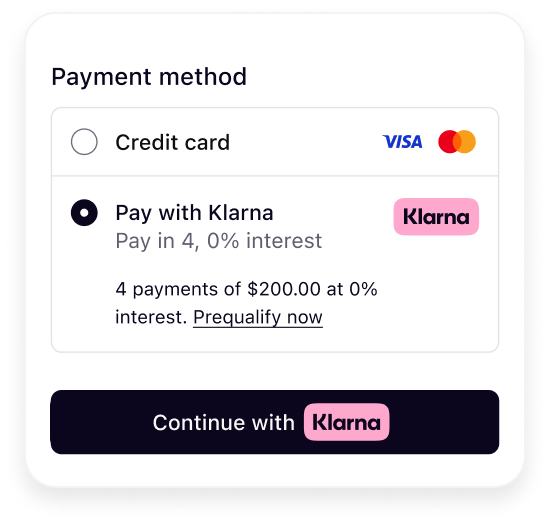 | 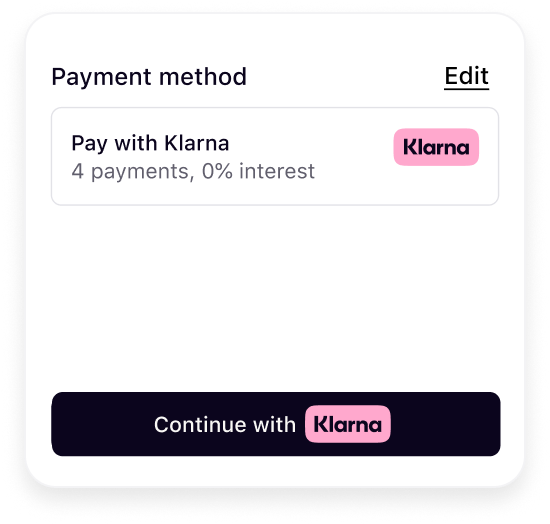 |
| Show Klarna | Preselect Klarna | Show only Klarna |
SWIFT
1
2
3
4
5
6
7
8
9
10
private func renderKlarnaPresentation(content: KlarnaPaymentPresentationContent) {
    switch content.instruction {
    case .showKlarna:
        // Render Klarna alongside other payment methods in your payment sheet
        showKlarnaOption(preselected: false)
    case .preselectKlarna:
        // Render Klarna pre-selected as default
        showKlarnaOption(preselected: true)
    case .showOnlyKlarna:
// Hide other payment methods and render only KlarnaMount Klarna payment method components
KlarnaPaymentPresentationContent contains the visual elements to display inside your payment method row:| Property | Presence | Description |
|---|---|---|
instruction | required | How Klarna should appear (SHOW_, PRESELECT_, SHOW_). |
paymentOption | optional | Default payment method descriptors (header, subheader, badge, message, terms, paymentOptionId). |
paymentStatus | optional | Current payment status. |
The
paymentOption object provides:paymentOptionId: Identifier of the payment method, passed when initiating payments.header: Main descriptor introducing Klarna (for example, "Klarna").subheader: Inline enriched text indicating installment or pay later availability.badge: Promotional or saved option badge.message: Tailored descriptive text with legal and informational links.terms: Terms and disclosures with mandatory links. When returned, display it while Klarna is selected, as returned and fully visible.
Handling links in presentation messages
The presentation message contains links with a
context value:| Context Value | Purpose |
|---|---|
info | Purely informational content. Can be opened in any in-app WebView or browser. |
auth | Requires customer authentication. Must be opened in an ASWebAuthenticationSession on iOS and a CustomTab on Android. |
To handle links correctly without building custom web authentication flows, call
handleLink():SWIFT
1
2
3
4
5
6
7
8
9
10
klarna.payment.presentation.handleLink(
    content: presentationContent,
    url: url
) { result in
    switch result {
    case .success(let updatedContent):
        self.updatePresentation(updatedContent)
    case .failure(let error):
        print("Link handling failed: \(error.localizedDescription)")
}Rendering the Klarna payment button
If your Mobile SDK mounts Klarna's payment button, use
KlarnaPaymentButton:SWIFT
1
2
3
4
5
6
7
8
9
10
let buttonConfig = KlarnaPaymentButtonConfiguration(
    state: .default,
    intent: .pay,
    shape: .pill,
    style: .filled,
    theme: .light
)

let paymentButton = KlarnaPaymentButton(configuration: buttonConfig)
paymentButton.addTarget(self, action: #selector(didTapKlarnaButton), for: .touchUpInside)Next steps
After presenting Klarna in your Mobile SDK, complete your integration:
- Authorize the payment: Call the Payment Authorize API from your backend and launch the Klarna Purchase Journey from your Mobile SDK when step-up is required
- Handle post-purchase events: Manage captures, refunds, and cancellations
Jump to section...