
Partner self-service in your Partner portal
Build the Payment Program enablement experience inside your own Partner-facing portal and call the Klarna API to create, list, and remove enablements on your Partners' behalf. Use this method when you need full UX control and want to keep Partners inside your own portal.
10 min read
Overview
With this method, your Partners never leave your portal. You build the discovery, pricing, and enablement screens yourself, and call the Klarna API to create, list, and remove Payment Program Enablements on your Partners' behalf.
This is the right method when you want full UX control, when your Partners' workflow is already centralized in your portal, or when you want to bundle Payment Program enablement with other settings you manage.
Portal becomes read-only
Klarna Partner portal becomes read-only for your Partners. When you choose this method, Partners who log into the Klarna Partner portal (for example, to manage other settings) see a read-only view of their current Payment Program enablements with a notice telling them to go to your portal for any changes.
sequenceDiagram
participant P as Partner
participant AP as Acquiring Partner portal
participant K as Klarna API
P->>AP: Opens the Payment Program Enablements screen
AP->>K: listPaymentProgramsForPaymentProgramPlan
K-->>AP: Available Payment Programs
AP->>K: listPaymentProgramEnablements
K-->>AP: Current enablements
AP-->>P: Renders the Partner's enabled Payment Programs
P->>AP: Opens the create screen
AP-->>P: Renders available Payment Programs with your sell rates
P->>AP: Selects program(s) and confirms
AP->>K: createPaymentProgramEnablement
K-->>AP: Enablement created (instant)
AP-->>P: Updated state
Prerequisites
Before implementing this method, make sure you have completed the common prerequisites.
In addition, you need:
- The Partner's
partner_, used to read and write the Partner's enablements with listPaymentProgramEnablementsaccount_ id  , createPaymentProgramEnablement, and endPaymentProgramEnablement.
Payment Program Plan ID source
The Payment Program Plan ID can be retrieved from the Partner Account's Payment Profile: read it via listPaymentDistributionProfiles (the
(the payment_ field).If tracking Payment Program Plans and Payment Profiles is more than you want to manage, consider Method 2b: Use Klarna's Payment Programs Presentation API. The Payment Programs Presentation API sources the same screen data keyed directly on
partner_, so you don't resolve the Payment Program Plan yourself.Implementation steps
These steps follow the Partner's journey through your portal: from seeing what they already have enabled, to adding new Payment Programs, to managing them over time. The full request and response detail for creating an enablement (sample payloads, idempotency, enablement criteria) lives in Create Payment Program Enablement; the steps below describe how to wire it into your Partner-facing portal.
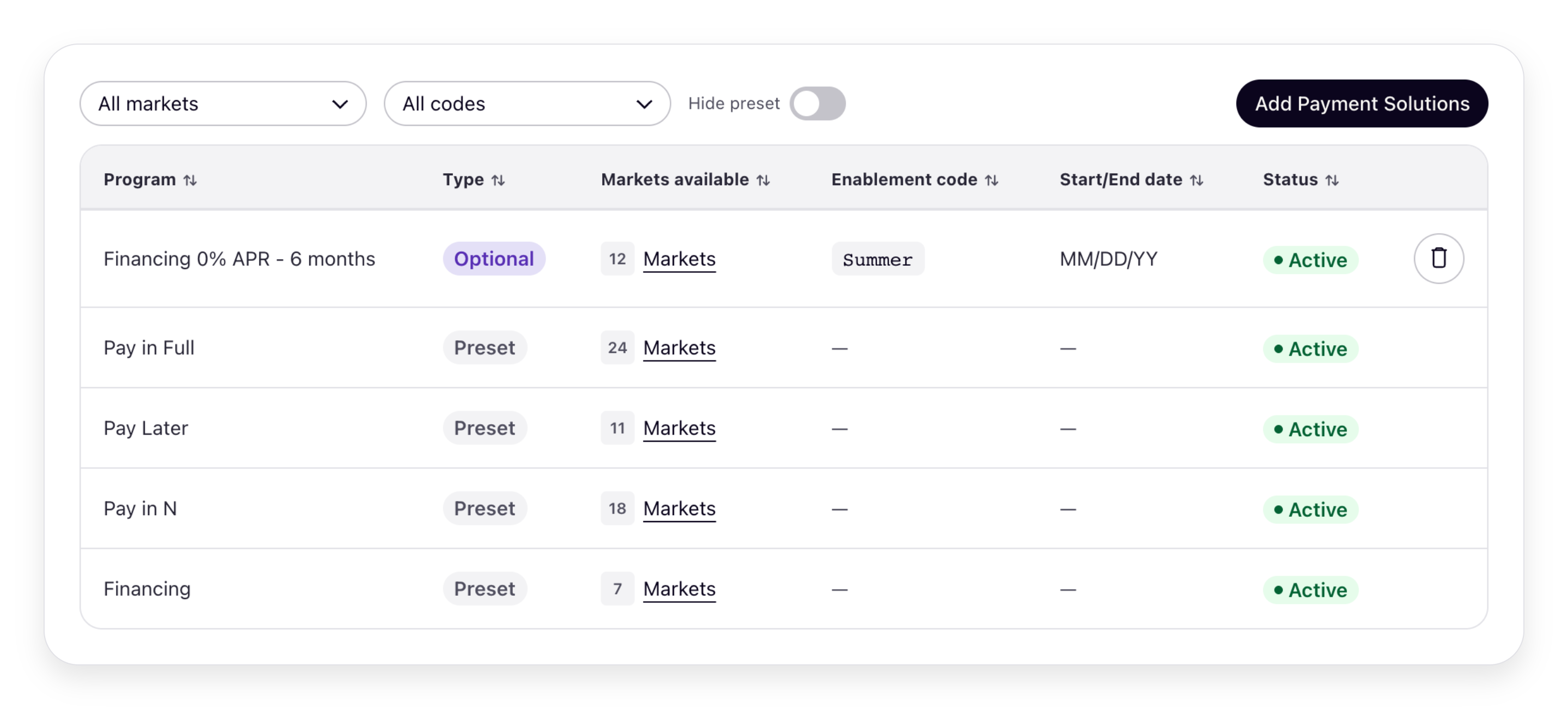
This is the Partner's landing screen. It shows which Payment Programs the Partner already has enabled and gives them an entry point to add more. Source it from two separate calls:
- Fetch the MCC and Payment Program Plan ID of the Partner Account: listPaymentProgramsForPaymentProgramPlan is keyed on the Payment Program Plan, not the Partner Account, so you need both to list the available programs (see Prerequisites for how to retrieve the Payment Program Plan ID).
- List the available Payment Programs: call listPaymentProgramsForPaymentProgramPlan for the Partner's Payment Program Plan, and keep the
OPTIONALprograms you want to expose. This gives you each program's name and availability. - List the Partner's current enablements: call listPaymentProgramEnablements for the
partner_.account_ id - Render the Partner's enabled Payment Programs: cross-reference the enablements against the available Payment Programs to show which ones are on. You don't have to render the two lists together. The enabled programs are the focus of this screen.
This step runs only when the Partner clicks to add Payment Programs. Open the create screen and render the programs they can still enable, priced with your own rates:
- Fetch your own sell rates: look up the rate that applies to this Partner for each available Payment Program from your own pricing system.
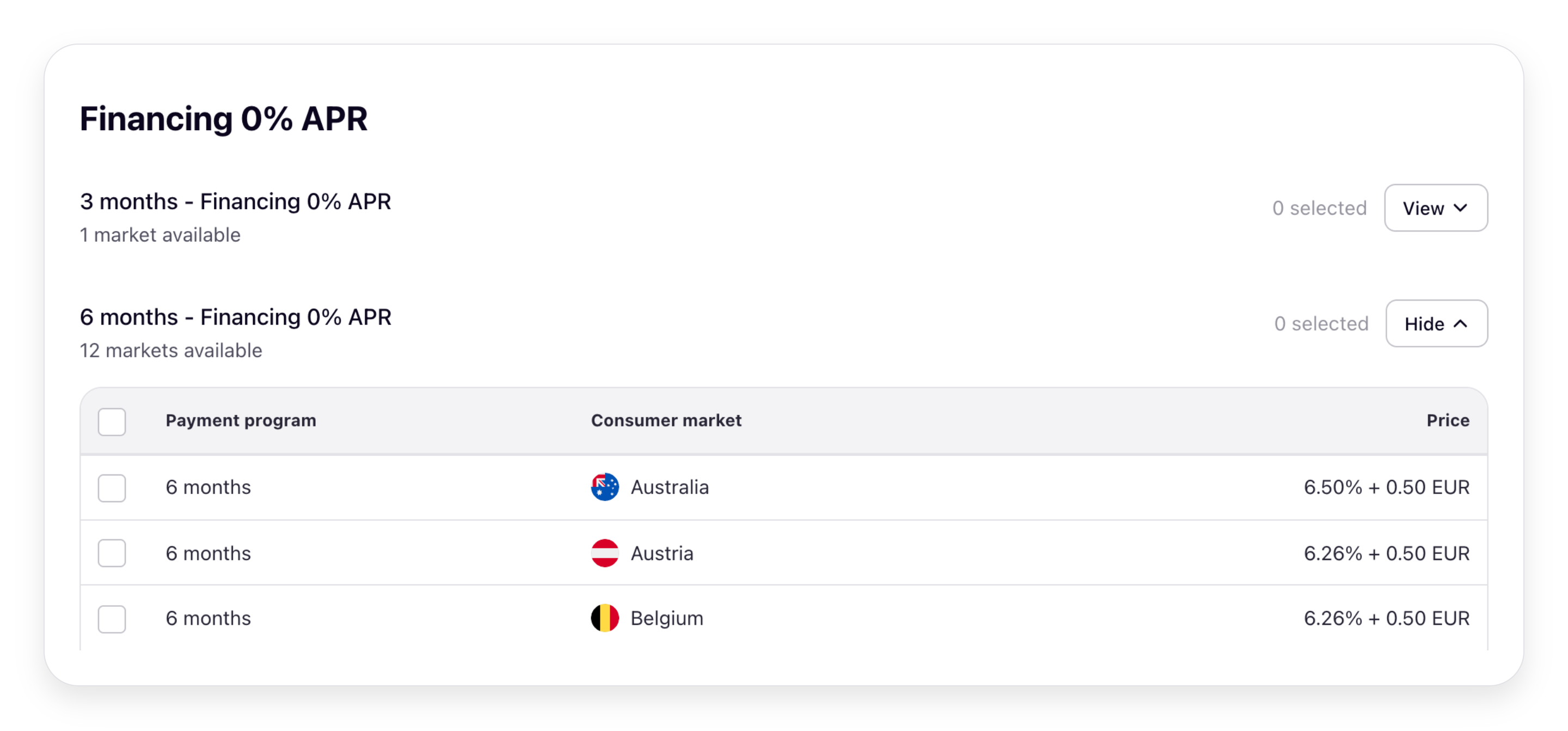
- Render the available Payment Programs together with the rates: show each program the Partner can enable alongside its sell rate. This is the conversion-critical view. Partners need to see the actual rate that will apply to them before they decide.
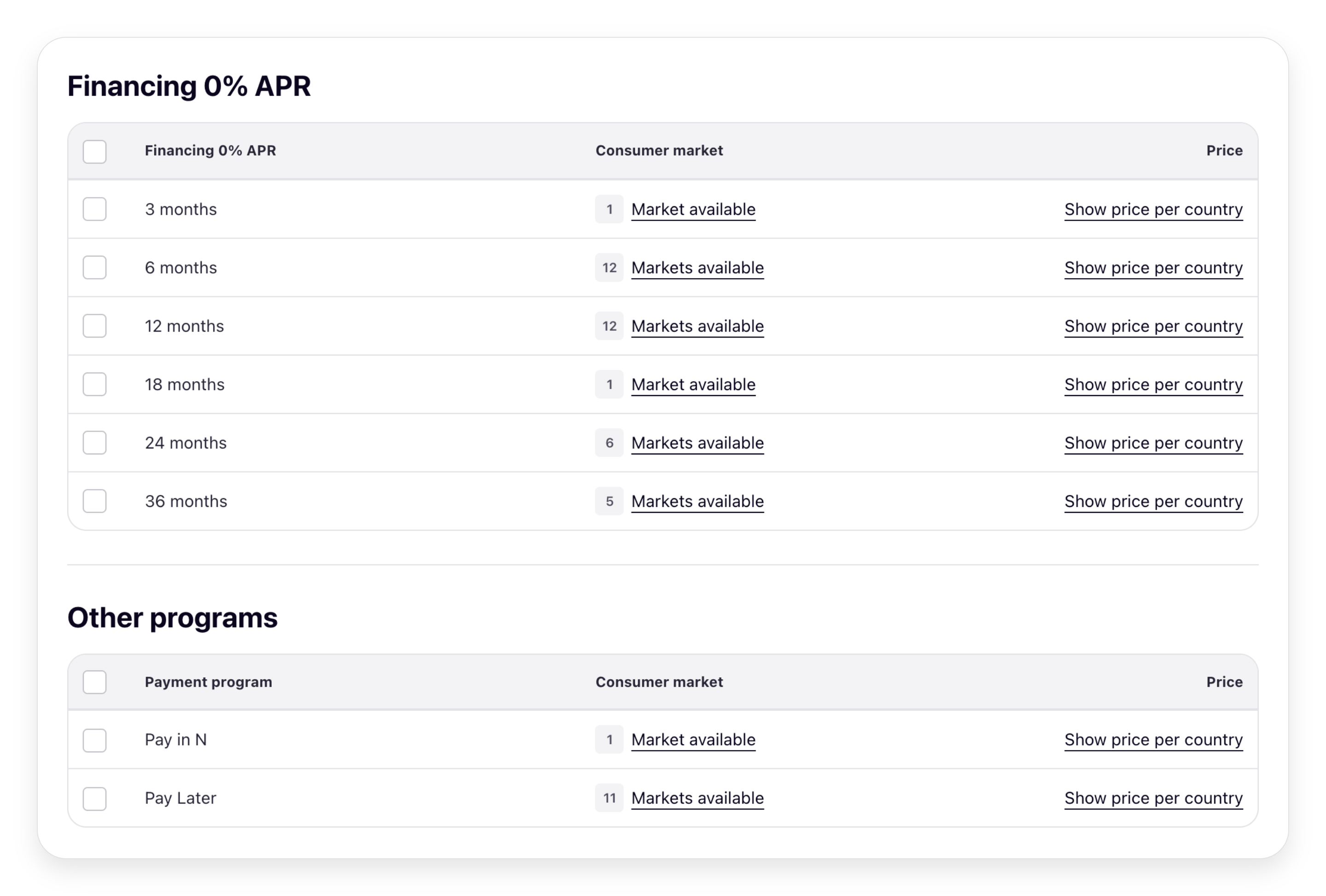
Best practices for the create screen:
- Show the sell rate inline with each Payment Program, before the Partner clicks to enable.
- Group Payment Programs by category so Partners can compare like with like.
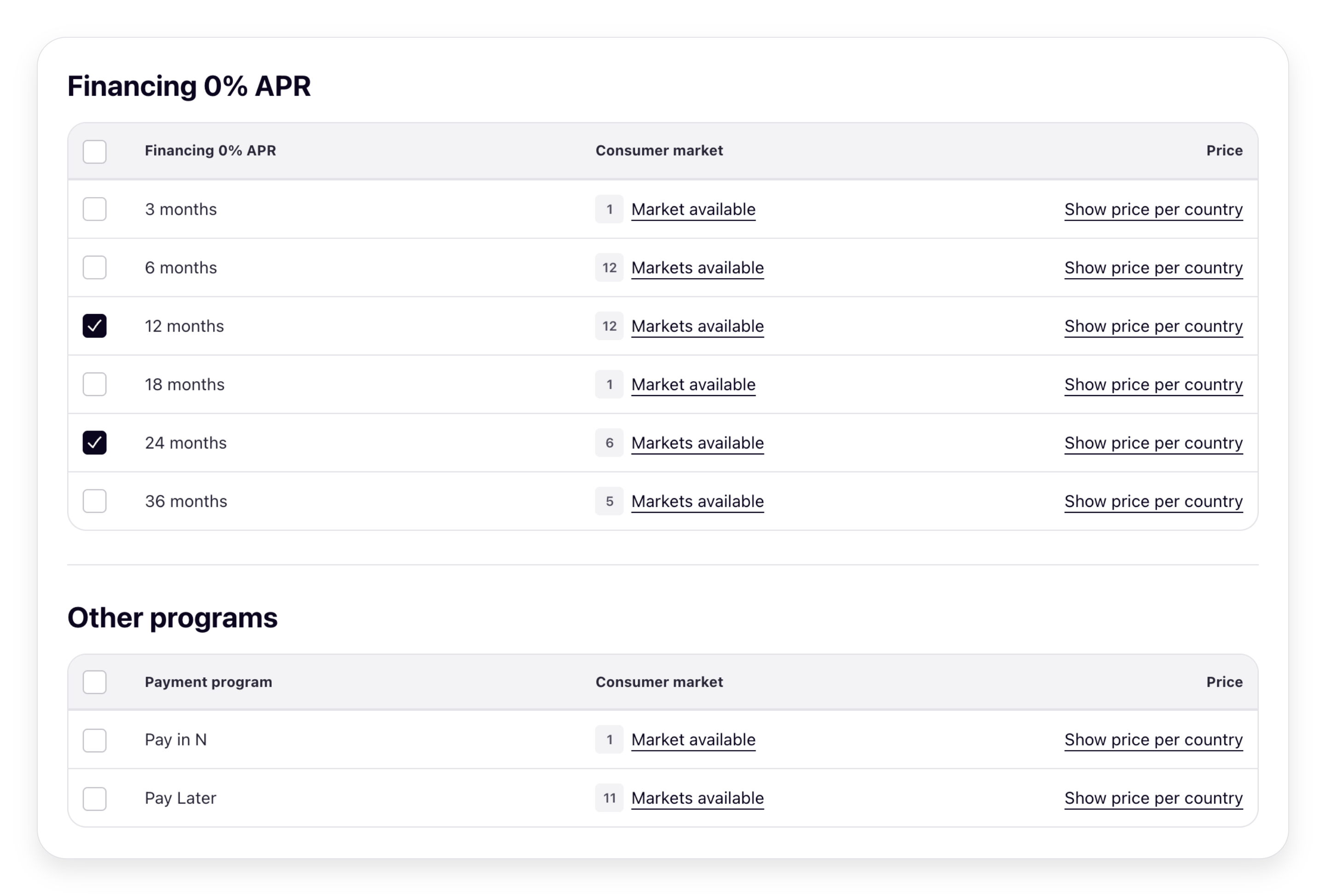
When the Partner selects one or more Payment Programs and confirms, create the enablements:
- Call create enablement: for each selected program, call createPaymentProgramEnablement with the
payment_and anyprogram_ id enablement_(customer countries, MCCs, Payment Account IDs, optionalcriteria payment_). The full request and response shape, idempotency requirements, and field-by-field guidance live in Create Payment Program Enablement.program_ enablement_ code
After a successful response, refresh the Payment Programs screen for the Partner. To show all current and historical enablements (including any created outside your portal), call listPaymentProgramEnablements for the
for the partner_.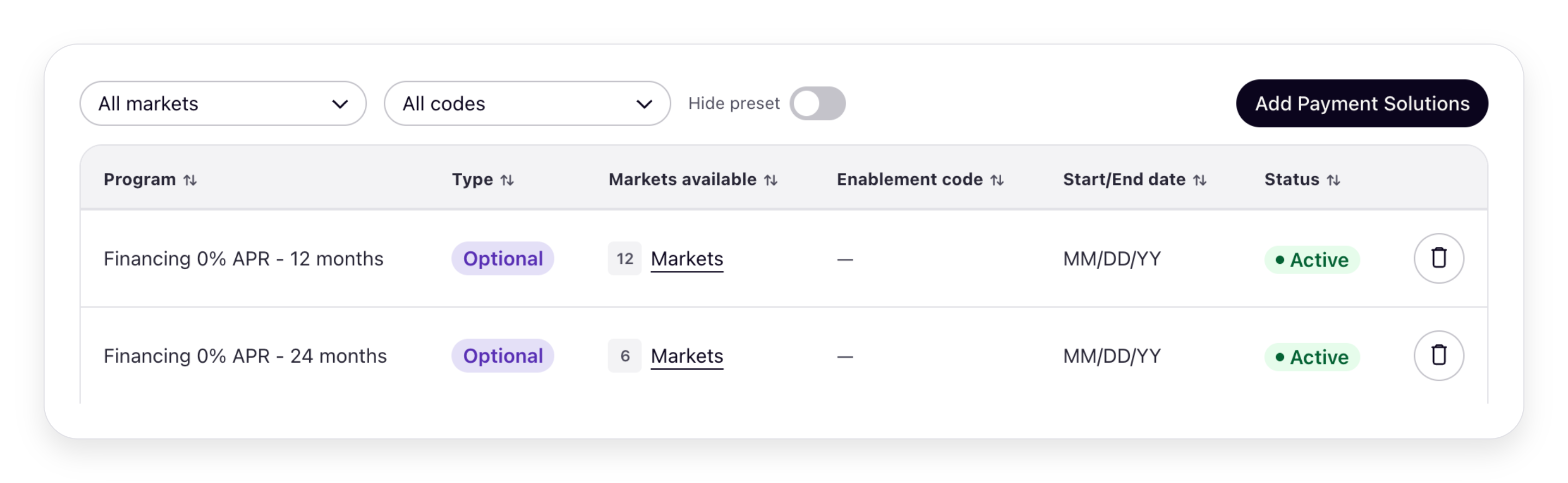
Provide an "End" affordance for each .
OPTIONAL Payment Program the Partner has previously enabled. On confirmation, call endPaymentProgramEnablement.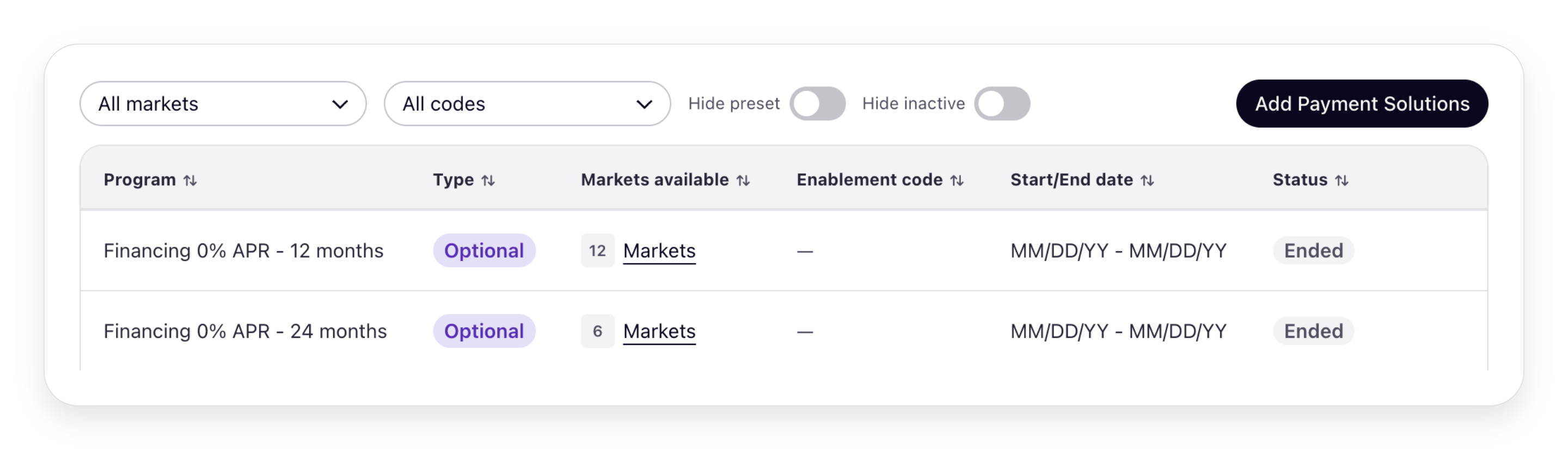
Coming soon
Enablement updates aren't supported today. To change
enablement_ for an existing enablement, end it and create a new one. See the release note in Create Payment Program Enablement.UI-to-API field mapping
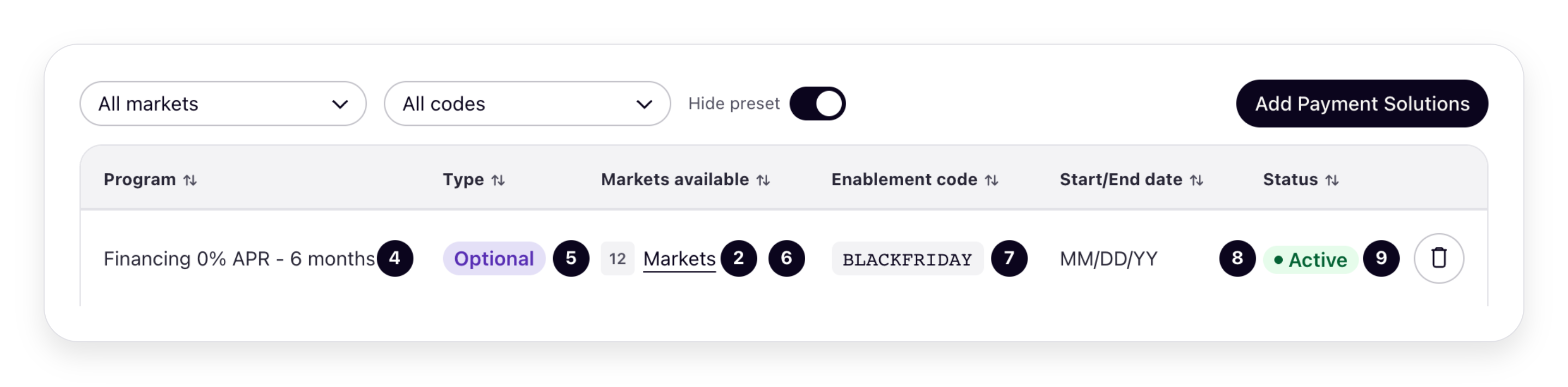
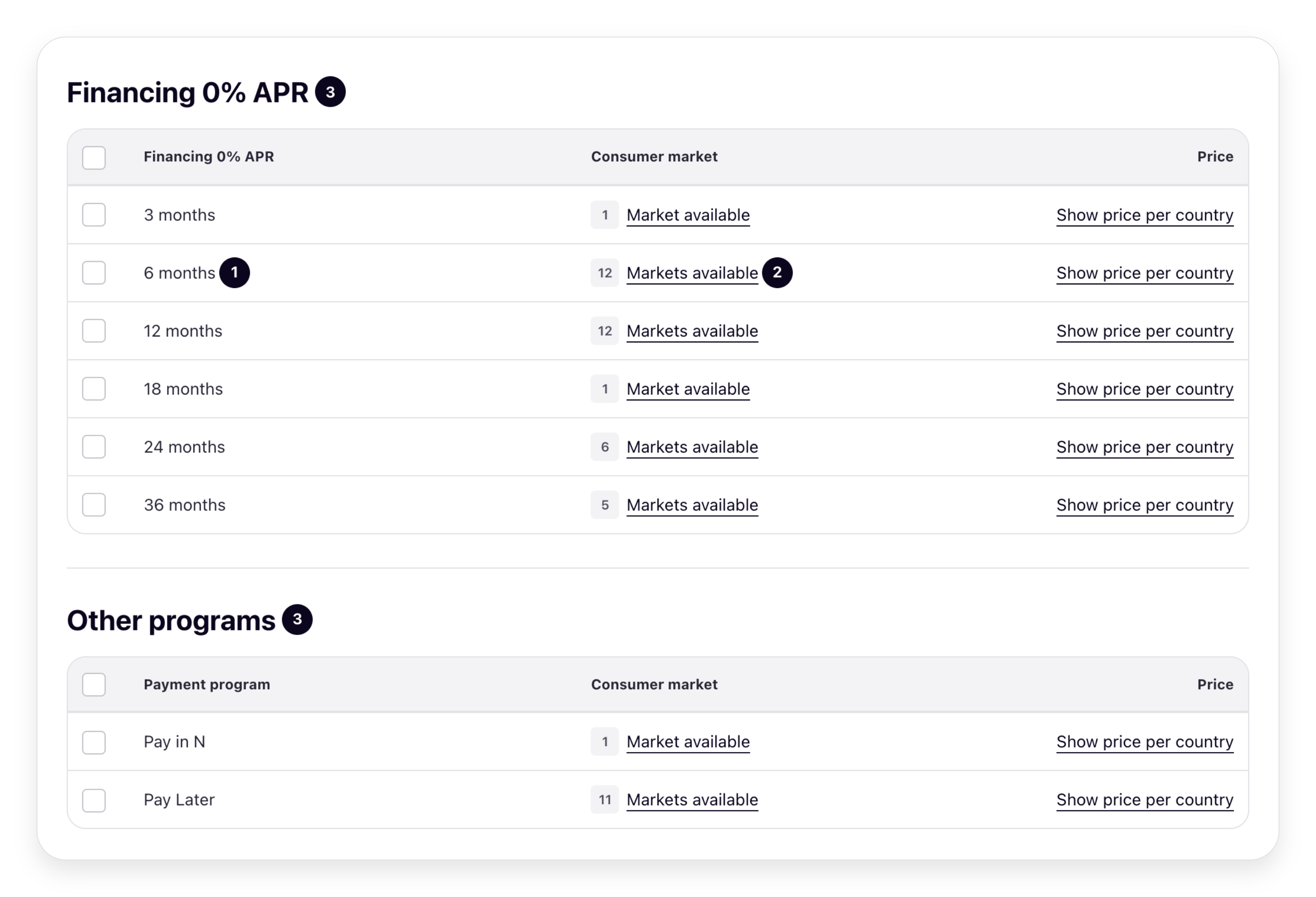
The visuals below show the global configuration of the two screens, the Payment Program Enablements screen and the create screen, annotated with numbered callouts. Each callout maps to a field in the responses that render the screens: listPaymentProgramsForPaymentProgramPlan (the available programs, per country) and listPaymentProgramEnablements (the active enablement's code, countries, and effective date). Your categorization isn't returned by Klarna for the screen — you compose the categories yourself. For the advanced layout, see Advanced enablement alternative.
(the available programs, per country) and listPaymentProgramEnablements (the active enablement's code, countries, and effective date). Your categorization isn't returned by Klarna for the screen — you compose the categories yourself. For the advanced layout, see Advanced enablement alternative.Payment Program Enablements screen
Create screen
Fields
| # | Field |
|---|---|
| 1, 4 | payment_ (listPaymentProgramsForPaymentProgramPlan) |
| 2 | payment_ (listPaymentProgramsForPaymentProgramPlan) |
| 3 | Category grouping — you compose this (not returned by Klarna) |
| 5 | payment_ (listPaymentProgramsForPaymentProgramPlan) |
| 6 | enablement_ (listPaymentProgramEnablements) |
| 7 | enablement_ (listPaymentProgramEnablements) |
Advanced enablement alternative
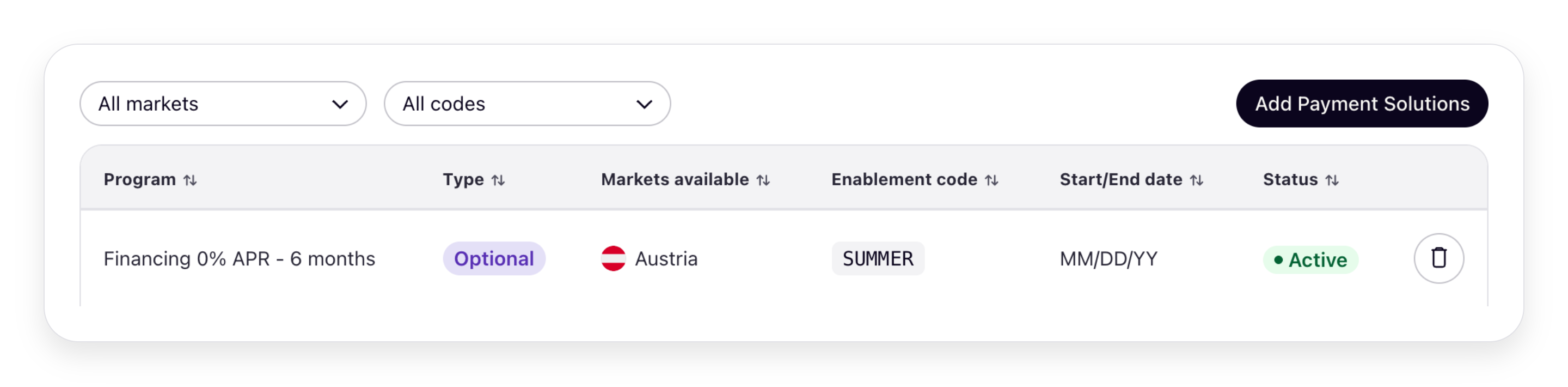
Your portal runs one configuration. The mapping above shows the global layout: one row per Payment Program covering all countries, and no countries passed when you create the enablement. In the advanced (market-specific) layout, the same screens render per market — one enablement per market — and you pass the selected market(s) in the enablement criteria. See Global vs. advanced enablement in the overview for what each one means and when to use it.
Payment Program Enablements screen
Create screen
Staying in sync: reconciliation
Klarna is the system of record for Payment Program enablement. Your portal is the Partner-facing surface that writes through the Klarna API, not a second source of truth. Because Partner-driven enablement flows through your portal, you'll generally have an up-to-date local view, but you still need to reconcile periodically to pick up changes that happen outside your portal (for example, future Klarna-driven changes).
Coming soon
A webhook that notifies you when a Payment Program Enablement is created, ended, or approved is on the roadmap. Until it's available, periodically reconcile both the Partner's current enablements (listPaymentProgramEnablements) and the available program offering (listPaymentProgramsForPaymentProgramPlan) per Partner Account, and diff against your local state. Both can change over time.
) and the available program offering (listPaymentProgramsForPaymentProgramPlan) per Partner Account, and diff against your local state. Both can change over time.Testing
Test the Partner's journey end to end, not just the individual API calls. Walk a test Partner through the same path your screens guide them along.
- 1.The Partner sees what they already have (Step 1): open the Payment Program Enablements screen for a test Partner and confirm it correctly shows their currently enabled Payment Programs, and that the optional ones they can still add appear with your sell rates.
- 2.The Partner adds a Payment Program (Steps 2–4): open the create screen, select one or more optional programs, and confirm. Check that the screen refreshes and the program now appears as enabled.
- 3.The Payment Program activates at checkout: run a checkout for the test Partner and confirm the newly enabled Payment Program is offered (enablement is cached, so allow up to 15 minutes).
- 4.The Partner ends a Payment Program (Step 5): end an optional program the Partner previously enabled and confirm it drops off the enabled list, and is no longer offered at checkout.
- 5.The screen reflects the canonical state: enable a program for the same Partner directly via the API, then reopen your screen and confirm it reflects that enablement too — proving you render Klarna's source of truth, not just local state.
Troubleshooting
| Symptom | Likely cause | Action |
|---|---|---|
400 Bad Request on create | Required field missing, type mismatch, or payment_ not part of the active Payment Program Plan | Validate against the response of listPaymentProgramsForPaymentProgramPlan; retry with the same Klarna-Idempotency-Key. |
| Enablement created but not visible at checkout | Klarna caches not yet refreshed | Wait 15 minutes and retry. |
Enablement state in your portal disagrees with listPaymentProgramEnablements | Out-of-band change made by Klarna | Re-sync from listPaymentProgramEnablements. |
Next steps
- For a Klarna-hosted enablement experience instead, see Method 1: Partner self-service in Klarna's Partner portal.
- For the same in-portal experience sourced from Klarna-curated presentation data, see Method 2b: Use Klarna's Payment Programs Presentation API.
- For the underlying resource model, see Payment Program Enablement.
- For the operational how-to, see Create Payment Program Enablement.
Jump to section...