
Integrate On-site messaging with Klarna mobile SDK
Enable On-site messaging on your store with Klarna's Mobile SDK and boost transparency and conversion.
7 min read
Overview
Integrate On-site messaging into your native iOS or Android app with Klarna's Mobile SDK to improve transparency and conversion for your Partners. The integration also covers the pre-qualification feature, which lets customers check their eligibility for Klarna financing before initiating a Payment Request — reducing friction and increasing confidence by making available options clear upfront.
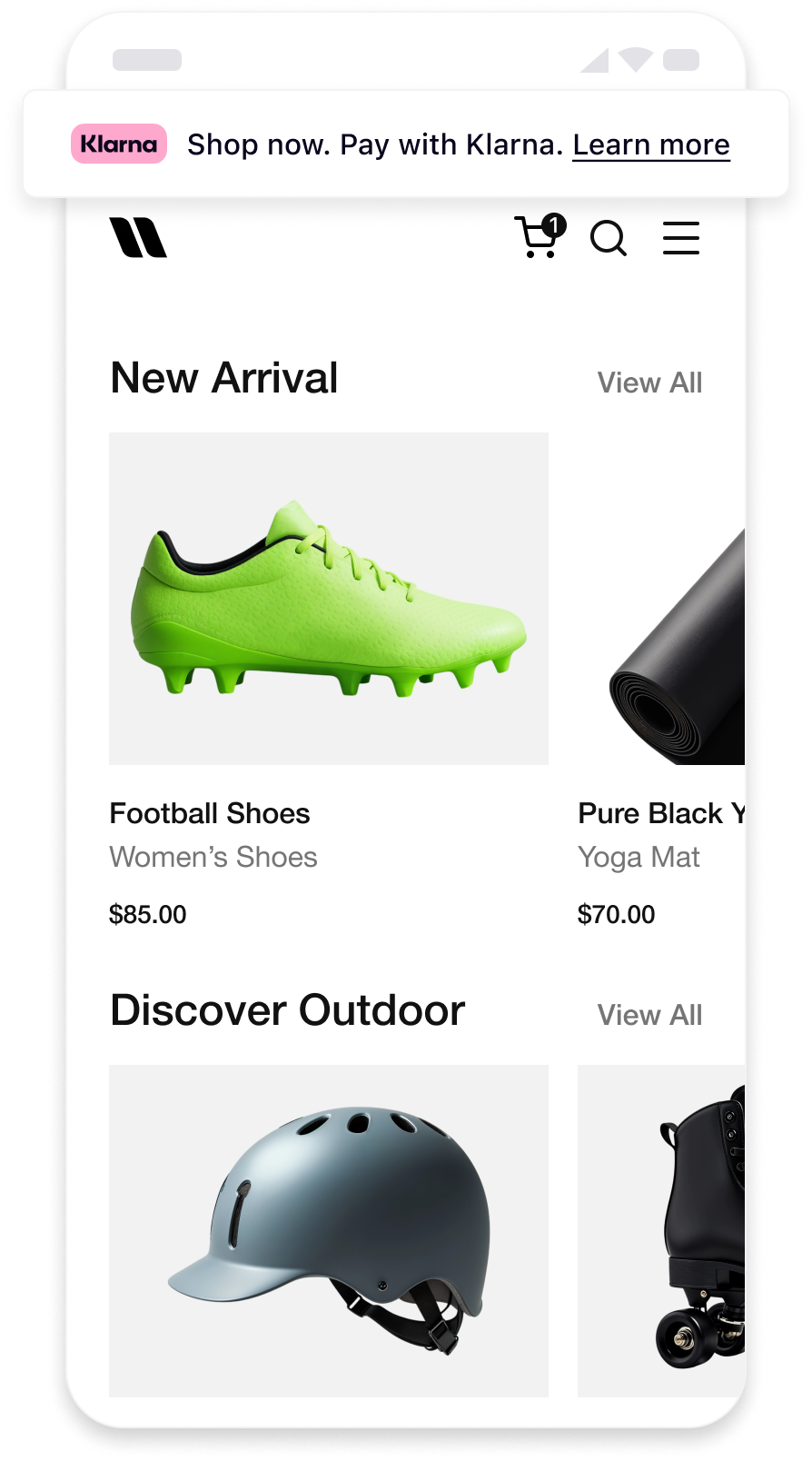 | 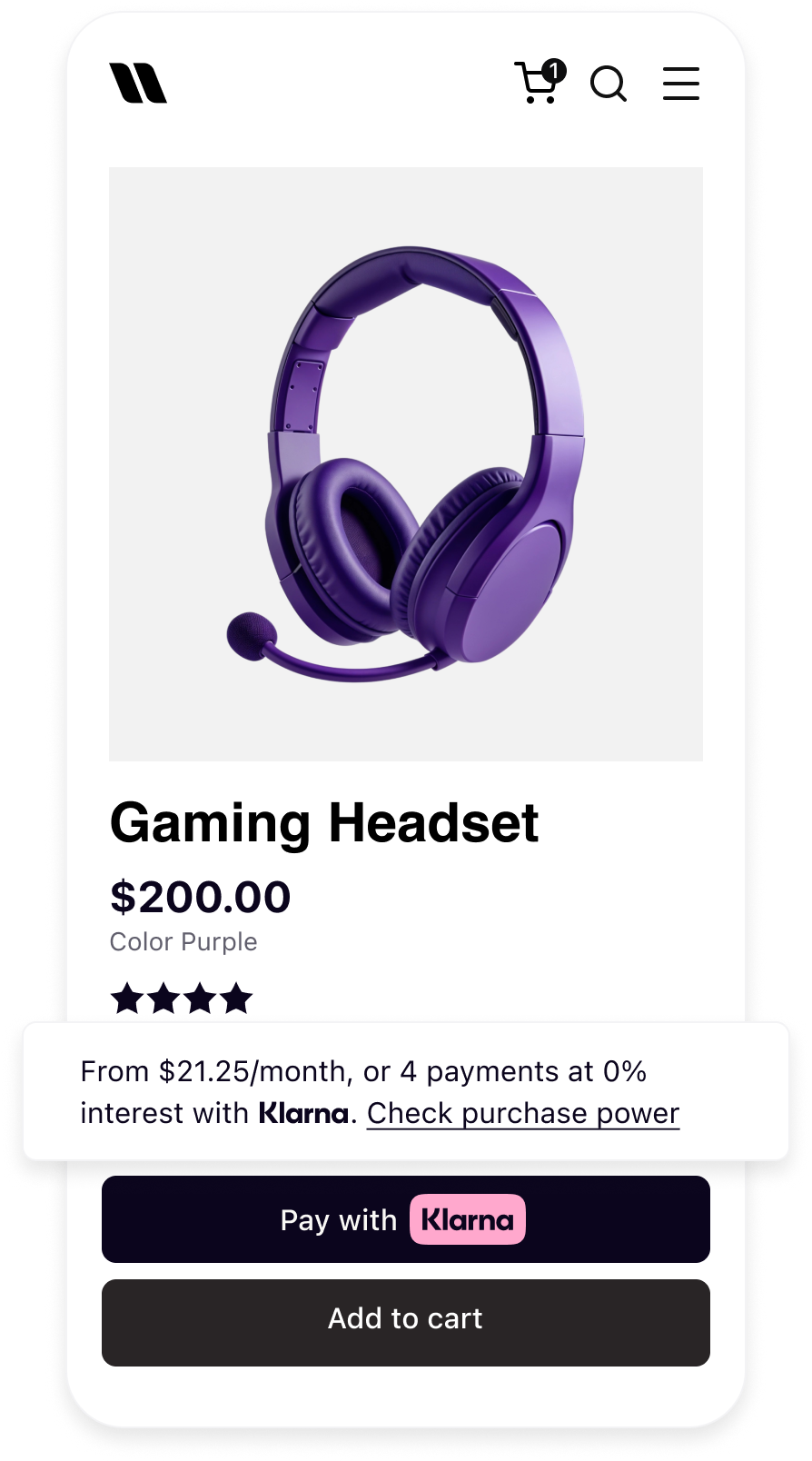 | 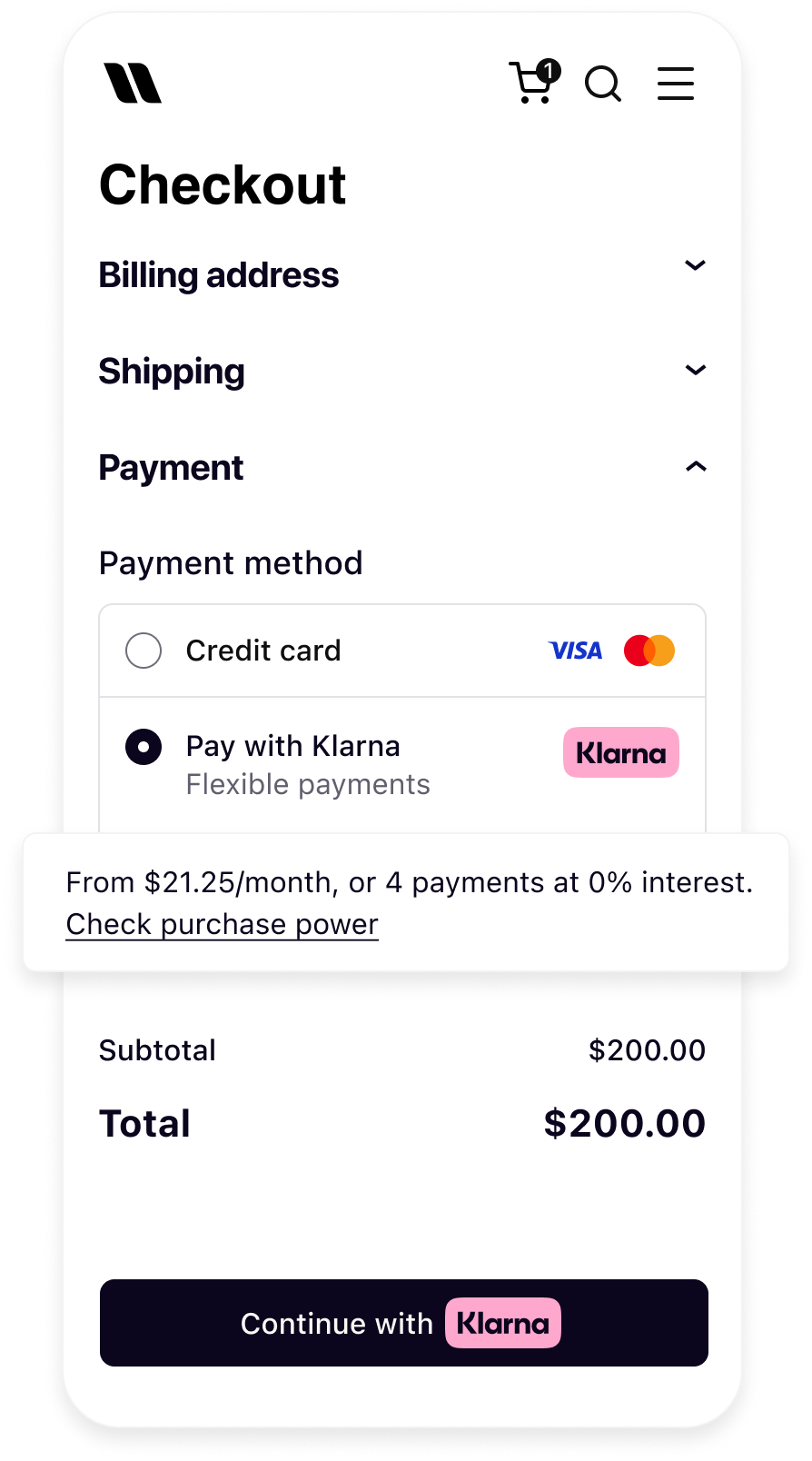 |
| Messaging on the homepage | Messaging on the product detail page | Messaging in the checkout |
Prerequisites
Before you integrate On-site messaging, check that you meet the following conditions:
- 1.You have Klarna enabled.
- 2.You have access to the Klarna Partner Portal.
- 3.Inside the Klarna Partner Portal:
- 3.1.You have generated a client identifier with your domain URL allowlisted.
- 3.2.You have generated an API key.
This guide covers both iOS (Swift) and Android (Kotlin) integrations.
Integration overview
Adding On-site messaging to your native app is a straightforward process. At a high level, you will:
- Request access to On-site messaging.
- Add the Mobile SDK messaging library.
- Initialize the Klarna SDK.
- Create the native messaging view and add it to your screen.
sequenceDiagram
participant C as Customer
participant SP as Partner
participant AP as Acquiring Partner
participant K as Klarna
AP->>K: Initialize Klarna SDK
AP->>K: Get On-site messaging placement
K->>AP: Return messaging / pre-qualification content
AP->>SP: Return / display messaging / pre-qualification content
SP->>C: Display messaging / pre-qualification content
alt Pre-qualification flow — approved
C->>SP: Clicks to check purchase power
SP->>AP: Click or initiate session request
AP->>K: Create session ID and request Klarna network session token
K->>AP: Return session ID and Klarna network session token
AP->>SP: Return Klarna network session token
K->>C: Start pre-qualification journey
C->>K: Completes pre-qualification
K->>AP: Send approval event and updated messaging
K->>C: Update placement to show approval
alt Partner builds checkout form
K->>AP: Pre-qualification state preserved
else Checkout form via Acquiring Partner
AP->>K: Fetch Klarna network session token
AP->>K: Share Klarna network session token server-side when authorizing
end
end
Add Mobile SDK messaging library
iOS
In Xcode, navigate to File → Swift Packages → Add Package Dependency and enter the repository URL:
https://github.com/klarna/klarna-mobile-sdk-spm
Under Version, select Up to Next Major and take the default option. Then choose
KlarnaNetworkMessaging in the Package Product column.Android
First, add the Klarna Mobile SDK Maven repository:
KOTLIN
1
2
3
repositories {
maven("https://x.klarnacdn.net/mobile-sdk/")
}Next, add the Klarna Mobile SDK messaging library as a dependency in your application:
KOTLIN
1
2
3
dependencies {
    implementation("com.klarna.mobile.sdk:klarna-network-messaging:2.x.x")
}
Initialize the Klarna SDK
The first step to add On-site messaging to your application is to initialize the Klarna SDK with the required configuration.
SWIFT
1
2
3
4
5
6
7
8
9
10
// Optional: set up the acquirer configuration to specify the Payment Account.
// Create an instance of KlarnaAcquiringConfig.
let acquiringConfig = KlarnaAcquiringConfig(
paymentAcquiringAccountId: paymentAcquiringAccountId,
paymentAccountReference: paymentAccountReference
)
// Create an instance of KlarnaConfiguration.
let configuration = KlarnaConfiguration(
clientId: clientId,Parameters
KlarnaAcquiringConfig
Required only when you are an Acquiring Partner with multiple Payment Accounts. Include this block to specify which Payment Account the SDK should use.
| Name | Type | Presence | Description |
|---|---|---|---|
paymentAcquiringAccountId | String | Required | Unique account identifier assigned by Klarna to the Acquiring Account. |
paymentAccountReference | String | Required | A unique string reference for the Payment Account, used by you to identify the Payment Account without relying on Klarna-generated IDs. Used to identify the Partner Account on your side. |
KlarnaConfiguration
| Name | Type | Presence | Description |
|---|---|---|---|
clientId | String | Required | The client ID of the Partner Account that is integrating the Mobile SDK. When you, as the Acquiring Partner, are the integrator, set this to your own client ID. |
accountId | String | Optional | Identifier of the account the action is performed on behalf of. |
locale | String | Optional | Default locale (ISO 3166-1 alpha-2) for the SDK. The system default locale is used if not set. |
acquiringConfig | Object | Optional | Required if you are an Acquiring Partner with multiple Payment Accounts — see KlarnaAcquiringConfig for the fields it must contain. |
klarnaNetworkSessionToken | String | Optional | A Klarna network session token. Allows the SDK to be initialized with an existing session. |
Create the native view
The On-site messaging native view is
KlarnaMessagingPlacementView. Create it programmatically and add it to your layout with your desired layout options.SWIFT
1
2
3
4
5
6
7
8
9
10
// Create an instance of KlarnaMessagingPlacementConfiguration.
// Depending on your requirements, use the `CreditPromotionBadge`
// or `CreditPromotionAutoSize` configuration.
let placementConfiguration = KlarnaMessagingPlacementConfiguration.creditPromotionBadge(
theme: .automatic,
amount: 10000,
currency: "USD"
)
// Create an instance of the view.Parameters
CreditPromotionBadge
| Name | Type | Presence | Description |
|---|---|---|---|
theme | KlarnaTheme | Optional | Stylizes the view for light, dark, or automatic (system) configurations. Default value is light / LIGHT. |
amount | Long | Required | Amount for the placement, in micro units ($120.00 = 12000). Used for amount-based credit promotions. |
currency | String | Required | 3-letter ISO 4217 currency code. |
CreditPromotionAutoSize
| Name | Type | Presence | Description |
|---|---|---|---|
theme | KlarnaTheme | Optional | Stylizes the view for light, dark, or automatic (system) configurations. Default value is light / LIGHT. |
amount | Long | Required | Amount for the placement, in micro units ($120.00 = 12000). Used for amount-based credit promotions. |
currency | String | Required | 3-letter ISO 4217 currency code. |
KlarnaTheme
| Swift value | Kotlin value | Description |
|---|---|---|
light | LIGHT | Light style for the placement view. |
dark | DARK | Dark style for the placement view. |
automatic | AUTOMATIC | Automatic theme that follows the system's user interface style. |
Jump to section...