

Build Payment Presentation with the Klarna Web SDK
Step-by-step implementation guide for Partners to integrate Klarna Payment Presentation using the Klarna Web SDK — initialize the SDK, retrieve presentation instructions, render Klarna in the payment selector with support for saved payment options, and configure the Klarna payment button.
13 min read
Overview
This guide walks through how to integrate Klarna Payment Presentation in the Partner's checkout using the Klarna Web SDK. Payment Presentation is the first step in the Klarna flow: it controls how Klarna appears as a payment method in the payment selector before the customer clicks the Klarna payment button.
For the Payment Presentation concept (what it returns, how it adapts dynamically) see the Payment Presentation Overview.
What this guide covers
- Initialization of the Klarna Web SDK in the Partner's checkout.
- Retrieval of Payment Presentation for the current payment context.
- Rendering Klarna in the payment selector following Klarna's presentation instructions, including support for the customer's saved payment option.
- Mounting and configuring the Klarna payment button.
Out of scope
- Creating the Payment Request, retrieving the
klarna_, and finalizing authorization. See Authorize a customer-initiated payment (Web SDK).network_ session_ token - Server-side Payment Presentation via Klarna's Payment Presentation API. See Build Payment Presentation with the Payment Presentation API.
- Tokenized payment flows. See Payment Tokenization.
Prerequisites
Before integrating, check that the following prerequisites are met:
- 1.A Klarna Partner account is in place.
- 2.Access to the Klarna Partner Portal is confirmed.
- 3.Inside the Klarna Partner Portal:
- 3.1.A client identifier has been generated with the Partner's domain URL allowlisted.
- 3.2.An API key has been generated.
- 4.Terms and Conditions for the Web SDK have been added to the Partner's site.
The Klarna Web SDK (
klarna.) follows the JavaScript module approach and should be included where a reference to the SDK is needed, such as while rendering components or initiating a payment flow.The initialization parameters are:
| Parameter | Presence | Description |
|---|---|---|
clientId | required | A credential used to identify the Partner, obtained from the Klarna Partner Portal. Register all domains where the Web SDK will be used. |
products | optional | An array used to specify which products should be loaded to optimize performance by limiting the amount of data downloaded. When the PAYMENT product is included, only the klarna. package is loaded. When the products array is omitted, all available packages are loaded by default. |
locale | optional | Language and region code (for example, en-US). When omitted, Klarna may default based on the customer's browser settings. |
For the full API specifications, see the Klarna Web SDK reference.
SDK initialization sample
JAVASCRIPT
1
2
3
4
5
6
7
8
9
10
const { KlarnaSDK } = await import("https://js.klarna.com/web-sdk/v2/klarna.mjs");
const klarna = await KlarnaSDK({
clientId: "[client-id]",
products: ["PAYMENT"],
locale: "en-US",
});
// Klarna SDK ready to be used:
// klarna.Payment.presentation({ ... });Integration requirement
When the domain is not registered, subsequent method calls result in an error.
| Do | Don't |
|---|---|
Load the Web SDK from https:/ to remain compliant. | Bundle the Web SDK or self-host it. |
Keep the SDK in the top-level (1st-party) browsing context. | Load the Web SDK inside an iframe. |
Specify products to optimize loading. | Omit the products array. |
Disclose Web SDK tracking in the site's notices. See the Klarna Web SDK terms. | Use the Web SDK without disclosing tracking technologies. |
Klarna Payment Presentation provides all the visual assets, localized texts, and instructions needed to correctly display Klarna in the checkout form.
Use the initialized SDK instance to call the
klarna. method.Basic checkout context parameters must be provided:
| Parameter | Presence | Description |
|---|---|---|
amount | conditional | The transaction amount in minor units following ISO 4217 exponents (for example, $118.00 = 11800, ¥1400 = 1400). Required when the intent is PAY or SUBSCRIBE; otherwise optional. |
currency | required | Three-letter ISO 4217 currency code (for example, USD, EUR). |
locale | optional | Locale code to localize texts and formats (for example, en-US, de-DE). When unset, the value chosen at Web SDK setup time is used automatically. When that is not available, the browser's settings are used instead. |
intent | optional | Specify the intent of the checkout flow: PAY, SUBSCRIBE, ADD_. When omitted, intent defaults to PAY. |
For the full API specifications, see the Klarna Web SDK reference.
Recommended for integration
Performance optimization
Ensure that Klarna is displayed at roughly the same time as other payment methods, with an acceptable delay of less than 100 ms. To achieve this, begin initializing the Klarna Web SDK and invoke the Payment Presentation method concurrently while loading the list of all enabled payment methods.
Integration requirement
Refresh Payment Presentation when the amount changes.
The assets returned by
klarna. (instalment amounts, messaging, and links) are tied to the amount passed in the call. If the customer changes the basket or final amount after Klarna is already displayed, call klarna. again with the updated amount and re-render Klarna with the new response. Displaying presentation from an older total can show incorrect instalment amounts and mislead customers.Sample code
JAVASCRIPT
1
2
3
4
5
6
const paymentPresentation = await klarna.Payment.presentation({
amount: 11800,
currency: "USD",
locale: "en-US",
intent: "PAY"
});The
PaymentPresentation interface provides the full Klarna branding package and instructions tailored to the customer's purchase:| Attribute | Presence | Purpose |
|---|---|---|
instruction | required | Specifies how Klarna should be displayed in the payment selector (show, preselect, show only, or hide). Adhering to these instructions ensures customers have the best possible experience and optimizes conversion rates. |
paymentOption | optional | Defines the default Klarna payment option applicable to all purchase types. Includes the visual elements required to represent Klarna during checkout. |
savedPaymentOption | optional | Defines the customer's saved payment option, available when the customer has authenticated with a Customer Token. The structure mirrors paymentOption. When present, prioritize savedPaymentOption over paymentOption to provide the best experience for returning customers. |
paymentOption and savedPaymentOption share the same object structure:| Attribute | Presence | Purpose |
|---|---|---|
paymentOptionId | required | The identifier of the payment option. The value is required when later sending the Payment Authorize API or the Payment Request API call to initiate the payment. |
icon | required | Klarna badge/logo suitable for checkout forms. |
header | required | The main descriptor that introduces Klarna in the payment form. The value is dynamically adjusted based on the locale provided. |
subheader | required | The descriptor subheader, loaded inline below the main descriptor header. Short and enriched descriptive texts. Provides transparency on available options like instalments, pay later, and so on. |
message | optional | Enriched tailored description with link. |
badge | optional | Badge used for saved options or promotions. |
terms | optional | Defines terms or disclosures, potentially with links. |
paymentButton | required | Payment button that starts the Klarna Purchase Journey. |
For the full API specifications, see the Klarna Web SDK reference.
Returning customers and saved payment methods
Partners do not pass
customer_ directly to the Web SDK. When the klarna_ issued by Klarna for the session is bound to a known customer (for example, after Sign in with Klarna or a previous tokenization), the SDK automatically surfaces the customer's saved payment option in the presentation() response — the response includes savedPaymentOption and the instruction is PRESELECT_. To authorize a payment with a stored customer_ server-side without going through the Web SDK, see the Customer Token resource.Apply Klarna's Payment Presentation instructions to control how Klarna appears in the checkout. Following these instructions ensures consistent customer experiences and is required for features like Klarna Express Checkout and Sign in with Klarna.
The
instruction attribute has the following values:| Instruction | Description |
|---|---|
SHOW_ | Show Klarna alongside other payment methods. |
PRESELECT_ | Show Klarna pre-selected but still alongside others. Returned when using a customer_ issued from the Sign in with Klarna feature or the tokenization flow. |
SHOW_ | Show Klarna as the only payment method. Returned when the customer has finished the first step of Klarna Express Checkout multistep. |
HIDE_ | Hide Klarna from the payment methods. Returned when Klarna is unavailable in the customer's context (for example, when access has been revoked) and the Partner should not offer Klarna for this checkout. |
The implementation must handle both
paymentOption (default) and savedPaymentOption (customer-specific). Prioritize savedPaymentOption when both are present.Sample code
JAVASCRIPT
1
2
3
4
5
6
7
8
9
10
function renderKlarna(paymentPresentation) {
  if (!paymentPresentation) return;

  const root = qs("#klarna-payment-method");
  if (!root) {
    console.error("Missing #klarna-payment-method container.");
    return;
  }

root.innerHTML = `Once an instance of
PaymentPresentation is created, the Klarna payment option(s) must be rendered dynamically in the payment selector according to Klarna's presentation guidelines. The following diagram displays the visual components and how they are rendered in different selection states:- 1.Icon
- 2.Badge
- 3.Header
- 4.Subheader
- 5.Message
- 6.Terms
- 7.Button
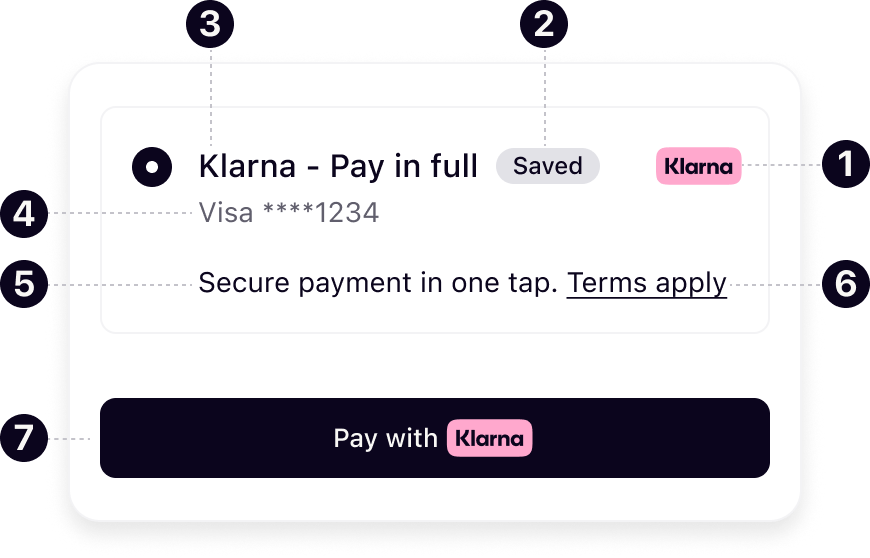
Mount the Klarna payment option components within the designated Klarna payment method container. When defining the layout, allocate sufficient space for all components and choose the appropriate variants to match the payment form structure. The message component must always occupy a full row to ensure legibility, positioned directly beneath the header, sub-header, and logo, as illustrated above.
Ensure that all components, including those not immediately visible, are mounted during initialization, and manage their visibility through dedicated logic or UI controls.
JAVASCRIPT
1
2
3
4
5
6
7
8
9
10
function renderKlarnaOption(containerId, option) {
  const container = qs(`#${containerId}`);
  if (!container) {
    console.error(`Missing #${containerId} container.`);
    return;
  }

  const ids = {
    icon:    `${containerId}-icon`,
header: `${containerId}-header`,When a Klarna payment option is selected or deselected, ensure the additional visual components (message, terms, payment button) are shown or hidden properly.
JAVASCRIPT
1
2
3
4
5
6
7
8
9
10
/**
 * Toggle the Klarna payment option selected state.
 * Use for both SDK preselection (PRESELECT_KLARNA) and customer interactions.
 */
function toggleKlarnaPaymentOptionSelection(containerId, isSelected) {
  const container = qs(`#${containerId}`);
  if (!container) {
    console.error(`Missing container #${containerId}.`);
    return;
}The Payment Presentation instance allows mounting the prebuilt button component. The Klarna payment button is context-aware and dynamically adapts to the configuration.
Choose the theme and shape of the payment button to best fit the online store in a way that complements the brand and encourages customer engagement. More details on button styling are available in Checkout styling.
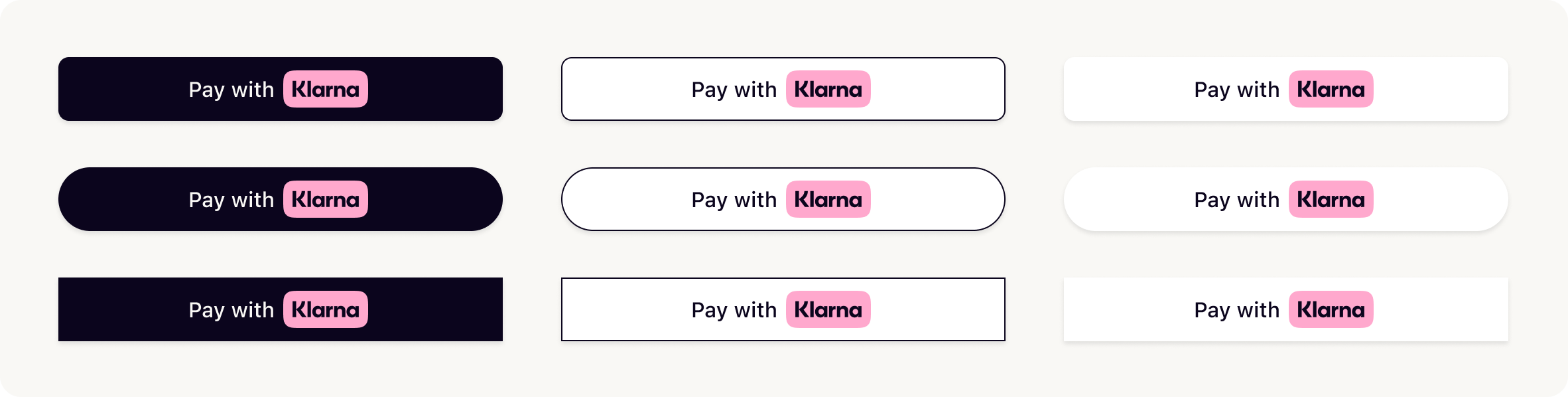
The
paymentButton. can be configured with the following parameters:| Parameter | Presence | Description |
|---|---|---|
id | optional | Sets a custom DOM ID on the rendered button. Useful for testing or styling. |
shape | optional | Defines the button's shape. Possible values: default, pill, rect. |
theme | optional | Sets the visual theme of the button. Possible values: default, light, dark, outlined. |
locale | optional | Sets the language and region (for example, en-US). When unset, the value chosen at Web SDK setup time is used automatically. When that is not available, the browser's settings are used instead. |
disabled | optional | Disables the button when set to true. Useful during form validation or async operations. |
loading | optional | Forces the button into a loading state. Useful when awaiting async setup or validation. |
intent | optional | Sets the purpose of the payment (PAY, SUBSCRIBE, ADD_). Used to personalize the button and flow when not set when creating the PaymentPresentation instance. |
initiate | required | Function that returns a Promise resolving to either a PaymentRequestData, a paymentRequestUrl, or a returnUrl. This is handled differently depending on the integration path. |
initiationMode | optional | Defines how Klarna launches the Klarna Purchase Journey. |
For the full API specifications, see the Klarna Web SDK reference.
Sample code
JAVASCRIPT
1
2
3
4
5
6
7
8
9
option.paymentButton.component({
  id: "klarna-payment-button",      // optional test hook
  shape: "pill",                    // "default" | "pill" | "rect"
  theme: "default",                 // "default" | "light" | "dark" | "outlined"
  intent: "PAY",
  initiationMode: "DEVICE_BEST",    // "DEVICE_BEST" | "ON_PAGE" | "REDIRECT"
  initiate: async ({ klarnaNetworkSessionToken, paymentOptionId }) =>
    initiateKlarnaPayment(klarnaNetworkSessionToken, paymentOptionId),
}).mount(`#${containerId}-payment-button`);
Button handles purchase journey
The button automatically handles customer interaction and triggers the Klarna Purchase Journey via the
initiate function. Implement the initiate callback as documented in Authorize a customer-initiated payment (Web SDK).Next steps
Payment Presentation ends when the customer clicks the Klarna payment button. From that point, the integration continues with creating a Payment Request, retrieving the
klarna_, and authorizing the payment.- Continue with Payment Request creation, Klarna Network Session Token handling, and authorization — see Authorize a customer-initiated payment (Web SDK).
- Style the Klarna payment button to match the checkout — see Checkout styling.
- Compare integration paths and learn the Payment Presentation concept — see Payment Presentation Overview.
Jump to section...