

Integrate On-site messaging with Klarna webSDK
Enable Klarna payment messaging on the online store with Klarna WebSDK and boost transparency and conversion.
6 min read
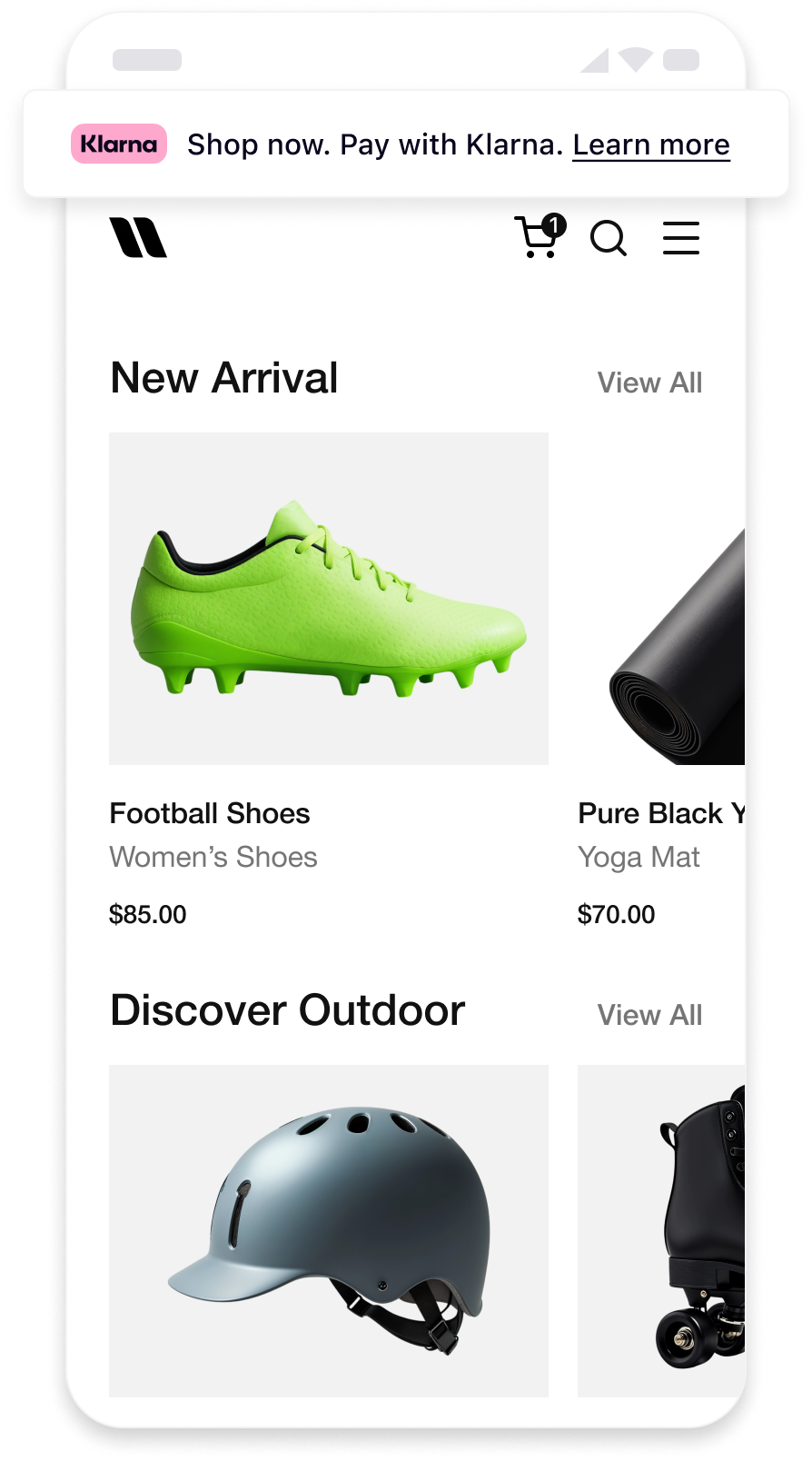 | 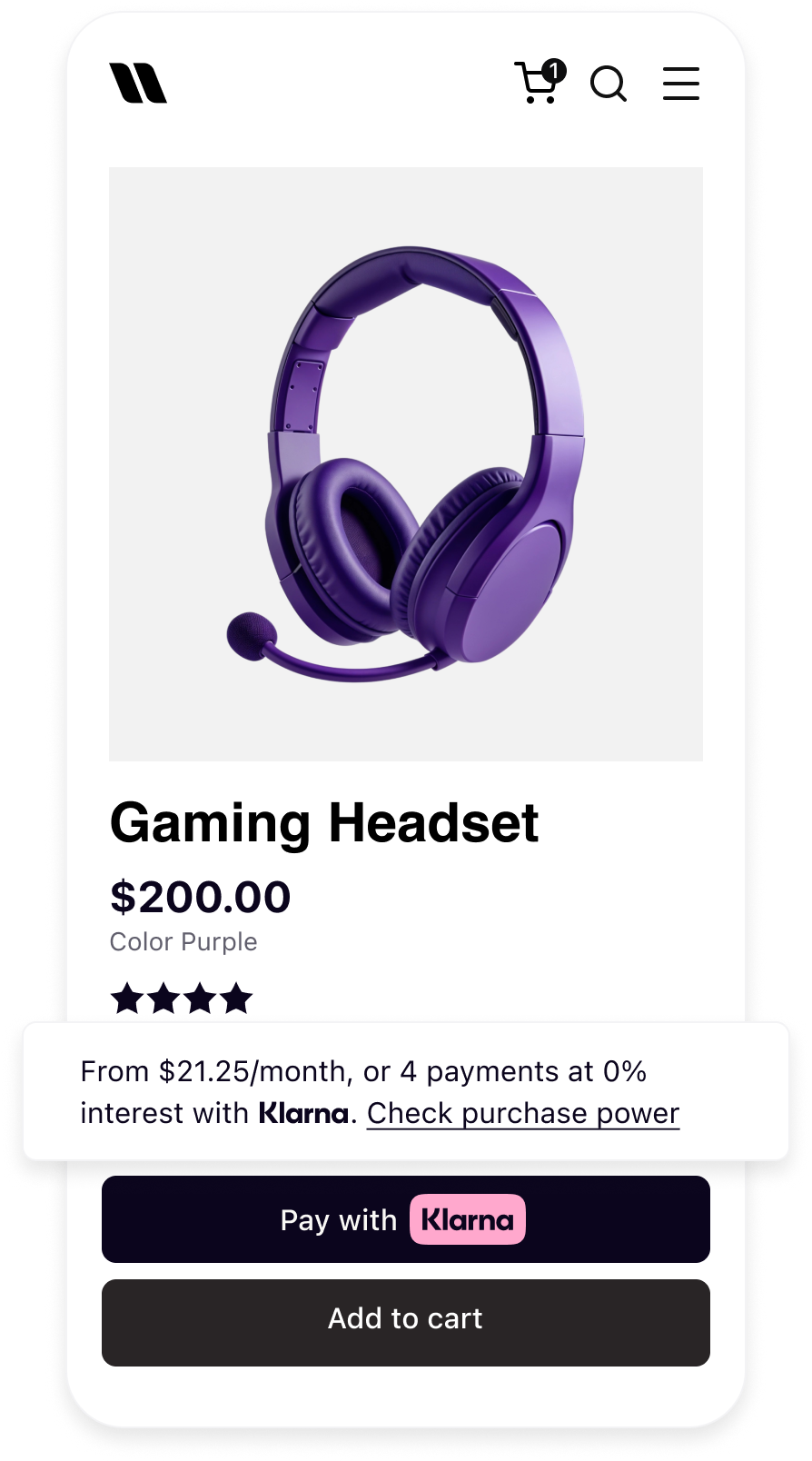 | 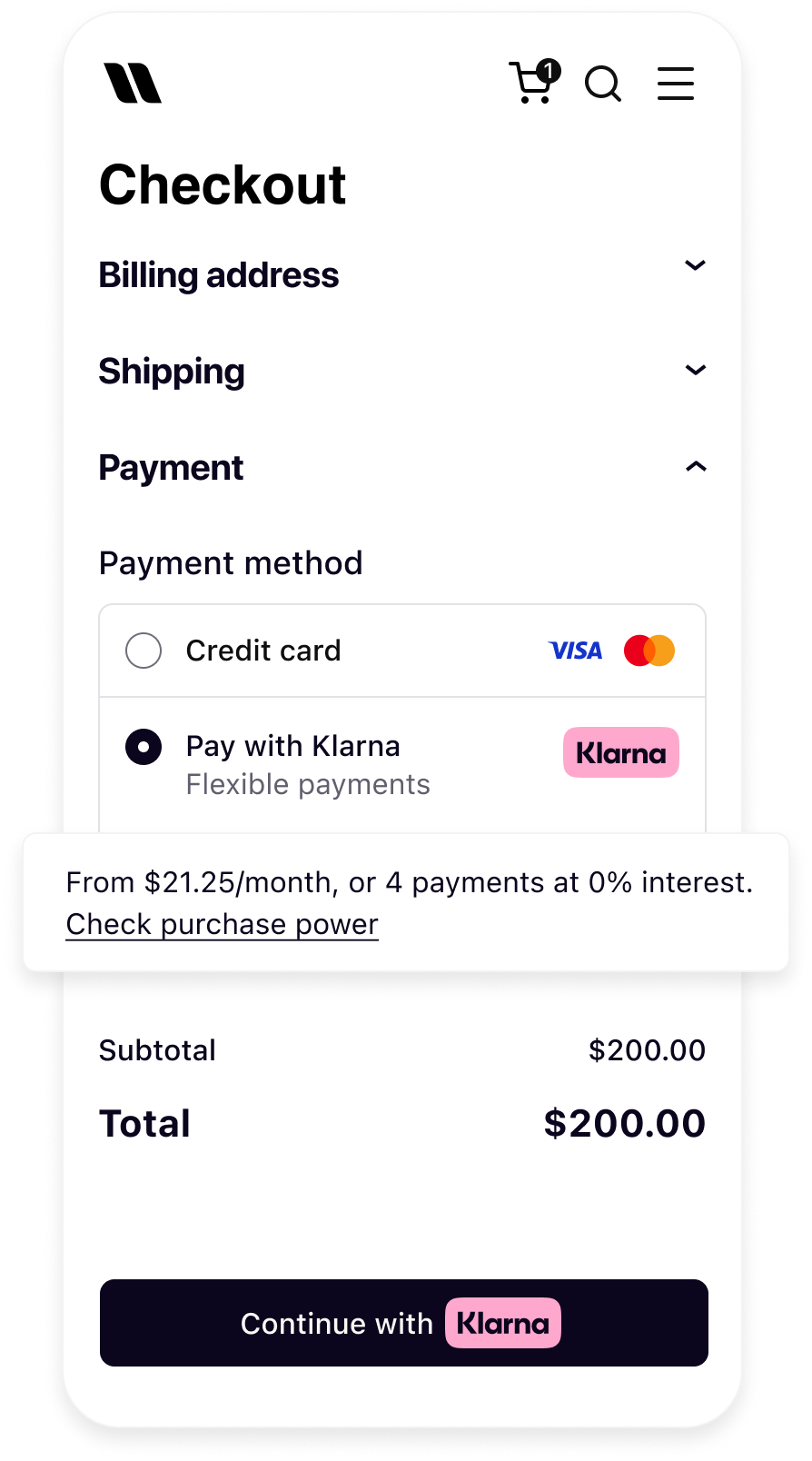 |
| Messaging on the homepage | Messaging on the product detail page | Messaging in the checkout |
Prerequisites recap
Before integrating On-site messaging, the following prerequisites must be met:
- 1.A Klarna payment solution is in place.
- 2.Access to the Klarna Partner Portal is available.
- 3.Inside the Klarna Partner Portal:
- 3.1.A client identifier has been generated with the domain URL allowlisted.
- 3.2.An API key has been generated.
- 4.Add Terms and Conditions for Web SDK.
Integration overview
The following is an overview of all the steps to add On-site messaging into the website:
- Initialize Klarna Web SDK using
https://js. klarna. com/ web-sdk/ v2/ klarna. mjs - Display Klarna On-site messaging on relevant pages.
- Enable prequalification. The following diagram outlines the interactions among different components:
sequenceDiagram
participant C as Customer
participant P as Partner
participant K as Klarna
P->>K: Initialize Klarna SDK
P->>K: Get OSM placement
K->>P: Return messaging/prequalification content
P->>C: Display messaging/prequalification content
alt Prequalification flow - Approved
C->>P: Clicks to check purchase power
P->>K: Create session ID & request Klarna Network Session Token
K->>P: Return session ID & Klarna Network Session Token
K->>C: Start prequalification journey
C->>K: Completes prequalification
K->>P: Send approval event & updated messaging
P->>C: Update placement to show approval
Note over P,K: Prequalification state preserved via Klarna Network Session Token
end
Integration details
The Klarna Web SDK (klarna.mjs) follows a JavaScript module approach and should be included in places where a reference to the SDK is needed, such as while rendering any components or initiating a payment flow. Always load the Web SDK from https://js.klarna.com/web-sdk/v2/klarna.mjs to remain compliant. Do not include the script in a bundle or self-host it.
Use the
clientId to initialize the SDK.JAVASCRIPT
1
2
3
4
5
6
7
8
9
10
<script type="module">
const { KlarnaSDK } = await import("https://js.klarna.com/web-sdk/v2/klarna.mjs")
const klarna = await KlarnaSDK({
clientId: "[client-id]",
products: ["MESSAGING"],
locale: "en-US", // optional
})
// Klarna SDK ready to be utilized| Parameter | Presence | Description |
|---|---|---|
clientId | required | A credential that identifies the Partner's Partner Account (obtained via the Klarna Partner Portal). |
products | optional | Array to specify which products to load for optimal performance. This reduces the amount of data needed to download. For example, only loading PAYMENT will exclude the CUSTOMER product. |
locale | required | Language and region code (for example, en-US). If omitted, Klarna may default based on the customer's browser settings. |
For the full API specifications, refer to Klarna Web SDK.
Recommended for integration
Important implementation details
- The script should always be loaded on the 1st-party context, never inside an iframe, to ensure the purchase flows work as expected.
- Ensure the products are properly specified while initializing for the best performance outcome.
Integration requirement
Legal notice
When using the Klarna Web SDK, Partners are responsible for informing users about the tracking technologies it uses. Learn more about how to disclose this on the site.
Web SDK provides the
placement method that allows creation and mounting of the messaging placement programmatically.Code example
HTML
1
2
3
4
5
6
7
8
klarna.Messaging.placement({
    key: 'credit-promotion-badge',
    amount: 20000,
    currency: "USD",
    locale: 'en-US',
    theme: 'light'
}).mount('#osm-placement');
Parameters
| Parameter | Presence | Description |
|---|---|---|
key | required | Placement type key. List of available keys |
currency | required | Currency in ISO 4217 format. Supported currencies: AUD, EUR, CAD, CZK, DKK, HUF, MXN, NZD, NOK, PLN, RON, SEK, CHF, GBP, USD. |
amount | required | Amount in minor units (for example, $5.00 = 500). To populate amount:
|
locale | required | Locale for messaging ("en-AT", "de-AT", "nl-BE", "en-BE", "fr-BE", "en-CH", "de-CH", "it-CH", "fr-CH", "en-CZ", "cs-CZ", "de-DE", "en-DE", "da-DK", "en-DK", "es-ES", "en-ES", "fi-FI", "sv-FI", "en-FI", "fr-FR", "en-FR", "en-GB", "en-GR", "el-GR", "en-HU", "en-IE", "en-IT", "hu-HU", "it-IT", "nl-NL", "en-NL", "no-NO", "nb-NO", "en-NO", "en-PL", "pl-PL", "en-PT", "pt-PT", "en-RO", "ro-RO", "sv-SE", "en-SE", "sk-SK, "en-SK", en-CA", "fr-CA", "es-MX", "en-MX", "en-US", "es-US", "en-AU", "en-NZ") |
theme | optional | Defines what the theme of the placement would be, which are light or dark |
intent |
The pre-qualification feature allows customers to check their eligibility for Klarna financing before completing a payment request. This reduces friction and increases confidence, as customers know their options upfront.
| 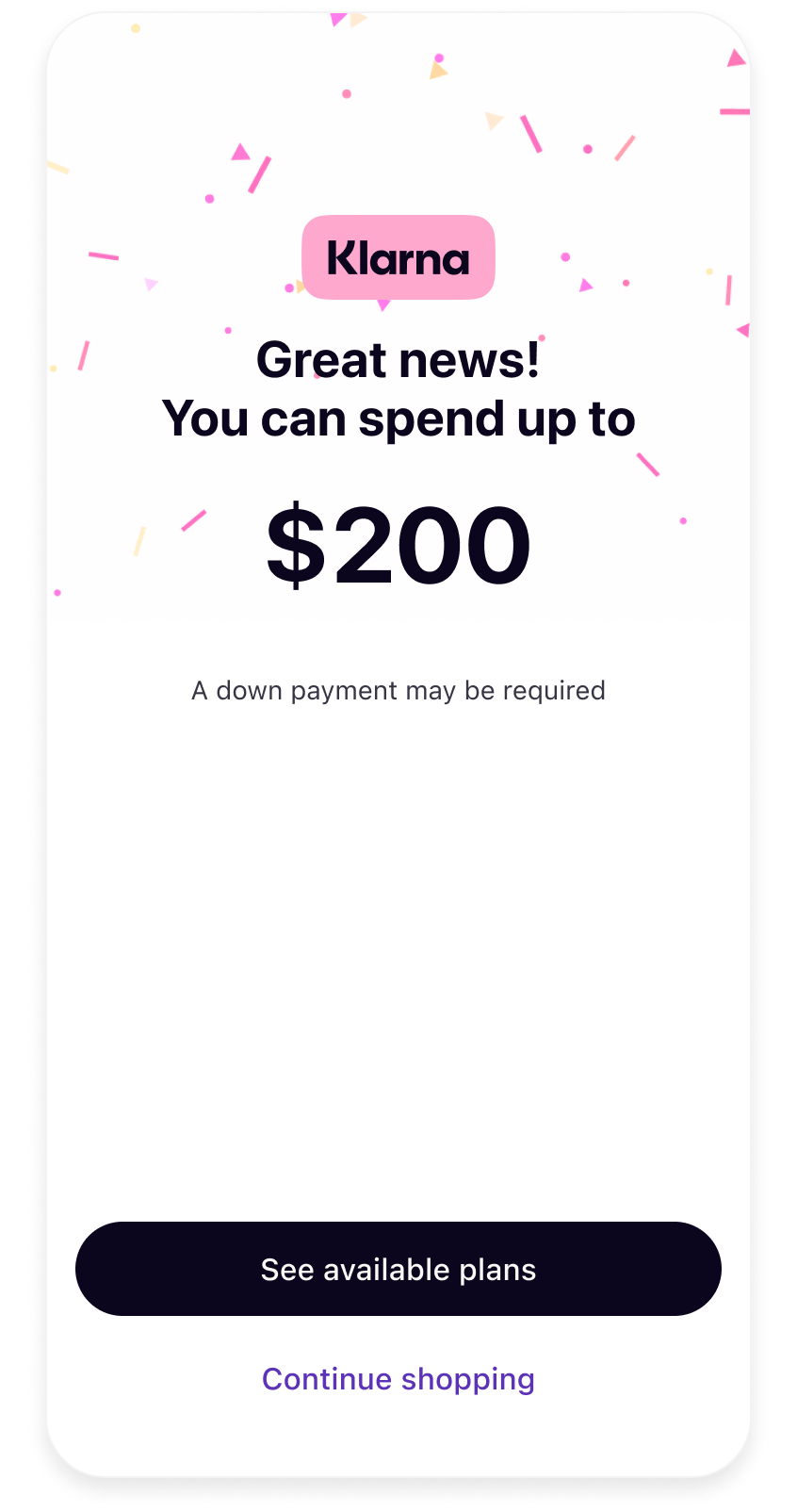 | 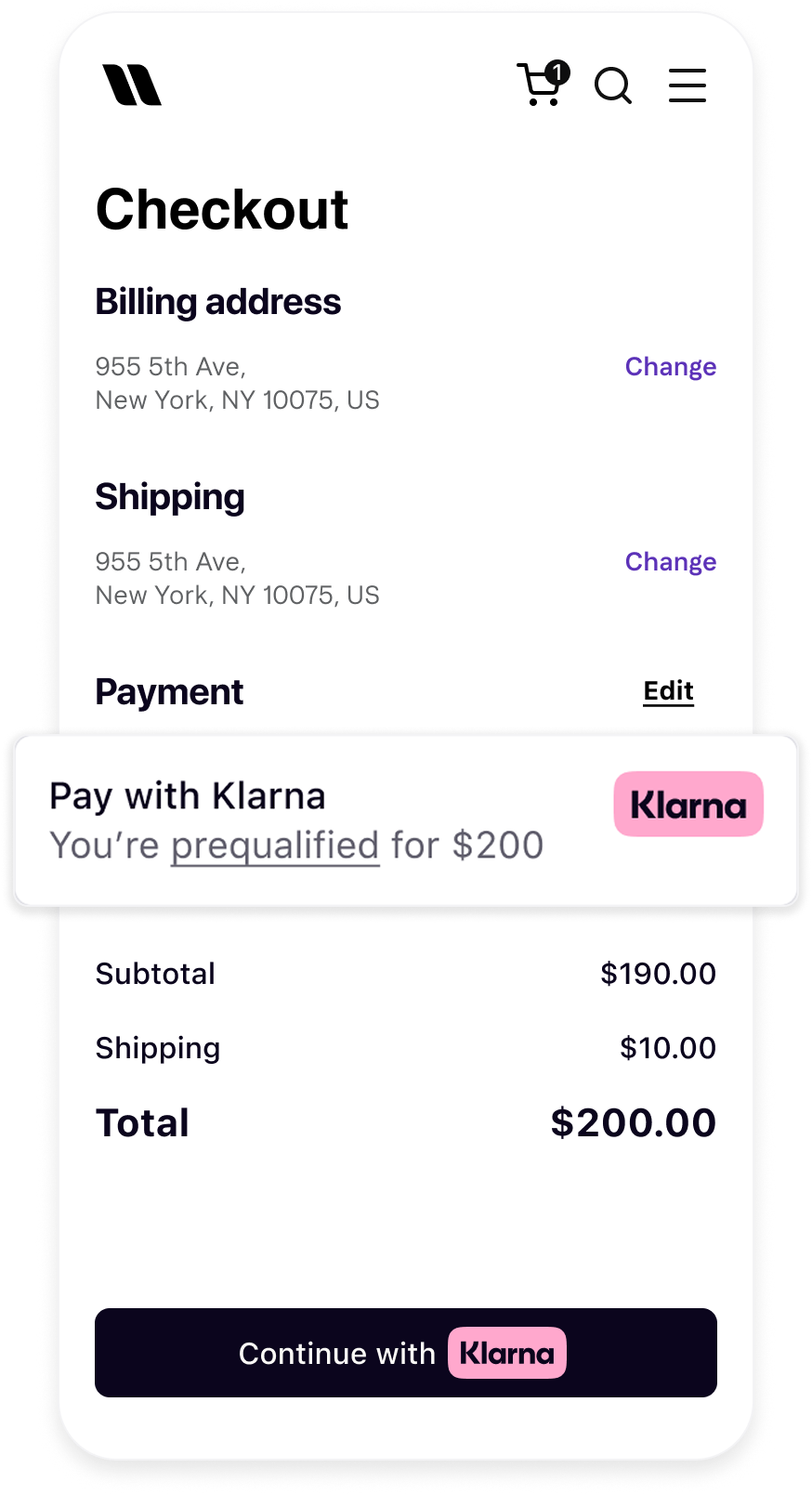 |
| Interact with Product or Cart On-site Messaging placement | Go through Klarna Pre-qualification flow | Checkout page reflects prequalified status using Klarna Network Session Token. |
Pre-qualification messaging can be shown in several ways:
- Integrate with WebSDK: As part of a regular OSM placement (for example, credit promotion auto size)
Partner builds the payment form
When the WebSDK is loaded at the checkout, Klarna preserves the Shopping session via the
klarna_ to reflect the pre-qualification in the checkout.This is stored for 48 hours. After this period the pre-qualification details expire.
Retrieve the Klarna Network Session Token
When integrating On-site messaging through the Klarna Web SDK, the Klarna Network Session Token can be retrieved and passed to the Partner's server for use in subsequent API calls.
Retrieve the Klarna Network Session Token
After initializing the Klarna Web SDK, retrieve the Klarna Network Session Token through the
Network. package. The token is available either synchronously through klarna. or by subscribing to tokenupdate events with klarna. to react to token changes during the session.JAVASCRIPT
1
2
3
4
5
const klarnaNetworkSessionToken = klarna.Network.Session.token();

klarna.Network.Session.on('tokenupdate', (klarnaNetworkSessionToken) => {
  // Forward the updated token to the Partner's backend
});
Example: Use the Klarna Network Session Token with the Presentation API
When initializing the Presentation API , pass the Klarna Network Session Token in the
, pass the Klarna Network Session Token in the Klarna-Network-Session-Token header to provide customer context and enable a personalized experience.Sample request body
SHELL
1
2
3
4
5
6
7
8
9
10
curl https://api-global.test.klarna.com/v2/accounts/{partner_account_id}/payment/presentation \
  -H 'Authorization: Basic <API key>' \
  -H 'Content-Type: application/json' \
  -H 'Klarna-Network-Session-Token: eyJhbGciOiJIU...' \
  -d '{
        "locale": "en-US",
        "amount": 11836,
        "currency": "USD",
        "intent": "PAY"
}'Related articles
API & SDK references
Jump to section...