

Render Klarna buttons in iOS and Android apps
Render and style the Klarna Network Payment Button and Identity Button in iOS (UIKit and SwiftUI) and Android (View and Jetpack Compose) apps with Klarna's Mobile SDK.
11 min read
Overview
Klarna's Mobile SDK provides two built-in UI buttons for your iOS and Android apps:
- Payment Button — starts a Klarna payment in your checkout.
- Identity Button — starts a Sign in with Klarna flow.
Both buttons are available for UIKit and SwiftUI on iOS, and for the Android
View system and Jetpack Compose on Android. Each renders Klarna's branded button, reports taps to your code, and exposes a small, shared set of styling options so the button stays consistent with Klarna's design while fitting your layout.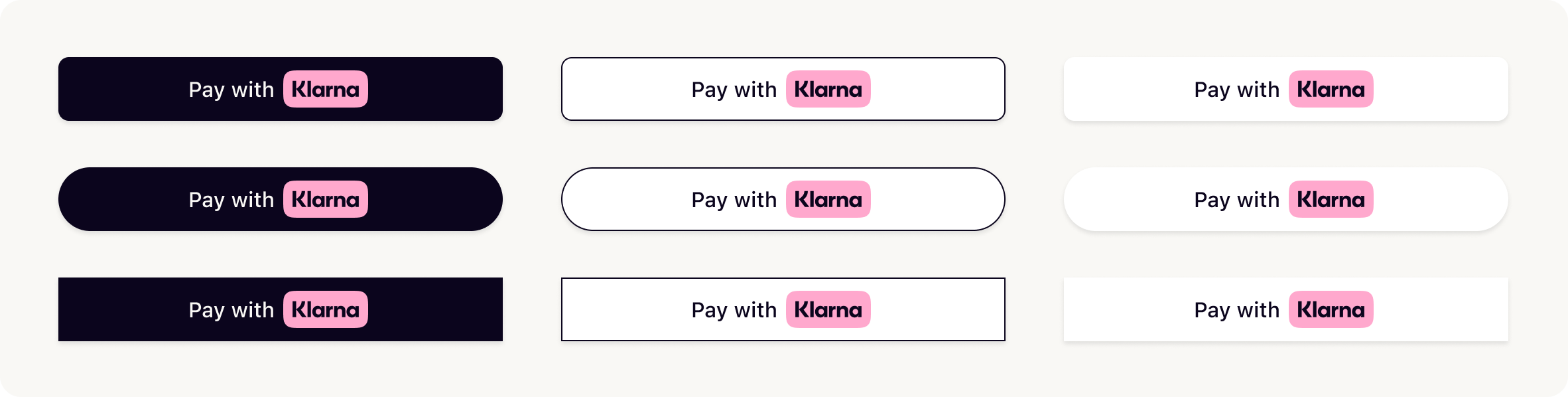
This guide covers rendering and styling the buttons. See Authorize a customer-initiated payment (Mobile SDK) for the payment flow the Payment Button initiates. The Identity Button starts Sign in with Klarna; this page covers only rendering and styling it.
Prerequisites
Before you render a button, check that you meet the following conditions:
- 1.You have Klarna enabled and have generated a client identifier in the Klarna Partner Portal.
- 2.You have added and initialized Klarna's Mobile SDK, and you hold a
Klarnainstance returned byKlarna.. See Authorize a customer-initiated payment (Mobile SDK) for SDK setup and initialization.initialize(configuration:)
Add the button library
Each button is distributed as its own package per framework. Add only the packages for the buttons and frameworks you use.
Payment Button
In Xcode, navigate to File → Swift Packages → Add Package Dependency and enter the repository URL:
https://github.com/klarna/klarna-mobile-sdk-spm
Under Version, select Up to Next Major and take the default option. Then choose the product you need in the Package Product column:
KlarnaNetworkPaymentButton for UIKit, or KlarnaNetworkPaymentButtonSwiftUI for SwiftUI.Identity Button
In Xcode, navigate to File → Swift Packages → Add Package Dependency and enter the repository URL:
https://github.com/klarna/klarna-mobile-sdk-spm
Under Version, select Up to Next Major and take the default option. Then choose the product you need in the Package Product column:
KlarnaNetworkIdentityButton for UIKit, or KlarnaNetworkIdentityButtonSwiftUI for SwiftUI.Payment Button
The Payment Button renders Klarna's branded payment call-to-action. Pass the
Klarna instance, a KlarnaPaymentButtonConfiguration, and a tap handler that starts your payment flow.Choose the
shape, style, and theme that best fit your checkout while keeping the button consistent with Klarna's design: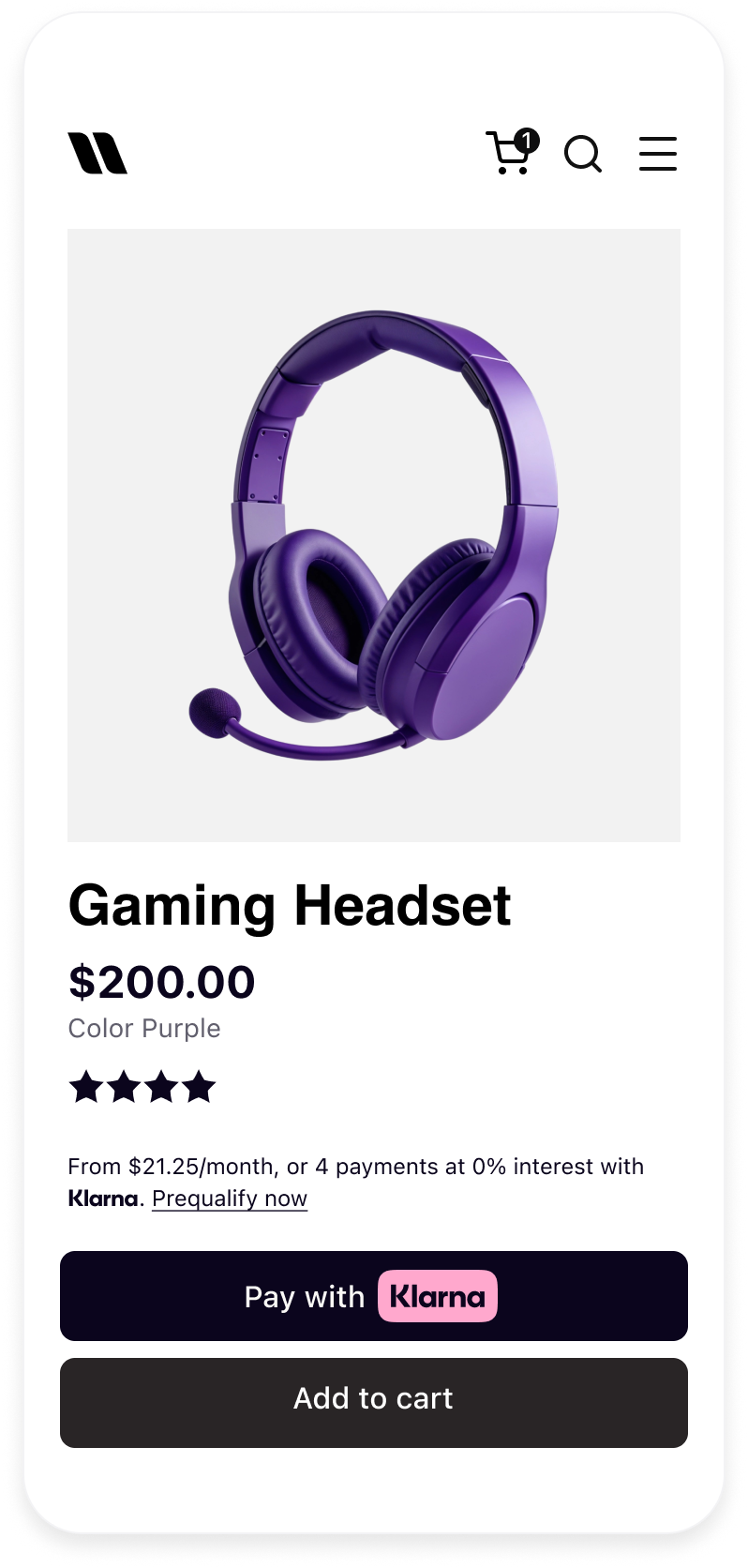
Klarna Payment Button on a product page
SWIFT
1
2
3
4
5
6
7
8
9
10
import UIKit
import KlarnaNetworkCore
import KlarnaNetworkPaymentButton

// Create the configuration.
let configuration = KlarnaPaymentButtonConfiguration(
    state: nil,
    intent: .pay,
    shape: .roundedRect,
style: .filled,The tap handler is where you start the Klarna payment. For the request the button initiates and the states it can return, see Authorize a customer-initiated payment (Mobile SDK).
Identity Button
The Identity Button renders Klarna's branded Sign in with Klarna call-to-action. It takes the same shape of inputs as the Payment Button, with a sign-in or sign-up intent.
SWIFT
1
2
3
4
5
6
7
8
9
10
import UIKit
import KlarnaNetworkCore
import KlarnaNetworkIdentityButton

// Create the configuration.
let configuration = KlarnaIdentityButtonConfiguration(
    state: nil,
    intent: .signin,
    shape: .roundedRect,
style: .filled,The Identity Button starts Sign in with Klarna. This page covers only rendering, styling, state, and tap handling.
Configuration
KlarnaPaymentButtonConfiguration
| Name | Type | Presence | Description |
|---|---|---|---|
intent | KlarnaPaymentButtonIntent | Optional | The action the button initiates, which also sets its label. See Button intent. |
shape | KlarnaButtonShape | Optional | Corner shape of the button. See Button shape. |
style | KlarnaButtonStyle | Optional | Fill style of the button. See Button style. |
theme | KlarnaTheme | Optional | Color theme of the button. Defaults to dark / DARK. See Button theme. |
state | KlarnaButtonState | Optional | Initial visual state. On UIKit and the Android View system, update the button's state property at runtime. On SwiftUI, the top-level state parameter overrides this value. On Compose, set state through the composable parameter (the configuration has no state). See Button state. |
KlarnaIdentityButtonConfiguration
| Name | Type | Presence | Description |
|---|---|---|---|
intent | KlarnaIdentityButtonIntent | Optional | The action the button initiates, which also sets its label. See Button intent. |
shape | KlarnaButtonShape | Optional | Corner shape of the button. See Button shape. |
style | KlarnaButtonStyle | Optional | Fill style of the button. See Button style. |
theme | KlarnaTheme | Optional | Color theme of the button. Defaults to dark / DARK. See Button theme. |
state | KlarnaButtonState | Optional | Initial visual state. On UIKit and the Android View system, update the button's state property at runtime. On SwiftUI, the top-level state parameter overrides this value. On Compose, set state through the composable parameter (the configuration has no state). See Button state. |
Info
Drive
state from your own state (for example, set it to loading while a request is in flight). How you set it depends on the framework: on UIKit and the Android View system, update the button's state property after creating it; on SwiftUI, pass the top-level state parameter, which always overrides state set on the configuration; on Jetpack Compose, pass the composable's state parameter (the configuration has no state field).Styling reference
The buttons share the same styling vocabulary. Swift and Kotlin expose the same options with platform-idiomatic casing.
Button intent
| Button | Swift value | Kotlin value | Description |
|---|---|---|---|
| Payment | pay | PAY | One-time payment. |
| Payment | subscribe | SUBSCRIBE | Recurring subscription. |
| Payment | addToWallet | ADD_ | Save Klarna as a payment method for later. |
| Identity | signin | SIGNIN | Sign an existing customer in. |
| Identity | signup | SIGNUP | Register a new customer. |
Button shape
| Swift value | Kotlin value | Description |
|---|---|---|
roundedRect | ROUNDED_ | Rectangle with rounded corners. |
pill | PILL | Fully rounded, pill-shaped button. |
rectangle | RECTANGLE | Rectangle with square corners. |
Button style
| Swift value | Kotlin value | Description |
|---|---|---|
filled | FILLED | Solid background. |
outlined | OUTLINED | Solid background with an outline. |
Button theme
| Swift value | Kotlin value | Description |
|---|---|---|
light | LIGHT | Light style for the button. |
dark | DARK | Dark style for the button. |
automatic | AUTOMATIC | Follows the system's user interface style. |
Button state
| Swift value | Kotlin value | Description |
|---|---|---|
default | DEFAULT | Interactive, ready to be tapped. |
disabled | DISABLED | Non-interactive and visually dimmed. |
loading | LOADING | Shows a loading indicator while a request is in progress. |
Jump to section...