

Express checkout integration
Learn how to integrate Express checkout in the Partner's store.
24 min read
Offer Express checkout by displaying the Klarna payment button on the product or cart page.
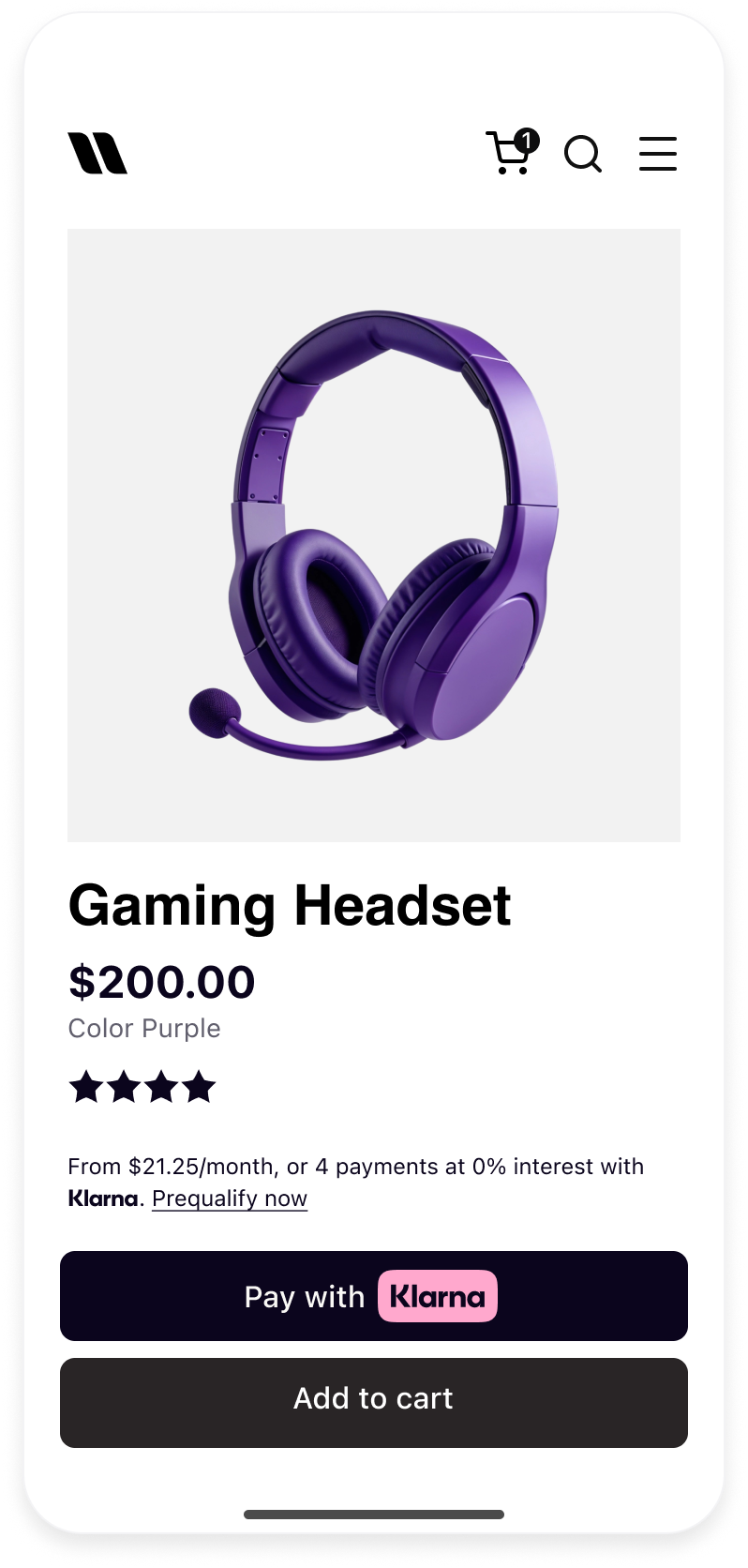 | 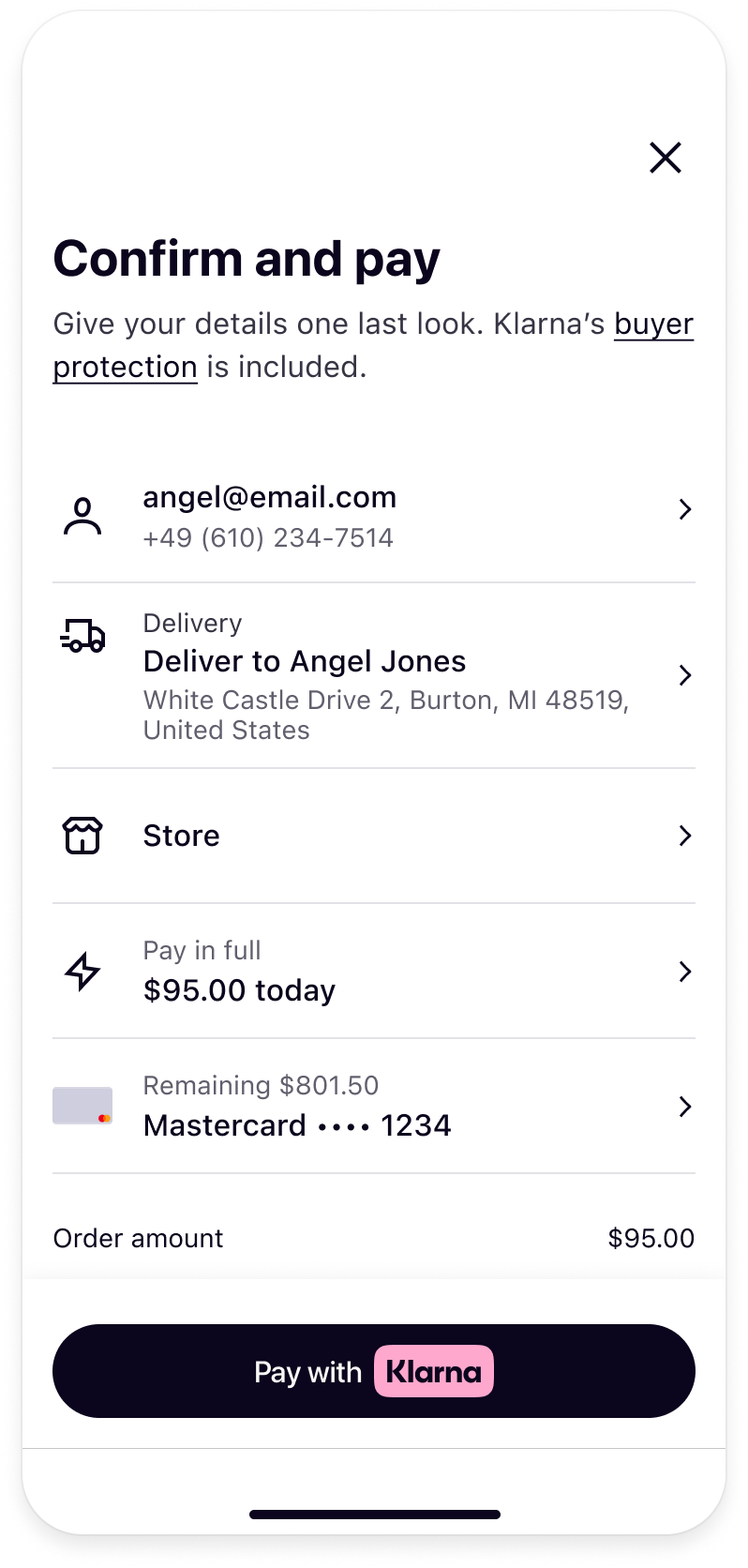 | 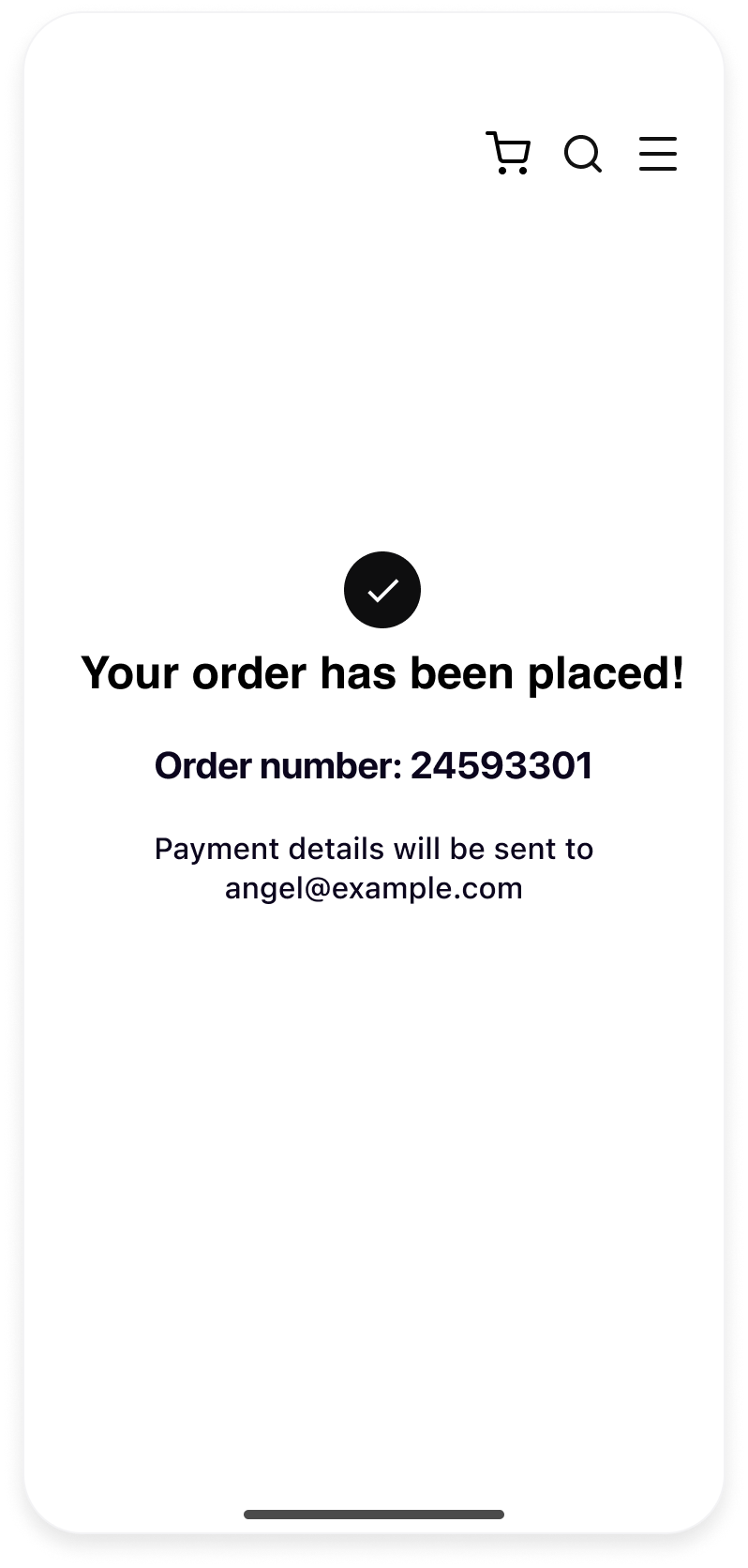 |
| Klarna payment button featured in the Product detail page | Customer confirms their payment and shipping details in one step | Customer is redirected to merchant confirmation page after successful payment |
This integration guide is only for implementing the one-click purchase flow, which ensures the lowest friction to customers.
Coming soon
Support for multi-step checkout will be added in a future release.
Prerequisites recap
Before integrating Express checkout, ensure the following prerequisites are met:
- 1.A Klarna payment solution is in place.
- 2.Access to the Klarna Partner Portal is available.
- 3.Inside the Klarna Partner Portal:
- 3.1.A client identifier has been generated with the domain URL allowlisted.
- 3.2.An API key has been generated.
- 4.Webhooks are registered for
payment.events following Webhooks guidelines.request. state-change. completed - 5.Terms and Conditions for the Web SDK have been added.
For a comprehensive, step-by-step walkthrough of these prerequisites, refer to the Express checkout integration prerequisites.
Integration overview
The following is an overview of all the steps to add Express checkout to a website:
- Initialize the Klarna Web SDK using
https:/./js. klarna. com/ web-sdk/ v2/ klarna. mjs - Display the Klarna payment button on relevant pages, especially product and cart pages.
- Initiate the purchase flow by implementing the
initiatecallback to submit payment request data. - Handle shipping details (optional): Use
shippingConfigand handle shipping events (shippingaddresschange,shippingoptionselect). - Use Klarna Webhooks to track payment status and retrieve the
klarna_.network_ session_ token - Authorize the payment by calling Klarna's
authorizePaymentAPI with theklarna_and purchase details. The following diagram outlines the interactions among different components:network_ session_ token
%%{
init: {
"theme": "base",
"themeVariables": {
"background": "#F9F8F5",
"mainBkg": "#FFFFFF",
"lineColor": "#2C2242",
"fontFamily": "arial",
"fontSize": "12px",
"primaryColor": "#FFA8CD",
"primaryTextColor": "#0B051D",
"primaryBorderColor": "#C4C3CA",
"secondaryColor": "#FFE9F3",
"secondaryBorderColor": "#C4C3CA",
"secondaryTextColor": "#0B051D",
"tertiaryColor": "#E6FFA9",
"tertiaryBorderColor": "#C4C3CA",
"tertiaryTextColor": "#0B051D",
"noteBkgColor": "#FFE9F3",
"noteBorderColor": "#FFE9F3",
"noteTextColor": "#0B051D",
"errorBkgColor": "#d38373",
"errorTextColor": "#0B051D",
"nodeBorder": "#E6FFA9",
"actorBkg": "#FFA8CD",
"actorBorder": "#C4C3CA",
"actorTextColor": "#0B051D",
"actorLineColor": "#C4C3CA",
"signalColor": "#0B051D",
"signalTextColor": "#0B051D",
"labelBoxBkgColor": "#805467",
"labelBoxBorderColor": "#805467",
"labelTextColor": "#FFFFFF",
"loopTextColor": "#0B051D",
"activationBorderColor": "#805467",
"activationBkgColor": "#E6FFA9",
"sequenceNumberColor": "#F9F8F5"
},
"sequence": {
"messageFontSize": 10,
"actorFontSize": 14,
"noteFontSize": 9,
"noteAlign": "left"
}
}
}%%
sequenceDiagram
participant C as Customer
participant P as Partner
participant K as Klarna
P->>K: Initialize Klarna SDK
P->>C: Display Klarna payment button
C->>K: Click Klarna payment button
K->>P: Trigger initiate callback
alt Server-side payment request (preferred)
P->>K: POST /v2/payment/requests
Note over P,K: amount<br/>currency<br/>supplementary purchase data (if applicable)
K->>P: Return payment request id
P->>K: Return payment request id to Klarna SDK
else Client-side payment request
P->>K: Send payment request via SDK
Note over P,K: amount<br/>currency<br/>supplementary purchase data (if applicable)
end
K->>C: Start Klarna purchase journey
C->>K: Enter Klarna purchase flow
opt Collect shipping details: shippingConfig.mode="EDITABLE"
C->>K: Select shipping address
K->>P: shippingaddresschange event
P->>K: Return a list of applicable shipping options
K->>C: Display shipping options
C->>K: Select shipping option
K->>P: shippingoptionselect event
P->>K: New purchase details (amount, line items)
end
C->>K: Reviews and approves the purchase
K->>P: Payment request completed event
Note over K,P: klarna_network_session_token, shipping
opt Web SDK payment complete event
K->>P: Payment request complete callback
Note over P,K: klarna_network_session_token, shipping
end
P->>K: Authorize payment
Note over P,K: klarna_network_session_token
K->>C: Redirect customer to the returnUrl
Integration details
The Klarna Web SDK (klarna.mjs) follows the JavaScript module approach and should be included where a reference to the SDK is needed, such as while rendering any components or initiating a payment flow. Always load the Web SDK from https://js.klarna.com/web-sdk/v2/klarna.mjs to remain compliant. Avoid including the script in a bundle or hosting it independently.
Use the
clientId to initialize the SDK.JAVASCRIPT
1
2
3
4
5
6
7
8
9
10
<script type="module">
const { KlarnaSDK } = await import("https://js.klarna.com/web-sdk/v2/klarna.mjs")
const klarna = await KlarnaSDK({
clientId: "[client-id]",
products: ["PAYMENT"],
locale: "en-US", // optional
})
// Klarna SDK ready to be utilized| Parameter | Presence | Description |
|---|---|---|
clientId | required | A credential that identifies the Partner, acquired through Klarna Partner Portal. |
products | optional | Array to specify which products to load for optimal performance. This reduces the amount of data needed to download. For example, only loading PAYMENT will exclude the CUSTOMER product. |
locale | optional | Language and region code (e.g., en-US). If omitted, Klarna may default based on the customer's browser settings. |
For the full API specifications, refer to Klarna Web SDK.
Recommended for integration
Important implementation details
- The script should always be loaded on the 1st-party context, never inside an iframe, to ensure the purchase flows work as expected.
- Ensure the products are properly specified during initialization for the best performance outcome.
Integration requirement
Legal notice
When using the Klarna Web SDK, the Partner is responsible for informing users about the tracking technologies it uses. Learn more about how to disclose this on the site.
Display the Klarna payment button early in the shopping journey and provide customers with the option to skip ahead when they are ready to purchase. High-impact placements include the product detail page, cart page, and checkout page.
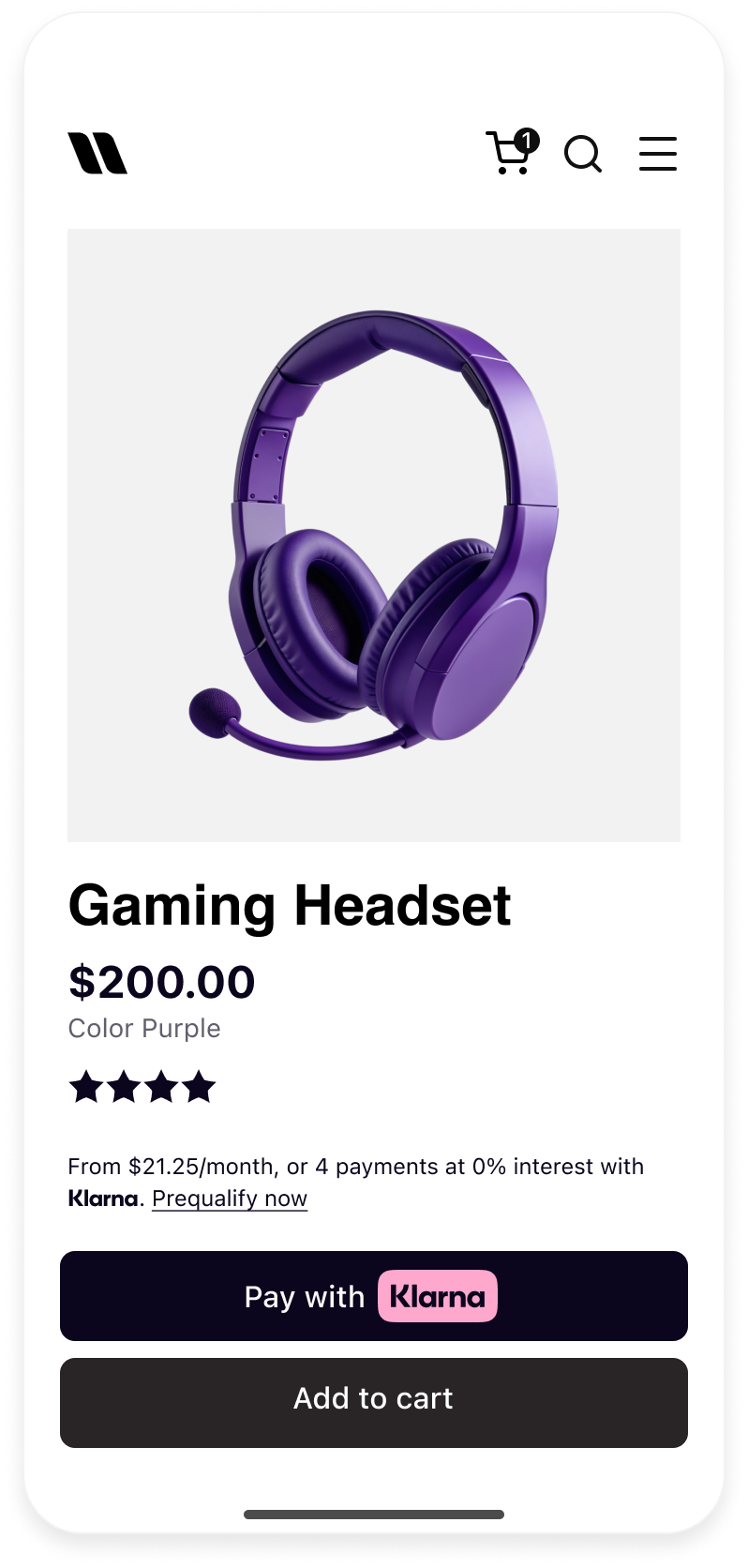 | 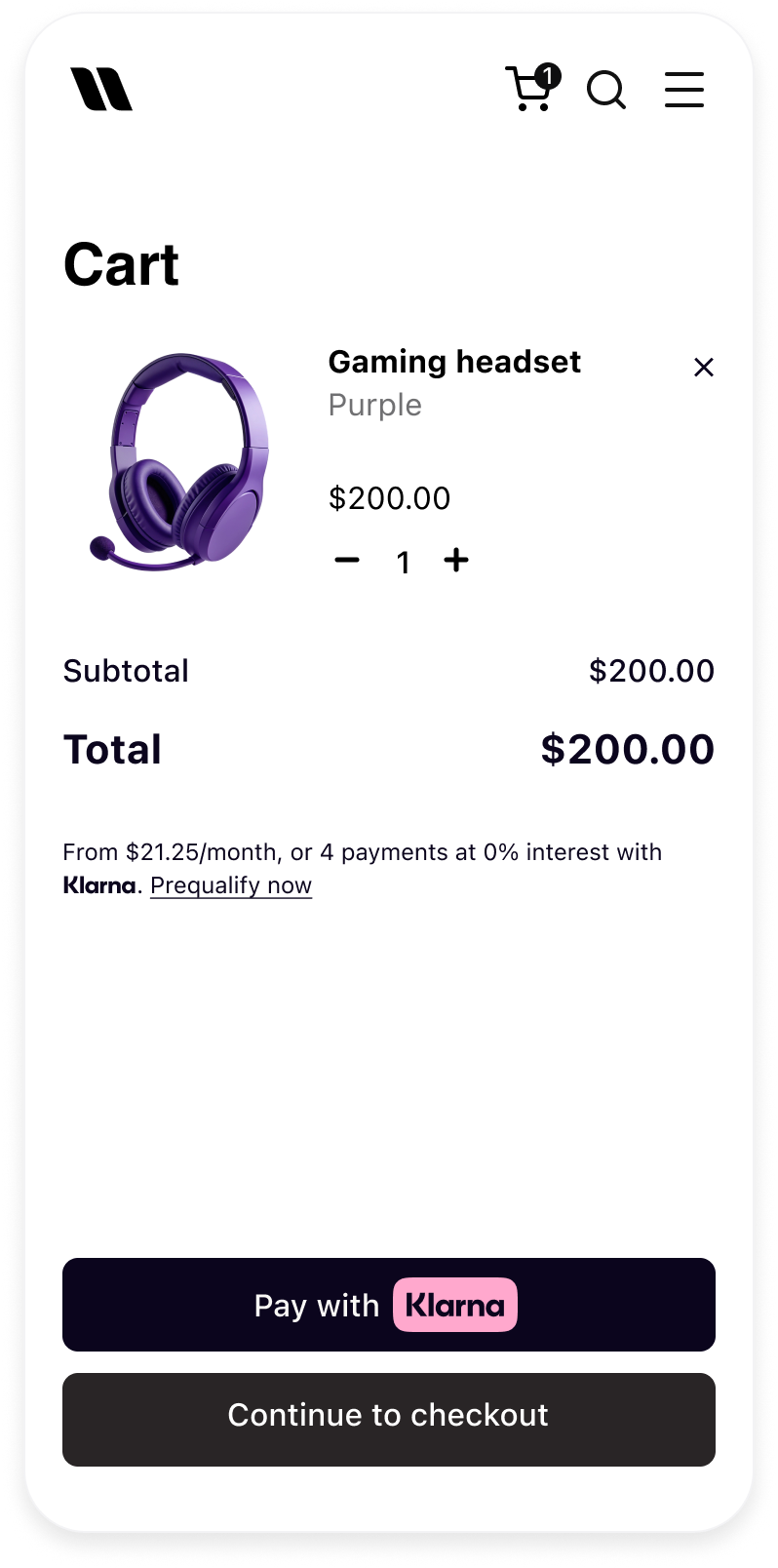 | 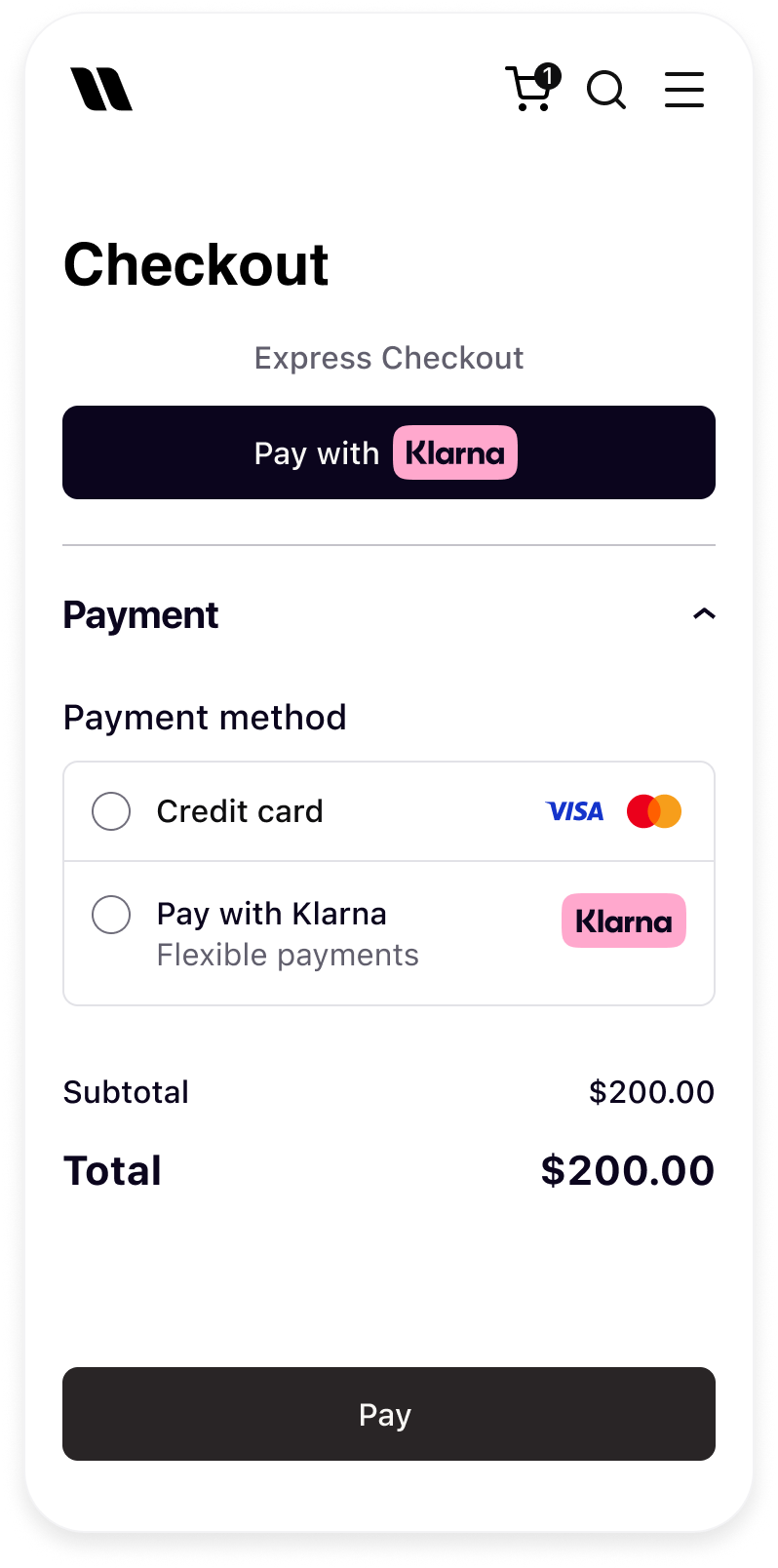 |
| Klarna payment button in product detail page | Klarna payment button in cart | Klarna payment button in checkout |
Klarna payment button variants
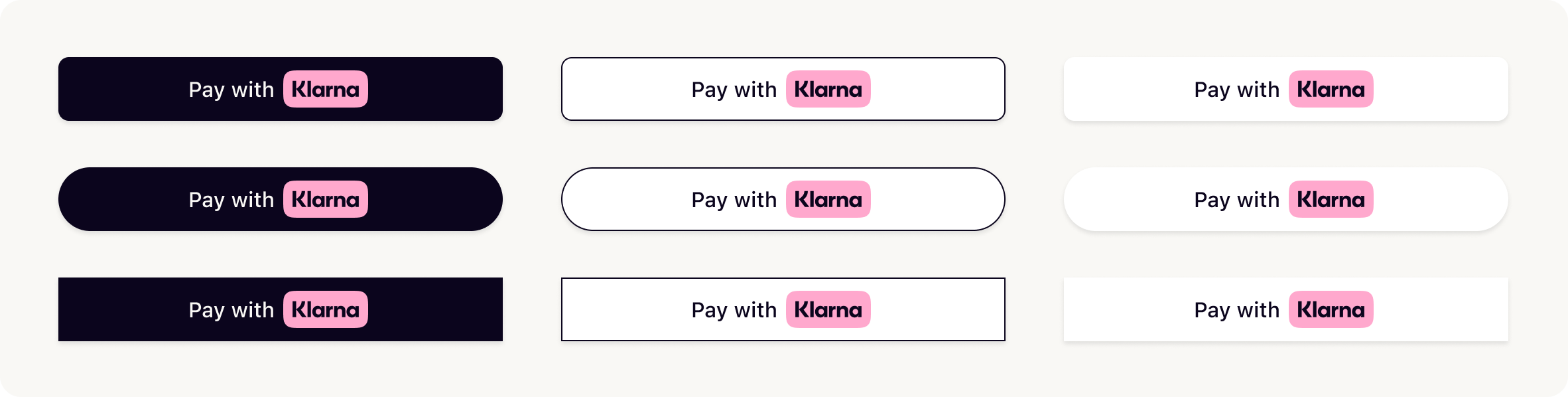
Choose the theme and shape of the payment button to best fit the Partner's online store in a way that complements the brand and encourages user engagement. More details on the button styling can be found here.
Create a button configuration object
The
button() method can be configured with the following set of parameters:| Parameter | Description |
|---|---|
id | Sets a custom DOM ID on the rendered button. Useful for testing or styling. |
shape | Defines the button's shape. Possible values are:default, pill, rect |
theme | Sets the visual theme of the button. Possible values are: default, light, dark, outlined |
locale | Sets the language and region (e.g., en-US). When this is not set, the value chosen during initial Web SDK setup is used automatically. When that is also not available, the browser's settings are used instead. |
disabled | Disables the button when set to true. Useful during form validation or async operations. |
loading | Forces the button into a loading state. Useful when awaiting async setup or validation. |
intent | Sets the purpose of the payment (PAY, SUBSCRIBE, ADD_). Used to personalize the button and flow if not set when creating the PaymentPresentation instance. |
initiate | Function that returns a Promise resolving to either a PaymentRequestData, a paymentRequestUrl, or a returnUrl. This will be handled differently depending on the integration path. |
initiationMode | Defines how Klarna launches the Klarna Purchase Journey. |
Sample code
JAVASCRIPT
1
2
3
4
5
6
7
8
9
const buttonConfig = {
  id: "klarna-payment-button",
  shape: "pill", // "default" || "rect"
  theme: "default", // "dark" || "light" || "outlined"
  intent: "PAY",
  initiationMode: "DEVICE_BEST", // "ON_PAGE" || "REDIRECT"
  initiate: () => { /** Implement the initiate method **/ }
};
Mount Klarna payment button
Finally, mount the button inside the appropriate container:
JAVASCRIPT
1
2
klarna.Payment.button(buttonConfig).mount("#klarna-button-container");
Automatic button interaction
The button will automatically handle customer interaction and trigger the Klarna purchase flow via the
initiate function.To launch the purchase flow, the
initiate callback on the Klarna payment button interface must be implemented. The initiate callback is triggered when the customer clicks on the Klarna payment button, upon which the payment request data such as amount and currency must be submitted to the Klarna server.The data can be submitted on the client side or by creating a payment request on the backend side.
Recommended for integration
Important Submitting payment request data on the client side introduces security risks, as updates originating from the client can be tampered with or spoofed. When this approach is used, ensure robust safeguards are in place (for example, validating the payment request data on the server before authorizing the payment).
For industries that require supplementary purchase data beyond standard fields (e.g., airlines, lodging), a server-side submission approach is mandatory to ensure data integrity and compliance.
| Parameter | Presence | Description |
|---|---|---|
currency | required | Currency in ISO 4217 format. Supported currencies: AUD, EUR, CAD, CZK, DKK, HUF, MXN, NZD, NOK, PLN, RON, SEK, CHF, GBP, USD. |
amount | required | Total amount of a one-off purchase, including tax and any available discounts. The value should be in non-negative minor units. Eg: 25 Dollars should be 2500. This is the amount that Klarna will charge the customer for a one-off purchase. Should not include any amounts for subscriptions. |
supplementaryPurchaseData | optional | Additional details about the transaction that reduce fraud risk and improve transparency. Client-side (Web SDK) submission supports only purchaseReference, lineItems, shipping, customer, subscription, and ondemandService. Industry and regulated packages — such as travel_, lodging_, event_, vouchers, insurances, and marketplace_ — must be submitted server-side. See Supplementary purchase data. |
For the full API specifications, refer to Klarna Web SDK.
Create Klarna payment request on the server side
Creating a payment request on the server side is the recommended approach. After creation, share the payment request ID as the response to the
initiate callback.Client code
JAVASCRIPT
1
2
3
4
5
6
7
8
9
10
const klarnaPaymentButton = klarna.Payment.button({
  initiate: () => {
      // Collect any data you want to send to your server here:
      // const postData = { ... };
      // const resp = await fetch('/create-klarna-payment-request', {
      //   method: 'POST',
      //   headers: { 'Content-Type': 'application/json' },
      //   body: JSON.stringify(postData)
      // });
// const data = await resp.json();For the full API specifications, refer to Klarna Web SDK.
Server code
JAVASCRIPT
1
2
3
4
5
6
7
8
9
10
// server.js
const express = require('express');
const axios = require('axios');
const bodyParser = require('body-parser');
// Klarna credentials (replace with your own, preferably load from env!)
const KLARNA_API_KEY = 'YOUR_API_KEY';
const KLARNA_BASE_URL = 'https://api-global.klarna.com';
const app = express();For the full API specifications, refer to the API reference .
.
.Avoid reusing payment requests
Create a new payment request on every button click instead of reusing payment requests.
ALTERNATIVE: Create Klarna payment request on the client side
This approach allows data to be sent to Klarna directly from the client. Return the payment request payload as follows:
TYPESCRIPT
1
2
3
4
5
6
7
8
9
10
const klarnaPaymentButton = klarna.Payment.button({
  initiate: () => {
    return {
      currency: "USD",
      amount: 1000,
      paymentRequestReference: "pay-ref-123",
      supplementaryPurchaseData: {
        purchaseReference: "pay-ref-123",
        lineItems: [],
shipping: [],For the full API specifications, refer to Klarna Web SDK.
OPTIONAL: Collect shipping details
Digital goods exception
This section can be ignored when selling digital goods.
Express checkout allows customers to complete their purchase within Klarna's interface, where they can select a payment method, enter their shipping address, and choose from available shipping options. This reduces the need for address collection on the merchant's side and enables a more streamlined checkout experience, especially on mobile. Shipping methods can be dynamically calculated and returned based on the customer's input, allowing for flexibility in delivery pricing and timing. This setup helps simplify integration while improving the overall user flow.
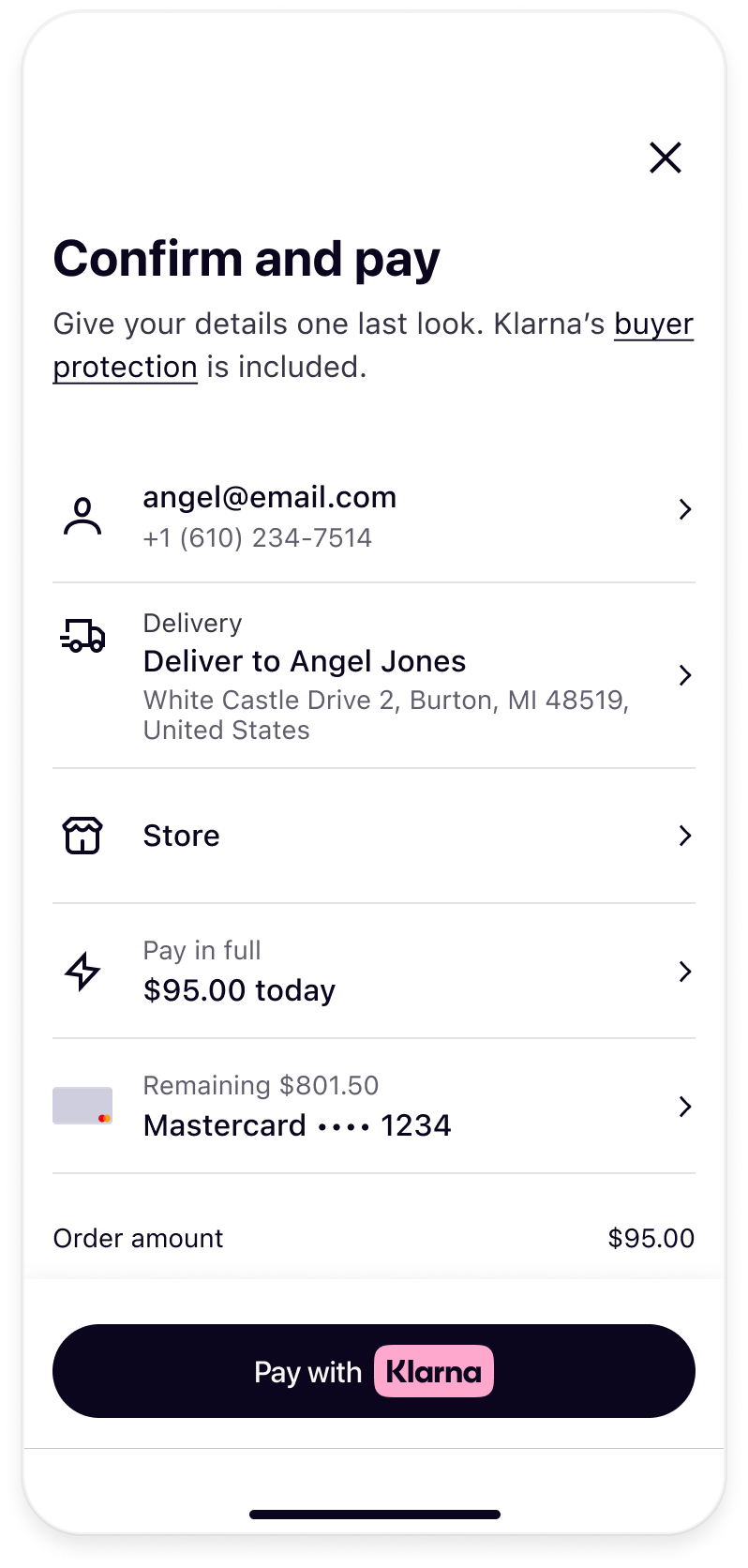 | 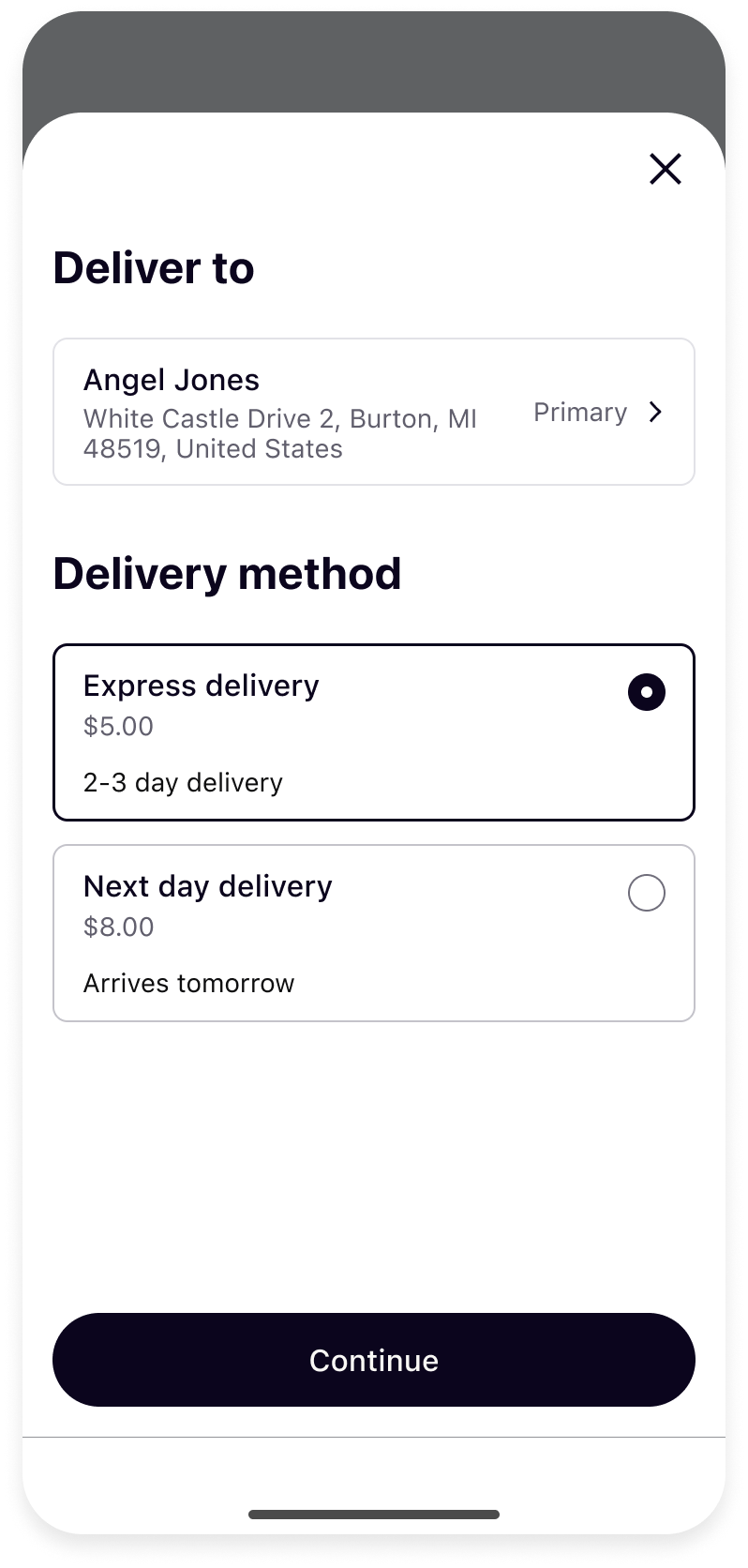 |
| Display shipping banner | Display shipping options |
Display shipping banner and collect shipping details
To enable the shipping banner and collect shipping details, include
"shipping_ in the payment request. The collected shipping details will be available under state_ after the customer approves the purchase.To restrict the countries to which shipping is offered, include the
supported_ attribute with a list of permitted countries. By default, all Klarna-supported countries are available unless specified otherwise.Update the server code as follows:
JS
1
2
3
4
5
6
7
8
9
10
async function createKlarnaPaymentRequest(data) {
  const url = `${KLARNA_BASE_URL}/v2/payment/requests`;
  const payload = {
    currency: "USD",
    amount: 1000,
    payment_request_reference: "pay-ref-123",
    supplementary_purchase_data: {
      purchase_reference: "pay-ref-123",
      line_items: [],
shipping: [],When the payment request is created on the client side, update the client code as follows:
JAVASCRIPT
1
2
3
4
5
6
7
8
9
10
const klarnaPaymentButton = klarna.Payment.button({
  initiate: () => {
    return {
      currency: "USD",
      amount: 1000,
      paymentRequestReference: "pay-ref-123",
      supplementaryPurchaseData: {
        purchaseReference: "pay-ref-123",
        lineItems: [],
shipping: [],The collected shipping data will be available when the payment request is completed. See Monitor payment status for more information.
| Parameter | Presence | Description |
|---|---|---|
shippingConfig. | required | Values: "EDITABLE", "READ_. Configure if the shipping details should be collected from the customer. If mode is set to EDITABLE then the shipping details will be collected from the customer and will be available under stateContext. when the payment request is in state COMPLETED. If mode is set to READ_ (future-release) then the customer can only see the shipping details that are provided in the supplementaryPurchaseData. object without the ability to change them. |
shippingConfig. | optional | Partner's supported shipping countries (ISO 3166-1 alpha-2) |
For the full API specifications, refer to Klarna Web SDK.
Coming soon
The
READ_ mode will be supported in a future release.Validate shipping address and handle multiple shipping options
Customers easily select their shipping address and preferred shipping method directly within the Klarna review page, enabling the customer to checkout with one click.
To enable proper functionality of the shipping options integration, the integrator must handle two event callbacks:
shippingaddresschange and shippingoptionselect. These events allow the integrator to communicate available shipping options after an address is selected, enabling the customer to choose from the provided options.Handle shipping address change events
| Parameter | Presence | Description |
|---|---|---|
city | required | City/town |
postalCode | required | Postal code formatted according to country. |
region | required | State/county/province/region formatted according to country. Mandatory for US and AU market. Validations according to ISO 3166-2 format, e.g. US-OH, US-NJ, AU-ACT, etc. |
country | required | Country in ISO 3166-1 alpha-2 format. |
The shipping address changed event handler is triggered when the customer changes their shipping address during the payment flow.
The shipping address returned has the following format:
JSON
1
2
3
4
5
6
7
{
  "city": "San Francisco",
  "postalCode": "94107",
  "region": "CA",
  "country": "US"
}
Limited address detail
The shipping address returned at this stage does not have specific address lines. It is only meant to allow the Partner to run validation logic. Detailed information will be returned after the customer approves the purchase.
When the
shippingaddresschange event is triggered, the Partner is given the opportunity to accept or reject the shipping address. When delivery to the address is possible, return the shipping options. It is recommended to preselect a default shipping option for the provided address by returning the shipping option in the selectedShippingOptionReference property. The amount and lineItems properties should also be updated to reflect the selected shipping cost. Preselecting a shipping option skips the screen where the customer needs to select a shipping option and goes directly to the review screen. This will reduce the friction of the payment flow.Response sample
JAVASCRIPT
1
2
3
4
5
6
7
8
9
10
klarna.Payment.on("shippingaddresschange", async (paymentRequest, shippingAddress) => {
  // Run validation logic to ensure you can deliver to the given address.
  // Return the shipping options, the default selected option and the updated order details.
  return {
    amount: 1500,
    lineItems: [
      {
        name: 'Product 1',
        quantity: 1,
totalAmount: 1000,Integration requirement
The
shippingaddresschange event is triggered immediately after the customer logs in to their account given they have an existing shipping address, and every time the customer updates the shipping address. The Partner should return the shipping options and updated order data here. If nothing is returned within 10 seconds, the purchase flow ends in an error state.Handle shipping option selection events
| Parameter | Presence | Description |
|---|---|---|
amount | required | Total amount of the shipping method selected by the customer. The value should be in non-negative minor units. Eg: 25 Euros should be 2500. |
description | required | Description of the type of shipping the customer has selected at the checkout. E.g: "1 - 3 working days", "1 working day". |
displayName | required | The shipping option as selected by the customer at the Partner website. |
shippingOptionReference | required | Unique reference to this shipping option. Required if the payment request contains multiple shipping objects. This can be any string, and does not have to correspond to a delivery or tracking number. |
shippingType | optional | The type of shipping option the customer selected. This can be:
|
When the customer selects a different shipping option, a
shippingoptionselect event is received. The Partner is then expected to return the updated amount and lineItems properties to reflect the selected shipping cost. In rare cases when the shipping option is no longer available, the selection can be rejected.JAVASCRIPT
1
2
3
4
5
6
7
8
9
10
klarna.Payment.on("shippingoptionselect", async (paymentRequest, shippingOption) => {
  // Update the payment request with new amount and line items for shipping
  return {
    amount: 1500,
    lineItems: [
      ...,
      {
        name: 'shipping-option-1',
        quantity: 1,
totalAmount: 500,For the full API specifications, refer to Klarna Web SDK.
Integration requirement
The
shippingoptionselect event is triggered every time a customer selects a different shipping option. The Partner should return updated order data here. If nothing is returned within 10 seconds, the purchase flow ends in an error state.OPTIONAL: Request customer profile data to fulfill the purchase transaction
The SDK allows requesting necessary customer profile data to fulfill the purchase transaction, such as email and phone number.
Integration requirement
Legal notice Requesting and processing a customer's identity information is strictly regulated under the General Data Protection Regulation (European Union) as well as other applicable data protection and privacy laws in the jurisdictions where the Partner operates. The Partner must ensure a lawful basis exists for collecting such data, which may only be used for the explicit purpose of fulfilling the current purchase transaction.
Any use of this information beyond what is necessary for order fulfillment (for example, creating a customer account, marketing, or profiling) is strictly prohibited and may result in significant legal liabilities, including fines and sanctions, under relevant privacy legislation.
It is the Partner's responsibility to fully comply with all applicable data protection and privacy requirements at all times and to safeguard customer information in accordance with the highest legal standards.
| Do | Don't |
|---|---|
Request customer data only when it is needed to fulfill the transaction. | Collect extra data "just in case" or for unrelated purposes. |
Use the data only for order fulfillment and related order communication. | Use customer data for marketing, account creation, or profiling without explicit consent. |
Store and transmit personal data securely, and purge it once it is no longer needed. | Keep or expose sensitive data beyond what fulfillment requires. |
Honor customer opt-outs and local data-minimization rules. | Process customer data in ways that contravene local privacy laws. |
To enable this feature, include the
collect_ with the list of required customer data values. The table below describes the data that will be returned for the following parameters:| Parameter | Presence | Description |
|---|---|---|
profile:email | optional | Customer email address. |
profile:name | optional | Full name of the customer. |
profile:phone | optional | Phone number in E.164 international format. If a local format is received it is assumed to be within the country as specified in the address object. |
profile:billing_ | optional | Domicile address of the customer. |
profile:locale | optional | The locale follows the format of IETF BCP 47. |
Update the server code as follows:
JS
1
2
3
4
5
6
7
8
9
10
async function createKlarnaPaymentRequest(data) {
  const url = `${KLARNA_BASE_URL}/v2/payment/requests`;
  const payload = {
    currency: "USD",
    amount: 1000,
    payment_request_reference: "pay-ref-123",
    supplementary_purchase_data: {
      purchase_reference: "pay-ref-123",
      line_items: [],
shipping: [],When the payment request is created on the client side, update the client code as follows:
JAVASCRIPT
1
2
3
4
5
6
7
8
9
10
const klarnaPaymentButton = klarna.Payment.button({
  initiate: () => {
    return {
      currency: "USD",
      amount: 1000,
      paymentRequestReference: "pay-ref-123",
      supplementaryPurchaseData: {
        purchaseReference: "pay-ref-123",
        lineItems: [],
shipping: [],For the full API specifications, refer to Klarna Web SDK.
The collected customer profile data will be available when the payment request is completed. See the next section, Monitor payment status, for more information.
Once the customer approves the request, the payment request enters the
COMPLETED state and a klarna_ is delivered, which can be used to authorize the payment and complete the process. There are different ways to obtain the klarna_. The recommended approach is to subscribe to Klarna Webhooks.Subscribe to webhooks
Every successful approval triggers the payment request to enter the
COMPLETED state. Klarna then triggers a payment request state-change webhook to which the Partner must subscribe:| Event name | When |
|---|---|
payment. | To track when payment requests reach the COMPLETED state. |
From this request the
klarna_ can be retrieved. It is needed to authorize the payment and complete the Express checkout flow.Once the webhooks are set up, they can be managed through API requests. Use these requests to update, delete, or retrieve details about the configurations.
Consult the API reference for comprehensive parameter information.
for comprehensive parameter information.Coming soon
The fields
shipping and klarna_ in the webhook payload will be available in a future release.Webhook payload sample
JSON
1
2
3
4
5
6
7
8
9
10
{
  "metadata": {
    "event_type": "payment.request.state-change.completed",
    "event_id": "d9f9b1a0-5b1a-4b0e-9b0a-9e9b1a0d5b1a",
    "event_version": "v2",
    "occurred_at": "2024-01-01T12:00:00Z",
    "correlation_id": "2d1557e8-17c3-466c-924a-bbc3e91c2a02",
    "subject_account_id": "krn:partner:global:account:live:HGBY07TR",
    "recipient_account_id": "krn:partner:global:account:live:LWT2XJSE",
"product_instance_id": "krn:partner:product:payment:ad71bc48-8a07-4919-a2c1-103dba3fc918",OPTIONAL: Listen to Web SDK events
On the frontend, the
complete event can be observed. When the customer successfully completes the purchase flow, the payment request's status changes to COMPLETED, and the Klarna Network Session Token can then be retrieved.JAVASCRIPT
1
2
3
4
5
klarna.Payment.on("complete", async (paymentRequest) => {
  // The customer has successfully completed the payment flow and
  // the payment request can be confirmed using the Klarna Network Session Token.
});
Sample paymentRequest callback
JSON
1
2
3
4
5
6
7
8
9
10
{
  "paymentRequestId": "krn:payment:eu1:request:64be490f...",
  "state": "COMPLETED",
  "stateContext": {
    "klarnaNetworkSessionToken": "krn:network:eu1:live:session-token:e15432a5-ebcc-45bc-934c-e61399db597b",
    "shipping": {
      "recipient": {
        "givenName": "Klara",
        "familyName": "Test",
"email": "recipient@email.us",For the full API specifications, refer to Klarna Web SDK.
Integration requirement
Important
Relying on Web SDK events alone leads to a high number of abandoned payment requests. Always use this approach in combination with the Webhooks to ensure the best conversion rate.
Once the to finalize the payment. Pass the token in the authorize request, along with the final amount, currency, and any supplementary purchase data.
klarna_ is retrieved, call Klarna's authorizePayment to finalize the payment. Pass the token in the authorize request, along with the final amount, currency, and any supplementary purchase data.For the full request and response specifications, refer to the authorizePayment API reference.
.In rare cases where there is a discrepancy between the amount and purchase details submitted in the original payment request and the values submitted at authorization, Klarna may reject the authorization and ask the customer to approve the purchase again.
Jump to section...