

Build Payment Presentation with the Payment Presentation API
Retrieve Klarna presentation assets from the backend with the Payment Presentation API and render Klarna in the payment selector. Use this path when embedding the Klarna Web SDK is not possible.
29 min read
Overview
This guide shows how Partners call Klarna's Payment Presentation API from the backend to retrieve branding assets, descriptors, and the display instruction for the current checkout context, then render Klarna in the payment selector and the Klarna payment button using the returned data. Once the customer clicks the Klarna payment button, continue with Authorize a customer-initiated payment (server-side) to create the Payment Request, retrieve the
klarna_, and finalize the authorization.Choose this path only when the Klarna Web SDK cannot be embedded, for example, fully server-rendered checkouts, environments that disallow client-side SDK dependencies, or back-office channels where the payment selector must stay entirely under server control.
What Partners will build
- A backend integration that calls getPresentationAPI
 with the current payment context.
 - A payment selector that renders Klarna using the returned
instruction,payment_, and (optionally)option saved_.payment_ option - A Klarna payment button styled with Klarna's CSS that triggers the post-presentation flow when the customer clicks it.
Scope of this page
This page focuses on Payment Presentation only. The remaining steps are covered in companion pages:
- Payment Request creation, Klarna Network Session Token handling, and authorization. See Authorize a customer-initiated payment (server-side).
- Style the Klarna payment button (themes, shapes, sizing). See Checkout styling.
- Tokenize the customer's payment method for future authorizations. See Payment Tokenization.
Prerequisites
Before starting, ensure the following are in place:
- 1.A valid Klarna Partner account.
- 2.Access to the Klarna Partner Portal with API credentials generated.
- 3.A backend that can issue authenticated calls to Klarna's Payment Presentation API.
- 4.A frontend payment selector that the backend can populate with Klarna's presentation data.
- 5.Terms and Conditions accepted for the Klarna integration.
From the Partner's backend, call getPresentationAPI with the current checkout context. Klarna returns the visual assets, localized texts, and display instruction needed to render Klarna in the payment selector.
with the current checkout context. Klarna returns the visual assets, localized texts, and display instruction needed to render Klarna in the payment selector.Request parameters
| Parameter | In | Presence | Description |
|---|---|---|---|
partner_ | Path | Required | The Partner Account identifier the call is made on behalf of. |
locale | Query | Required | Locale code in IETF BCP 47 format (for example, en-US, de-DE). |
currency | Query | Required | Three-letter ISO 4217 currency code (for example, USD, EUR). |
amount | Query | Conditional | Transaction amount in minor units (for example, $118.00 = 11800). Required when intent is PAY or SUBSCRIBE. |
intent | Query | Optional | Payment intent. Defaults to PAY. Allowed values: PAY, SUBSCRIBE, ADD_. |
subscription_ | Query | Conditional | Billing interval when intent is SUBSCRIBE. |
subscription_ | Query | Conditional | Billing interval frequency when intent is SUBSCRIBE. |
Klarna-Network-Session-Token | Header | Optional | Session context token issued by Klarna for the current customer session. Forwarding it personalizes the presentation (for example, with the customer's saved payment option after Sign in with Klarna or a previous tokenization). |
Klarna-Customer-Token | Header | Optional | An issued Customer Token. Forwarding it lets Klarna tailor the presentation content for the tokenized customer. Treat the token as opaque. |
Personalize the presentation when session context is available
When the customer's session is bound to a
klarna_ (for example, after Sign in with Klarna, Express checkout, or a previous tokenization), forward that token in the Klarna-Network-Session-Token header. Klarna can then return PRESELECT_ and a saved_ for returning customers.The
Klarna-Interoperability-Token header is deprecated. Use Klarna-Network-Session-Token instead.Sample request
SHELL
1
2
3
4
5
6
7
8
curl -G https://api-global.test.klarna.com/v2/accounts/{partner_account_id}/payment/presentation \
  -H 'Authorization: Basic <API key>' \
  -H 'Content-Type: application/json' \
  -H 'Klarna-Network-Session-Token: krn:network:eu1:test:session-token:eyJhbGciOiJIU...' \
  --data-urlencode 'locale=en-US' \
  --data-urlencode 'amount=11800' \
  --data-urlencode 'currency=USD' \
  --data-urlencode 'intent=PAY'
Integration requirement
Refresh presentation when the order total changes.
The assets returned by getPresentationAPI (instalment amounts, messaging, and links) are tied to the
(instalment amounts, messaging, and links) are tied to the amount passed in the call. If the customer changes the basket or order total after Klarna is already displayed, call the Payment Presentation API again with the updated amount and re-render Klarna with the new assets. Displaying presentation from an older total can show incorrect instalment amounts and mislead customers.Use the assets returned by Klarna (text, link, instruction) to render Klarna in the payment selector. When loading the checkout form, present Klarna as an available payment method using only these three elements initially:
- 1.Icon
- 2.Header
- 3.Subheader
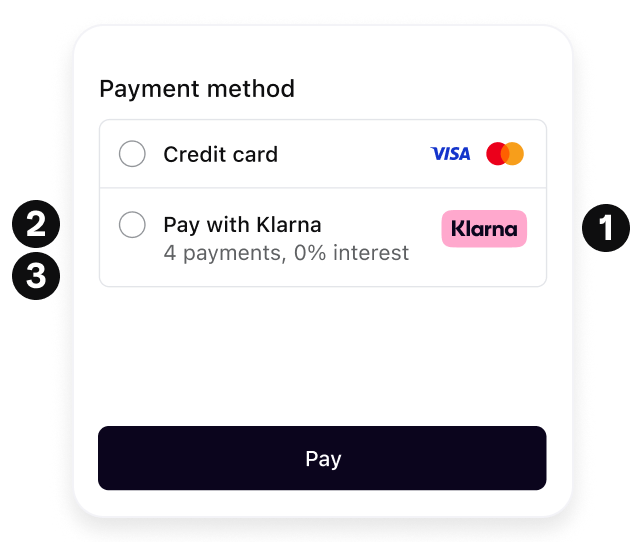
Respect presentation instructions
Use the
instruction attribute returned by the Payment Presentation API to dynamically build the payment selector. The instruction attribute carries one of the following values:| Instruction | Description |
|---|---|
SHOW_ | Default value. Show Klarna alongside other payment methods. |
PRESELECT_ | Returned when the customer has signed in with Klarna or has a saved payment method bound to the session. The customer used Klarna to authenticate but has not yet expressed a clear intention to pay with Klarna, so Klarna should be pre-selected but still shown alongside other payment methods. |
SHOW_ | Returned when the customer has finished the first step of Klarna Express Checkout multistep. Since the customer has already shown intent to pay with Klarna, this should be the only payment method displayed. |
Adhering to Klarna's payment presentation instructions ensures the best customer experience and is required for features like Klarna Express Checkout and Sign in with Klarna.
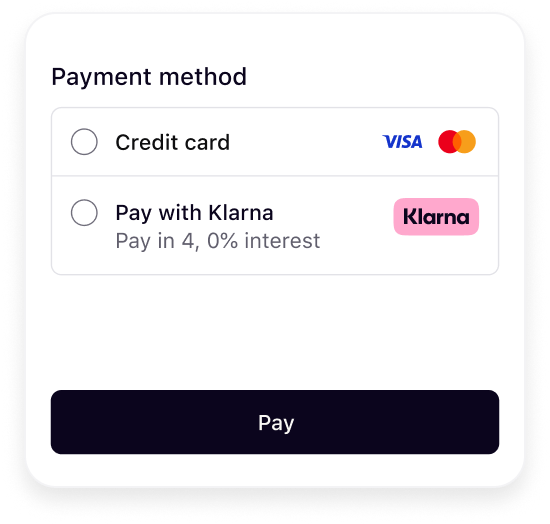 | 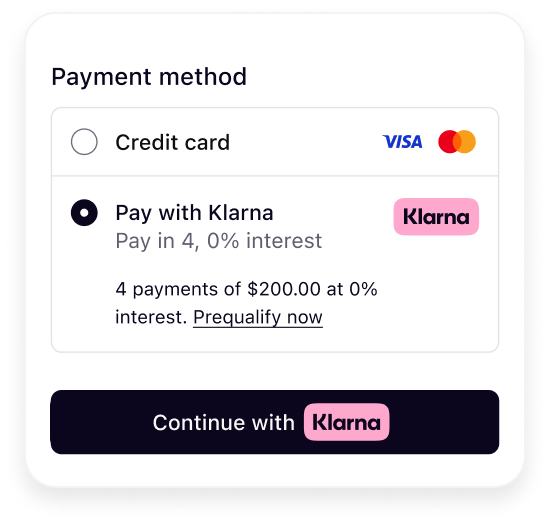 | 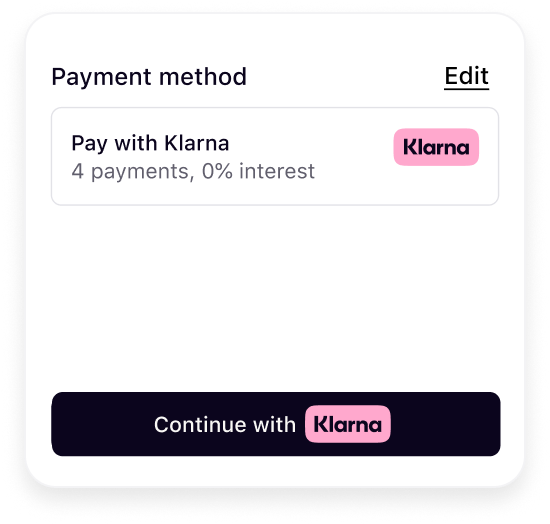 |
| Show Klarna | Preselect Klarna | Show only Klarna |
The presentation instructions are derived from the customer purchase journeys described in How to present Klarna in your checkout.
Surface saved payment options for returning customers
When session context is available (via
Klarna-Network-Session-Token or Klarna-Customer-Token), the response can also include a saved_ representing the customer's previously stored Klarna payment method. When saved_ is present:- 1.Render the
saved_instead of the defaultpayment_ option payment_in the Klarna slot.option - 2.The
instructionis typicallyPRESELECT_. Pre-select Klarna in the payment selector accordingly.KLARNA - 3.The customer can still expand or change the option through the rest of the flow.
Update presentation and load Klarna's payment button on selection
Once the customer selects Klarna (or when Klarna is pre-selected via
PRESELECT_ or SHOW_), refresh the layout to add the enriched subheader and payment button using the assets returned by the Payment Presentation API.- 1.Icon
- 2.Header
- 3.Subheader
- 4.Message
- 5.Payment Button
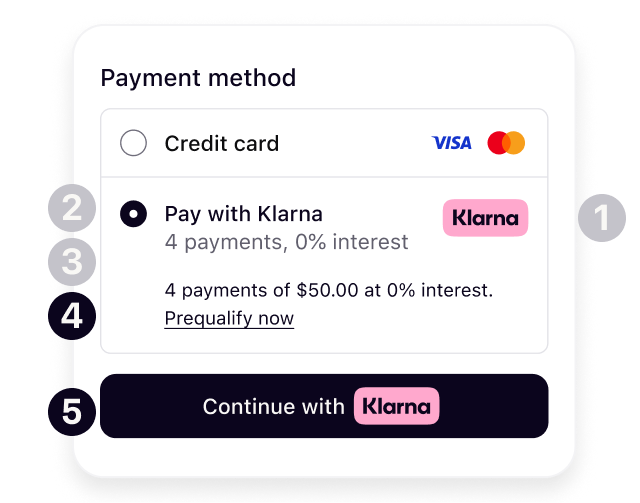
Link behavior
The API response may include CTA URLs for
Learn more, Check Purchase Power, and similar elements. Each link's message. indicates how to open it:INFO: the content is purely informational. It may be opened within an iframe, the same tab, a new tab, a new window in a web browser, or any WebView in a mobile app.AUTH: the content requires customer authentication. The link must be opened in a new window or tab in a web browser to persist authentication state. For native implementations:- iOS: open with ASWebAuthenticationSession.
- Android: open with Android Custom Tabs.
Render the Klarna payment button using Klarna's CSS so it stays compliant with Klarna's brand and UX guidelines. Use the
payment_ value from the response to set the button label dynamically per market.Sample code
HTML
1
2
3
4
5
6
7
8
9
10
<link rel="stylesheet" href="https://js.klarna.com/web-sdk/buttons/payment-button.css" />
<button
style="width: 100%"
class="klarna-sdk-button theme-outlined shape-rect"
aria-label="Pay with Klarna"
>
<div class="klarna-sdk-button__outline" aria-hidden="true"></div>
<div class="klarna-sdk-button__inner-container">
<span class="klarna-sdk-button__text">Configure the button label
Use
payment_ from the response to set the visible button label. Update both the aria-label (for accessibility) and the klarna-sdk-button-copy text:HTML
1
2
3
<button aria-label="Pay with Klarna">
  <span class="klarna-sdk-button-copy">Pay with</span>
</button>
Theme, shape, and sizing
Choose the theme, shape, and size that best fit the checkout. For the full set of theme classes, shape classes, contrast requirements, width and height guidance, and visual examples, see Checkout styling.
Next steps
Payment Presentation ends when the customer clicks the Klarna payment button. From that point, continue with the authorization flow to create the Payment Request, retrieve the
klarna_, and finalize the authorization.- Continue with Authorize a customer-initiated payment (server-side) to complete the integration.
- Style the Klarna payment button to match the checkout. See Checkout styling.
- Compare integration paths and learn the Payment Presentation concept. See Payment Presentation Overview.
- Embed the Klarna Web SDK instead. See Build Payment Presentation with the Klarna Web SDK.
Jump to section...