

Overview
This section covers the installation, configuration, and management of the Klarna Payments App in VTEX. It includes step-by-step instructions for setting up Klarna as a payment provider, handling orders, and moving to production.
The Klarna Payments App integrates with VTEX, enabling Klarna as a payment option at checkout. This allows merchants to accept payments through Klarna and manage orders using basic Order Management functionalities, such as capturing payments, processing refunds, and canceling transactions.
The following diagram provide a detailed overview of how Klarna Payments functions within the VTEX platform.
sequenceDiagram
title Klarna Payments App for VTEX
participant Customer
participant VTEX_Storefront
participant KP_App
participant Klarna
participant VTEX_Back_Office
Customer->>VTEX_Storefront: 1. Goes to checkout and clicks "Buy"
VTEX_Storefront->>KP_App: 2. Sends basket and customer information
KP_App->>Klarna: 3. Calls `create session` API
Klarna-->>KP_App: 4. Returns `session_id`
KP_App->>Klarna: 5. Creates `HPP session` using `session_id`
Note right of KP_App: `place_order_mode = PLACE_ORDER`
Klarna-->>KP_App: 6. Returns `HPP URL`
KP_App->>Customer: 7. Redirects to Klarna Hosted Payment Page (HPP)
Customer->>Klarna: 8. Authenticates & authorizes payment
Klarna-->>KP_App: 9. Sends notification to `merchant_urls`
alt **Successful authorization**
Note over Klarna, KP_App: Contains `session_id`, `status`, and `order_id`
KP_App->>VTEX_Back_Office: 10. Sends order data for order creation
VTEX_Back_Office->>VTEX_Storefront: 11. Creates VTEX order
KP_App->>VTEX_Storefront: 12. Redirects customer to VTEX
VTEX_Storefront->>Customer: 13. Displays order confirmation message
else **Failed authorization**
Note over Klarna, KP_App: Contains `session_id` and `status`
KP_App->>VTEX_Storefront: 10. Redirects customer to VTEX
VTEX_Storefront->>Customer: 11. Displays error message
end
Installing the Klarna Payments app
To enable Klarna as a payment provider in your VTEX store, you must install the Klarna Payments App.
Step 1: Install the app
- 1.Open a terminal and log in to your VTEX account using the VTEX IO CLI.
- 2.Run the following command to install the Klarna Payments App:
vtex install klarnapartnerglobal.klarna-payments@2.0.4 - 3.Once installed, go to VTEX Admin > Apps and verify that Klarna Payments appears under Installed Apps.
Step 2: Configuration
In VTEX Admin, navigate to Apps > Klarna Payments and click on 'Edit'
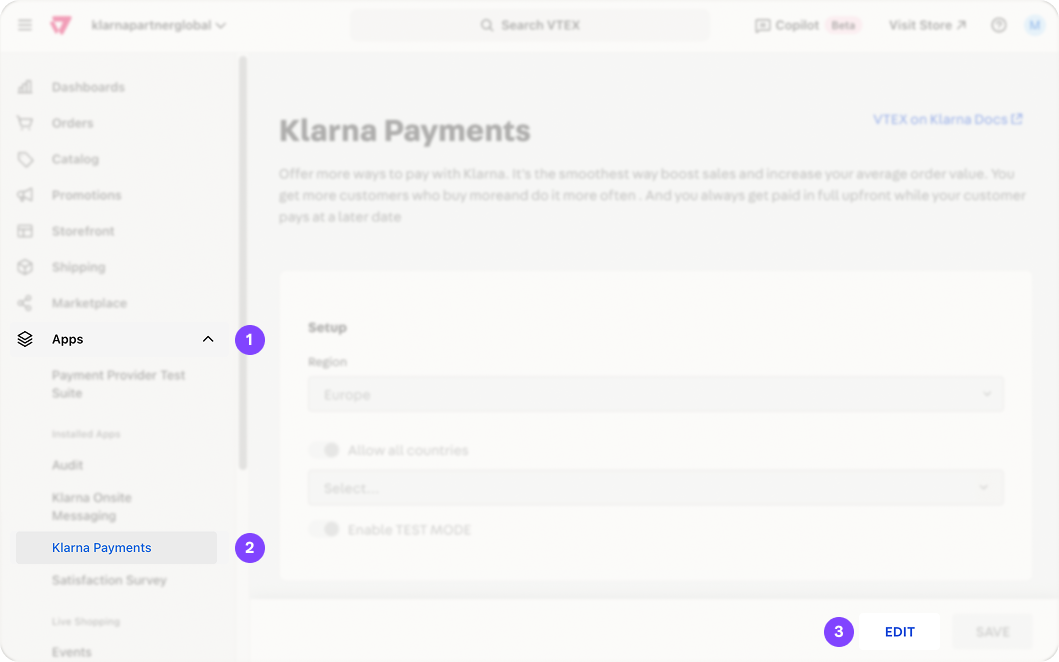
Navigate to KP app on VTEX
Select the region where your store operates (for example, North America, Europe).
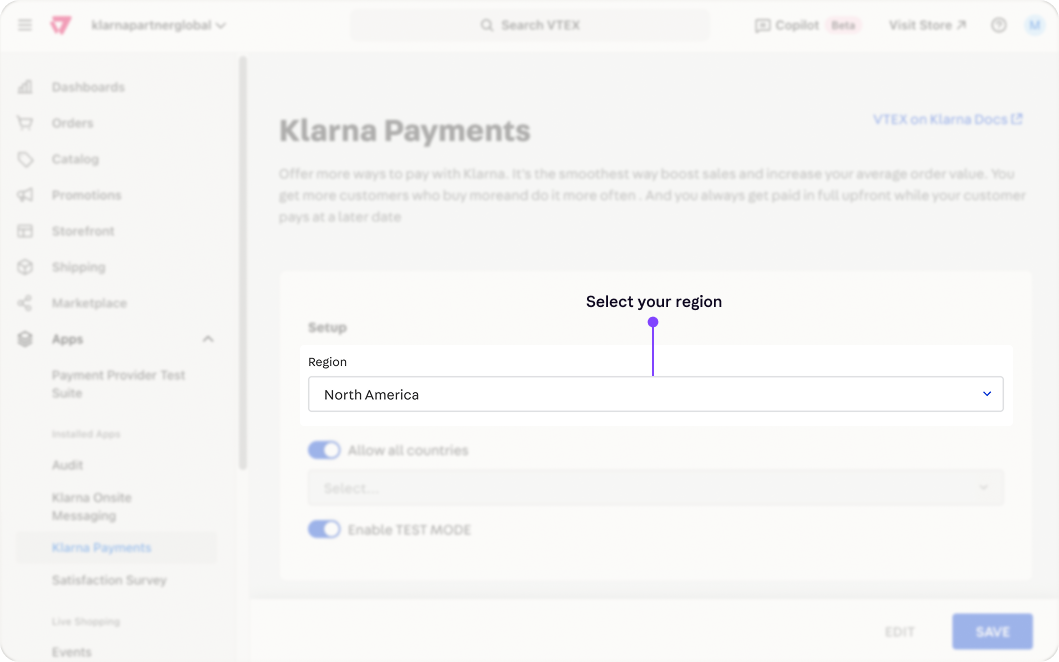
VTEX KP app configuration - region selection
For the allow all countries toggle:
- Switch the Allow all countries toggle ON if you operate in all the Klarna markets of the selected region.
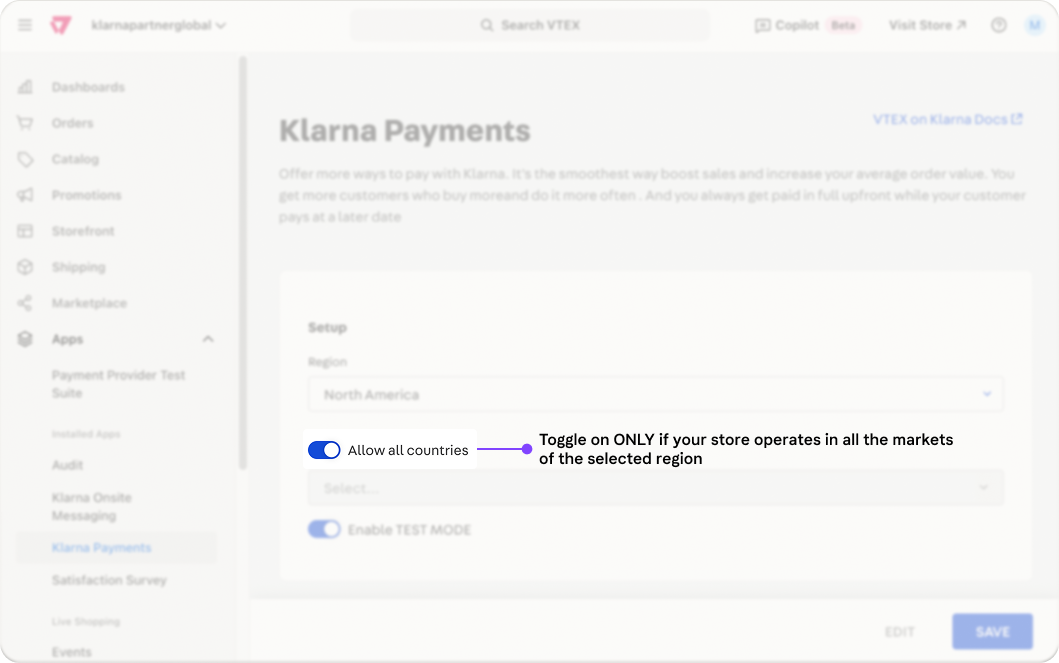
Allow all countries toggle ON
- If you only operate in some of the region markets, switch the toggle OFF and select the markets where you operate in the dropdown.
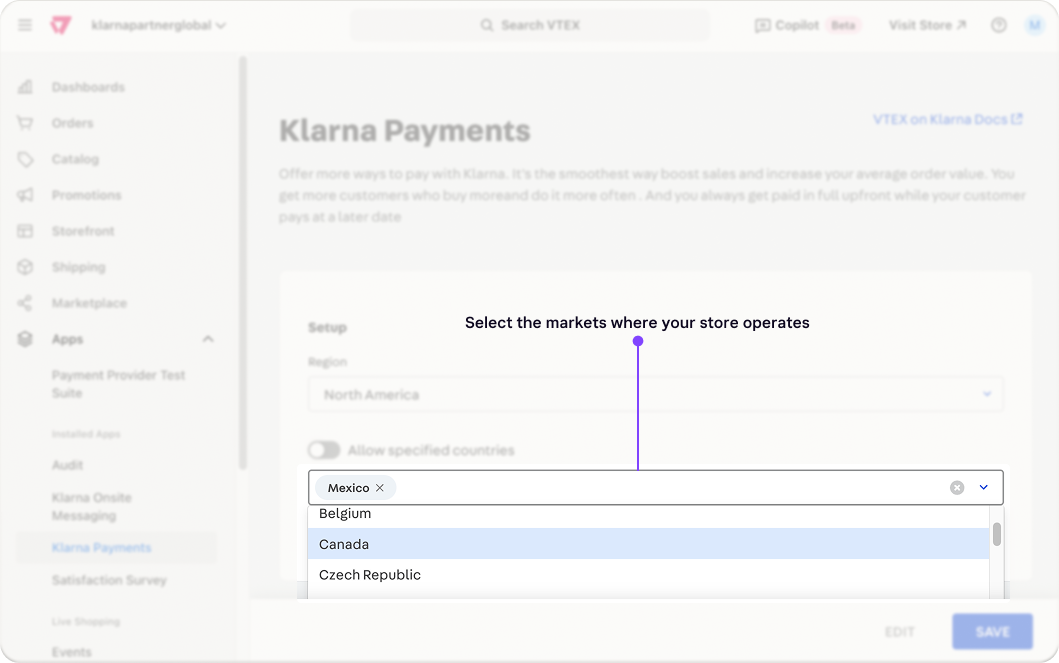
specific markets selection
Test Mode: Set depending on the Klarna environment you want to use:
- On – Uses Klarna’s Playground (test) environment.
- Off – Uses Klarna’s Production environment.
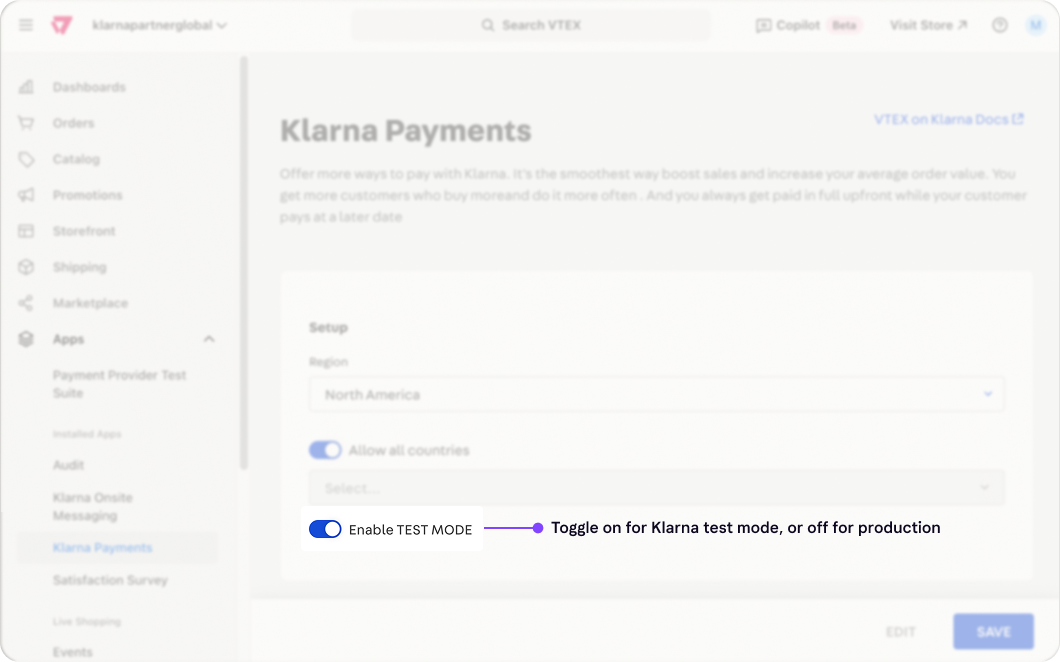
Environment toggle
Click Save to apply the changes.
Adding Klarna to the checkout page
After installing Klarna Payments, you must add it as a payment provider in VTEX.
Step 1: Enable Klarna as a payment provider
Go to VTEX Admin > Store Settings > Payments > Providers and click New Provider
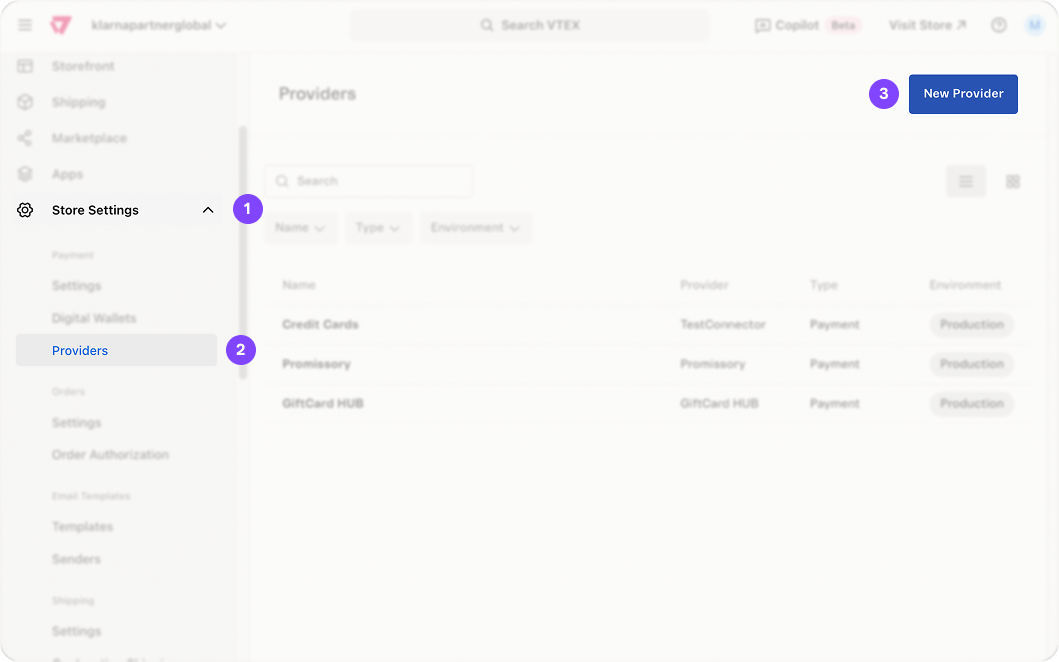
Adding Klarna as payment provider on VTEX
Search and select KlarnaPayments.
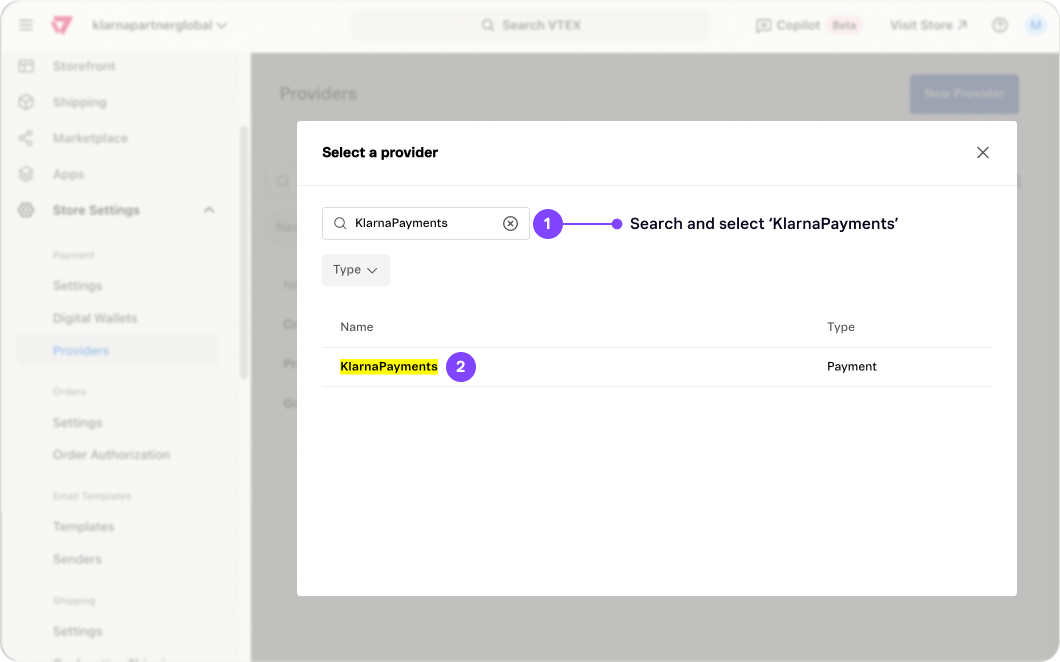
Select Klarna Payments as provider
Enter the required credentials:
- Application Key (API User)
- Application Token (API Password)
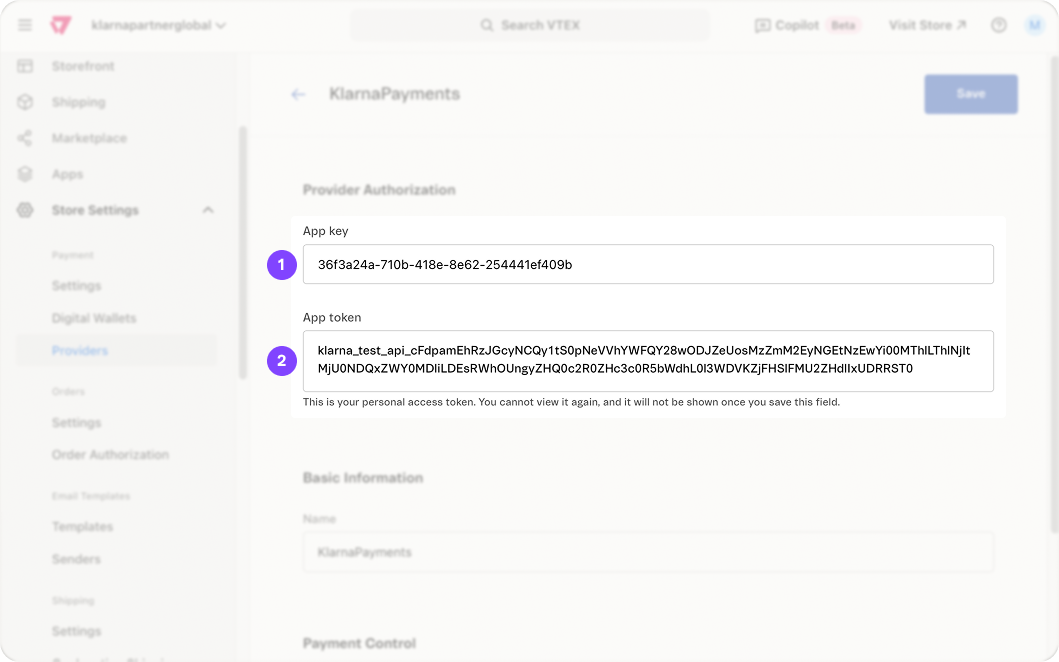
Entering Klarna API credentials on VTEX
Enter a name for you to easily identify the Klarna provider configuration.
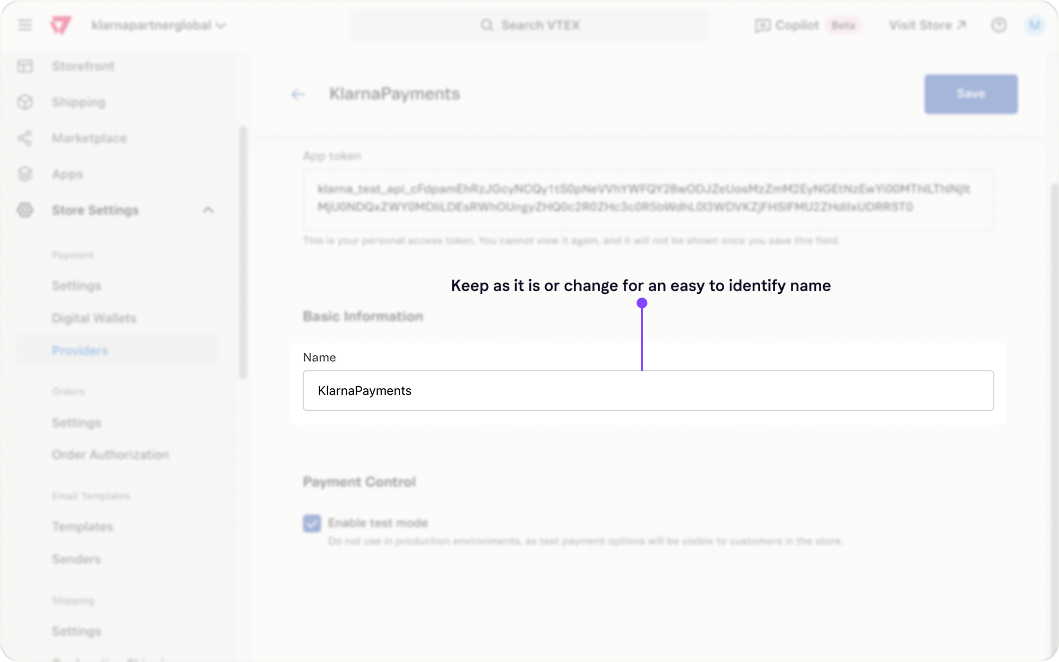
Enter an easy to identify name to the Klarna provider configuration
The Enable test mode setting determines whether the provider configuration applies to the VTEX test environment or the VTEX production environment.
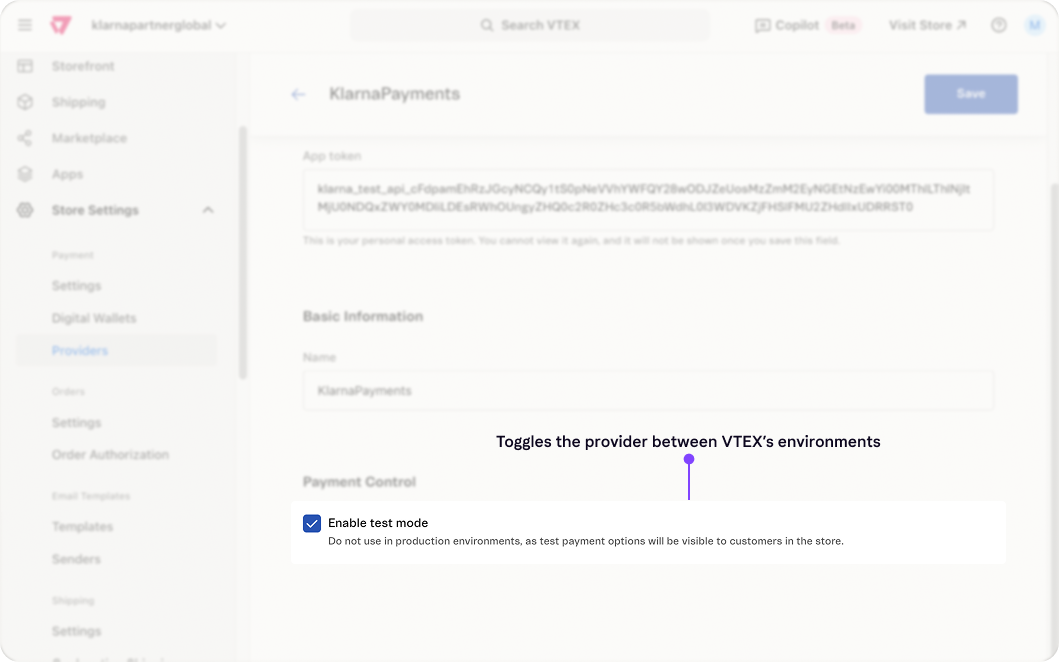
Enable test mode - Provider configuration -VTEX
Click Save to complete the setup.
*Important!*Ensure that the Klarna credentials entered in the provider configuration match the Klarna environment selected in the Klarna Payments App. Using Playground credentials with the Production environment, or vice versa, will result in authentication errors.
Step 2: Configure payment conditions
Go to VTEX Admin > Store Settings > Settings > Payment Conditions and click the "+" button to add a new condition.
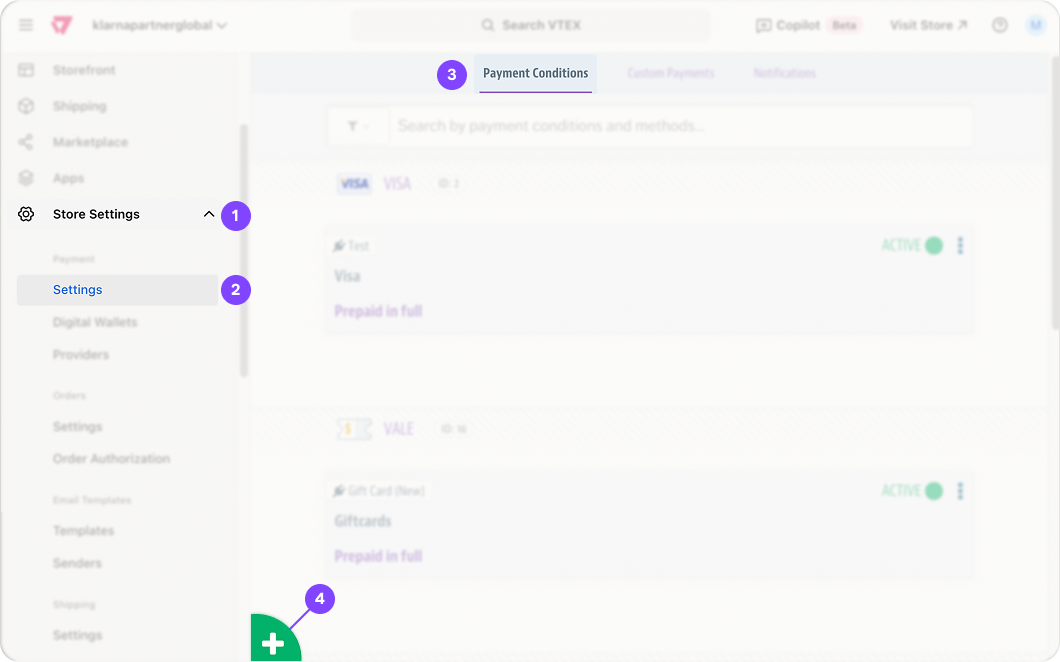
Adding a new payment condition
Look for Klarna and select it**.**
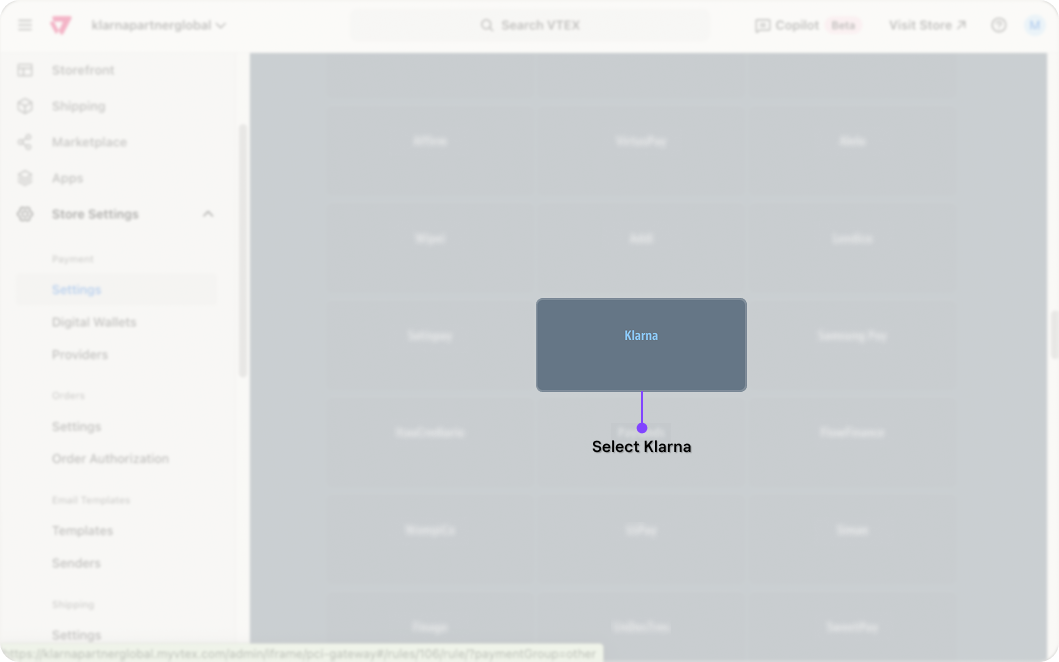
Select Klarna
Enter a name for the Klarna payment condition
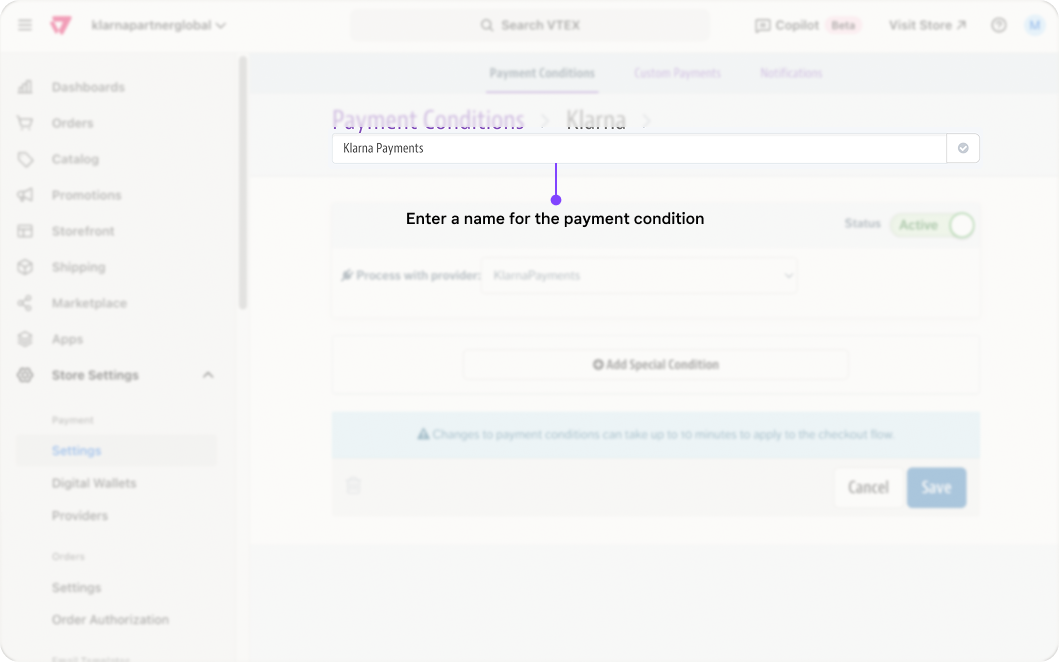
Enter name for payment condition
Change the status to Active, this will enable Klarna in the checkout page.
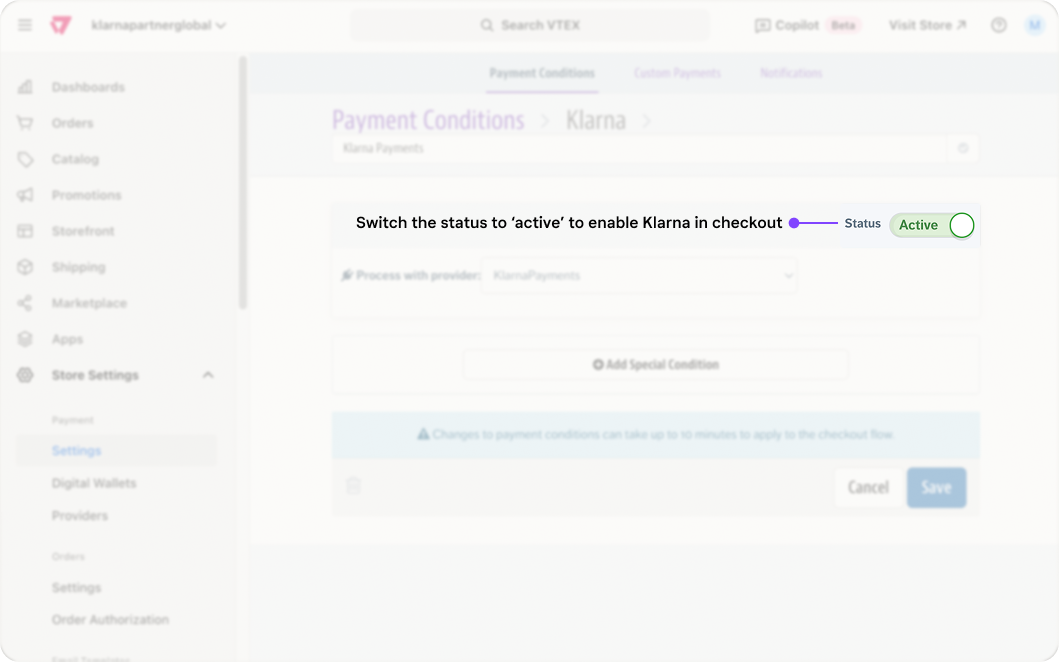
Set to active
In Process with provider, select the provider configuration you created in the previous step.
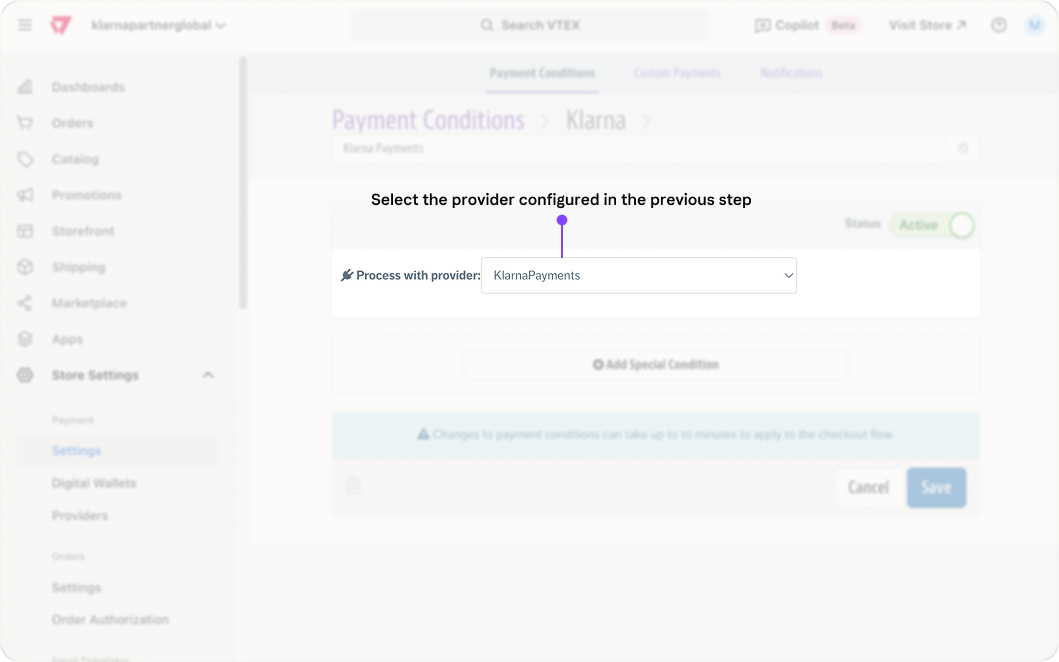
Select Karna's provider configuration created in previous step
Click Save. Now Klarna should be displayed at checkout as payment option
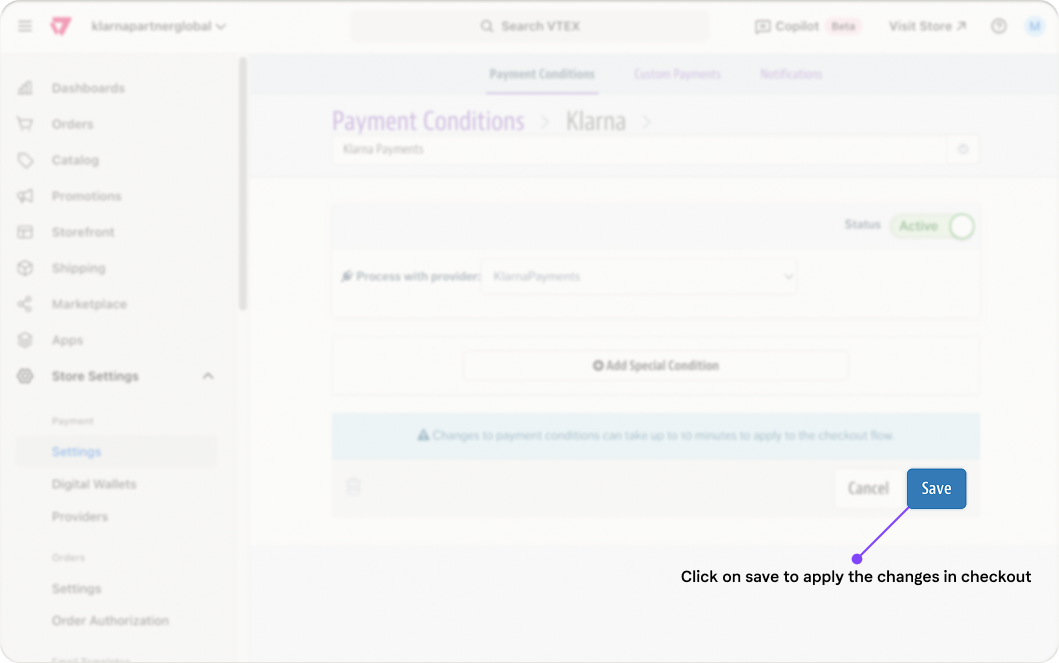
Save
Testing
Testing is a crucial step in ensuring that the Klarna Payments App functions correctly on the VTEX platform. It's recommended to conduct thorough testing in the Playground environment, in test mode, before going live.
Key differences between test and production environments
| Feature | Test Environment (Playground) | Production Environment |
|---|---|---|
| Order processing time | Up to 60 minutes for test transactions to process in VTEX. | Around 30 seconds for live transactions. |
| Auto-capture behavior | Orders are auto-captured in 24 hours unless manually captured. | Klarna follows standard capture rules. |
| Credentials required | Playground API credentials must be used. | Production API credentials must be used. |
| Payment processing | No actual money is exchanged. | Live payments with real funds. |
Final checklist before going live
Before switching to production, confirm the following:
- Klarna Payments is configured correctly with production API credentials.
- Test orders have been successfully processed in the playground environment.
- Klarna appears as a payment option in checkout.
- Klarna’s order management functions (capture, refund, cancel) have been tested.
- Your store’s payment conditions correctly allow Klarna for supported markets.
Once all steps are verified, Klarna Payments is ready to process live transactions.
Related articles