

Overview
Learn about the features offered by Klarna payments in the Klarna Adobe Commerce extension.
11 min read
The Klarna payments extension lets you add any of Klarna's payment methods to your checkout page in Adobe Commerce.
The key features supported by Klarna payments in the extension are:
- Availability in all markets where Klarna is available
- All payment methods available in each market
- Business to business (B2B) purchases
The following features are currently not supported:
- Customer token (recurring payments and tokenization)
- Store views for multi-currency support
- Deferred Total Calculation - this Adobe Commerce feature is not currently supported for the Klarna payments integration, but will be reviewed in the future for support if reasonable.
For more information about Klarna payments, refer to the dedicated section of our product documentation.
Prerequisite: When using the Klarna m2-klarna Adobe Commerce extension, for a direct integration of Klarna Payments, you will need a Klarna merchant account, for which you can sign up here.
Markets
Klarna payments can be used in all markets where Klarna is available without any technical restrictions, including North America, Europe, and Oceania. For a detailed list of supported countries here.
The store has to be configured to match the market's specifics, for example, the correct tax and currency settings. Once that’s configured, the Klarna payments API has to be configured in the Admin > Stores > Configuration > Sales > Payment Methods > Klarna > General settings.
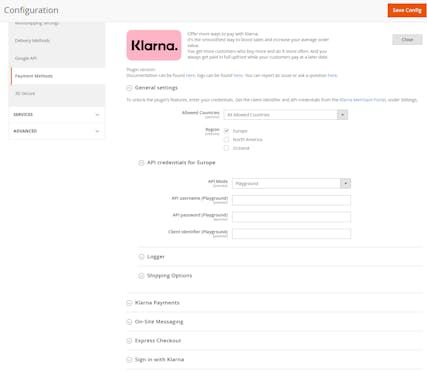
Edit the shop's admin settings to enable Klarna payments
Payment methods
The Klarna extension support all Klarna’s payment methods. Klarna handles the configuration of the payment methods within Klarna, so you don’t need to configure individual payment method settings in the shop or in the extension.
You can also use Klarna payments in Adobe Commerce's Progressive Web Apps (PWA) environment. The extension’s configuration in PWA is the same as the configuration of Klarna payments in a non-Adobe Commerce PWA environment. However, an additional request must be sent to a specific endpoint in the extension in the PWA environment. Learn more about Adobe Commerce's PWA environment.
Authorization callback
Introduced in m2-klarna extension version 2.0.5 (released May 2023), the authorization callback supports server-side communication for the creation of Klarna payments orders, as client-side order creation may not be successful for all orders. While orders may still be created successfully for many orders via the client-side authorization (e.g. if the shop doesn't accept the server-side authorization callback), client-side order creation cannot cover all order scenarios fully, thus the server-side authorization callback is *required *to be able to successfully complete all order creation scenarios.
For more about the Klarna Payments authorization callbacks, refer to the Authorization callbacks article.
Integration requirement
The shop's web server must allow public access for Klarna to call the shop's authorization callback provided within the m2-klarna extension:
[https://{shop url}/checkout/klarna/authorize?dryRun=true](https://{shop url}/checkout/klarna/authorize?dryRun=true)
It is important this request from Klarna can reach the shop's functional code for the authorization data to be processed; the request should not be blocked by security interceptors, e.g. CAPTCHA, Cloudfare, etc.
You can confirm public access by calling the API by sending a POST request,e.g. with cURL. Any response other than the pattern of the example below means the endpoint is not accessible functionally. Even if the response is 200, if the response does not include the "message" param, the endpoint is not functional.
HTTP
1
2
3
4
5
curl --request POST \
  --url 'https://{shop url}/checkout/klarna/authorize?dryRun=true' \
  --header 'Accept: application/json' \
  --header 'Content-Type: application/json'
authorize dryRun request
HTTP
1
2
3
4
5
6
{
  "code": 200
  "message": "The {full path to the url} is accessible.",
  "timestamp": {request timestamp}
}
authorize dryRun success response (with variable data bracketed)
Business to business (B2B)
Klarna payments allows business to business (B2B) purchases. The following updates are required for B2B purchases to work:
- 1.B2B must be enabled by Klarna for the Merchant ID (MID).
- 2.You have to enable B2B in the Admin. You can find the configuration option in Stores > Configuration > Sales > Payment Methods > Klarna > Klarna Payments.
Since currently there’s no supported Adobe Commerce standard selector for customers to flag the order as business to consumer (B2C) or B2B, an order is only considered a B2B one when a customer enters data in the Company Name billing address field.
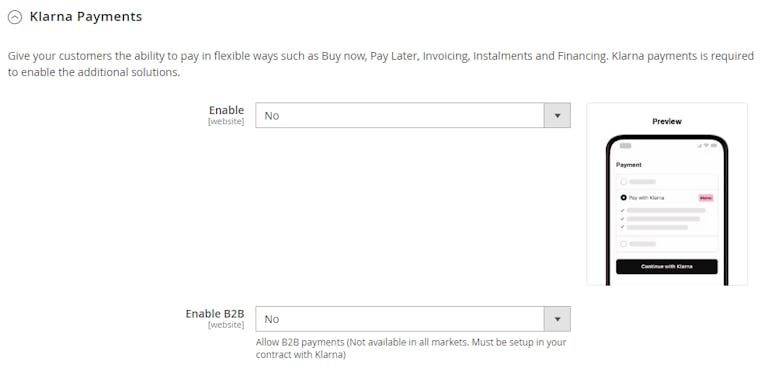
You can enable B2B payments in the Klarna Payments settings in the Adobe Commerce Admin.
Extra merchant data (EMD)
In some cases, we require additional information regarding the customer and the purchase in order to make a correct risk assessment. This information, called Extra merchant data (EMD), may consist of data about the customer performing the transaction, the product/services associated with the transaction, or the seller and their affiliates.
The following method returns the request instance, which is later converted to an array and sent as a request to Klarna:
PHP
1
2
3
4
\Klarna\Kp\Model\Api\Builder\Request::generateCreateSessionRequest()
\Klarna\Kp\Model\Api\Builder\Request::generateUpdateSessionRequest()
\Klarna\Kp\Model\Api\Builder\Request::generatePlaceOrderRequest()
It returns the instance
Klarna\Kp\Api\Data\RequestInterface (Klarna\Kp\Model\Api\Request).To add EMD, create an after plugin on this method. To insert the EMD in the request, use the
setAttachment method on the request instance.Merchant references
To include merchant_reference1 and merchant_reference2 data fields, for example, to match the order's merchant references as included in Klarna's settlement files, you can create an after plugin for the \Klarna\Kp\Model\Api\Builder\Nodes\MerchantReferences::addToRequest() method.
and merchant_reference2 data fields, for example, to match the order's merchant references as included in Klarna's settlement files, you can create an after plugin for the \Klarna\Kp\Model\Api\Builder\Nodes\MerchantReferences::addToRequest() method.Configuration
You can quickly enable Klarna payments in the Admin by changing a few settings.
Before proceeding, make sure you have your [ API credentials set up].
Steps to configure Klarna payments
To configure Klarna payments in the Klarna extension, follow these steps:
- 1.In the Adobe Commerce Admin, go to Stores > Configuration > Sales > Payment Methods > Klarna > General Settings
- 2.Expand the Klarna Payments section and set Enable to Yes.
- 3.If your Klarna account supports business to business (B2B) payments, set Enable B2B to Yes. Note the following:
- Since currently there’s no supported Adobe Commerce standard selector for customers to flag the order as business to consumer (B2C) or B2B, an order is only considered a B2B one when a customer enters data in the Company Name billing address field.
- Your Merchant ID (MID) has to be enabled for B2B by Klarna. This option is currently available only is selected regions.
Multiple step checkout
If you customize checkout to consist of multiple steps or pages and offer payment methods that pull funds directly from the customer, for example, a direct bank transfer, you have to appropriately customize the Klarna payments integration to finalize the authorization, as covered in the authorization guide.
GraphQL checkouts
Headless e-commerce architecture is based on a headless content management system (CMS) that stores, manages, and delivers content without a front end and only through an API.
On a headless platform, the front end (or the head) has been decoupled and removed, leaving only the back end.
Back-end developers use APIs to deliver things like products, blog posts, or customer reviews. Front-end developers work on how to present that content using any framework they desire.
GraphQL is a query language developers can use to retrieve data from a server. Adobe Commerce uses GraphQL as an alternative way of retrieving front-end information.
For more information about GraphQL, refer to the GraphQL checkout tutorial.
Workflow
Klarna payments requires cart information to initiate the payment session. For this reason, the below steps can be executed only after a cart has been created. Please follow Adobe's GraphQL checkout tutorial to create a cart.
- 1.The Progressive Web App (PWA) client calls the
createKlarnaPaymentsSessionmutation to generate theclient_and retrieve a list oftoken payment_.This step can be executed at any time after the cart is created. However, we recommend that you add products to the cart and set the billing address, shipping address, and shipping method on the cart before you perform this step.categories - 2.Adobe Commerce forwards the request to Klarna.
- 3.Klarna returns the
client_and thetoken payment_available to the customer.categories - 4.Adobe Commerce forwards the token to the client.
- 5.The client sends the cart query to retrieve the available payment methods.
- 6.Adobe Commerce must always retrieve the latest status information from Klarna before returning the Klarna payments method as an option to the customer. This is important to ensure that the latest available payment options are always shown to the customer.
- 7.Klarna returns an updated list of
payment_.categories - 8.Adobe Commerce returns all available payment methods, including Klarna payment methods.
- 9.The PWA client renders the Klarna payment widget.The PWA client uses the
client_andtoken payment_to initialize the Klarna payments JavaScript SDK.categories - 10.The PWA client sends the authorization directly to Klarna.On the checkout page, the customer selects Klarna as the payment method and clicks Place Order. When this happens, the PWA client must send the
authorize()call to Klarna. Then, the customer follows the authorization steps on the Klarna inline modal. During this phase, the communication between the PWA client and Klarna is handled directly by the Klarna Payments JS SDK. - 11.Klarna returns the
authorization_in response to the authorize call. Note: that Klarna m2-klarna extension flow is built to handle Klarna sharing the authorization_token either (or both) via client side or server side calls, but the Klarna authorization callback can be optional for graphQL with PPP-1503 (v3.1.1+)token - 12.Set the payment method providing the
authorization_as part of thetoken setPaymentMethodOnCartmutation.The client uses thesetPaymentMethodOnCartmutation to set the payment method toklarna_. The<identifier-value> authorization_is passed in the klarna object.token - 13.Adobe Commerce returns an updated cart object.
- 14.The PWA client runs the
placeOrdermutation. - 15.Adobe Commerce sends the place order request to Klarna.
- 16.Klarna sends the response to Adobe Commerce.
- 17.Adobe Commerce creates an order and sends an order ID in response to the
placeOrdermutation.
sequenceDiagram
autonumber
participant A as Client
participant B as Adobe Commerce
participant C as Klarna Payments
alt Initialization
A ->> B: Run the createKlarnaPaymentsSession mutation
B ->> C: Adobe Commerce forwards the request
C ->>B: Klarna returns the client_token and payment_categories
B ->>A: Adobe Commerce forwards the response
else Widget rendering
A ->>B: Get available payment methods
B ->>C: Get latest status
C ->>B: Klarna returns latest status
B ->>A: Available payment methods
A ->>A: PWA renders KP widget
else Authorization
A ->>C: PWA client sends the authorize() directly to Klarna
C ->>A: Klarna returns the authorization_token
else Set payment method on created
A ->>B: Set the payment method providing the authorization_token
B ->>A: Adobe Commerce returns an updated Cart Object
else Place order
A ->>B: Run the placeOrder mutation
B ->>C: Adobe Commerce sends the place order request to Klarna
C ->>B: Klarna sends the response to Adobe Commerce
B ->>A: Adobe Commerce creates the order
end
Cart updates
During the purchase flow, the cart can be updated by adding additional products, applying coupons, and changing the billing or shipping address. All these events might cause a change in Klarna options for the specific customer.
In order to always present customers with the latest available payment options provided by Klarna, the PWA client must:
- 1.Perform a cart update.
- 2.Adobe Commerce returns an updated cart object.
- 3.Send the cart query to retrieve the latest available payment methods.
- 4.Adobe Commerce sends another request to Klarna with the latest information available from the cart.
- 5.Klarna returns a new list of payment methods. Note that the list might contain different options for the customer.
- 6.Adobe Commerce returns an updated cart object.
- 7.Reload the widget on the client side.
sequenceDiagram
autonumber
participant A as Client
participant B as Adobe Commerce
participant C as Klarna Payments
alt Cart Update
A ->> B: Perform cart update (e.g. add product, apply coupon...)
B ->> A: Adobe Commerce returns an updated Cart Object
else Widget reloading
A ->>B: Get available payment methods
B ->>C: Get latest status
C ->>B: Klarna returns latest status
B ->>A: Available payment methods
A ->>A: PWA renders KP widget
end
When you set the payment method to Klarna in the `setPaymentMethodOnCart`` mutation, the payment_method object must contain a klarna object.
Examples
The following example shows the
setPaymentMethodOnCart mutation constructed for the Klarna payment method.Request
NULL
1
2
3
4
5
6
7
8
9
10
mutation {
  setPaymentMethodOnCart(input: {
    cart_id: "3WxC8gQn4Fbo55yqVLSiUFJ9fmEwnlxG"
    payment_method: {
      code: "klarna_pay_later"
      klarna: {
        authorization_token: "e9abc610-6748-256f-a506-355626551326"
      }
    }
}) {A sample
setPaymentMethodOnCart mutation for the Klarna payment method.Response
NULL
1
2
3
4
5
6
7
8
9
10
{
  "data": {
    "setPaymentMethodOnCart": {
     "cart": {
       "selected_payment_method": {
         "code": "klarna_pay_later"
        }
      }
    }
}A sample response to the
setPaymentMethodOnCart mutation.Jump to section...