

What is Express checkout?
This guide explains how to add Express checkout to your WooCommerce store.
4 min read
Express checkout gives your customers a fast way to pay with Klarna from a product page or the cart. When the button is on a product page, the selected product is added to the cart before the flow starts.
Klarna for WooCommerce supports two flows. One-step has been available to every Partner since plugin version 4.9.0 (March 31, 2026). Klarna recommends one-step where possible, because it results in the best and fastest customer experience.
- Two-step. Klarna authorizes the customer for the cart amount, returns their shipping details, and sends them to the WooCommerce checkout to complete the order. Two-step needs the classic shortcode checkout. It does not work with the Checkout block. If the customer changes the address Klarna returned, or changes the cart, the plugin drops the express checkout session and loads the standard Klarna payments flow.
- One-step. The customer skips the WooCommerce checkout. One-step uses the Cart block and the Mini Cart block. Klarna must be able to call your store, so create the webhook in the plugin settings before you use this flow.
Plugin setup is documented by Krokedil in Express checkout.
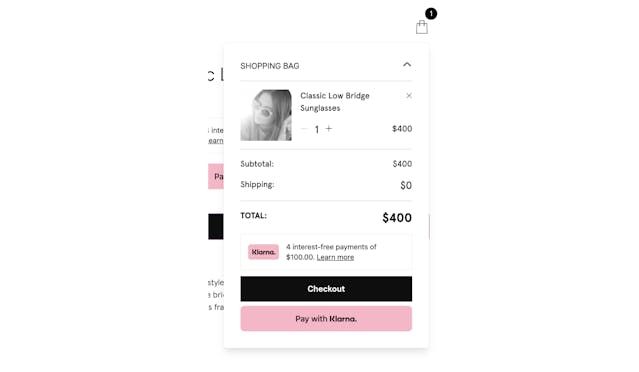
When you add Express checkout to the store, a button prompting customers to pay with Klarna is displayed in checkout.
Prerequisites
To be able to offer Express checkout, you have to first enable Klarna in your WooCommerce store by installing the Klarna for WooCommerce plugin.
Install Express checkout in WooCommerce
Express Checkout is applied to both product and cart pages for a Woo shop, dependent upon compatibility with the shop's theme. To install Express Checkout in a WooCommerce store, follow these steps:
- 1.In the Klarna Partner Portal, go to Payment settings > Client identifiers. There you can click Manage origins and enter your store's URL in the Register new origin section.
- 2.Proceed to add your store's URL to the allowlist (Register new origin) and to generate the Klarna Client ID.
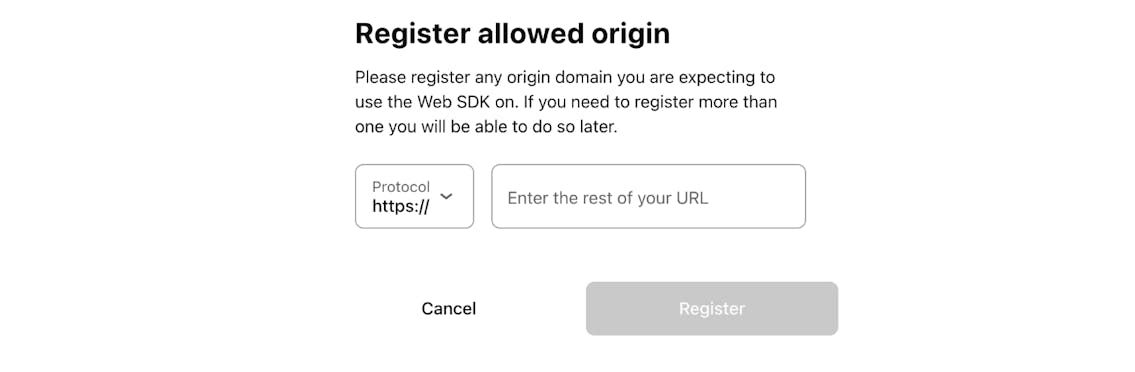
To use Express checkout in your WooCommerce store, you have to allowlist your store's URL.
Later, you can also manage your Allowed origins for your integrations in Payment settings > Client identifiers. There you can click Manage origins and enter your store's URL in the Register new origin section.

You can manage Allowed origins for your integrations in Payment settings.
- 1.Click on Generate client identifier in the Client identifiers menu and then copy it from the Client ID field.
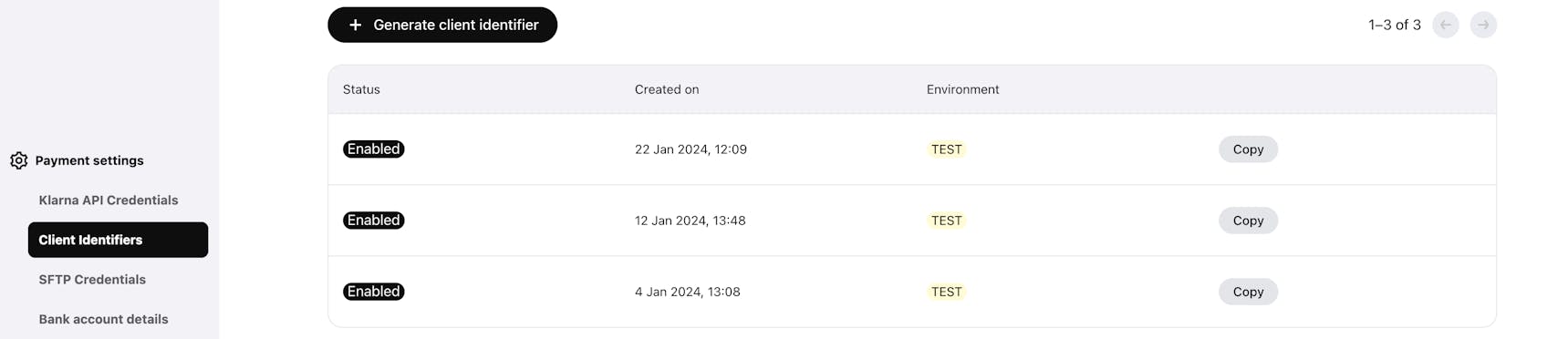
The generated Client ID links your Partner Account to your WooCommerce store.
- 1.In your WooCommerce admin, in the Credentials section, paste the Client ID you copied in the Client Id field. Make sure the ID doesn't contain any quotes or whitespace.
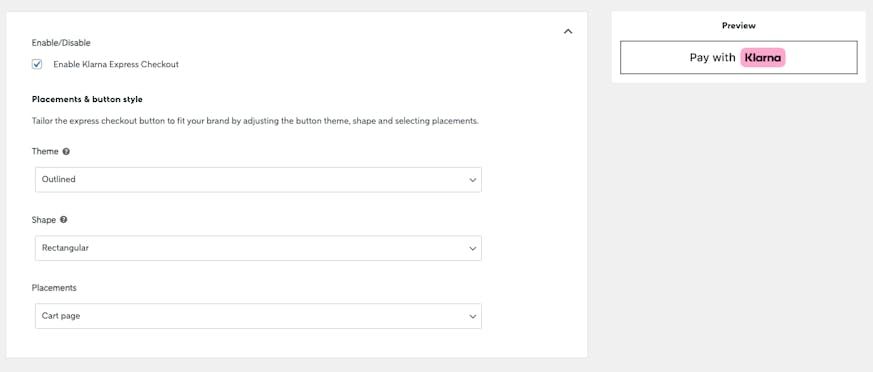
- 2.In the Express checkout section, check Enable Klarna Express Checkout.
- 3.Set Flow to One step or Two step. Klarna recommends One step where possible, because it results in the best and fastest customer experience.
- 4.For one-step, select Create webhook. The webhook setting is shown only when Flow is One step. Klarna uses it to confirm the payment, because the customer never passes through the WooCommerce checkout.
Customize the Express checkout button
You can customize the Express Checkout button by choosing a theme and a shape. The styling options are available in the WooCommerce plugin settings.
- 1.From the Theme dropdown, select a theme for the button: dark, light, or outlined.
- 2.From the Shape dropdown, select a shape for the button: rounded, rectangular, or pill.
- 3.Select the Placements: product and/or cart pages.
To learn more about Express Checkout in the Klarna plugin for WooCommerce, refer to the Krokedil documentation.
Related articles
Jump to section...