

Multiple payment methods
Salesforce Commerce Cloud features multiple Klarna payment use case examples, adjusting options based on cart details and market, with varied display and authorization handling scenarios highlighted.
18 min read
During the checkout billing step, Klarna payment methods are dynamically displayed based on the customer’s cart details and the payment method categories available for the Klarna session.
When the customer selects a payment method, a widget displaying additional information about the Klarna product will appear.
Payment methods depend on market and contract
The payment methods shown depend on market availability and the contractual agreement with Klarna.
Klarna Display Conditions and Authorization Handling
Display Conditions
Klarna payment methods may not be displayed under the following conditions:
- 1.Payment Categories Not Returned: Klarna is not displayed if payment categories are not returned in the session response.
- 2.**Session Linking Issue: **Payment method content is not displayed if we have payment methods in the session, but no session is linked to the basket.
- 3.Authorization Denial: Payment method category is hidden or grayed out if show_form is returned as false in the Klarna response on an authorization request and the payment method is denied.
- 4.Session Creation Failure: Overall, if Klarna is unavailable and a session is not created, payment categories will not be displayed.
Authorization Handling Preference
Deprecated functionality
This functionality is deprecated as of release 24.4.0
By default no action will be applied upon authorization rejections. No configuration changes required.
We've implemented a site preference,
kpRejectedMethodDisplay, allowing merchants to choose how to handle authorization rejections (refer to section 2.3.5 Refusal of Klarna Payments on Payment Method – Authorization). The available options are:- No action: No specific handling for authorization rejections.
- Hide: Hide the payment method upon authorization rejection.
- Gray out: Gray out the payment method upon authorization rejection.
Authorizing and Placing Klarna Orders in Checkout
The cartridge implementation follows best practices for integrating Klarna payment methods, offering the inclusion of Extra Merchant Data (EMD) to optimize acceptance rates. EMD can include customer information and Buy Online, Pickup in Store (BOPIS) details when the custom site preference attachments is enabled. Merchants should review and validate EMD data based on their data privacy requirements prior to going live.
Authorization Process
When a customer selects a Klarna payment method and clicks "Continue to Place Order," their personally identifiable information (PII) is sent. This information is essential for assessing and verifying the customer's data to display available payment method options.
Steps:
(1) Customer Action: The customer selects a Klarna payment method and clicks "Continue to Place Order."
(2) Authorization Initiation: Authorization is initiated, sending PII to Klarna for verification.
(3) Authorization Outcome:
- Success: The customer is taken to the summary page.
- Additional Information: Depending on the payment method and market, additional information may be requested before completing authorization.
- Failure: If authorization is not successful (
approved = false), the customer remains on the billing page, no changes to payment methods display.
The authorization callback keeps the authorization token if the storefront fails after authorization — for example if the customer's browser crashes, the page unloads, or the client-side response never arrives. When authorization succeeds, Klarna posts the authorization token to your storefront URL. If that request is blocked, Klarna cannot deliver the token and the payment cannot be completed.
Integration requirement
You must allowlist Klarna's callback IP addresses in Salesforce B2C Commerce Business Manager (and on any firewall, WAF, or CDN in front of the storefront). Without this allowlist, Klarna cannot call your storefront endpoint and the authorization callback will not work.
Callback requests originate from the following source IP addresses:
| Environment | Region | Egress IP addresses |
|---|---|---|
| eu-staging | eu-west-1 | 54., 54. |
| eu-playground | eu-west-1 | 34., 34. |
| eu-production | eu-west-1 | 52., 52. |
| us-playground | us-east-1 | 52., 34. |
| us-production | us-east-1 | 52., 52. |
| ap-playground | ap-southeast-2 | 3., 52., 52. |
| ap-production | ap-southeast-2 | 13., 3., 13. |
Allowlist every environment you use. Restricting inbound traffic from these addresses will cause callback requests to fail.
Special Case: Pay Now
For the Pay Now payment category, an additional "finalize" call is required when the customer clicks the "Place Order" button on the review page. This ensures that funds are transferred only when the customer decides to place the order. A cookie called
selectedKlarnaPaymentCategory is set in the customer's browser to initialize the finalize call to Klarna.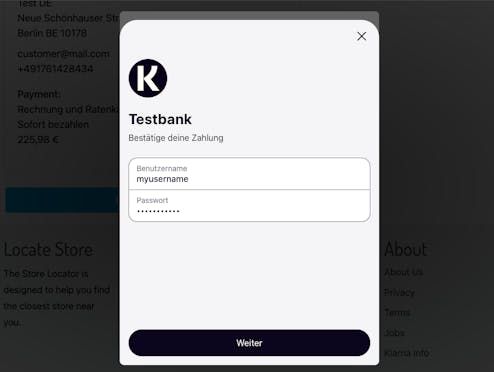
Finalize Call Screen
Klarna Order Placement
- Approved: Successful payment authorizations (Klarna Payments authorization status:
APPROVED) result in the creation of both SFCC and Klarna orders with a "Paid" order payment status and "Ready for Export" export status. - Rejected or Pending: Refused and pending Klarna Payment orders (statuses
REJECTEDandPENDING) result in a "Not Paid" order payment status and "Not Exported" export status. - VCN Settlement Errors: Klarna orders are canceled, and SFCC orders are set to a "Not Exported" export status.
Changing Payment Methods
If a customer authorizes a Klarna payment and then returns to the billing page to select a different non-Klarna payment method, an automatic
cancelAuthorization call is triggered. This releases the authorized funds and frees up the available purchase amount. Merchants can utilize this function for specific use cases.JAVASCRIPT
1
2
3
4
5
6
7
8
9
10
server.get('SaveAuth', function (req, res) {
var KlarnaSessionManager = require('*/cartridge/scripts/common/klarnaSessionManager');
// var processor = require('*/cartridge/scripts/payments/processor');
var token = req.httpHeaders['x-auth'];
var finalizeRequired = req.httpHeaders['finalize-required'];
//Cancel any previous authorizations
//processor.cancelAuthorization();
Testing
Merchants should thoroughly test the checkout flow, including scenarios such as:
- Klarna session flow
- Payment method switching
- Order amount updates
- Checkout with external payment methods
Refusal of Klarna Payments on Authorization
Deprecated functionality
This functionality is deprecated as of release 24.4.0
By default no action will be applied upon authorization rejections. No configuration changes required.
Upon selecting Klarna as the payment method on the billing step of checkout and based on the customer information provided, Klarna Payments can be refused as a payment method. If the payment method is rejected with show_form=false and approved=false (that is, hard reject), the merchant can choose how the payment method is displayed on the Billing page using the Business Manager (BM) preference Hide Payment Methods on Deny (kpRejectedMethodDisplay):
- No: Leave the payment visible to the customers.
- Hide: The payment method will be hidden from the customer.
- Gray Out: The payment method will be grayed out and not clickable.
Denied method reappears on reload
Reloading the page will show the denied Klarna payment method again.
Klarna Payment method Not Available for Current Purchase - Billing Page
The customer is presented with an appropriate message in the Klarna widget when the customer attempts to choose Klarna in the billing step.
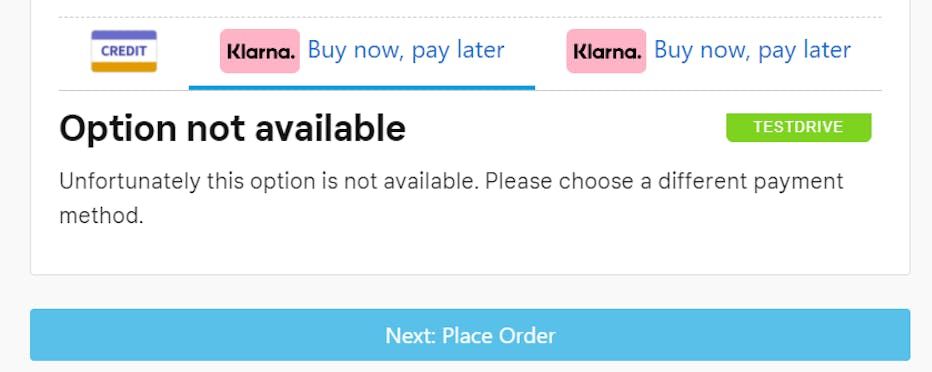
Option Not Available
Handling Unavailability of Klarna API or Inapplicable Storefronts
If the Klarna API is unavailable or the site/storefront is inapplicable, Klarna will not be presented as a payment method on the billing page. It is recommended that a Klarna session not be created when a customer selects a non-Klarna market or merchant store. This also applies to cases where merchants have multi-currency storefronts with a basket currency not supported by Klarna.
Notification Handling and Fraud Status Updates
When a Klarna order is created but flagged for additional review, the Commerce Cloud order remains in the
Created status with a Fraud Status of PENDING. This order is marked with EXPORT_, confirmation status NOTCONFIRMED, and NOTPAID.Notification Process
For orders with a Fraud Status of
PENDING, updates are sent to the pre-configured notification_ on the merchant's Commerce Cloud site once the review is complete. The updated Fraud Status, such as FRAUD_, is displayed in Business Manager (BM). Push notifications are sent repeatedly (up to 24 hours, every 10 minutes) until the POST request is acknowledged with a 200 response.sequenceDiagram
autonumber
participant A as Klarna_API
participant B as SFCC_Platform
participant C as Merchant
A ->>B: Send Fraud Status Update
B ->>C: Update Order Status
alt Fraud Detected
B ->>C: Flag Order for Review
else No Fraud Detected
B ->>C: Proceed with Order Fulfillment
end
A ->>B: Send Payment Notification
B ->>C: Update Payment Status
alt Payment Successful
B ->>C: Confirm Order Processing
else Payment Failed
B ->>C: Notify Customer of Payment Issue
end
A ->>B: Send Order Update
B ->>C: Update Order Details
Event Types
Klarna sends one of the following event types in the notification to SFCC to update the risk status:
FRAUD_RISK_ ACCEPTED FRAUD_RISK_ REJECTED FRAUD_RISK_ STOPPED
Notifications are generally received within 4-24 hours. The order’s payment transaction is updated accordingly (see kpFraudStatus). This status can be viewed in BM on the order details Payment tab.
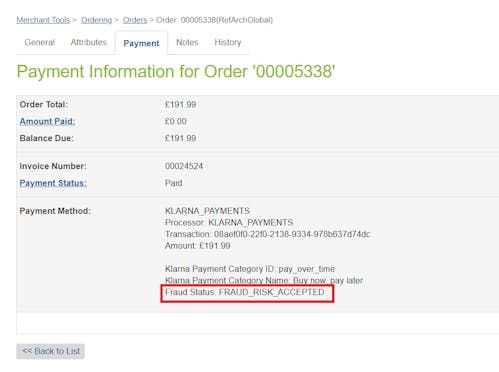
Fraud Status in Payment Details
Handling Fraud Risk Updates
FRAUD_- Order Status: Changes to OPEN.
- Confirmation Status: Changes to CONFIRMATION_STATUS_CONFIRMED.
- Export Status: Changes to EXPORT_STATUS_READY.
- Auto-Capture Orders: The payment status will be set to PAYMENT_STATUS_PAID, and the full order amount will be captured.
FRAUD_- Order Status: Marked as failed (FAIL) in SFCC.
Pending functionality availability by market
The Klarna pending functionality availability is dependent on markets and enabled based on the contractual agreement with Klarna.
Virtual Card Settlements
This feature is disabled by default. However, if standard order management is not suitable for your Klarna integration, you can utilize Klarna’s Merchant Card Service-based virtual card solution. The virtual card is issued against a Klarna order to capture the authorized order amount using standard card rails.
When a customer places an order, it is first booked in SFCC. Once Klarna accepts the order, the Klarna cartridge integration creates a virtual card-based settlement using the Merchant Card Services (MCSv3) API.
After the settlement is created (virtual card returned), the encrypted card details are saved in SFCC. These details can later be used by the merchant's OMS platform or custom PSP integration to authorize the virtual card until the Klarna order is valid. On successful order fulfillment, the funds on the virtual card may be captured. (For delays in capture or special use cases, please speak with the Klarna Key Account Manager in advance). While Klarna is the original payment method, the order amount will be settled with the merchant using the issued virtual credit card instead of a direct bank account transfer.
Please review the procedures with the Klarna team for details of the settlement process using virtual cards. Refer to the code in scripts/payments/processor.js and update accordingly to the integrated cards processor.
Virtual card issuance waits for fraud status
If the Klarna order has a fraud_status of
PENDING, action is not taken on the order until receiving Klarna’s push notification that the fraud_status has changed to FRAUD_. The virtual card issued is limited to 1 single successful authorization per order for a given MID. For decrypting the credit card details refer to section Decrypt VCN Card Details.Credit card authorization call:
JAVASCRIPT
1
2
3
4
5
6
7
8
9
10
/**
* Call Credit Card Authorization Hook (for VCN settlement)
* @param {dw.order.order}.order DW Order
* @returns {processorResult} authorization result
*/
function callCreditCardAuthorizationHook(order) {
var processorResult = null;
var paymentInstrument = order getPaymentInstruments(PAYMENT_METHOD)[0];
var paymentProcessor = PaymentMgrCredit card authorization call
If enabled and fully configured, a virtual card settlement request is made successfully. For orders placed with the VCN settlement option, the related custom attributes are shown below:
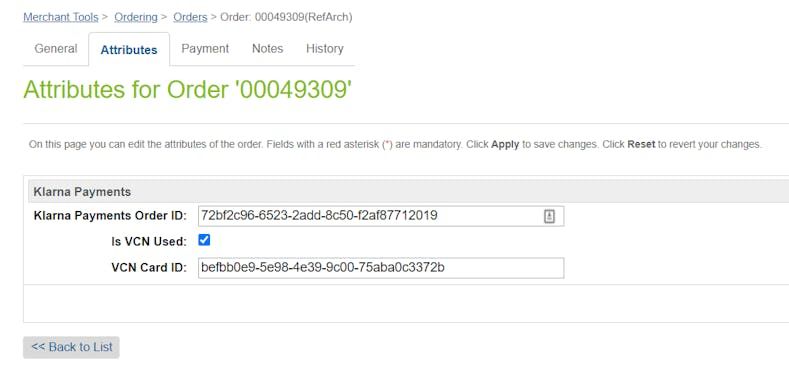
VCN Details in Order
If required, the additional virtual card details can be assigned to this group in Administration > Site Development > System Object Types > select “Order”. In the Attribute Grouping tab, select
Klarna_ and click on “edit”. Assign the new attributes and save the data.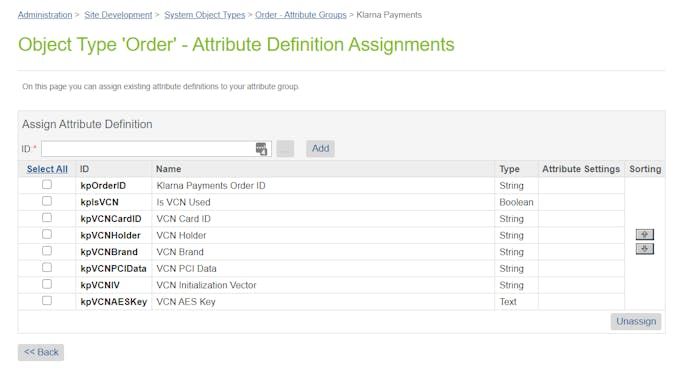
Full List of VCN Attributes
Work with your Klarna Account Manager and Delivery contact in advance to select the appropriate virtual card product based on your business requirements and use cases. You can find information here about other supported use cases.
Integration requirement
DO NOT SAVE DECRYPTED PCI DATA ON THE SERVER
It is the responsibility of the merchant to ensure PCI-DSS compliance and to ensure the card data is handled securely in coordination with required partners/Payment Service Provider/Acquirer. Please review in advance the order export details required for virtual card-based Klarna orders. Any historical decrypted PCI data should also be expunged, regardless of the validity date (see the “OrderCleanUp” job section of the installation guide).
Depending on their credentials configuration, merchants should follow these steps to utilize the virtual card integration option:
For single credentials per site configuration
(1) Enable VCN option in Site Preferences as shown below.
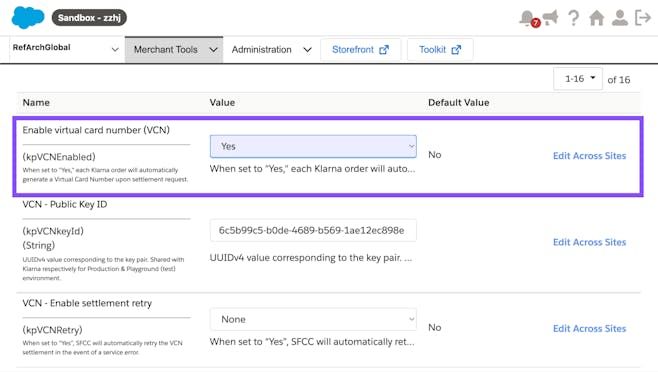
VCN enablement setting
(2) Enter the VCN Public Key ID. Unique UUIDv4 value, which should be different for playground testing and Production (live site).
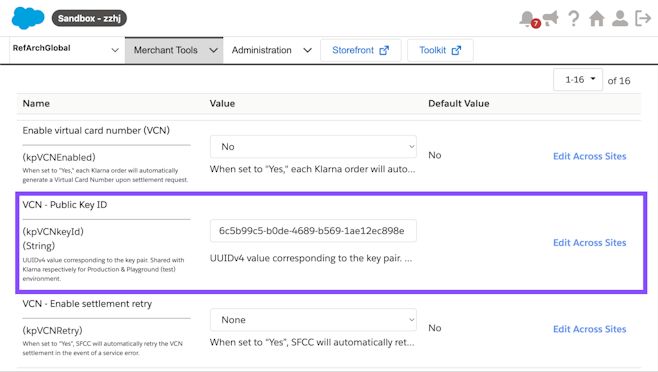
VCN Public Key ID
(3) Generate a 4096-bit RSA key pair (Refer to Overview of Merchant Card Service).
(4) Update the VCN settlement retry setting. By default, this is disabled. However, if enabled and in cases when a VCN creation error is returned, the application will retry the settlement request once again with
order_ as the idempotency key.(5) Send the generated unique
key_ + public key combination in JWK format to Klarna before testing and going live. It will be used to encrypt the AES key, which encrypts the PCI data on Klarna's side when the settlement request is made. After confirmation from Klarna that the key has been successfully added to your merchant profile, you will be able to use the virtual card-based settlement option for Klarna payment methods.For different credentials per site - (Using KlarnaActivation custom object)
- 1.Go to Merchant Tools > Custom Objects > Manage Custom Objects and select
KlarnaActivation. - 2.Search and locate the custom object entry.
- 3.Enable the VCN option.
- 4.Enter the VCN Public Key ID, a unique UUIDv4 value, which should be different for Playground (testing) and Production (live site) environments.
- 5.Update the VCN settlement retry setting. By default, this is disabled. If enabled, in cases when a VCN creation error is returned, the application will retry the settlement request once again with
order_as the idempotency key.id
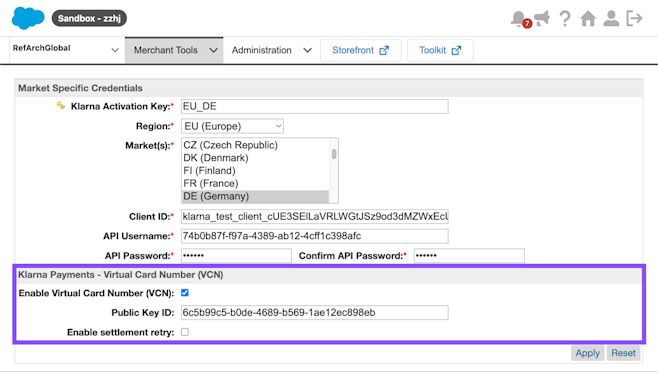
VCN settings in Klarna activation custom object
- 1.Generate a 4096-bit RSA key pair (Refer to Overview of Merchant Card Service).
- 2.Send the generated unique
key_+id public keycombination in JWK format to Klarna before testing and going live. It will be used to encrypt the AES key, which encrypts the PCI data on Klarna's side when the settlement request is made. After confirmation from Klarna that the key has been successfully added to your merchant profile, you will be able to use the virtual card-based settlement option for Klarna payment methods.
Decrypt VCN Card Details
To decrypt the virtual card details stored at the order level and authorize the credit card processor, you can use the following code snippet. This script utilizes the Salesforce Commerce Cloud (SFCC) APIs and classes for cryptographic operations.
JAVASCRIPT
1
2
3
4
5
6
7
8
9
10
var OrderMgr = require( 'dw/order/OrderMgr' );
 var Cipher = require( 'dw/crypto/Cipher' );
 var Encoding = require( 'dw/crypto/Encoding' );
 var Site = require( 'dw/system/Site' );

var Order = OrderMgr.getOrder( "order_id" );
 var VCNPrivateKey = Site.getCurrent().getCustomPreferenceValue( 'vcnPrivateKey' );
 var cipher = new Cipher();

var keyEncryptedBase64 = Order.custom.kpVCNAESKey;Steps:
- 1.Retrieve the Order: Use
OrderMgr.to fetch the order by its ID.getOrder("order_ id") - 2.Store the VCN Private Key in SFCC: Create a custom attribute to store the private key.
- 3.Create Site Preference for Single Site Credentials: Go to Administration > System Object Types; select Site Preferences; click on Attribute Definitions; click New to create a custom attribute; define the attribute with ID
vcnPrivateKey, Display Name VCN Private Key, Description SSL private key used only to decode Virtual Card information (used withkpVCNEnabled), Type Text, and set Mandatory to false; click Apply to save; click on Attribute Grouping; select the Klarna_KP group; add the new attributevcnPrivateKeyand save; navigate to Merchant Tools > Site Preferences > Custom Site Preference Groups > Klarna Payments and update thevcnPrivateKeyvalue. - 4.Create Custom Object Attribute for Multiple Klarna Credentials per Site: In Business Manager, go to Administration > Site Development > Custom Object Types; edit the custom object type named KlarnaActivation; navigate to the Attributes tab; click New to create a new attribute with Attribute ID
vcnPrivateKey, Display Name VCN Private Key, Description SSL private key used only to decode Virtual Card information (used withkpVCNEnabled), Value Type Text, and ensure Mandatory is unchecked; navigate to the Attribute Groups tab; edit the vcn attributes group; add the attributevcnPrivateKeyto the group; go to Merchant Tools > Custom Objects > Manage Custom Objects; select the KlarnaActivation ObjectType and search; enter thevcnPrivateKeyfor each entry. - 5.Retrieve the VCN Private Key: From Site Preferences (single credentials), use
Site.; from Custom Object, reviewgetCurrent(). getCustomPreferenceValue('vcnPrivateKey') KlarnaHelper.and create a similar function to retrieve the private key using its IDgetVCNKeyId() vcnPrivateKey. - 6.Decrypt the AES Key: Convert the encrypted AES key from Base64 to bytes using
Encoding.; decrypt the AES key usingfromBase64 cipher.with the RSA algorithm.decryptBytes - 7.Decrypt the Card Data: Convert the encrypted card data from Base64 to bytes using
Encoding.; decrypt the card data usingfromBase64 cipher.with the AES algorithm.decryptBytes - 8.Parse and Extract Card Details: Decode the decrypted card data from URL encoding to UTF-8 format; parse the JSON string to obtain the card details object; extract the card PAN, CVV, and expiry date.
- 9.Authorize the Credit Card Processor: Use the decrypted card details to proceed with the credit card authorization process.
Integration requirement
- Ensure that sensitive data such as card details are handled securely and comply with PCI DSS standards.
- Remove or secure any logging of sensitive information in a production environment.
- For more information about the decryption process, refer to the Klarna documentation.
Enabling and Managing Auto-Capture for Payments
Auto-capture is enabled via a site preference kpAutoCapture located in the Klarna_Payments preference group. By default, auto-capture is disabled. When enabled, the system attempts to capture the full payment amount automatically.
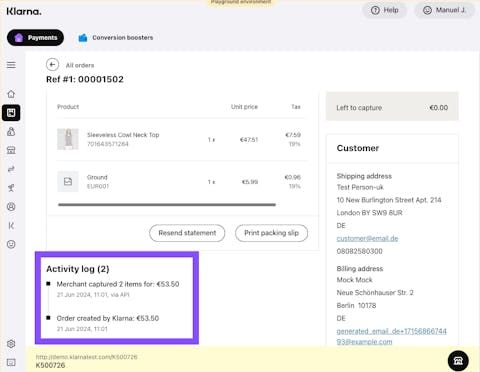
Order Details in Klarna Portal
Successful Capture
- The SFCC order’s payment transaction is marked as
Paid. - The transaction status is viewable in the Business Manager.
- The order status in Klarna’s Klarna Partner Portal is updated to
Captured.
Unsuccessful Capture
- An error is logged in the custom error log.
- The issue must be reviewed with the Klarna delivery team before testing and going live.
Auto-capture not compatible with VCN
- Auto-capture is possible only for orders where Virtual Card Number (VCN) is not enabled.
- Ensure the setting is reviewed with the Klarna delivery team before testing and going live.
Widget Customizations
The Klarna Payments widget can be styled to align with the marketing and branding needs of the merchant's store. Various graphic elements of the widget can be customized through site preferences.
Customizing Payment Method Name
The payment method name “Klarna Payments” can be customized in the Business Manager.
Steps to Customize
- 1.Navigate to Merchant Tools > Ordering > Payment Methods in Business Manager.
- 2.Select the Klarna payment method.
- 3.Choose the desired language from the drop-down menu.
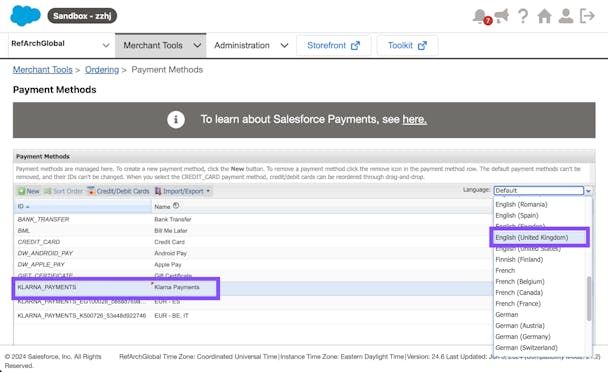
Customize Payment Name
The customized payment method name will be displayed in:
- The mini summary and confirmation screens
- Confirmation emails
- The My Account Order Details section
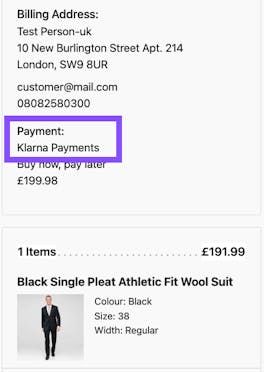
Payment Method Name in confirmation screen
Related articles
Jump to section...