

Installation steps
Successfully integrate Klarna Payments with your Shopify store by following the step-by-step installation guide, verifying store setup, and ensuring required customer details for smooth transactions.
9 min read
In order to go live with Klarna payments on Shopify, you need to be one of the select, managed merchants with a direct Klarna agreement and have access to the Klarna Merchant portal.
Once the below steps are started, we recommend that you complete at the minimum steps 1 through 4 to avoid a partial entry in Klarna's database, which results in an incomplete integration.
Integration requirement
Make sure you are logged in to the correct Shopify store.
Once a store is associated with a merchant ID, that merchant ID will be blocked from use for another store. Each Shopify store must have its own unique Klarna merchant ID.
If you connect Klarna to the wrong Shopify store, deactivate the payment method and uninstall the app. Wait 48 hours for the association to be removed, and then try the installation over again. If you are stuck, reach out to Merchant support.
Step 1: Log into Shopify & check your settings, and log into Klarna Merchant Portal
Make sure your Shopify settings are ready to work with Klarna.
Navigate to Shopify admin > Settings > Checkout
- 1.Under Customer Contact Method, select only Email. If the customer's email address isn't shared with Klarna, the customer will receive an error message from Klarna and will need to return to the Shopify checkout to enter their email. Read more about contact options in Shopify documentation.
- 2.Under Customer Information > Full Name select Require first and last name
- 3.Under Customer Information > Shipping address phone number select Required
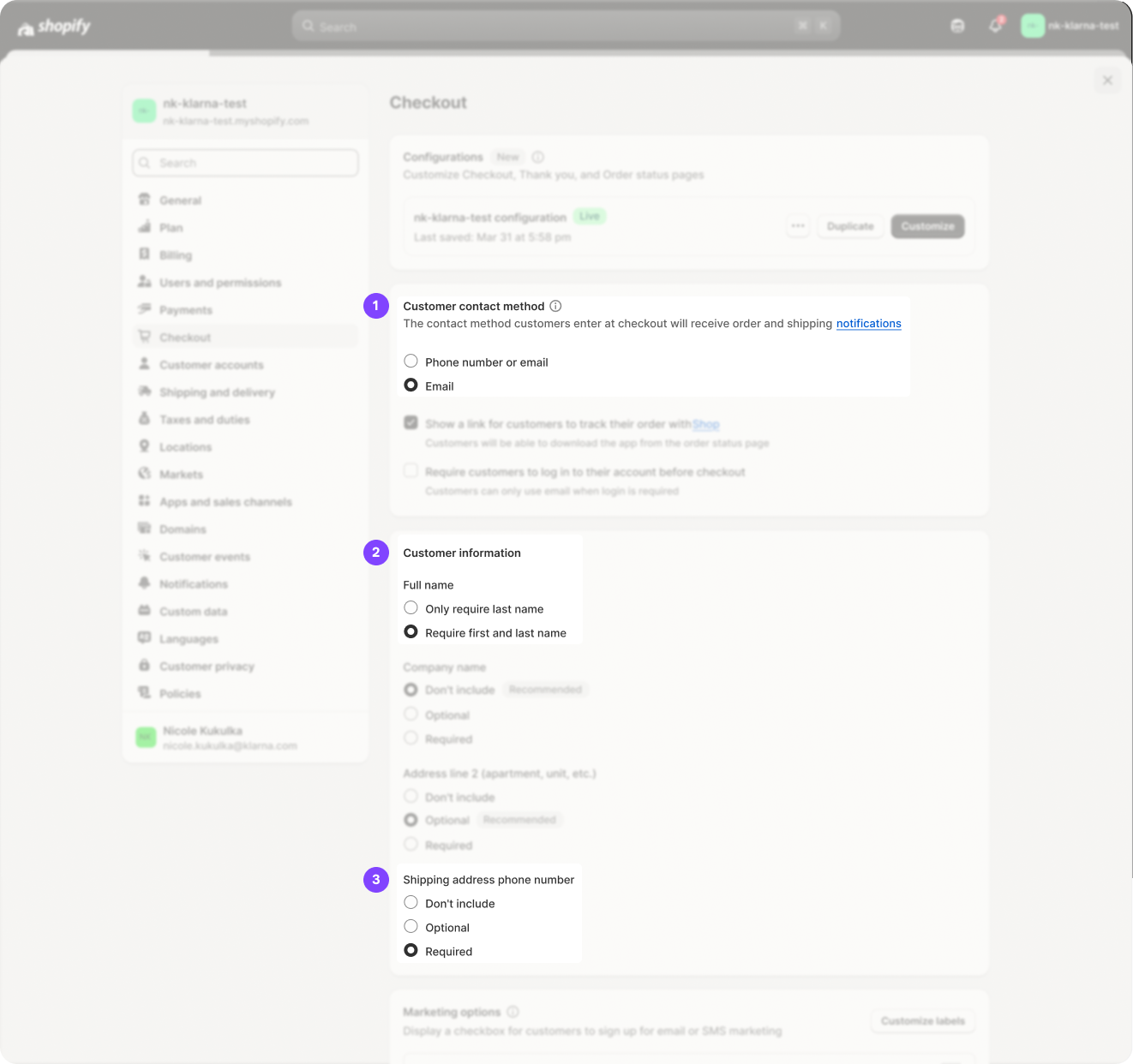
Ensure these settings are selected before you integrate with Klarna.
Everything is now ready! Log into both your Shopify admin as the full account owner and the Klarna Merchant portal. Follow the steps below, or watch this video to learn how to install the app.
Step 2: Navigate to Integration Guides > Shopify
In the Klarna Merchant Portal, click the Integration guides from the left side navigation. Click the Shopify option. If you don't have the Integration guides option displayed for your account when logged into Klarna Merchant portal, contact Merchant Support.
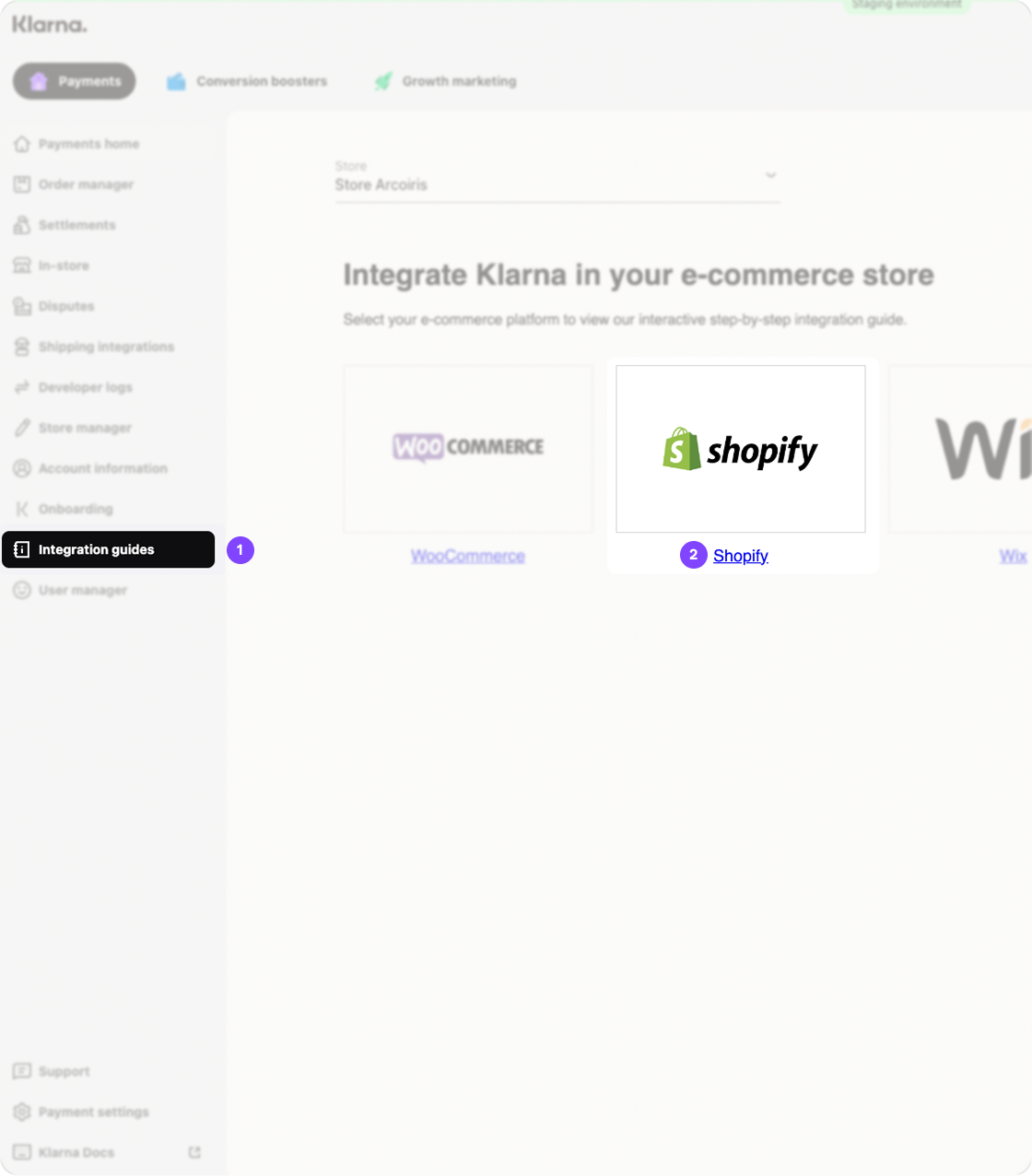
Start the installation by choosing '''Shopify''' in the Klarna Merchant portal '''Integration guides'''.
Step 3: Start the Installation
Click Continue to start the integration process. Then click Install Klarna Shopify Application. Note: while this app is a public app, it isn't listed in the Shopify app store, and won’t be displayed in your store's Apps menu like other apps, which is expected for Shopify new payments apps.
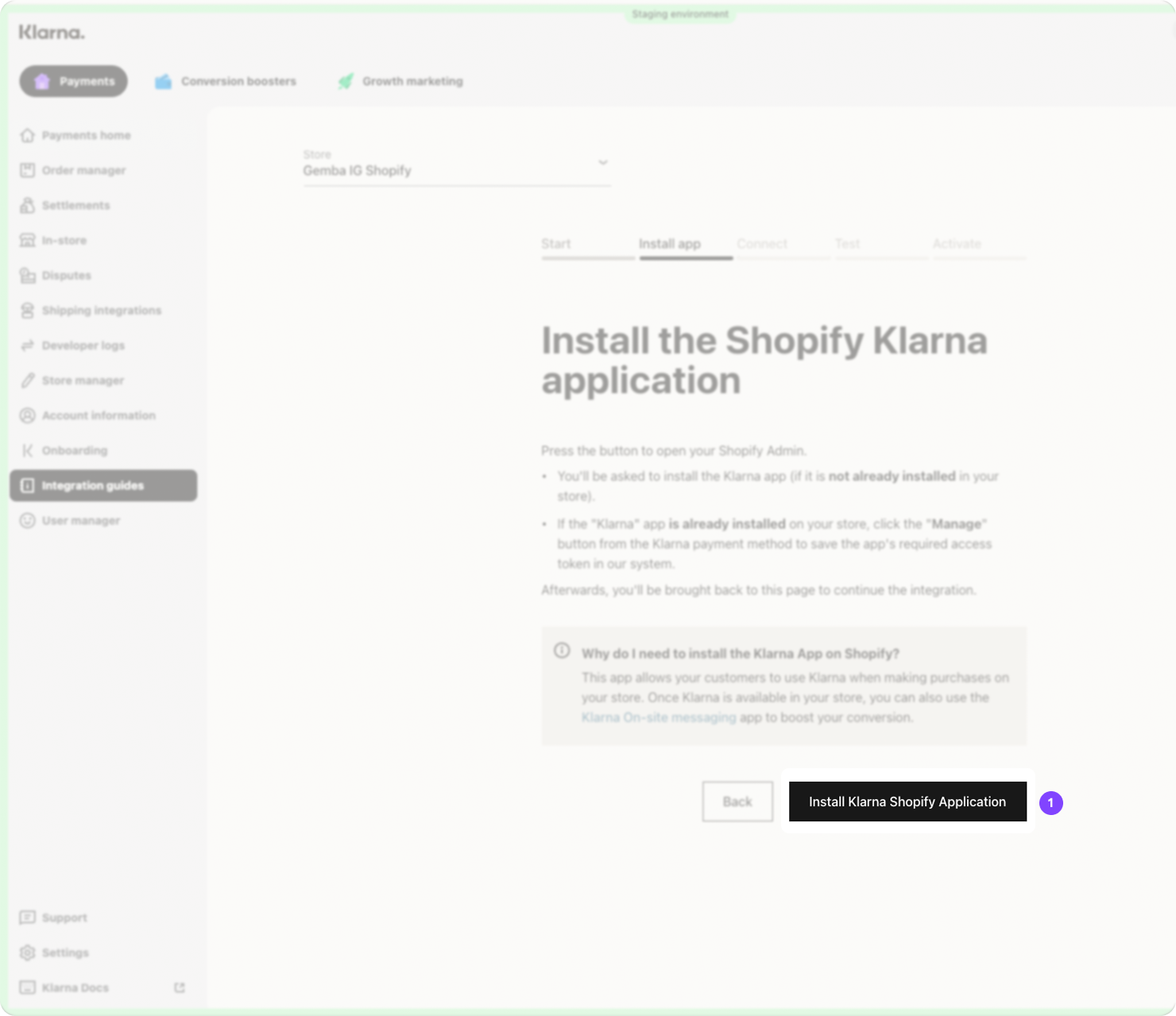
Click '''Install Shopify Klarna Application''' to start the installation process
Step 4: Install the app in Shopify
You will then be redirected to Shopify. Click Install on the first page you land on, and click Install on the next page as well.
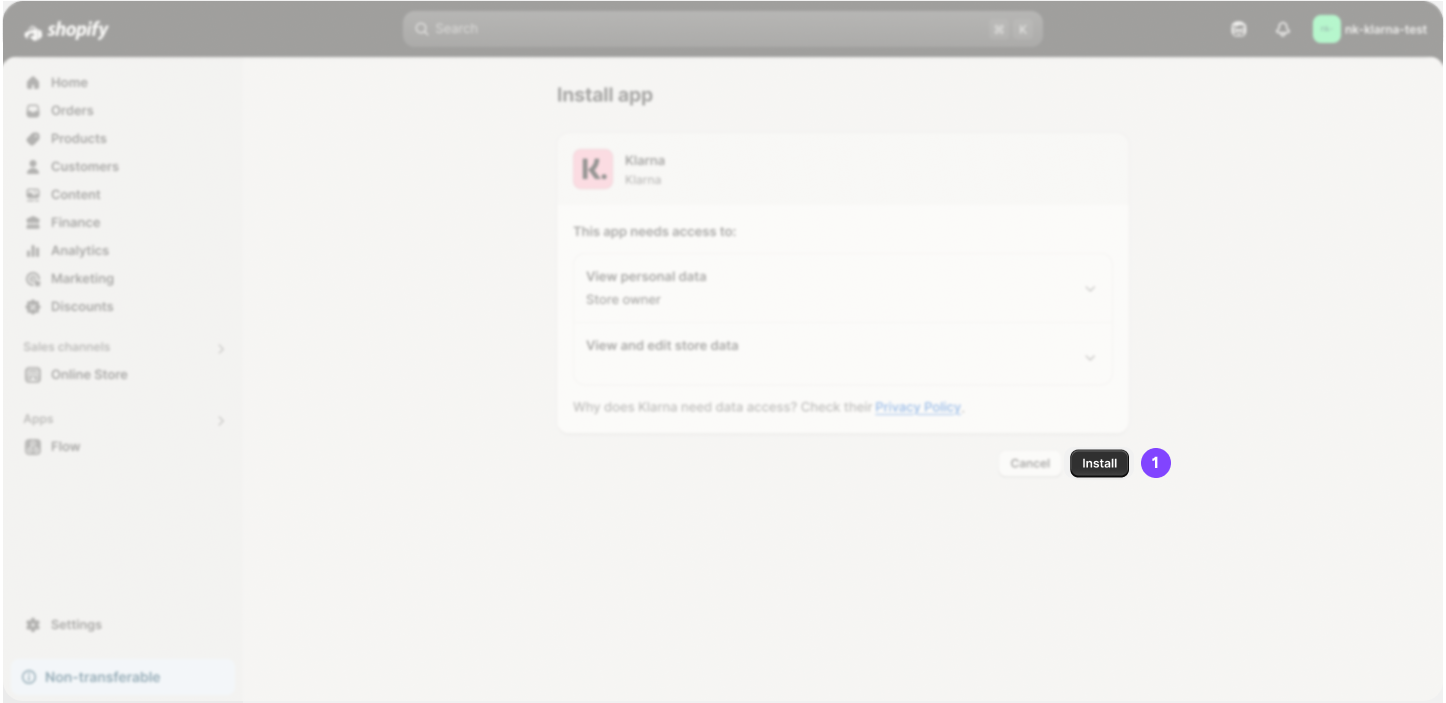
Click '''Install''' to continue installing Klarna Payments to your store.
Step 5: Generate Credentials & Verify Integration
Generate and connect new Klarna API credentials. Download these API credentials to your local computer, even though you won't need to use them anywhere. This step is required to move forward.
In this step, the integration is verified.
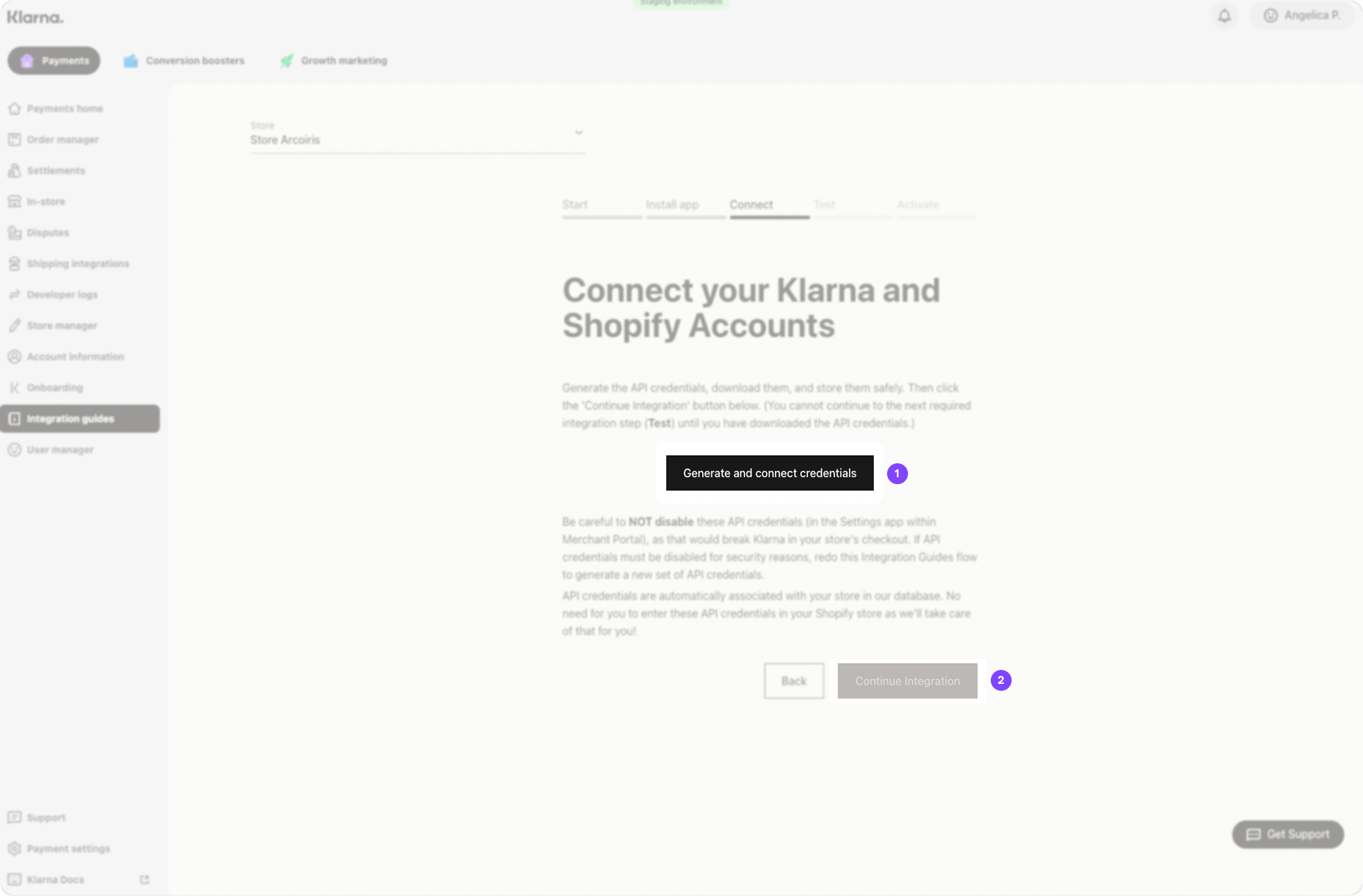
Click '''Generate and connect credentials''' to connect your store to Klarna. Then click '''Continue integration.'''
Click Verify integration to check that your Klarna Shopify integration is set up correctly.
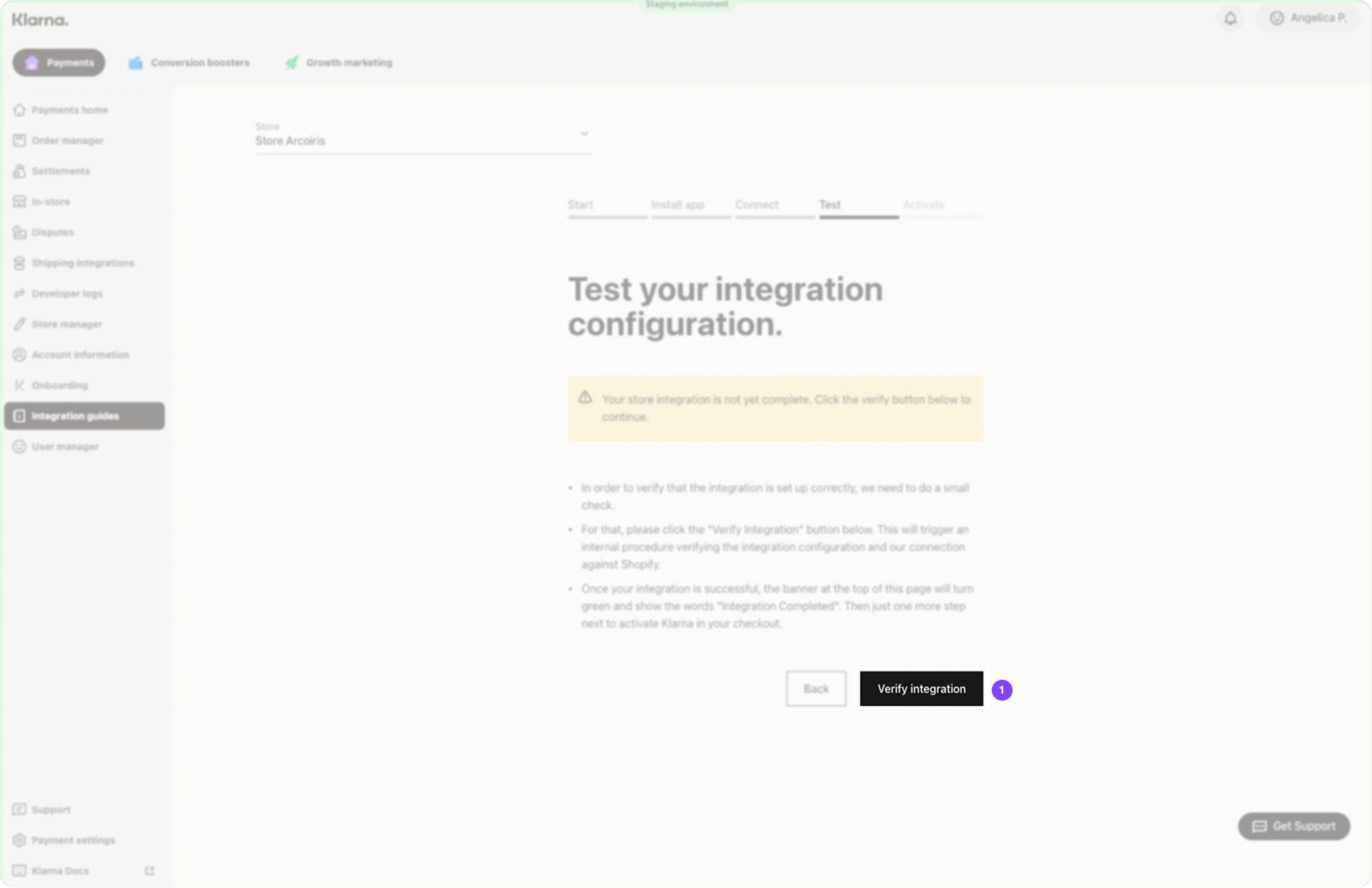
Click '''Verify integration''' to check that your Klarna Shopify integration is set up correctly.
Step 6: Activate Klarna
Click Next, and you will land on the Activate page. Click Next again to be redirected to Shopify to activate Klarna in your checkout.
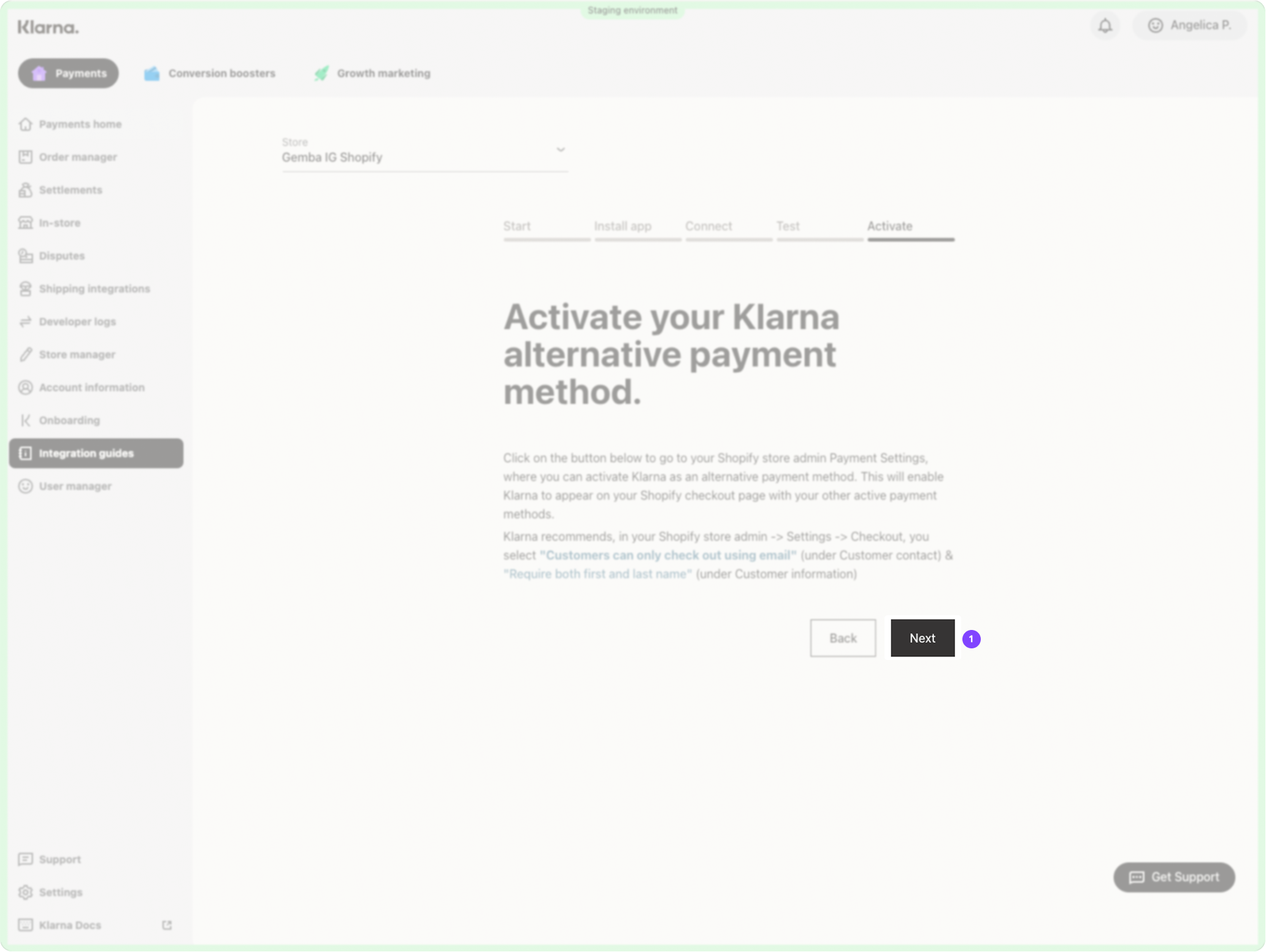
To activate the Klarna payment method in your checkout, you’ll be redirected to your Shopify store admin.
Activating the payment method in your store enables Klarna to display in checkout. Make sure to verify that Klarna loads successfully though as this step does no validation if the integration was completed successfully.
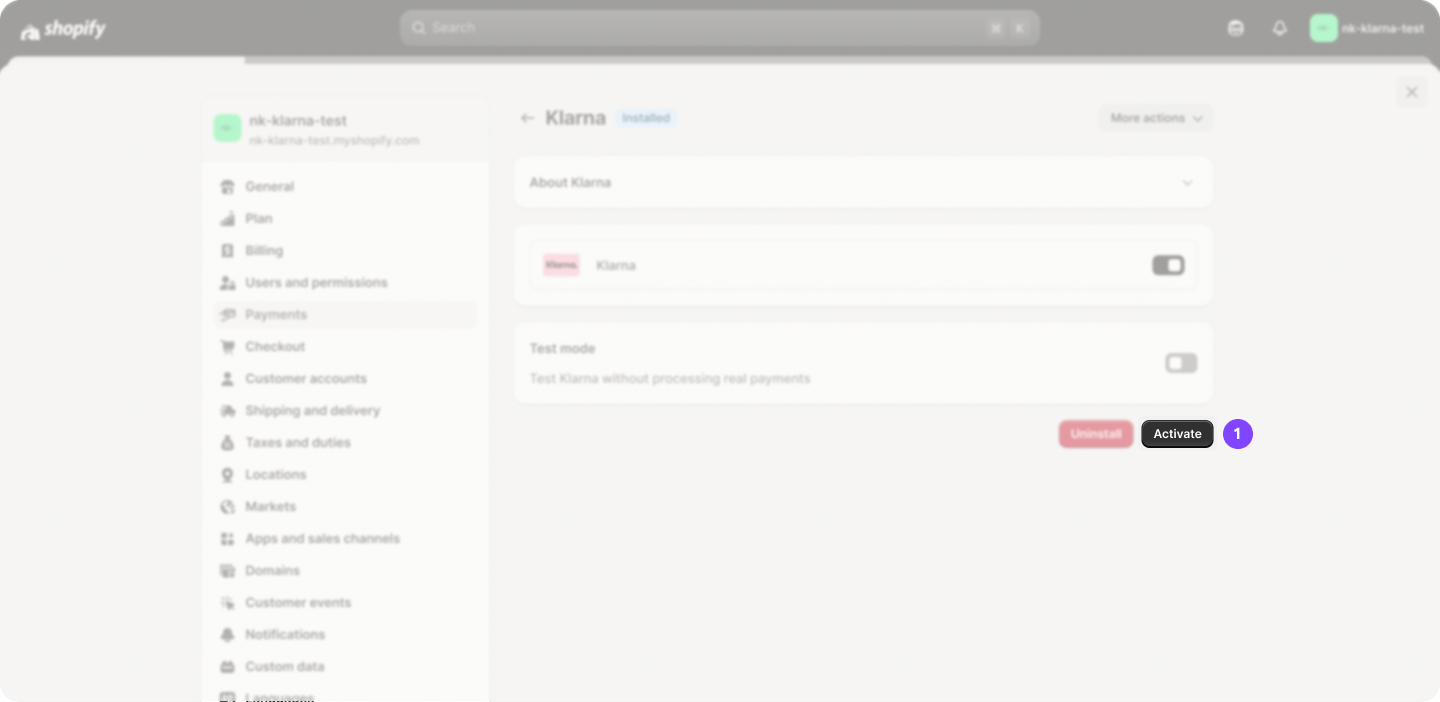
Activate Klarna in your Shopify store.
Step 7: Check that Klarna appears in the checkout
Klarna is now live in your Shopify store! Check the integration by adding a product to your cart. Navigate to your checkout page, and see if the Klarna radio button appears.
Click the Pay Now or Complete button to make sure the Klarna payment flow starts. Placing a test order isn't necessary, but you can learn how place test orders here.
ShopPay hides alternative methods
Alternative payment methods will not show if logged in to ShopPay.
If you are logged in to ShopPay, no alternative payment methods will show. Klarna does not have an express button.
What next?
Next, we recommend you to proceed with installing the Klarna On-Site Messaging app to further boost your sales through Klarna. Learn about the Klarna On-Site Messaging app here.
Deactivating & uninstalling Klarna from Shopify
Deactivating Klarna means that Klarna will no longer appear in the checkout to your customers. If you uninstall the payments app completely, you will remove Klarna from the checkout, and you will not be able to manage any of your existing Klarna orders.
To remove Klarna from your Shopify checkout, deactivate the alternative payment method in Shopify admin > Settings > Payments.
We do not recommend uninstalling the app until all Klarna orders have been finalized, or your return window has passed for all existing Klarna orders. You will not be able to process refunds or captures if the app is completely uninstalled. After uninstalling the app, you need to wait for 48 hours until you can reinstall Klarna again through the Merchant Portal.
An example of Klarna in Payments settings where the red deactivate button needs to be clicked to uninstall Klarna|320x320px]]
Appearance in checkout: Language, locale, and translations
Klarna configures the translations for the Klarna payment method. For each supported language, one translation is available. Read more about it in the Shopify documentation. Remember that you will only be able to offer Klarna in the base currency of your Shopify store - multiple currencies on a single Shopify store are not supported with the direct integration.
Note the following rules which govern which translation is displayed in the checkout:
- The displayed translation isn't determined by the customer's country or storefront language.
- The translation used in the store's checkout is determined by the store's single checkout language, which is configured in the store’s Shopify admin under Settings > Checkout and accounts > Manage checkout language.
The following table shows translated payment method name in each language:
| Language | Translated payment method name |
|---|---|
| Czech | Klarna - Flexibilní platby s Klarna |
| Danish | Klarna - Betal med Klarna |
| Dutch | Klarna - Betaal met Klarna |
| English | Klarna - Pay flexibly |
| Finnish | Klarna - Maksa Klarnalla |
| French | Klarna - Paiements flexibles avec Klarna |
| German | Klarna - Flexibel bezahlen |
| Greek | Klarna - Ευέλικτες πληρωμές με Klarna |
| Hungary | Klarna - Rugalmas fizetési lehetőségek a Klarnával |
| Italian | Klarna - Pagamenti flessibili con Klarna |
| Norwegian | Klarna - Betal med Klarna |
| Polish | Klarna - Elastyczne płatności z Klarną |
| Portuguese | Klarna - Pagamentos flexíveis com Klarna |
| Romanian | Klarna - Plăți flexibile cu Klarna |
| Slovak | Klarna - Flexibilné platby s Klarnou |
| Spanish | Klarna - Pagos flexibles con Klarna |
| Swedish | Klarna - Betala med Klarna |
Currently, payment methods can’t be renamed for Shopify Plus merchants via custom scripts. This is a known constraint and you can read more about it in this Klarna.Docs article. You can, however, use third party apps such as Payfy or BSure Checkout Rules to rename the payment method.
Language and locale
The locale for Klarna payments hosted payment page is set based on the store's language concatenated with the customer's billing address country. For example, the English language selected for a customer with a US billing address entered in Shopify checkout would result in a request locale of en-US when Klarna payments is loaded.
If the requested locale is supported by Klarna payments, per Available purchase countries, currencies and locales, the locale will be honored. If the locale isn't supported, English is used as a fallback.
Locale isn't configurable in Klarna. You can configure your store's language in the Shopify admin under Settings > Languages.
One way to check a store's Shopify language is via the browser’s developer tools, for example, by entering Shopify.locale in your browser's developer tools’ Console, as shown on the following snippet.
HTTP
1
2
Shopify.locale
Enter Shopify.locale in the Developer tools' console to check a Shopify store's language.

You can check a store's Shopify language in your console.
Jump to section...