

Prerequisites
This section explains what you need to prepare before installing and configuring the Klarna Official module. Completing these steps in advance will make setup smoother and faster.
6 min read
Overview
Use the Klarna Official module to integrate Klarna with your PrestaShop store. This integration helps you grow your business, increase sales, and enhance shopping experiences at no extra cost.
The module supports key features like on-site messaging, express checkout and sign in with Klarna. You can view the full changelog on the PrestaShop Addons Marketplace .

Klarna official module available for PrestaShop
Prerequisites
These items must be completed before you begin installing or configuring the module.
Klarna environments
Klarna provides two separate environments. Each one uses different credentials.
- Playground (Test): Used to test checkout and order flows. No real payments are processed.
- Production (Live): Used for real customer payments once your store goes live.
Integration requirement
Important
Test credentials only work in Playground. Production credentials only work in Production. Mixing them will prevent Klarna from working.
Module settings control environment
The environment you choose later in the module settings determines how Klarna behaves, regardless of whether your PrestaShop shop is in test or live mode.
Generate your credentials
Check direct versus acquirer path
Before generating any credentials, check whether you use Klarna Payments directly with Klarna or through an acquiring partner. Only direct Klarna Payments merchants generate API credentials. All merchants need a client ID to enable Klarna booster features.
If you use Klarna Payments directly with Klarna
You must have a Klarna merchant account before configuring the module. If you do not already have one, sign up to create it. If you already have an account, log in.
Playground versus production accounts
You can begin with a playground account if you only want to test the integration. A production account is required when you are ready to process real payments.
After logging in, generate the
API credentials
the module uses to communicate with Klarna.
Steps to generate API credentials:
- 1.Select the Payments tab.
- 2.Go to Settings > Klarna API Keys.
- 3.Select Generate new Klarna API key.
- 4.Copy the username and password. They will only be shown once.
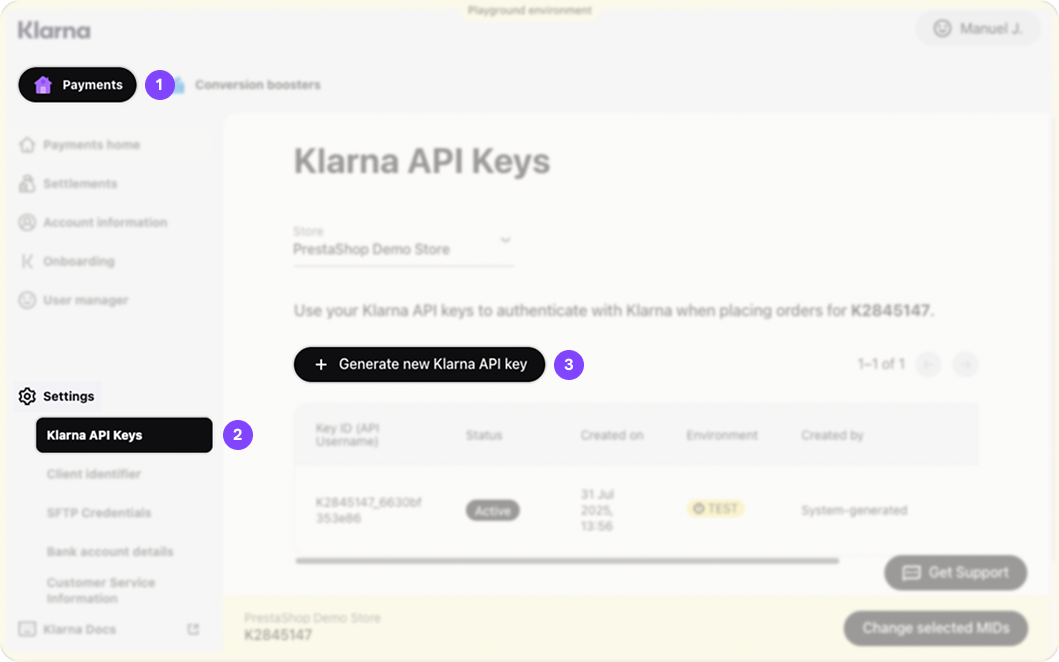
Generate API keys
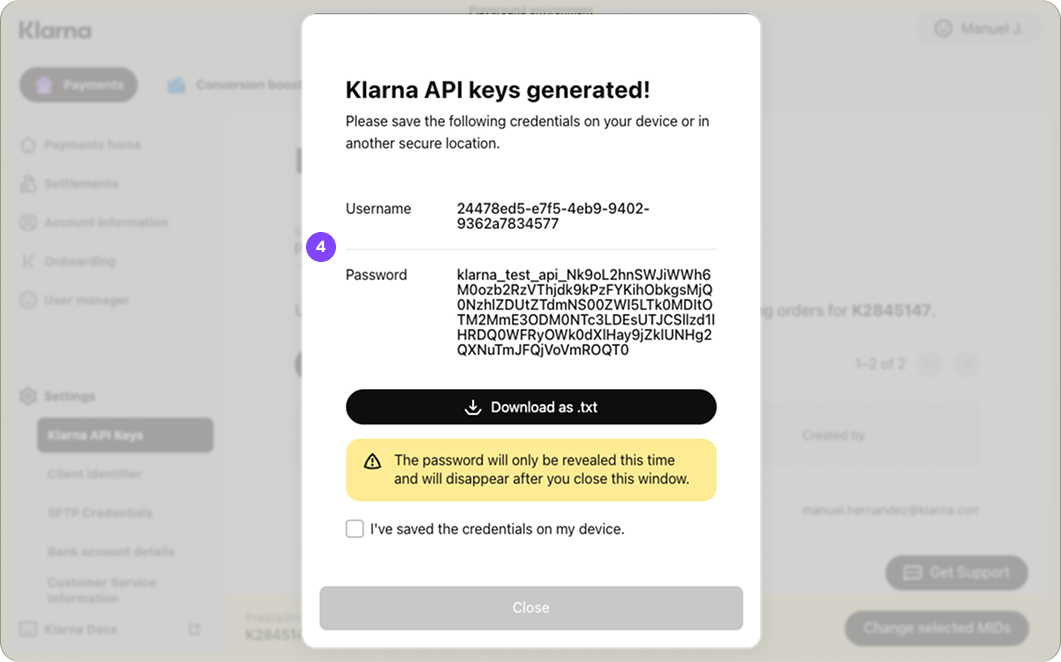
Save API keys
API keys are not stored
Important
Klarna does not store the keys generated. If you lose them, you must generate new credentials.
If your Klarna Payments are handled by an acquiring partner
Integration requirement
Important
Do not generate Klarna API credentials if your Klarna Payments are handled by an acquiring partner. These credentials are not used in this type of integration.
Acquiring partner merchants still install the Klarna module to enable booster features such as:
- On site messaging
- Express Checkout
- Sign in with Klarna
These features require only a client ID, not Klarna API credentials.
How to generate your client ID (all merchants)
Use the following steps in the Klarna Merchant Portal:
- 1.Go to Payments > Settings > Client identifier.
- 2.Select the Allow origins tab.
- 3.Enter the URL of your PrestaShop store and click the Register button.
- 4.The URL should be displayed bellow, confirming the origin has been added.
- 5.Now select the Client identifier tab.
- 6.Select Generate.
- 7.Save your client ID for use in the PrestaShop module.

Add PrestaShop store URL as allowed origin

Allowed origin confirmation

Generate client identifier

Ave your client_id
Integration requirement
The client ID is required for all Klarna booster features. Enter it in the module settings to activate on site messaging, Express Checkout, and Sign in with Klarna.
Module and store compatibility
Platform requirements
To use this module, your store must meet the following requirements:
- PrestaShop versions: 1.7.2.x to 9.x
- PHP versions: 7.1.x or later (up to the versions supported by PrestaShop 9)
- Currency formatting: Shops using currencies with two decimals are fully supported. Some versions also support zero-decimal currencies when using module version 1.5.4 or later.
Supported currencies
Your shop’s currency must be supported by your Klarna merchant account. Klarna’s list of supported currencies and regions is available in Klarna documentation. If a currency isn’t supported, the Klarna payment option will not appear at checkout.
Integration requirement
Important
If a customer uses an unsupported currency, Klarna will not appear during checkout.
One-page checkout compatibility
The module supports both the standard PrestaShop checkout and one-page checkout experiences.
- Standard checkout: Klarna appears inline with other payment methods.
- One-page checkout: The module can automatically switch to Klarna’s Hosted Payment Page (HPP) to ensure compatibility.
Klarna may switch to HPP
If your checkout solution is not fully standard, Klarna may automatically use HPP instead of inline mode.
Recommended for integration
Important
Some highly customized themes or one-page checkouts may not support inline Klarna. Using HPP is the recommended fallback.
Extra Merchant Data (EMD)
Klarna may require additional information to support risk assessment.The module can automatically send:
- Unique account identifier
- Account registration date
- Account last modified date
Advanced EMD usually unnecessary
Most merchants do not need to customize EMD. Advanced EMD configuration is available in the technical documentation included with the module package.
Support
If you need help, please ensure you contact the correct support channel based on your issue.
- Klarna account and onboarding For questions regarding your Klarna account, contract, or the onboarding process, submit a request to Klarna Merchant Support.
- Module technical support For technical issues related specifically to the PrestaShop module installation or configuration, contact the support team via email at support@invertus.eu
Recommended for integration
Important
We recommend using the latest version of the module to ensure full support. Compatibility with non-standard themes is not guaranteed or supported.
Jump to section...