

Klarna Buttons Styling
Customize your Sign in with Klarna buttons with flexible themes and shapes.
Where to find the button
Sign in with Klarna button allows customers to authenticate using Klarna credentials, reducing friction and pre-filling personal details at checkout. It also gives you access to user data for personalization. It is found in Homepage, Login and Register pages.
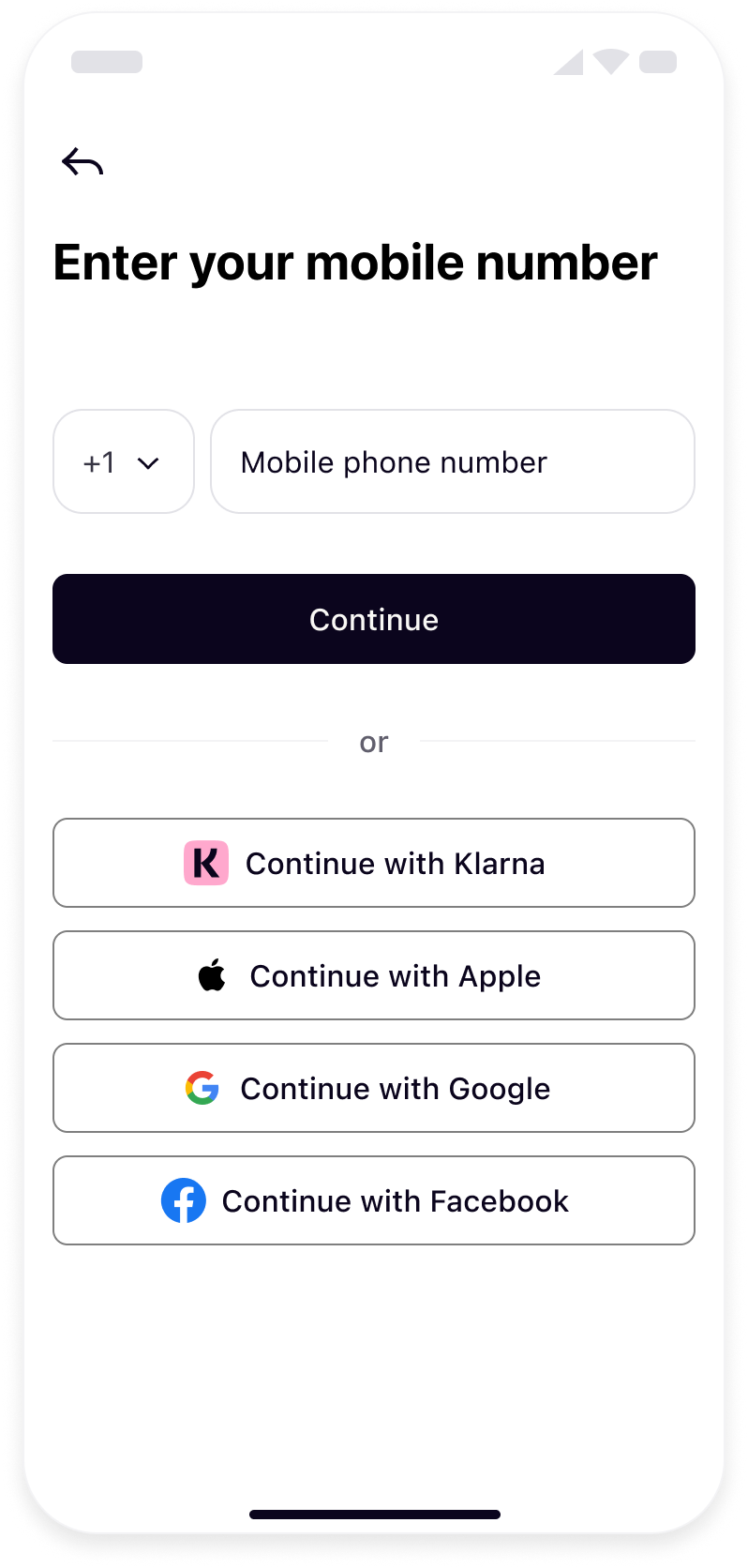 | 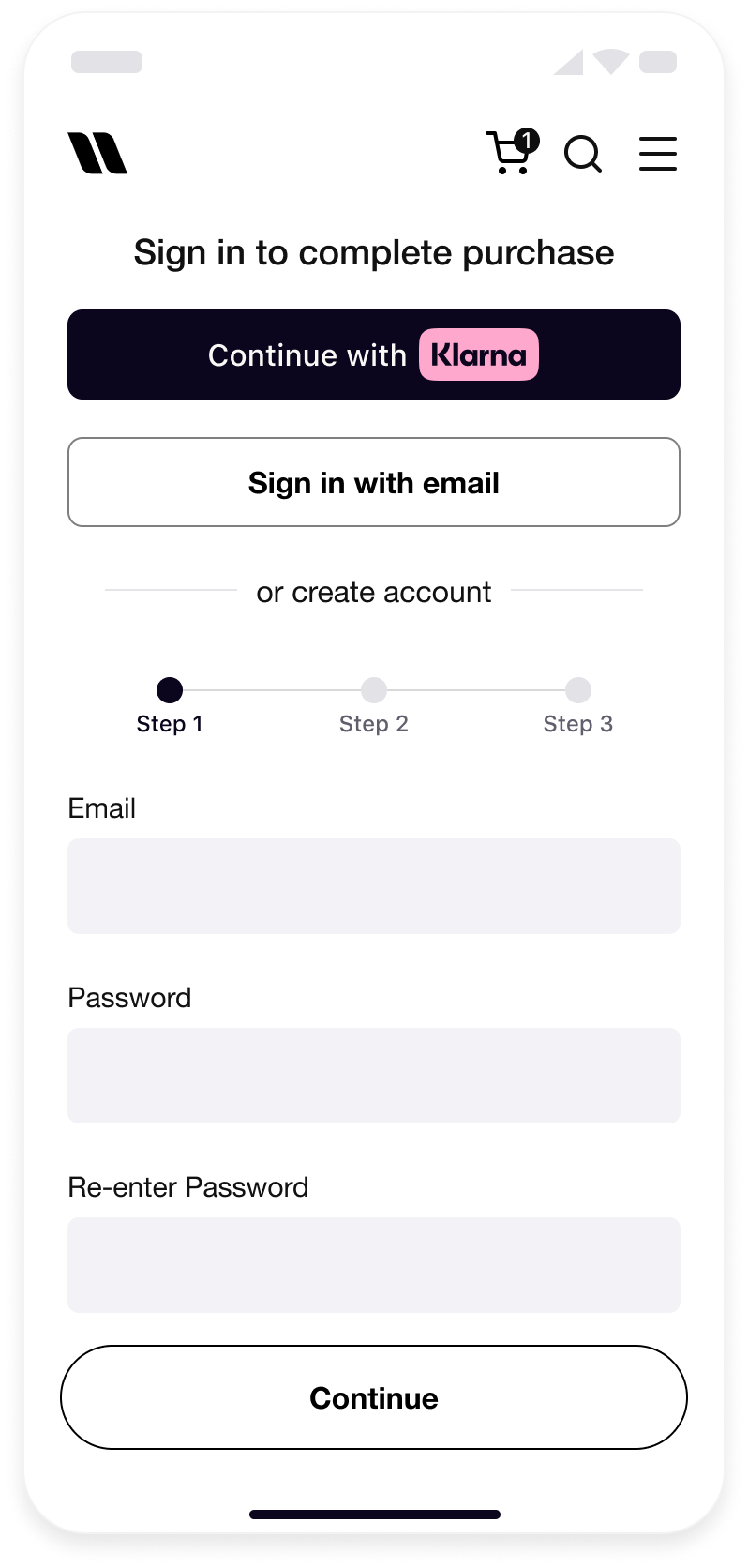 |
| Account login | Account creation |
Theme
The theme defines the button’s color. You can change the theme by setting the value of the
theme attribute.Apart from the default dark theme, you can apply the light theme to have the button displayed in white, or the outlined theme to render the white button with an outline.
Default theme (dark)
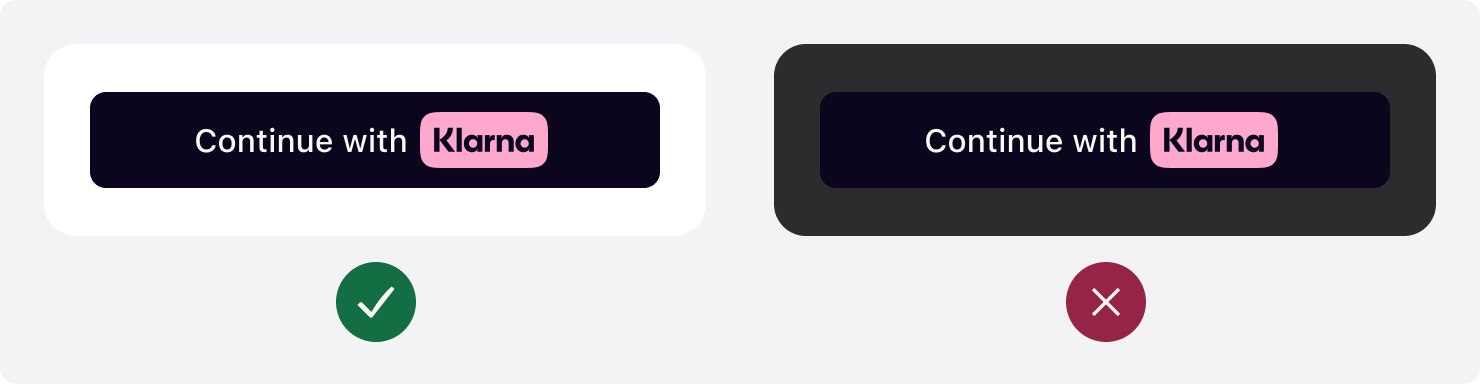
The button’s default theme color is dark. As the
theme attribute is optional, the default theme is applied both when you set the attribute to default or if you omit it from the source code altogether. Don’t use default theme on black or dark backgrounds. The button must be used on backgrounds that provide sufficient contrast.We recommend using the default theme as it’s widely recognized by Klarna customers and looks good on light backgrounds.
JAVASCRIPT
1
2
3
4
5
6
const siwkButton = klarna.Identity.button({
scope: "openid offline_access payment:request:create profile:name",
redirectUri: "http://localhost:3000/callback.html",
theme: "default",
})
Light theme
Use the light theme to make the button visible on dark backgrounds. To apply the light theme, set the
theme attribute to light. Don’t use light theme on white or light backgrounds. The button must be used on backgrounds that provide sufficient contrast.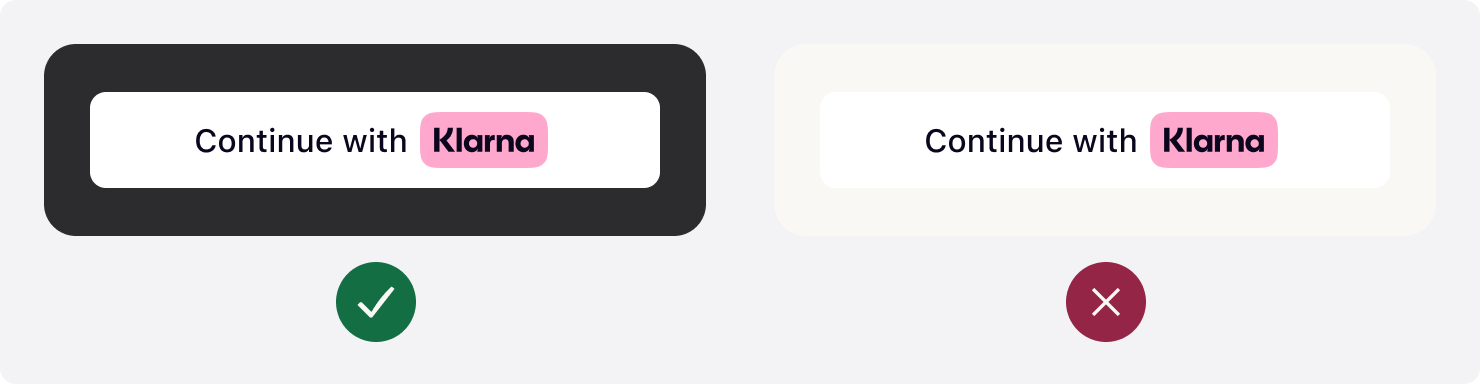
JAVASCRIPT
1
2
3
4
5
6
const siwkButton = klarna.Identity.button({
  scope: "openid offline_access payment:request:create profile:name",
  redirectUri: "http://localhost:3000/callback.html",
  theme: "light",
})
Outlined theme
Use the outlined theme to make the button visible on all backgrounds. To apply the this theme, set the
theme attribute to outlined. Don’t place on dark or saturated backgrounds. The button must be used on backgrounds that provide sufficient contrast.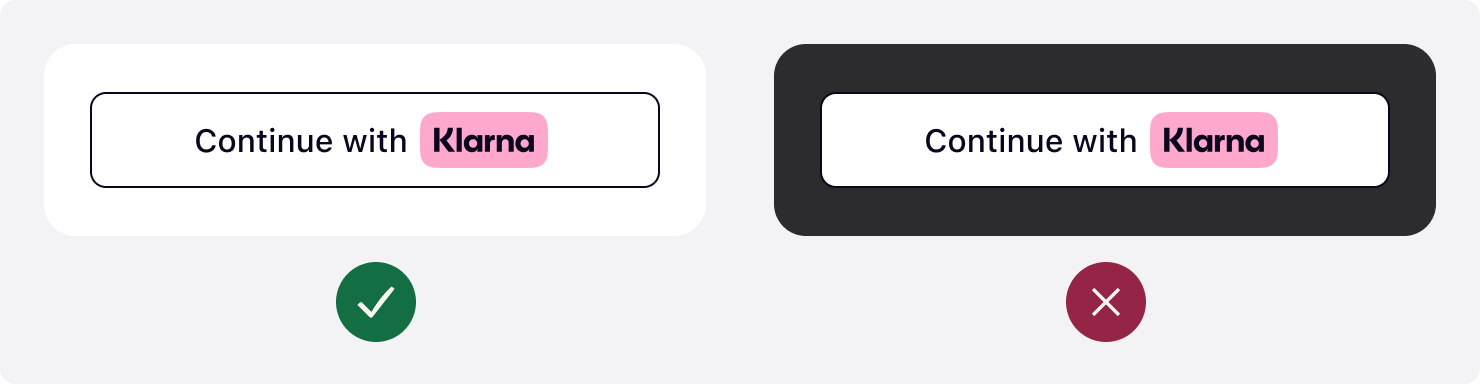
JAVASCRIPT
1
2
3
4
5
6
const siwkButton = klarna.Identity.button({
  scope: "openid offline_access payment:request:create profile:name",
  redirectUri: "http://localhost:3000/callback.html",
  theme: "outlined",
})
Button shape
Customizing the shape of the button to match your site's look and feel is a key step in creating a visually cohesive and engaging user experience. To control the button's shape, change the value of the
shape attribute.There are three shapes available with the Sign in with Klarna button: default, rectangular, and pill.
Rounded corners (default)
The default button shape is a rectangle with rounded corners. To apply the default shape, set the
shape attribute of the element to default.
JAVASCRIPT
1
2
3
4
5
6
const siwkButton = klarna.Identity.button({
  scope: "openid offline_access payment:request:create profile:name",
  redirectUri: "http://localhost:3000/callback.html",
  shape: "default",
})
Minimum corner radius
To apply the rectangular shape with square corners, set the
shape attribute of the element to rect.
JAVASCRIPT
1
2
3
4
5
6
const siwkButton = klarna.Identity.button({
  scope: "openid offline_access payment:request:create profile:name",
  redirectUri: "http://localhost:3000/callback.html",
  shape: "rect",
})
Maximum corner radius
To apply the pill shape, set the
shape attribute of the element to pill.
JAVASCRIPT
1
2
3
4
5
6
const siwkButton = klarna.Identity.button({
  scope: "openid offline_access payment:request:create profile:name",
  redirectUri: "http://localhost:3000/callback.html",
  shape: "pill",
})
Button size
Width
Prominently display the Klarna button. Make the button the same width as other payment buttons in stacked button layouts.
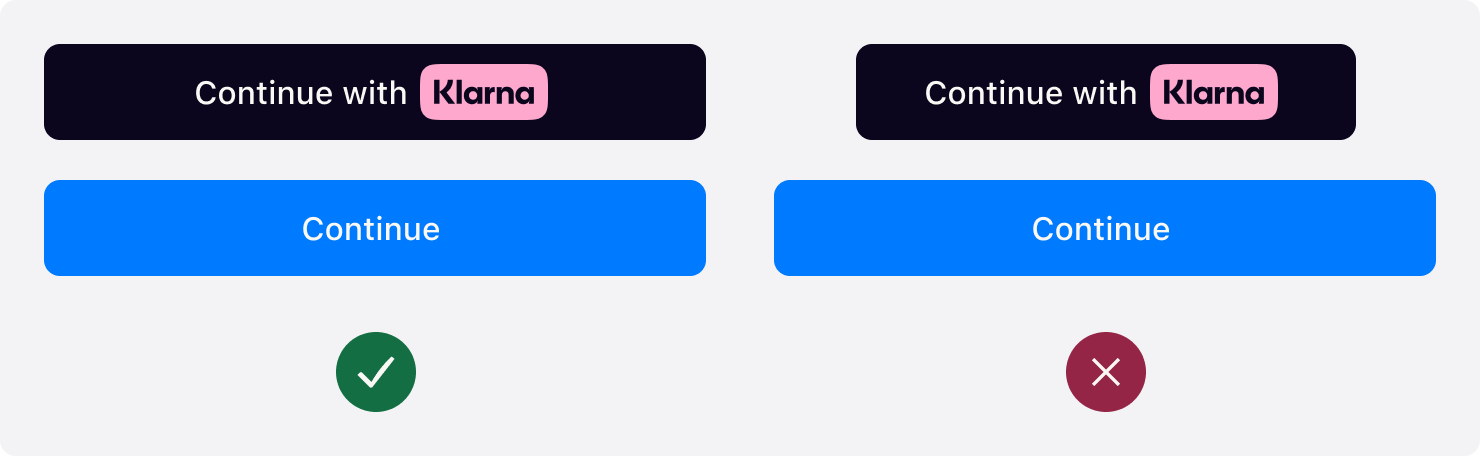
When width of button is blow 160px or the copy does not fit in the button, the text is removed and only the Klarna wordmark is shown.

Height
The default recommended height of the Klarna button is 48px and the min height allowed is 40px. Make sure the button is the same height of other payment buttons.
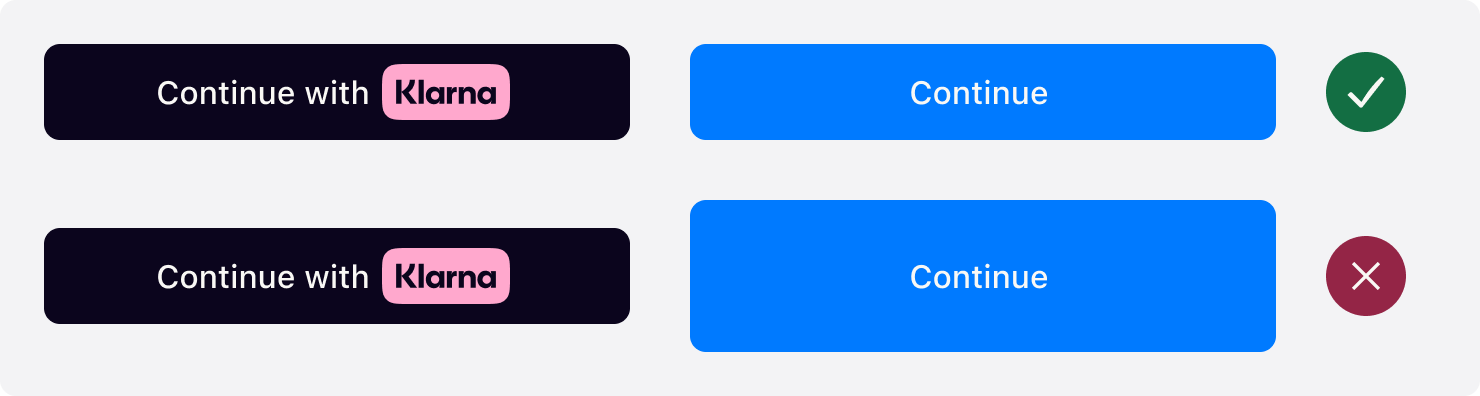
Button Klarna branding
There are three ways you can choose to show the Klarna trademark on the button: badge, left icon or centered icon. These variants are available to make sure there is a button variant that is aligned with Partner's UI patterns. To control the button's alignment, change the value of the
logoAlignment attribute.Default
The default alignment is the Klarna badge centered with text before. To apply the default shape, set the
logAlignment attribute of the Identity.button() function to default.
JAVASCRIPT
1
2
3
4
5
6
const siwkButton = klarna.Identity.button({
  scope: "openid offline_access payment:request:create profile:name",
  redirectUri: "http://localhost:3000/callback.html",
  logoAlignment: "default",
})
Left icon alignment
If you prefer to use the Klarna icon aligned to the left of the button, set the
logoAlignment attribute of the Identity.button() function to left.
JAVASCRIPT
1
2
3
4
5
6
const siwkButton = klarna.Identity.button({
  scope: "openid offline_access payment:request:create profile:name",
  redirectUri: "http://localhost:3000/callback.html",
  logoAlignment: "left",
})
Centered icon alignment
If you prefer to position the Klarna icon to the center with the text trailing, set the
logoAlignment attribute of the Identity.button() function to center.
JAVASCRIPT
1
2
3
4
5
6
const siwkButton = klarna.Identity.button({
  scope: "openid offline_access payment:request:create profile:name",
  redirectUri: "http://localhost:3000/callback.html",
  logoAlignment: "center",
})