

Register Webhooks
Integrate Klarna Webhooks to receive real-time business event notifications.
Klarna webhooks enable your applications to receive real-time business event notifications from the integrated Klarna product suite, allowing your backend systems to respond promptly.
Webhooks are customizable, and all Klarna APIs include a standard set of webhook events to which you can subscribe.
There are two ways to subscribe to webhooks:
| Subscription method | How to use it |
|---|---|
| Klarna Partner Portal | Create and manage webhook subscriptions using the Webhooks app in the Klarna Partner Portal. |
| API | Create and manage webhook subscriptions programmatically using the createWebhook endpoint. endpoint. |
Both methods require you to set up a secure endpoint and create signing keys before subscribing.
Common setup
Complete these steps before subscribing to webhooks, regardless of the method you choose.
1. Establish a secure endpoint
- Expose an HTTPS endpoint on your server designed to receive webhook notifications.
- Ensure only HTTPS endpoints are used and that a valid SSL certificate is in place.
- You can configure a single endpoint for multiple event types or set up separate endpoints for each event type based on your preferences.
- Expose the endpoint on port 443 or 8443 only. Requests sent to other ports won't be delivered, as webhook traffic is routed through a proxy with restricted port support.
2. Create and manage signing keys
Before subscribing to webhooks, you must generate and attach signing keys. Create signing keys by using the createSigningKey endpoint. Klarna will sign each notification using the designated signing key before dispatch. Both the signature and its identifier will be included in the notification, enabling you to confirm its validity. When configuring a new webhook, specify the signing key to be used.
After generating signing keys, make sure to securely store them immediately. You will not be able to retrieve these keys again for webhook validation purposes.
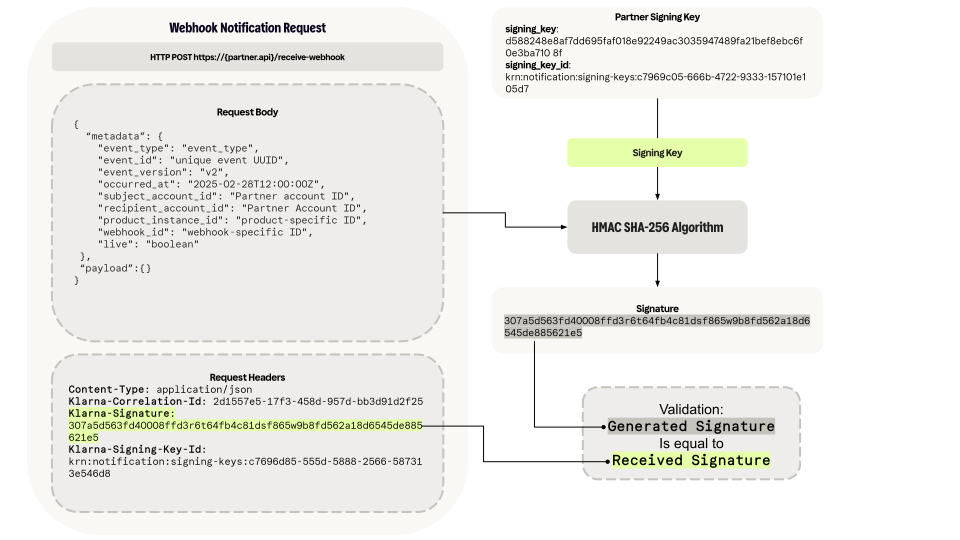
Verify HMAC signature to ensure data security and integrity
- 1.Compute your signature:
- Use the raw JSON sent in the HTTP request body.
- Use the
Klarna-Signing-Key-Idfrom the header to identify the appropriate signing key. - Apply the
HMAC-SHA256algorithm to the raw JSON object using the corresponding signing key.
- 1.Parse
Klarna-Signature:
- Extract the
Klarna-Signaturefrom the HTTP headers of the received request.
- 1.Compare signatures:
- Match your computed signature against the
Klarna-Signaturefrom the HTTP headers.
- 1.Validate the request:
- Confirm the request's authenticity if the signatures align. If not, reject the request with an HTTP
400 Bad Requestresponse to indicate potential tampering.
Currently a maximum of 50 signing keys per account are supported. If new keys are required, use the deleteSigningKey endpoint to disable the old keys.
Signing key rotation
To handle changes such as the rotation of signing keys, it's recommended to support multiple signing keys during the transition. The steps for key rotation involve:
- 1.Create a new signing key.
- 2.Update the recipient server to accept the new signing key.
- 3.Update the webhook.
- 4.Validate that the new signing key has been correctly implemented.
- 5.Remove the old signing key.
Subscribe to webhooks in the Klarna Partner Portal
You can create and manage webhook subscriptions directly from the Klarna Partner Portal. A signing key must be associated with your account before you can create a subscription.
If no signing key exists, you will be prompted to create one via the API first.
To create a subscription, select the event types you want to receive, provide your endpoint URL, and choose a signing key. The Klarna Partner Portal also allows you to pause or delete existing subscriptions.
Subscribe to webhooks via API
Create webhooks via the API to receive notifications about configured events. These notifications are sent to the provided endpoint and signed with the corresponding signing key.
Consult the createWebhook endpoint for a complete description of the request body parameters.
To ensure accurate event delivery and maintain compatibility with the latest updates, Partners must always request events from the most recent version of the API. This should be done by specifying the appropriate event_version in the request, which ensures alignment with Klarna's current event structure and data standards.
You are able to use wildcards to set up the desired event types.
Webhook wildcards
By using a wildcard such as *, all events that match the specified pattern will be included.
Example: with payment.request.*, you will receive all events associated with payments like:
payment.request.state-change.submittedpayment.request.state-change.in-progresspayment.request.state-change.expiredpayment.request.state-change.completedpayment.request.state-change.canceledpayment.request.state-change.declined
Once your webhooks are set up, you can manage them through API requests. Use these requests to update, delete, or retrieve details about your configurations.
Simulate and test webhooks
In order to test your webhook integration, you can simulate a webhook by manually triggering an event that you have subscribed to. Provide the webhook_id, event_type, and event_version for the webhook previously configured to endpoints on your account.
This feature is available in the test environment and is critical for ensuring your integration functions as expected before going live. By manually triggering webhooks, you can simulate any state change for a Payment Request instantly, bypassing the need to complete the Klarna Purchase Journey or wait for the request to expire.
In the test environment, when you trigger a simulated webhook, the endpoint generates a test event using dummy data that adheres to the schema of the specified event type. This approach ensures you can thoroughly test and adjust your system's response to various webhook events without affecting live data.
Sample simulated webhook request
{
  "metadata": {
    "event_id": "b0e715e0-2ebd-462f-80f6-1366b4f9a4af",
    "event_type": "payment.transaction.state-change.authorized",
    "event_version": "v2",
    "occurred_at": "2025-02-28T12:52:57.577790899Z",
    "product_instance_id": "krn:partner:product:test:5cadd30a-c536-4230-8667-d3971fb7e7dd",
    "webhook_id": "krn:partner:global:notification:webhook:bc266feb-ba9a-40d8-af77-ebe24166ae2d",
    "live": false
  },
  "payload": {
"payment_transaction_id": "krn:payment:us1:transaction:4b8b6350-6b72-42c5-b946-f088adcdc216",Receiving and processing notifications
Regardless of how you subscribe, all webhook notifications are delivered and processed the same way.
Receive notifications
- Ensure the endpoint is reachable over HTTPS on port 443 or 8443.
- Verify HMAC signature to ensure data security and integrity.
- Store the webhook event data for further processing.
Sample webhook request
{
  "metadata": {
    "event_type": "event_type",
    "event_id": "unique event UUID",
    "event_version": "v2",
    "occurred_at": "2025-02-28T12:00:00Z",
    "subject_account_id": "Partner account ID",
    "recipient_account_id": "Partner Account ID",
    "product_instance_id": "product-specific ID",
    "webhook_id": "webhook-specific ID",
    "live": "boolean"
},Acknowledge the webhook
Immediately respond to webhook notifications with an HTTP status code of 200, 201, 202, or 204 to confirm successful delivery.
Failure to respond, or a response with any other status code, will trigger Klarna's retry mechanism.
Retry mechanism
Klarna will retry notifications at increasing intervals upon failure (timeout or HTTP 4XX/5XX response codes). Klarna orchestrates these retries with progressively longer delays, which can extend up to 12 hours or until a successful response is received.
Here's how the retry schedule is structured:
- First retry: 10 seconds after the initial failure.
- Second retry: 2 minutes later.
- Third retry: 15 minutes later.
- If the issue persists, retries are scheduled at 3 hours, 6 hours, and finally 12 hours for the last attempt.
This structured approach ensures multiple opportunities for notifications to succeed, enhancing the reliability of the communication between systems.
Handling failed notifications
If no successful response is received after the final retry attempt at 12 hours, the notification will be considered permanently failed.
Manual processing of failed notifications
If you resolve an issue on your end and need additional assistance to receive the previously failed notification, reach out to Klarna support.
When you modify webhook settings during ongoing retries, these changes will only apply to new notifications. If a triggered Klarna webhook fails to receive a response code of 200, 201, 202, or 204, it will continue to retry using the old configuration until it either successfully communicates or reaches the 12-hour retry limit.
To avoid disruptions and ensure a smooth transition, it is recommended to initiate and run a new webhook in parallel before discontinuing an older webhook. This strategy ensures that the new settings are fully operational and effective, maintaining seamless notification delivery during the transition period.
Events for Express checkout
To ensure you have the latest status on the payment request, it is required that you subscribe to the payment.request.state-change.completed event.
From this request you will be able to retrieve the interoperability_token which is needed to authorize the payment and complete the Express checkout flow.
Once your webhooks are set up, you can manage them through API requests. Use these requests to update, delete, or retrieve details about your configurations.
Consult the API reference for comprehensive parameter information.
Events for Sign in with Klarna
To ensure you have the latest status on the , it is required that you subscribe to the identity.customer-token.state-change.revoked event.
API & SDK references