

Build checkout form with Klarna Presentation API (Partner orchestrated)
Integrate Klarna without the Web SDK. Fetch the payment presentation server-side, render Klarna in your own payment selector, create the Klarna payment request directly, and orchestrate the Klarna lifecycle on your side.
Prerequisites
Before you integrate, check that you meet the following prerequisites:
- 1.Ensure that you have Klarna enabled with Worldpay.
- 2.Confirm you have access to the Klarna Partner Portal.
- 3.Inside Klarna Partner Portal:
- 3.1.Confirm that you have generated an API key with permission to call both the Klarna Payment Presentation API and the Klarna Payment Request API.
- 4.Confirm that you have registered webhooks for
payment.request.state-change.completedevents following Webhooks guidelines. - 5.Add Terms and Conditions for presenting Klarna.
Subscribing to webhooks in the Klarna Partner Portal will be available in a future release.
This flow does not use the Klarna Web SDK. You call Klarna's Payment Presentation API and Payment Request API server-side, render Klarna in your own payment selector, and orchestrate the Klarna lifecycle yourself — including subscribing to the completion webhook to retrieve the klarna_network_session_token. Worldpay only re-enters the picture at authorization, when you forward the token to them.
Integration overview
Here's an overview of all the steps to display Klarna and initiate payments without the Web SDK in the Partner-orchestrated flow:
- 1.Your server calls Klarna's Payment Presentation API to retrieve assets and display instructions for the current purchase context.
- 2.You render Klarna as a payment option in your payment selector using the returned assets.
- 3.Customer selects Klarna and clicks the Klarna payment button.
- 4.Your server calls Klarna's Payment Request API directly to create the payment request.
- 5.If customer authentication is required, Klarna returns a
payment_request_urland you redirect the customer's browser to it. The customer then completes the Klarna Purchase Journey on Klarna's hosted page. - 6.Klarna fires the
payment.request.state-change.completedwebhook to your server with theklarna_network_session_token. - 7.Your server forwards the
klarna_network_session_token(and purchase details) to Worldpay to authorize the payment. - 8.Worldpay notifies you when the payment is approved.
- 9.You redirect the customer to your confirmation page.
Integration details
Present Klarna in the payment form
Presenting Klarna in the payment form involves retrieving the visual assets, localized texts, and display instructions required to correctly render Klarna as a payment option and display the payment button. In this flow you request the presentation server-side and render the option yourself using the returned assets.
On a high level, the process involves:
- 1.Request Klarna's payment presentation for the current payment context from your server.
- 2.Render Klarna payment option(s) in the payment form according to the instruction returned.
- 3.Allow the customer to select and deselect the Klarna payment option.
- 4.Display the Klarna button and start the payment process when clicked.
The expected outcomes are as follows:
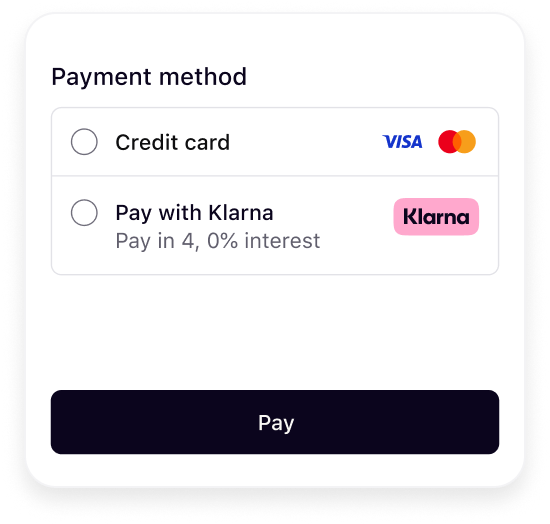 | 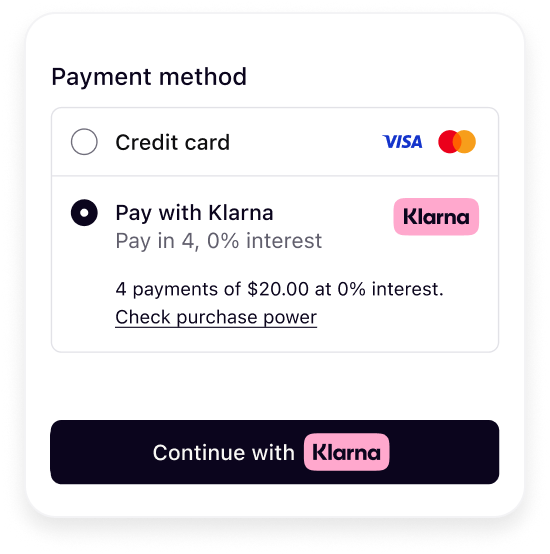 |
| Initial presentation | When Klarna is selected |
Klarna's payment presentation best practice To ensure the best user experience and optimal conversion rates when presenting Klarna as a payment option, please apply the following recommendations:
- Display Klarna descriptor dynamically alongside other payment options in your payment form.
- Use the assets returned by the Payment Presentation API — do not hard-code Klarna branding, copy, or badges in your checkout.
Klarna payment presentation request
Call the Klarna Payment Presentation API from your server to obtain the assets and the display instruction for the current purchase context.
Issue a GET request to /v2/accounts/{partner_account_id}/payment/presentation with query-encoded parameters. Authenticate with your API key using Authorization: Basic <API key>.
Basic checkout context parameters must be provided as query parameters:
| Parameter | Presence | Description |
|---|---|---|
partner_account_id | required (path) | Your Klarna-issued partner account identifier — the same value used elsewhere when you authenticate against Klarna. |
currency | required | Three-letter ISO 4217 currency code (e.g., USD, EUR). |
locale | required | Locale code to localize texts and formats (e.g., en-US, de-DE). |
amount | conditional | The transaction amount in minor units following ISO 4217 exponents (e.g., $118.00 = 11800, ¥1400 = 1400). Required when intent is PAY or SUBSCRIBE; otherwise optional. |
intent | optional | Intent of the checkout flow. Enum: PAY, SUBSCRIBE, ADD_TO_WALLET. Defaults to PAY. |
You don't send any acquiring or Payment Account configuration on this call — Payment Account selection is owned by Worldpay, not by you.
When a Klarna Conversion Boost experience (Klarna Express Checkout, Sign in with Klarna, a tokenized flow, Klarna Messaging / Prequalification, etc.) has already produced a session token in a previous step, forward it as an HTTP header so Klarna can restore the customer's context and return a richer presentation (for example PRESELECT_KLARNA or SHOW_ONLY_KLARNA):
| Header | Presence | Description |
|---|---|---|
Klarna-Network-Session-Token | conditional | The Klarna network session token obtained from a previous Klarna Conversion Boost interaction. Omit when no prior Klarna context exists. |
For the full request schema, consult the API reference .
.
Performance optimization Call the Payment Presentation API concurrently with loading the rest of your payment methods. Aim to display Klarna within 100 ms of the other payment options.
Sample request
curl -G https://api-global.test.klarna.com/v2/accounts/{partner_account_id}/payment/presentation \
  -H 'Authorization: Basic <API key>' \
  -H 'Content-Type: application/json' \
  -H 'Klarna-Network-Session-Token: krn:network:us1:test:session-token:eyJhbGciOiJIU[...]' \
  --data-urlencode 'locale=en-US' \
  --data-urlencode 'amount=15000' \
  --data-urlencode 'currency=USD' \
  --data-urlencode 'intent=PAY'
Sample response
{
  "instruction": "SHOW_KLARNA",
  "payment_status": "REQUIRES_CUSTOMER_ACTION",
  "payment_option": {
    "payment_option_id": "S0xBUk5BXzE3NzI3MDY2MTI2ODg=",
    "header": {
      "text": "Pay with Klarna"
    },
    "subheader": {
      "text": "Flexible payments, 0% interest"
    },
"message": {Klarna payment presentation response
The response provides the full Klarna branding package and the instruction tailored to the customer's purchase:
| Attribute | Presence | Purpose |
|---|---|---|
instruction | required | Specifies how Klarna as a payment option should be displayed (show, preselect, or show-only). Adhering to these payment presentation instructions ensures customers have the best possible experience and optimizes conversion rates. |
payment_status | required | Current state of the underlying payment context, e.g. REQUIRES_CUSTOMER_ACTION. |
payment_option | optional | Defines the default payment option applicable to all purchase types. Contains the visual elements and localized texts required to represent Klarna during checkout. |
The payment_option object structure is as follows:
| Attribute | Presence | Purpose |
|---|---|---|
payment_option_id | required | The identifier of the payment option. Forward this value when you create the Klarna payment request so the Klarna Purchase Journey matches what the customer just saw. |
icon | required | Object containing Klarna badge/logo assets in multiple aspect ratios (badge_image_url, square_image_url, rectangle_image_url) together with an alt text. Pick the variant that matches your checkout layout. |
header | required | Localized main descriptor that introduces Klarna in the payment form. Contains a text string. |
subheader | required | Localized subheader text to be displayed inline below the main descriptor. Provides transparency on available options (installments, pay later, etc.). Contains a text string. |
message | optional | Enriched tailored description. Returned as a parts array of segments where each part is either a plain TEXT segment (optionally with styles like BOLD) or a LINK segment containing a url and context. Render the parts in order. |
badge | optional | Badge text/asset used for saved options or promotions. |
terms | optional | Localized terms/disclosures. Same parts structure as message — supports text and link segments. |
payment_button | required | Label and icon for the Klarna payment button: text (button label), image_url (badge image to render next to the label), and image_alignment (LEFT or RIGHT). |
For the full response schema, consult the API reference.
All localized texts and asset URLs are returned ready to use. You are expected to render them as-is in your own HTML — do not translate, relabel, or substitute Klarna imagery.
Follow Klarna payment presentation instruction
This section describes how to apply Klarna's payment presentation instructions, which define how Klarna should appear in your checkout. Following these instructions ensures a consistent experience across payment states and is required for features like Klarna Express Checkout and Sign in with Klarna.
The instruction attribute has the following values:
| Instruction | Description | Example |
|---|---|---|
SHOW_KLARNA | Show Klarna alongside other payment methods. | |
PRESELECT_KLARNA | Show Klarna pre-selected but still alongside others. This is returned when the customer's context (for example a customer_token from Sign in with Klarna or a tokenization flow) has been forwarded via the Klarna-Network-Session-Token header. | 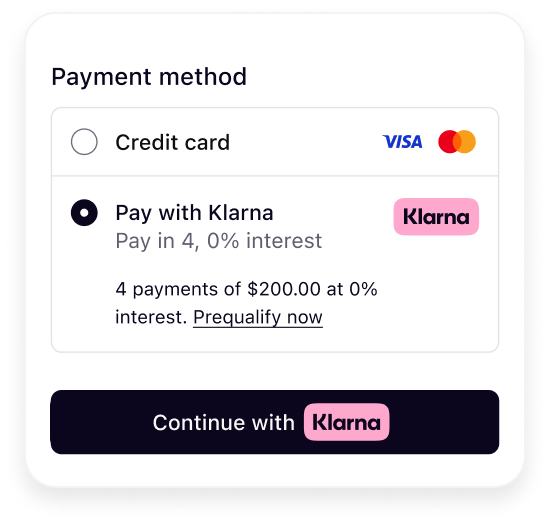 |
SHOW_ONLY_KLARNA | Show Klarna as the only payment method. This is returned when the customer has finished the first step of Klarna Express Checkout multistep. | 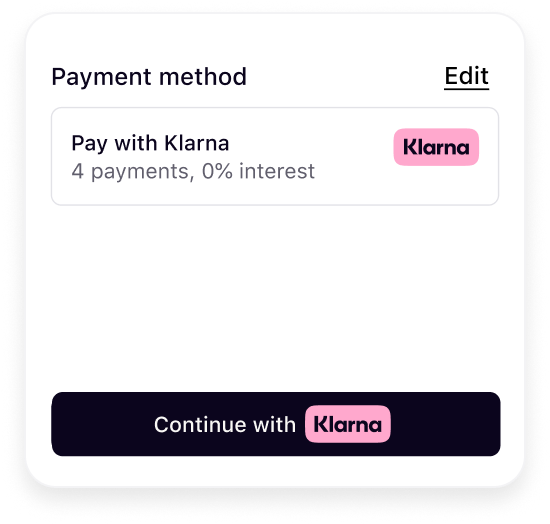 |
Skip this section if you don't use any Conversion Boost features from Klarna such as Klarna Express Checkout, Sign-in with Klarna, Klarna Messaging or Klarna Prequalification.
Render the Klarna payment option
Use the assets and localized strings from payment_option to render Klarna directly in your payment selector. The following diagram displays the visual components and how they are laid out:
- 1.Icon
- 2.Badge
- 3.Header
- 4.Subheader
- 5.Message
- 6.Terms
- 7.Button
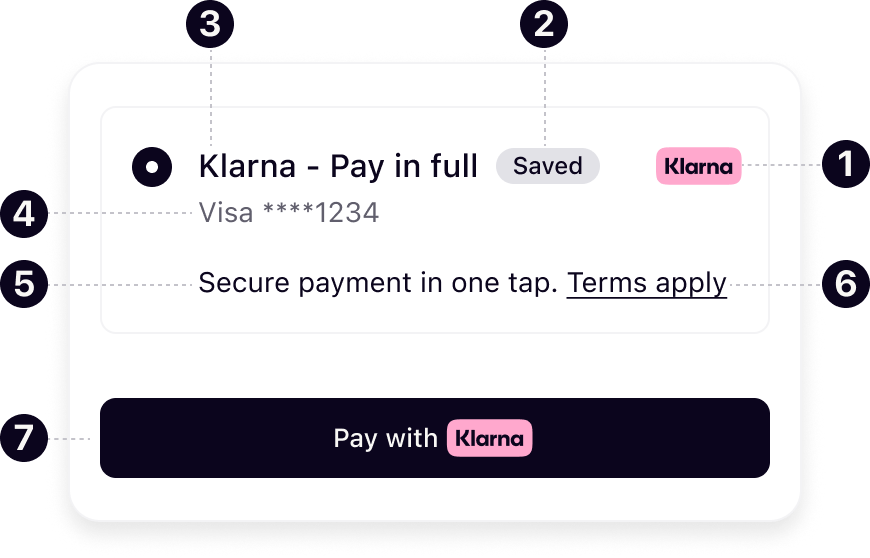
Ensure that all components — including those not immediately visible — are present in the DOM, and manage their visibility through your own logic or UI controls.
Sample HTML template
<!-- Server-rendered fragment using values from the Payment Presentation response -->
<div id="klarna-option" class="klarna-option" data-payment-option-id="{{ payment_option.payment_option_id }}">
  <img class="klarna-icon" src="{{ payment_option.icon.badge_image_url }}" alt="{{ payment_option.icon.alt }}" />

  {{#if payment_option.badge}}
    <span class="klarna-badge">{{ payment_option.badge.text }}</span>
  {{/if}}

  <div class="klarna-header">{{ payment_option.header.text }}</div>
  <div class="klarna-subheader">{{ payment_option.subheader.text }}</div>

{{#if payment_option.message}}The message and terms objects return a parts array rather than pre-rendered HTML. Render the segments in order, applying any styles flags and turning LINK parts into anchors. Use the rendering approach that fits your stack — the example below shows a minimal string-builder version:
function renderParts(parts) {
  let html = "";
  for (const part of parts) {
    if (part.type === "LINK") {
      html += `<a href="${part.url}" target="_blank" rel="noopener noreferrer">${part.text}</a>`;
    } else {
      const cls = part.styles?.includes("BOLD") ? "bold" : "";
      html += `<span class="${cls}">${part.text}</span>`;
    }
  }
  return html;
}- Use the icon URL, label, and texts returned by the Payment Presentation API verbatim.
- Render the
messageandtermsblocks when Klarna is selected. - Request a fresh presentation on every checkout load (amount/currency/locale can change between sessions).
- Don't hard-code the Klarna logo, badge, or copy — always use the returned assets.
- Don't strip or modify links from
messageorterms. - Don't cache presentation responses across purchases.
Handle Klarna payment option selection and deselection
When the Klarna payment option is selected, reveal the supporting components (message, terms, payment_button); hide them again on deselection. Use whatever UI pattern your checkout already follows for other payment methods — there's nothing Klarna-specific here.
Create the Klarna payment request
When the customer clicks the Klarna payment button, your server creates the Klarna payment request that captures the purchase details and produces the URL the customer will be redirected to for the Klarna Purchase Journey. In this flow you call the Klarna Payment Request API directly from your server — there's no Web SDK in the loop.
| Parameter | Presence | Description |
|---|---|---|
currency | required | Currency in ISO 4217 format. Supported currencies: AUD, EUR, CAD, CZK, DKK, HUF, MXN, NZD, NOK, PLN, RON, SEK, CHF, GBP, USD. |
amount | required | Total amount of a one-off purchase, including tax and any available discounts. The value should be in non-negative minor units. Eg: 25 Dollars should be 2500. This is the amount that Klarna will charge the customer for a one-off purchase. Should not include any amounts for subscriptions. |
payment_option_id | required | The payment_option_id returned by the Klarna Payment Presentation API for the option the customer selected. Forwarding it ensures the Klarna Purchase Journey matches what the customer just saw. |
customer_interaction_config.return_url | required | The URL Klarna redirects the customer to once the Klarna Purchase Journey is complete (or canceled). |
supplementary_purchase_data | optional | Additional details about the transaction can help reduce the risk of fraud and enhance transparency. Common entries include purchase_reference, customer, shipping, line_items, customer.customer_accounts / customer.customer_device, travel_reservations, lodging_reservations, insurances, vouchers, event_reservation, ondemand_service, subscription, in_store_service, and marketplace_seller_details. |
For the full request schema, consult the API reference.
Sample request
curl -X POST https://api-global.test.klarna.com/v2/payment/requests \
  -H 'Authorization: Basic <API key>' \
  -H 'Content-Type: application/json' \
  -d '{
    "currency": "USD",
    "amount": 11800,
    "payment_option_id": "S0xBUk5BXzE3NzI3MDY2MTI2ODg=",
    "payment_request_reference": "pay-ref-123",
    "customer_interaction_config": {
      "method": "HANDOVER",
      "return_url": "https://your-checkout.example/klarna-return"
},Sample response
{
  "payment_request_id": "krn:payment:eu1:request:552603c0-fe8b-4ab1-aacb[...]",
  "payment_request_url": "https://payments.klarna.com/.../552603c0-fe8b-4ab1-aacb[...]",
  "state": "SUBMITTED",
  "payment_request_reference": "pay-ref-123",
  "amount": 11800,
  "currency": "USD"
}
When the response includes a payment_request_url, perform a full-page HTTP 302 redirect to that URL. The customer completes the Klarna Purchase Journey on Klarna's hosted page, and once finished, Klarna both redirects them back to your return_url and fires the payment.request.state-change.completed webhook to your server.
Create a new payment request on every Klarna button click — do not reuse a previous payment_request_url.
Monitor payment status
This section outlines how to monitor the Klarna Payment Request as part of the step-up scenario. On a high level:
- Understand the payment request lifecycle in order to handle
COMPLETED,CANCELED,DECLINED, andEXPIREDstates properly. - Monitor and retrieve the
klarna_network_session_tokenby using one or a combination of the following methods:- Subscribing to
payment.request.state-change.*webhook events (required) - Reading the payment request
Payment request lifecycle
During the checkout process, the Payment Request will transition to various states. Find below an overview of the possible payment request states together with a transition diagram:
| State | Description | Next action |
|---|---|---|
SUBMITTED | Initial state. Payment requests can be updated until the customer enters Klarna Journey. | Handle step-up scenario. |
IN_PROGRESS | The customer is actively in Klarna Purchase Journey. | Listen for state changes via webhook. |
COMPLETED | Customer completed the flow, pending final authorization. | Retrieve klarna_network_session_token and create a payment transaction. |
EXPIRED | Payment request expired (t≥3h). | Final state. No action. |
CANCELED | Payment request canceled by the integrator before authorization. | Final state. No action. |
DECLINED | Payment request has been declined during authorization. | Final state. No action. |
[ State transition diagram]
A Payment Request remains open for 3 hours. Klarna recommends Partners proactively cancel Payment Requests which have not resulted in successful transactions, especially if your Payment Request timeout is less than 3 hours.
Monitor and retrieve klarna_network_session_token
To retrieve the required token(s), Klarna provides multiple integration methods. Subscribing to Klarna webhook events is required and may be combined with additional methods to improve resilience.
Using webhooks ensures reliable completion handling, particularly when the customer closes the browser before returning, network interruptions occur during redirects, or post-processing is required before notifying the customer.
The klarna_network_session_token is issued by Klarna after the customer approves the purchase. Use this token to finalize the authorization and create the corresponding Klarna payment transaction.
The klarna_network_session_token is valid for only 1 hour and must be used within this time frame to finalize the authorization.
Method: Subscribe to webhook events (required)
Subscribe to the payment.request.state-change.completed webhook event using the guidelines provided here. Klarna sends this event when the Payment Request reaches the COMPLETED state.
This event indicates that the customer has finished the step-up interaction and that the Acquiring Partner can proceed with finalizing the authorization.
Sample payload
{
  "metadata": {
    "event_type": "payment.request.state-change.completed",
    "event_id": "d9f9b1a0-5b1a-4b0e-9b0a-9e9b1a0d5b1a",
    "event_version": "v2",
    "occurred_at": "2024-01-01T12:00:00Z",
    "correlation_id": "2d1557e8-17c3-466c-924a-bbc3e91c2a02",
    "subject_account_id": "krn:partner:global:account:live:HGBY07TR",
    "recipient_account_id": "krn:partner:global:account:live:LWT2XJSE",
    "product_instance_id": "krn:partner:product:payment:ad71bc48-8a07-4919-[...]",
    "webhook_id": "krn:partner:global:notification:webhook:120e5b7e-abcd-4def-[...]",
"live": falseConsult the API reference for a complete description of the webhook payload.
Method: Read the payment request
As an alternative method, retrieve the Klarna token(s) by calling the Read Payment Request API.
Once the Payment Request reaches the COMPLETED state, the token(s) are available in the state_context object of the Payment Request.
Sample payload
{
  "payment_request_id": "krn:payment:eu1:request:10be1d49-7beb-6b24-b9dd-8c14d0528503",
  "state": "COMPLETED",
  "previous_state": "IN_PROGRESS",
  "state_context": {
    "klarna_network_session_token":"krn:network:eu1:live:session-token:[...]"
  },
  "expires_at": "2025-02-26T17:25:34.534721775Z",
  "created_at": "2025-02-24T17:25:34.534721775Z",
  "updated_at": "2025-02-24T17:25:34.534721775Z",
  "payment_request_reference": "request-reference-1234",
"amount": 11836,Authorize the payment
Make sure to add the klarna_network_session_token received via the webhook and the purchase details within the call to Worldpay. If everything is implemented correctly, Klarna will approve the payment transaction.
curl -X POST https://api.acquiring-partner.com/payment \
  -H "Content-Type: application/json" \
  -d '{
    "amount": 11800,
    "currency": "USD",
    "payment_methods": {
      "klarna": {
        "klarna_network_session_token": ""
      }
    }
  }'
In rare cases where there's discrepancy between the amount and purchase details submitted in the original payment request and the information submitted to Worldpay, Klarna may reject and ask the customer to approve the purchase again.