

Module configuration
This section guides you through connecting your Klarna Merchant account and configuring how orders, captures, and translations behave in your store.
Environment selection
The Klarna module allows you to choose whether your store runs Klarna in Playground or Production. This setting controls how Klarna behaves and which credentials the module uses when communicating with Klarna.
- Playground (Test mode): Klarna runs in test mode and uses your Playground credentials.
- Production (Live mode): Klarna runs live and uses your Production credentials.
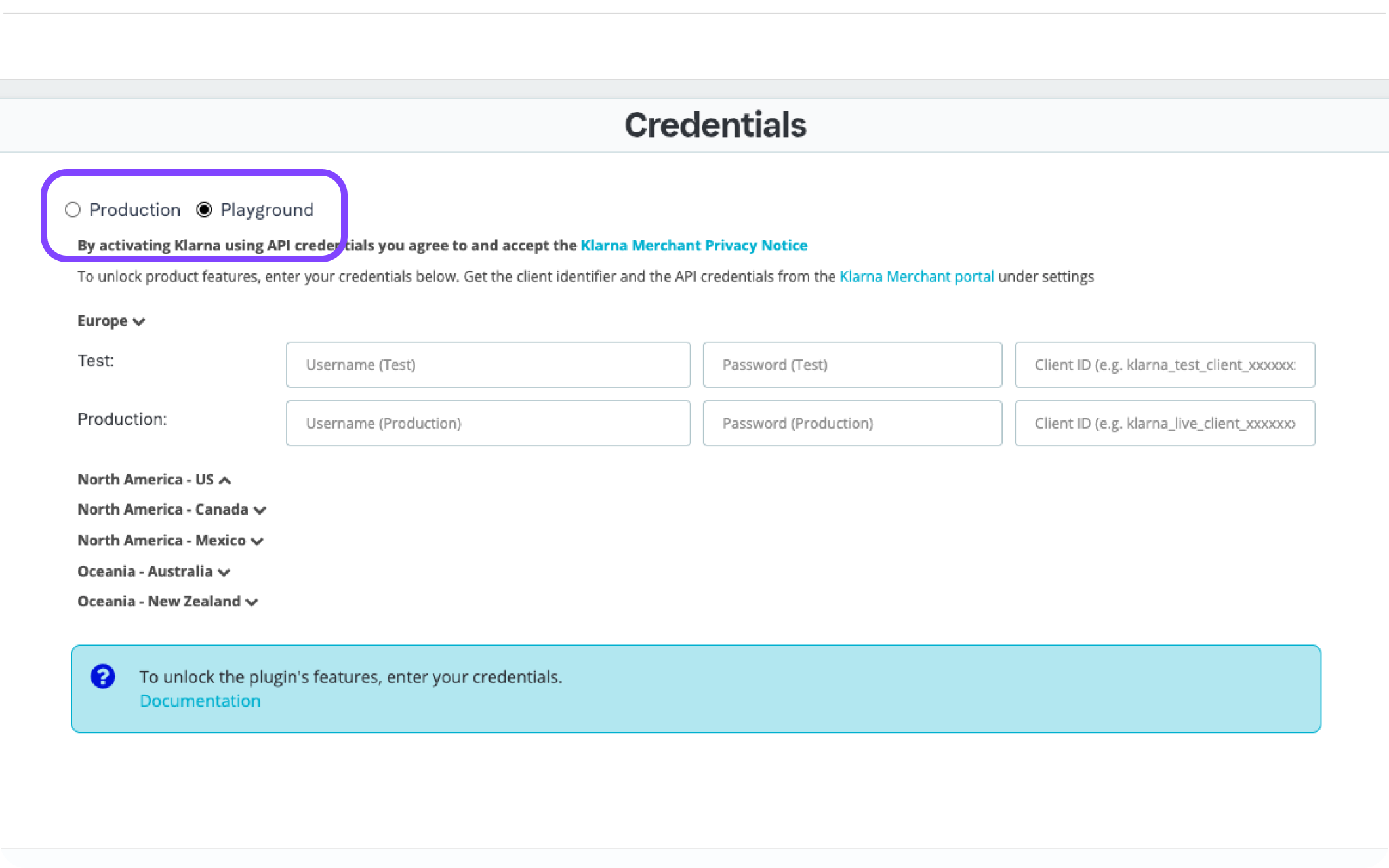
Select the Klarna environment you want to use
This selection determines how Klarna operates in your store and is independent of your PrestaShop mode.
Important
Test credentials will not work in Production mode, and Production credentials will not work in Playground mode.
When you select an environment in the module settings, all Klarna requests will use that environment and its matching credentials.
You can switch environments at any time. Just make sure that the matching credentials exist for all regions you support.
Credential fields in the module
The module displays two sets of fields for each region where Klarna operates:
- API credentials (only for merchants using Klarna Payments directly with Klarna)
- Client ID (required for all merchants who want on-site messaging, Klarna express checkout, sign in with Klarna)

Entering API keys on Klarna module configuration
Below is the correct credential logic depending on your type of integration.
If you use Klarna Payments directly with Klarna
You must enter the following credentials in the module:
| Credential | Purpose |
|---|---|
| API username | Required to enable Klarna Payments |
| API password | Required to enable Klarna Payments |
| Client ID | Required for booster features such as on site messaging, Express Checkout, and Sign in with Klarna |
The module provides separate fields for each region. Enter your API username and password for the region where you offer Klarna Payments, then enter your client ID.
Important
- If credentials are missing or incomplete for the selected environment, Klarna cannot load during checkout for that region.
- If you serve multiple regions, enter the correct credentials for each one.
Succes
Once credentials are entered correctly and saved, Klarna will be ready to activate for the supported regions.
If your Klarna Payments are handled by an acquiring partner
You do not enter API username or API password in the module. These fields should remain empty.
You only need to enter your client ID for the regions where you want booster features.
Save your settings
After entering all required credentials, select Save. Klarna will now authenticate with your merchant account and prepare to display payment options to customers.
Klarna Payments activation
Once your API credentials are entered and saved (for direct merchants), you can enable the Klarna Payments option within the module. This allows Klarna to appear as a payment method during checkout.
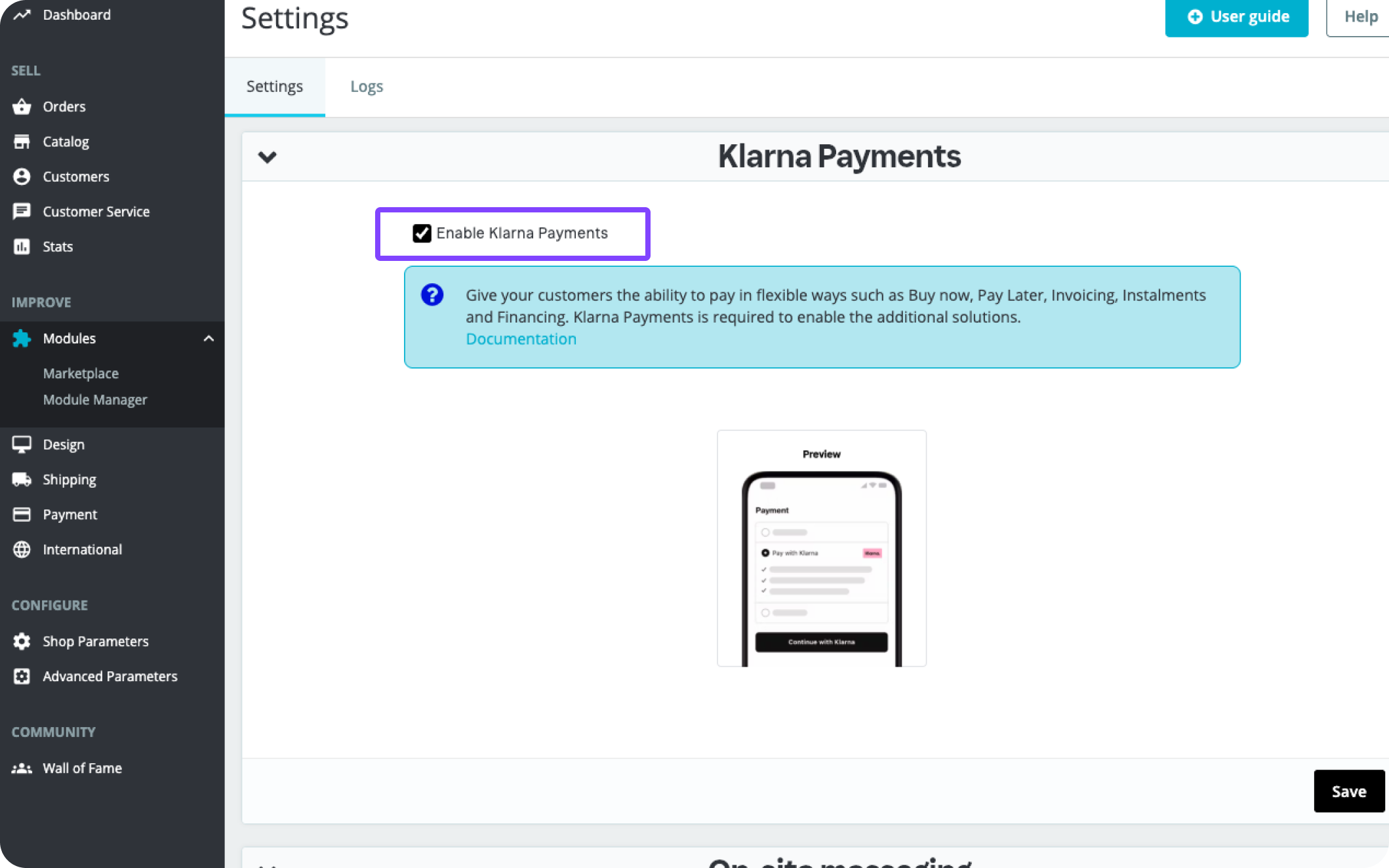
Enable Klarna Payments toggle on PrestaShop back office
Important
For acquiring partner merchants, this toggle does not enable payments because payments are already handled by the partner.
Order status mapping
PrestaShop uses order statuses to track the state of each purchase. The Klarna module maps Klarna’s states to your local statuses.
Default mapping
| Klarna state | Default PrestaShop status |
|---|---|
| Authorized | Payment accepted |
| Captured | Shipped |
| Canceled | Canceled |
| Refunded | Refunded |
| Partially captured | Partially captured |
You can change any of these mappings to match your store workflow.

Order status configuration
Choose statuses that match your existing order management workflow.
Capture upon fulfillment
You can configure Klarna to automatically capture a payment when an order reaches a specific PrestaShop status (for example, “Shipped”).
How to configure:
- 1.Enable Capture upon fulfillment.
- 2.Select the PrestaShop order statuses that should trigger the capture.
- 3.Select Save.
SuccessWhen an order moves to one of the selected statuses, the module automatically sends a capture request to Klarna.
Important
Only enable automatic capture if your fulfillment workflow is consistent. Capturing too early can complicate returns or partial shipments.
Additional settings
These options allow you to customize how Klarna behaves in special checkout scenarios or during troubleshooting.
| Setting | Description |
|---|---|
| Enable debug mode | Shows detailed logs for issue investigation. Recommended only during troubleshooting. |
| Enable automatic order status change | This setting controls whether Klarna can update the order status in your PrestaShop store. When enabled (default):
|
| Enable hosted payment page (HPP) | Uses Klarna’s Hosted Payment Page instead of inline mode. Automatically enabled for one-page checkout compatibility. |
| Enable B2B mode | Activates Klarna B2B features. Requires enabling B2B mode in PrestaShop (Shop Parameters > Customer Settings). |
| Default country | Sets a fallback country used for locale resolution when customer address is incomplete. |
Translation behavior
Klarna payment method names and labels are shown in the customer’s selected language, if supported. If your store uses multiple languages, the Klarna module adapts automatically.
To add new languages in PrestaShop:
- 1.Go to Improve > International > Localization.
- 2.Select the language you want to add.
- 3.Import the localization pack.
= Next steps =
Once you finish the configuration:
- Klarna Payments can appear in checkout (if enabled and supported).
- Your orders are ready to move into the next stage of the Klarna flow.
Continue with Post purchase management to learn how to capture Klarna payments, process refunds, and work with Klarna after orders are placed.