

Configure On-site messaging
This page explains how to configure and style Klarna on site messaging in your PrestaShop store. It shows how to enable the feature, enter your client ID, and choose the visual theme used for Klarna messaging placements.
Overview
On site messaging displays Klarna payment promotions in your online store. These messages help customers understand their payment options early in the shopping journey, which can improve conversion and customer confidence.
On site messaging is supported for standard PrestaShop themes such as Classic.
Enabling on site messaging
Important
On site messaging requires a valid client ID. If you already generated your client ID in the Klarna Merchant Portal, you only need to enter it in the Klarna module settings.
To activate on site messaging in your store:
- Go to Modules > Module Manager in your PrestaShop back office.
- Find Klarna Official and select Configure.
- Open the On site messaging section.
- Mark the checkbox Enable on site messaging.
- Select your placements and preferred theme.
- Select Save.
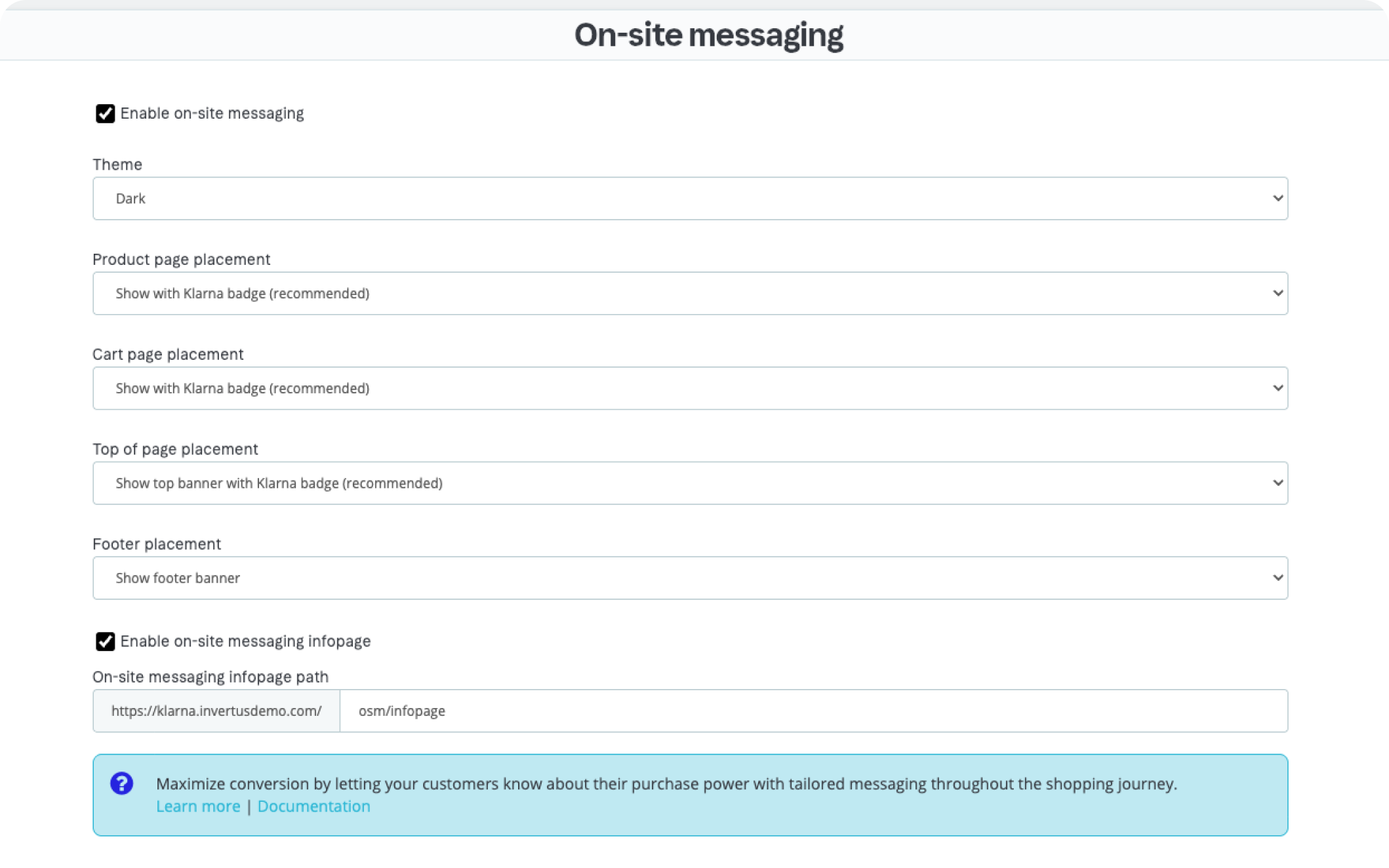
On-site messaging configuration on PrestaShop
Selecting the messaging theme
The Klarna module allows you to choose how Klarna messaging is styled in your store.
The available themes are:
- Light theme
- Dark theme
- Custom theme
Light and dark themes
Light and dark themes apply Klarna’s predefined styles. These themes adapt well to most modern store designs.
Custom theme
If you select Custom theme, the module automatically uses the styling you have configured in the on site messaging section of the Klarna Merchant Portal.
Custom styling must be configured through Merchant portal before it can be applied in PrestaShop.
Selecting placements
Choose where Klarna messaging should appear in your store. Common placements include:
- Product pages
- Cart pages
- Category pages
- Homepage promotional areas
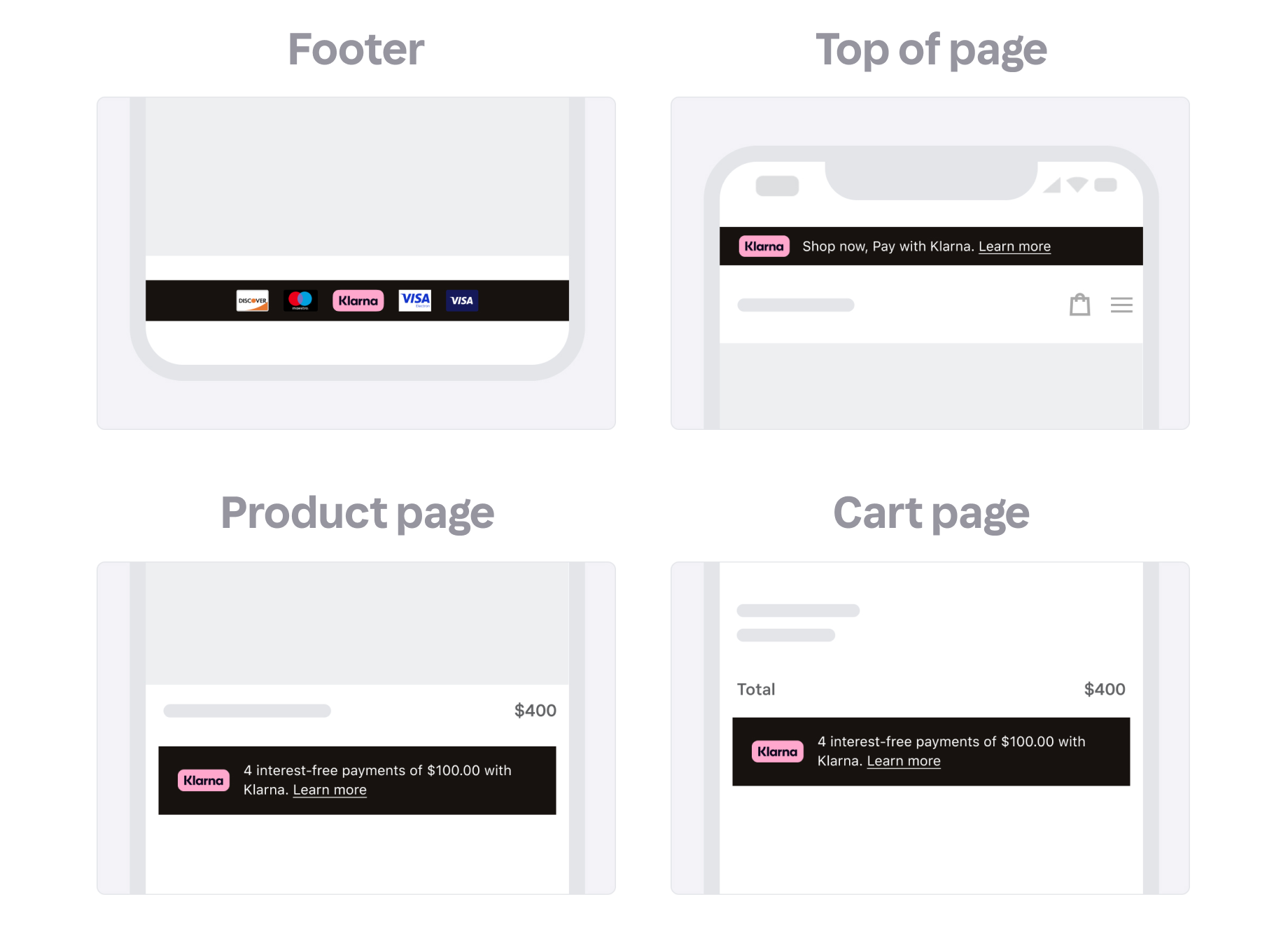
On-site messaging placements in prestashop
After choosing your placements, save your settings so the Klarna assets load correctly.
Product and cart pages are recommended because they provide Klarna information at key decision points.
Locale behavior
The module automatically determines the correct locale for your on site messaging placements.
Non EUR currencies
- The module checks the selected store currency.
- If the customer’s selected language is supported, the matching locale is used.
- If not, the module applies an English fallback locale.
EUR currencies
- The module first checks the billing country provided in checkout.
- If no billing data is available, the store’s default country is used.
- A supported locale is selected based on region and available languages.
This logic ensures that on site messaging always displays a supported Klarna locale.
Styling considerations
On site messaging uses Klarna's standard design unless a custom theme is selected. To ensure proper styling:
- Allow enough spacing around the messaging component.
- Place the message in a stable area of your theme layout.
- Ensure CSS rules do not hide or overlap the Klarna component.
- Check mobile and desktop layouts for consistency.
Theme compatibility
On site messaging works best with standard PrestaShop themes.
Important
Some custom or heavily modified themes may not expose the hooks required for on site messaging. Contact your theme developer if placements do not appear.