

Activating On-site messaging in Klarna merchant portal
Klarna’s '''On-site messaging''' enhances customer engagement and boosts conversions by displaying Klarna’s flexible payment options throughout the shopping experience. This section provides step-by-step guidance on installing, configuring, and optimizing Klarna On-site messaging in VTEX.
4 min read
Before setting up On-Site Messaging in VTEX, you need to activate it in the Klarna Merchant Portal and retrieve your Client Identifier.
Steps to activate On-site messaging in Klarna merchant portal
Log in to the Klarna Merchant Portal using your merchant credentials and navigate to Conversion boosters > On-site messaging, select the appropriate store from the dropdown menu, and click Get started.
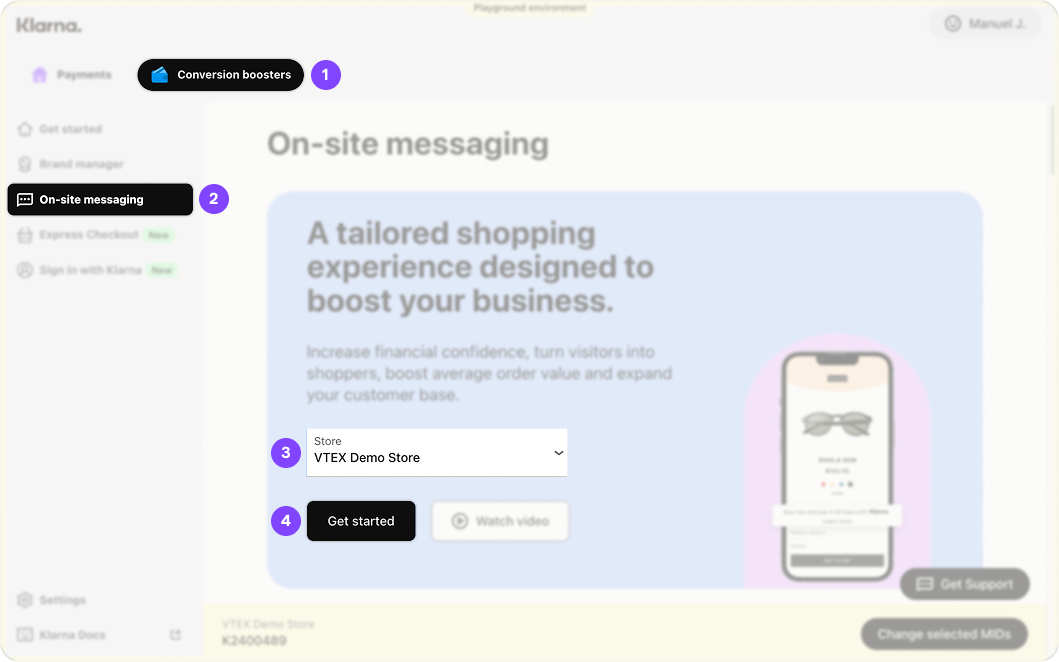
OSM merchant portal
A pop up will appear asking you to register the origin domain of the store where you will be using On-site Messaging, enter the origin and click Register.
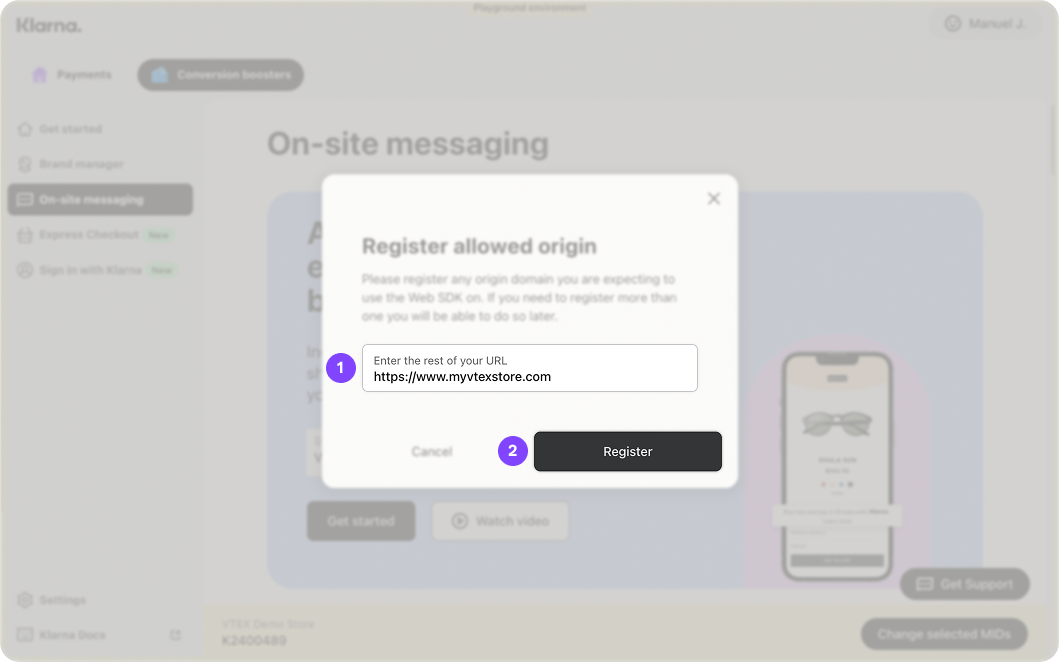
Register origin
Your Client Identifier will be generated. Copy it as you will need it to configure OSM in VTEX.
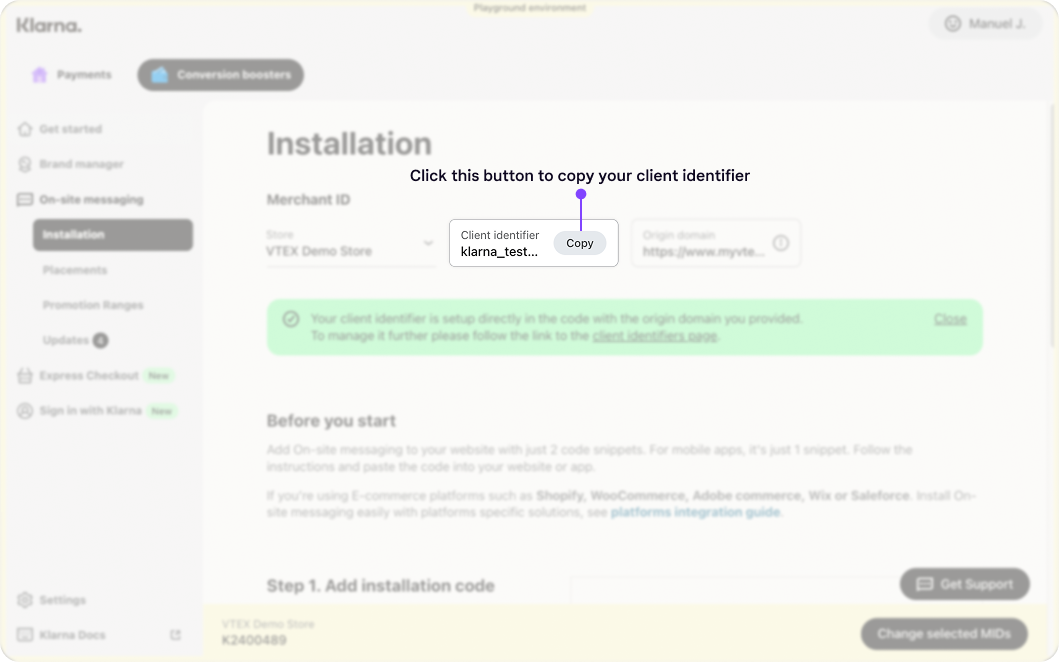
Client ID for OSM in merchant portal
Installing Klarna On-site messaging app in VTEX
To enable Klarna’s On-site Messaging in VTEX, you need to install the app.
- 1.Open a terminal and log in to your VTEX account using the VTEX IO CLI.
- 2.Run the following command to install the Klarna OSM App:
vtex install klarnapartnerglobal.klarna-osm@2. 0. 0 - 3.Once installed, go to VTEX Admin > Apps and verify that Klarna OSM appears under Installed Apps.
Configuring Klarna On-site messaging
Once the Klarna OSM app is installed, you need to configure it in VTEX.
Steps to configure Klarna On-site messaging
In VTEX Admin, navigate to Apps > Installed Apps > Klarna On-Site Messaging, then click Edit to unlock the configuration fields.
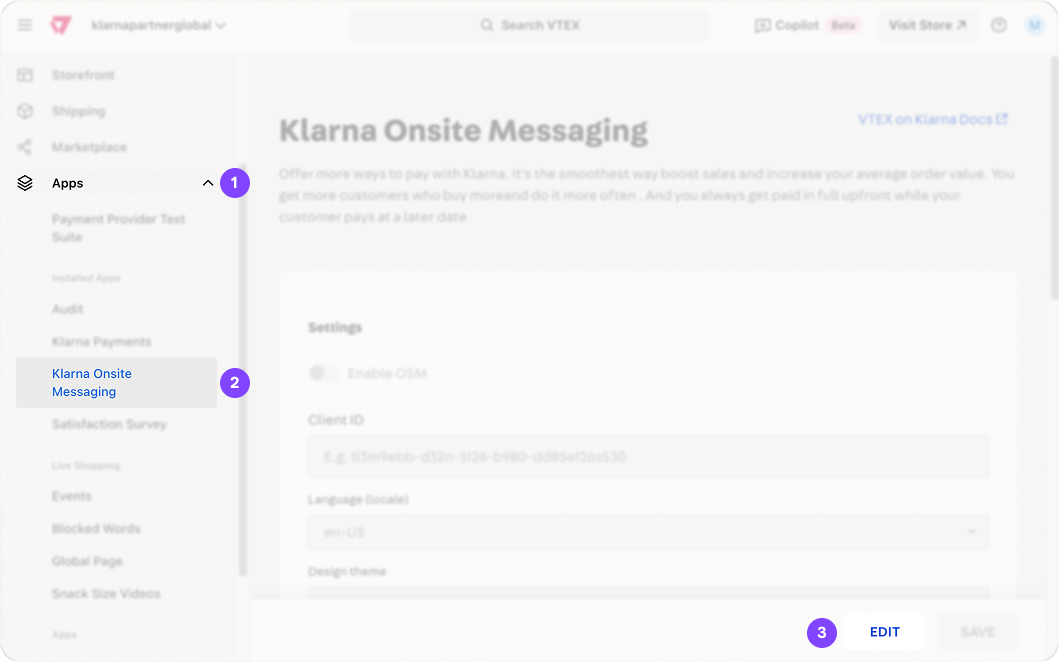
Navigate to OSM app
Enable On-Site messaging by toggling Enable OSM on.
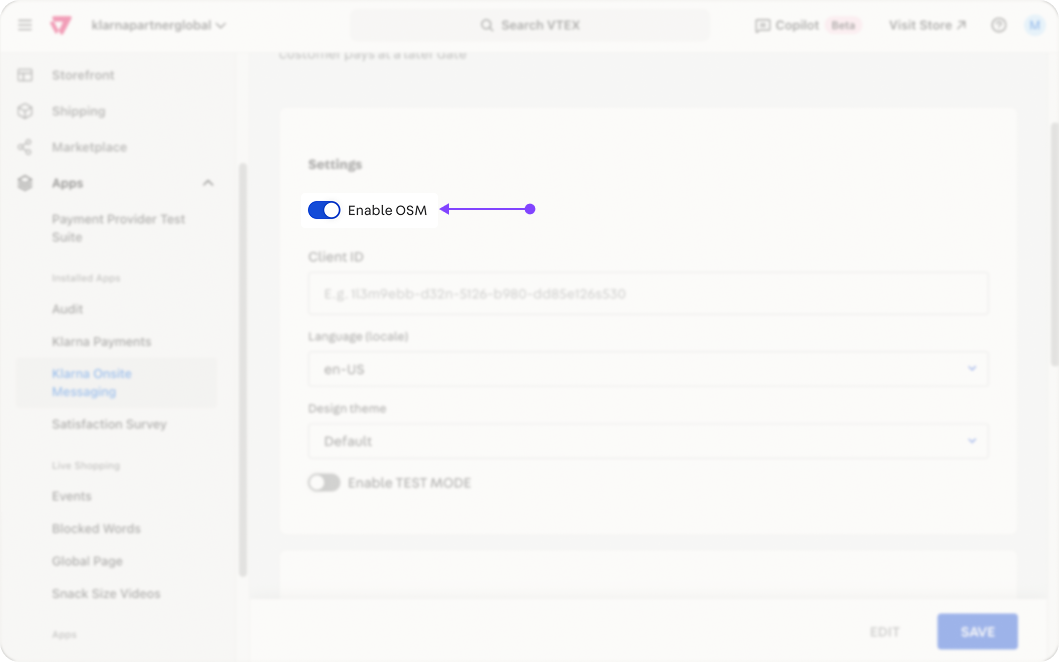
Enable OSM
Enter your Client ID retrieved from the Klarna Merchant Portal.
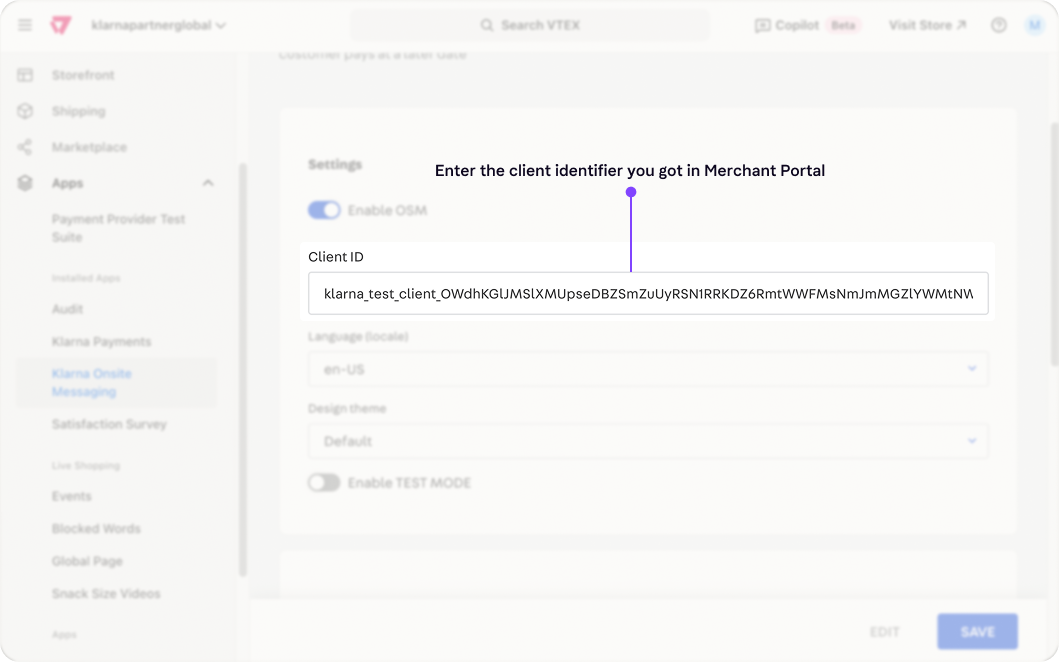
Choose a language (locale) for the messaging, and select a design theme:
- Default → Light background.

default theme OSM
- Dark → Dark background.

Dark theme OSM
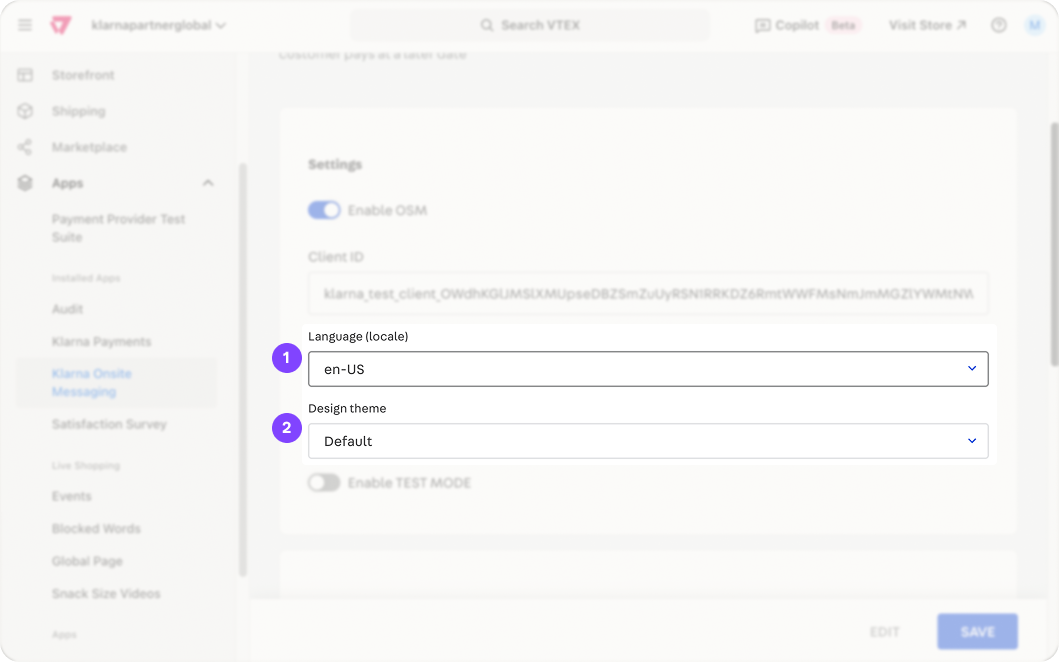
language and theme
Test Mode: Set depending on the Klarna environment you want to use:
- On – Uses Klarna’s Playground (test) environment.
- Off – Uses Klarna’s Production environment.
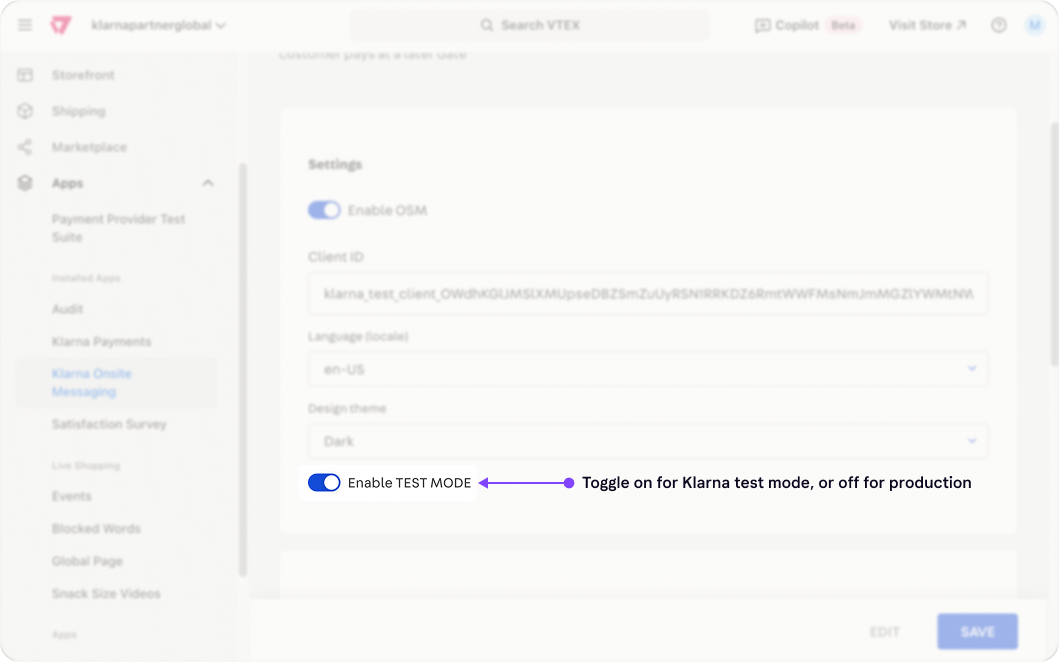
Test mode toggle
Toggle on or off the placements you want to use in your store.
Integration requirement
Important
Enabling the toggle in the Klarna OSM app only activates the placement settings. You must still manually insert the placement blocks into your store’s theme for the messaging to appear.
For detailed instructions, refer to the next section of this guide.
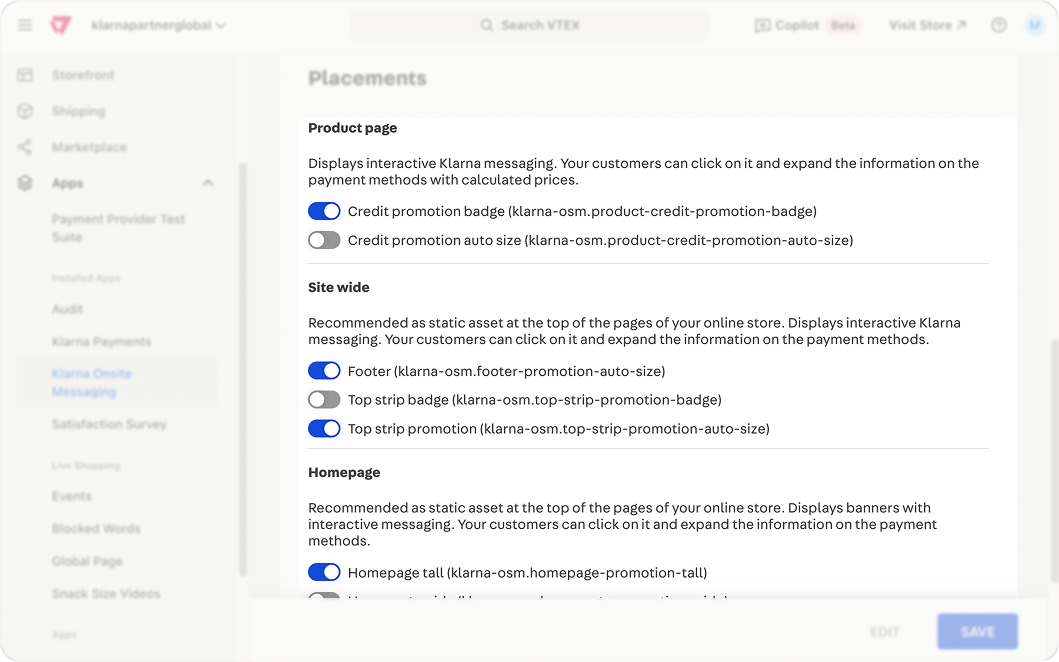
Placements OSM
Click Save to apply the changes.
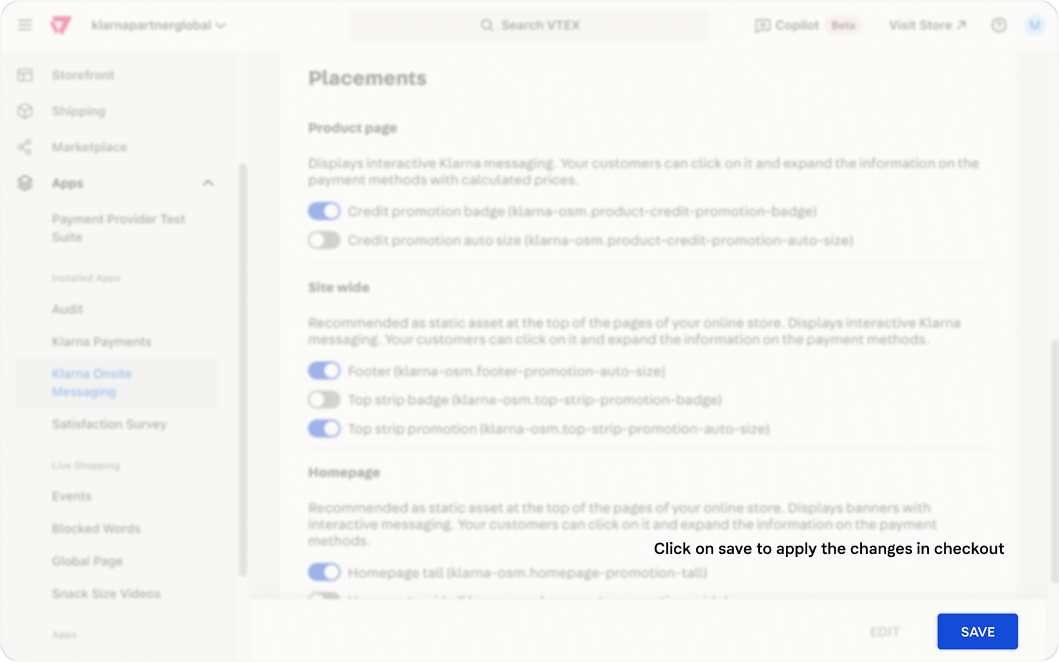
Save OSM config
Placements
To display Klarna’s On-site Messaging in your store, you need to enable placements in the Klarna OSM app and insert placement blocks into your store’s theme.
Insert placement blocks in your store theme
Identify the placement theme block name, which appears in parentheses next to each placement in the Klarna OSM configuration.
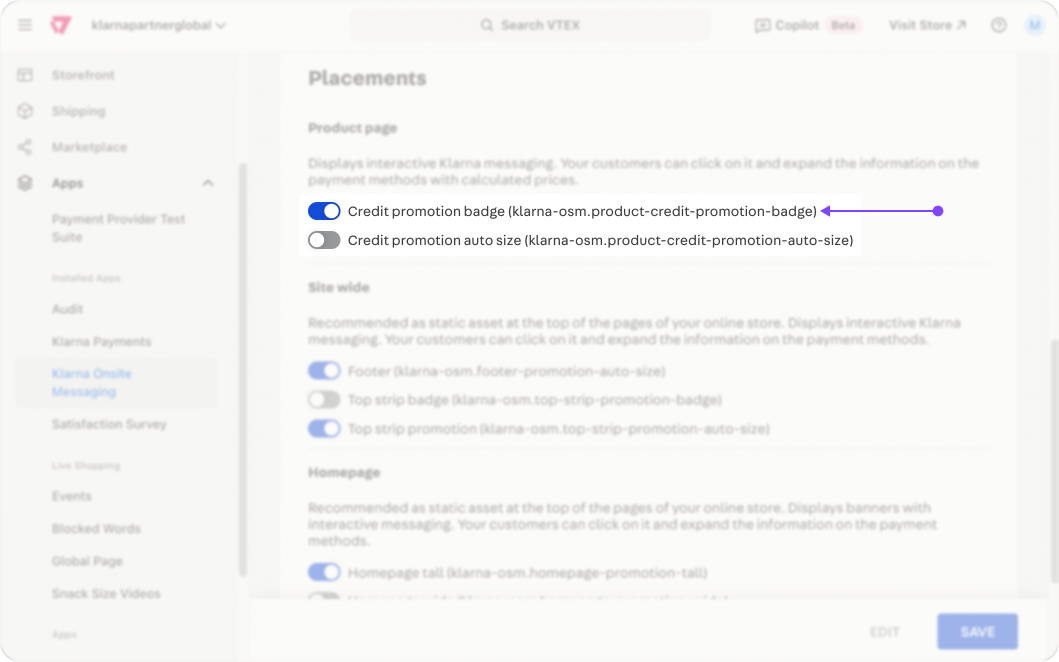
Placement blocks
Open your VTEX Store Theme configuration.
JSON
1
2
3
4
5
6
7
8
9
10
{
"flex-layout.col#right-col": {
"children": [
"product-name",
"Klarna-osm.product-credit-promotion-badge",
"Klarna-osm.product-credit-promotion-auto-size",
"buy-button"
]
}
}Add the placement block to the appropriate store sections as specified in the VTEX documentation.
Once the placement blocks are added, Klarna’s On-Site Messaging should be visible in your store.
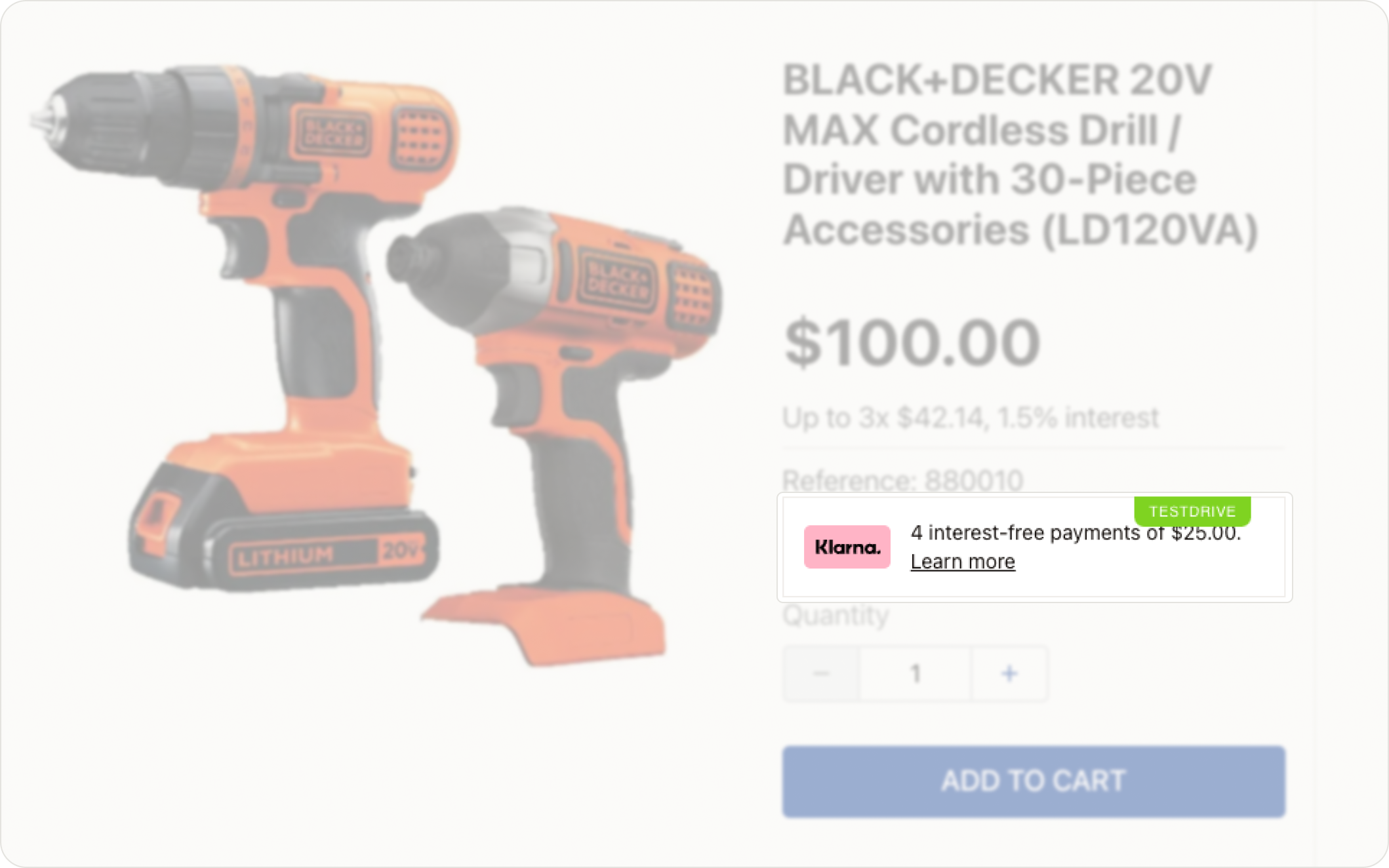
OSM Placement on VTEX PDP
Placement troubleshooting checklist
ImportantIf the placements do not appear:
- Ensure Klarna OSM is enabled in the app configuration.
- Verify that the correct placement blocks are added to your store theme.
- Double-check the Client ID entered in the Klarna OSM settings.
By completing these steps, Klarna’s messaging will be successfully integrated into your VTEX store.
Jump to section...