

Express Checkout integration prerequisites
Offer a checkout process that is 6x faster, significantly lowering the threshold for customers to complete a purchase.
Overview
Express Checkout is a streamlined, fast-checkout solution designed to optimize the online shopping experience by minimizing friction during the purchase process. It enables customers to complete purchases with fewer steps and significantly less time, especially for returning Klarna customers who have previously shopped with Klarna or are logged in.
With Express Checkout, customers can easily select their shipping address and preferred shipping method directly within the Klarna review page, enabling customers to checkout with one click. Returning Klarna customers can shop confidently on the Partner's store thanks to the familiar Klarna payment button and a brand they know and trust.
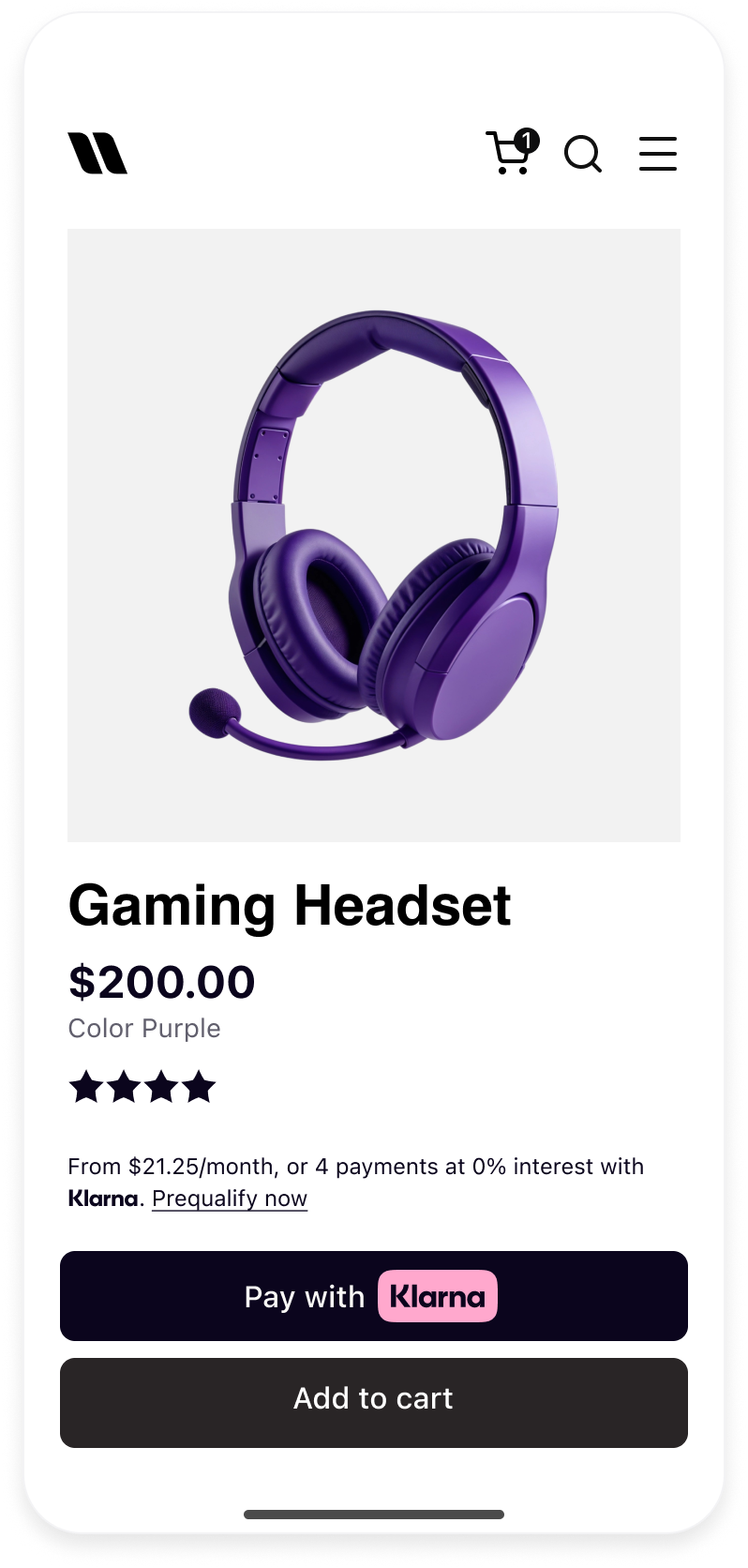 | 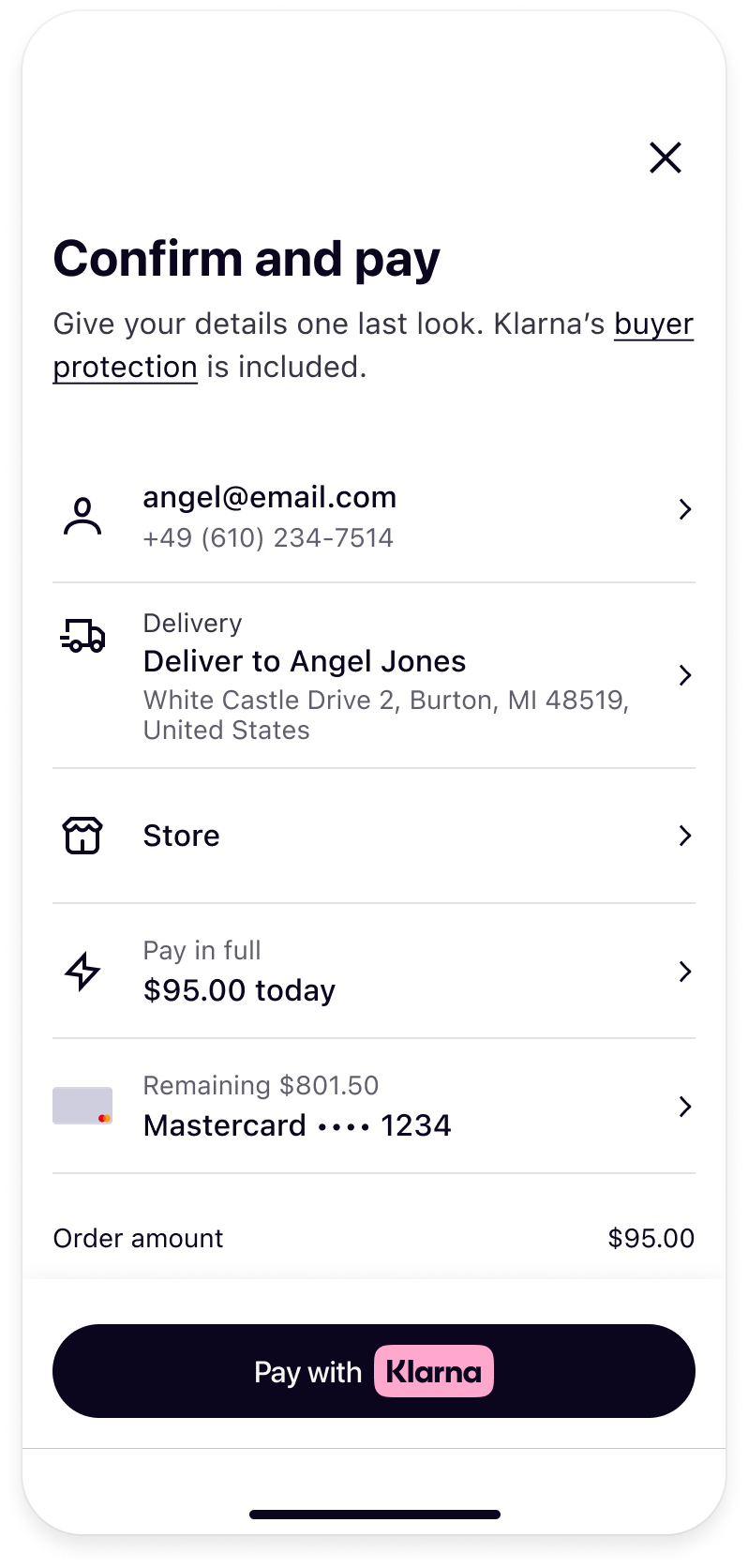 | 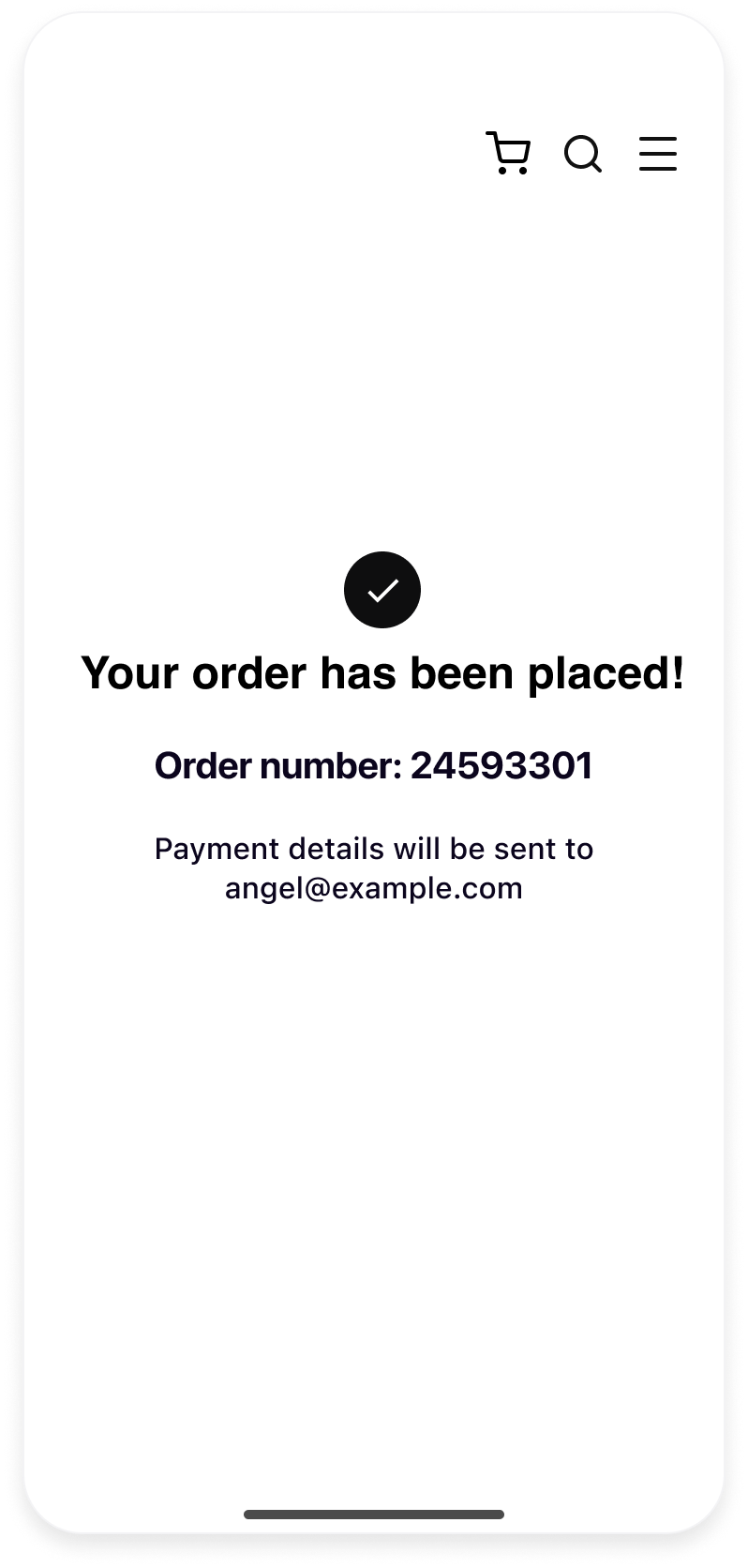 |
| The customer clicks the Klarna payment button on the product detail page | The customer confirms the payment and shipping details in one step | The customer lands on the Partner's confirmation page |
Before starting the integration
Express Checkout is added on top of an existing Klarna payment integration, so set that up first. See Authorize customer-initiated transactions with the Web SDK.
Test and production are separate
The test environment and the production environment each have their own Klarna Partner Portal. A client identifier, its allowed origins and an API key only work in the environment they were created in, so create all three in the same environment as the one being integrated against. A test client identifier starts with
klarna_ and a production one with klarna_; the Web SDK uses this prefix to decide which environment to load.1. Access the Klarna Partner Portal
Verify that access to the Klarna Partner Portal is available.
2. Create the client identifier
The Web SDK needs a
client identifier to start. To generate one:- 1.Go to Settings → Client Identifiers.
- 2.When the same user manages multiple Stores, select the correct Store in the account selector ("Select Account").
- 3.Click Generate. A new screen appears displaying the client identifier; copy it now.
- 4.(To retrieve this identifier again later, return to Settings → Client Identifiers, select the correct Store in the account selector, and click the "copy" icon in the identifiers table.)
3. Allowlist the domain
Each origin domain where the Web SDK is deployed must be registered before using the client identifier:
- 1.Go to Settings → Client Identifiers.
- 2.When the same user manages multiple Stores, select the correct Store in the account selector ("Select Account").
- 3.Click the Allowed origins tab.
- 4.Add the URL of every origin where the Web SDK runs. Once origins are registered, Klarna only accepts Web SDK requests from those origins.
Alternatively, allowed origins can also be added in each feature's own section of the Klarna Partner Portal.
4. Generate API key
Ensure the API keys are available for the integration:
- 1.Go to Settings → Klarna API keys.
- 2.When the same user manages multiple Stores, select the correct Store in the account selector ("Select Account").
- 3.Click + Generate new Klarna API key. A new screen appears displaying the API keys; copy them now. They can only be accessed once, so downloading them is essential.
Keep the API key on the server
The API key is a secret. Use it only for server-to-server calls from the Partner's backend, and never put it in frontend code or pass it to the Web SDK, which only takes the client identifier. If an API key is passed to the Web SDK as the client identifier, the Web SDK refuses to start and reports that the key has been exposed. The key must then be revoked in the Klarna Partner Portal.
5. Disclose Web SDK storage to customers
When integrating the Klarna Web SDK on a website, for example to enable Klarna's conversion features or other similar features, the Partner is responsible for informing customers about the tracking technologies employed. This information must be provided prior to any tracking taking place, for instance via a cookie banner or similar mechanism.
The Partner must disclose both strictly necessary tracking technologies and any specific technologies used by the Klarna Web SDK, including details such as name, purpose, provider, use of local storage, and retention period.
The wording below can be used as is, or adapted to align with the Partner's existing cookie banner or privacy policy, provided the information remains complete, accurate, and compliant with applicable laws:
Strictly necessary cookies are necessary for the website to function and cannot be switched off in our systems. They are usually only set in response to actions made by the customer which amount to a request for services, such as setting privacy preferences, logging in, or filling in forms. For the purpose of ensuring service security and prevention of fraud, device fingerprints are also collected, including, but not limited to, browser name, IP address, time zone, and language preference and service availability.
| Name | Purpose | Supplier (First/Third) | Session/Persistent/Local | Expiry |
|---|---|---|---|---|
__ (in a Klarna frame served from js.klarna.com, or js.playground.klarna.com when testing) | Used to ensure service security, service availability, and to prevent fraud. Holds the Klarna shopping session identifier. | Third party | Local storage | Persistent |
__ (on the Partner's site) | Records whether a Klarna shopping session exists, so the Web SDK only opens its secure frame when it is needed. | First party | Local storage | Persistent |
__ | Used to:
| First party | Session storage | Until the browser tab is closed |
__ | Keeps the Web SDK version assigned to this browser, so the same version loads on every page and new versions can be rolled out gradually. | First party | Local storage | 24h |
__ | Stores the identifier of the customer's current payment request. | First party | Session storage | Until the browser tab is closed |
Related articles
Jump to section...